AI in Your Documents
Most of DocGraph’s AI lives in the chat panel. But a second set of features works directly on the page you’re looking at: one ✦ AI menu in the document toolbar, an AI group in the / menu, an AI action on any text you select, and — if you turn it on — a greyed suggestion that appears as you type.
All of it runs on the model you chose in setup — by default one on your own computer — and all of it is invisible until you turn AI on. When AI is off, these controls aren’t disabled — they simply aren’t there.
Getting there
Section titled “Getting there”Open any note. The ✦ AI button sits in the document toolbar at the top right (its tooltip reads AI — summarize, check spelling, beautify). Click it for a menu:
| Menu row | What it does |
|---|---|
| Summarize this file | A summary in a popover — never written to the file |
| Check spelling | Misspellings, with a one-click Fix each |
| Beautify | Restyles or rebuilds the page, with Keep / Revert. HTML pages only, and hidden in <>Source |
On a .md note the menu has Summarize and Check spelling only. If the window is narrow, the AI button collapses into the ⋯ overflow menu.
Everything on this page needs AI enabled. Summarize and Proofread additionally need a model configured — they’ll appear without one and then tell you “No model is configured. Pick one in Settings → AI.”
Core tasks
Section titled “Core tasks”Summarize the open file
Section titled “Summarize the open file”Open the ✦ AI menu → Summarize this file. The summary appears in a popover with a Regenerate button:
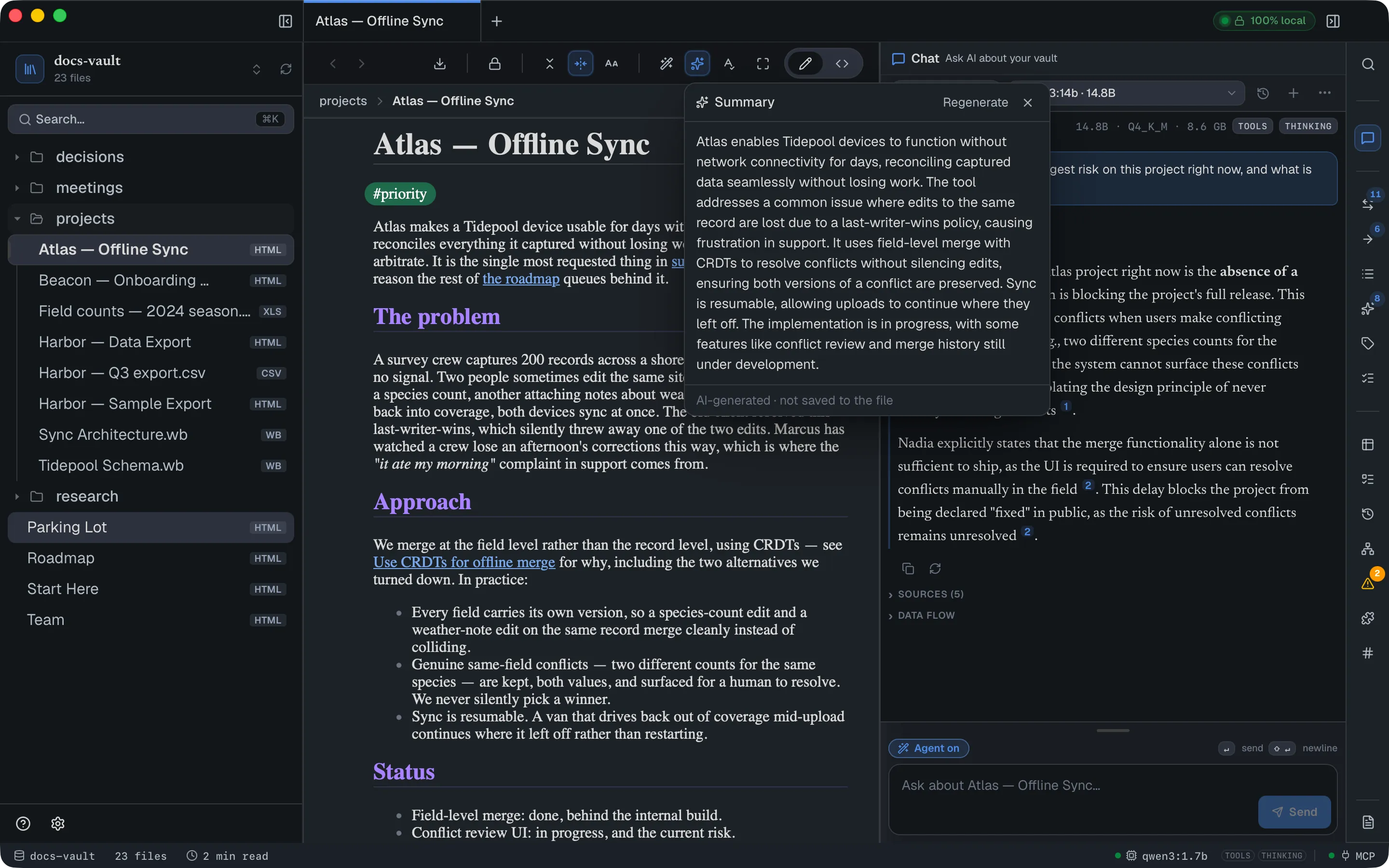
The footer is the important part: “AI-generated · not saved to the file”. Summarize never edits your document. The result is cached against the file’s content, so reopening it is instant — and that cache is what feeds the TL;DR bar shown above a page in reading view.
This one works on every format the app can read, including PDFs, spreadsheets and Word documents.
Check spelling
Section titled “Check spelling”Open the ✦ AI menu → Check spelling. Misspelled words get a red wavy underline in the page, and the popover lists each one as wrong → suggestion:
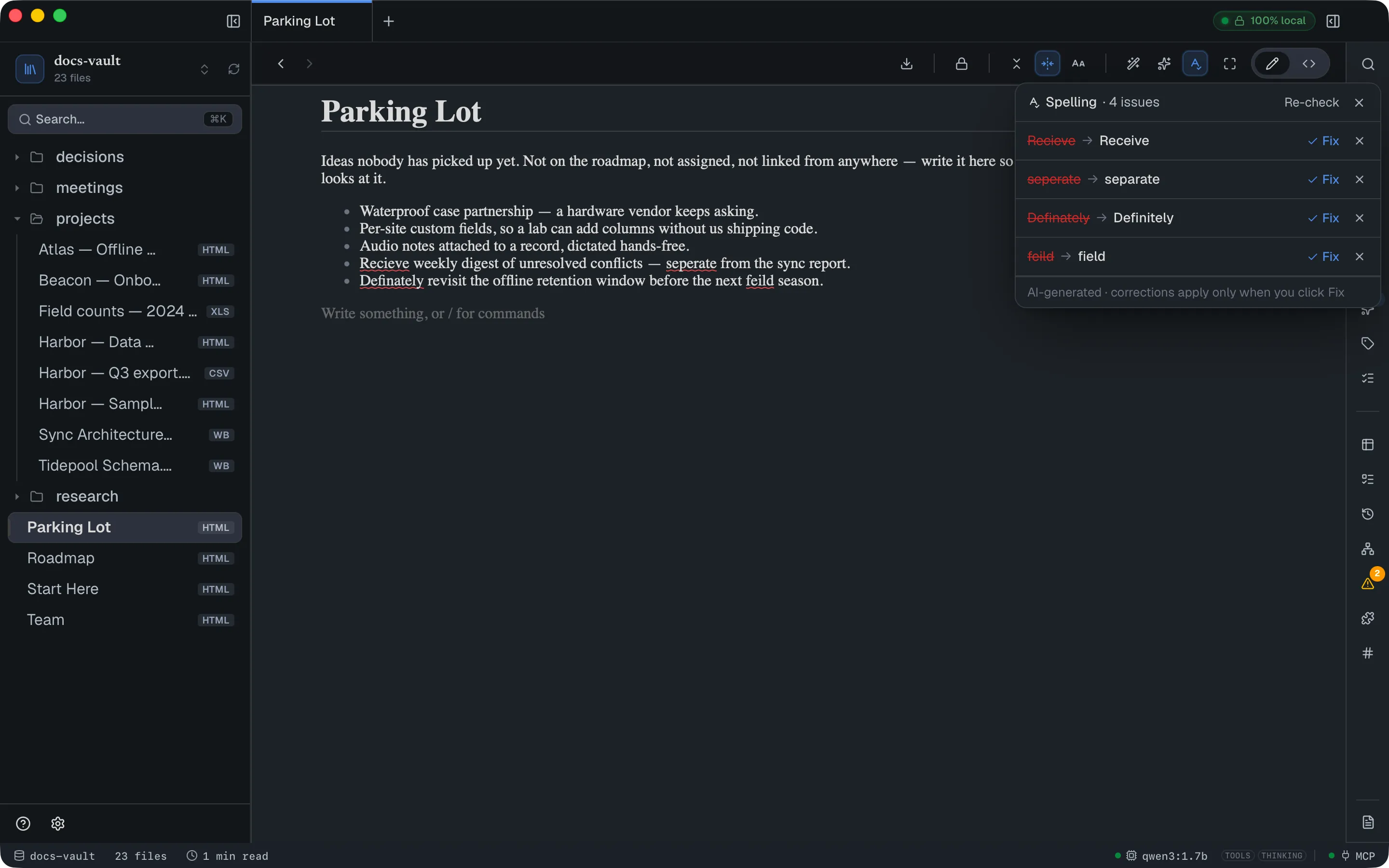
- Fix applies the correction. Unlike Summarize, this does write to your file — and it replaces every occurrence of that word in the document, not just the one you’re looking at, matching the original’s capitalisation. It’s an ordinary edit, so ⌘Z undoes it.
- ✕ ignores a suggestion and drops it from the list.
- Clicking the word itself scrolls the page to it.
- Re-check runs the check again.
Fix only appears when the file is open for editing. On a read-only document you get the list without the buttons, and the footer changes to “AI-generated · open this file in Edit to apply fixes”.
Restyle a page
Section titled “Restyle a page”Beautify rewrites a page’s HTML and CSS, so it works on .html pages only — the menu row doesn’t appear on Markdown, PDFs or spreadsheets, or in <>Source.
Open the ✦ AI menu → Beautify to open Beautify with AI:
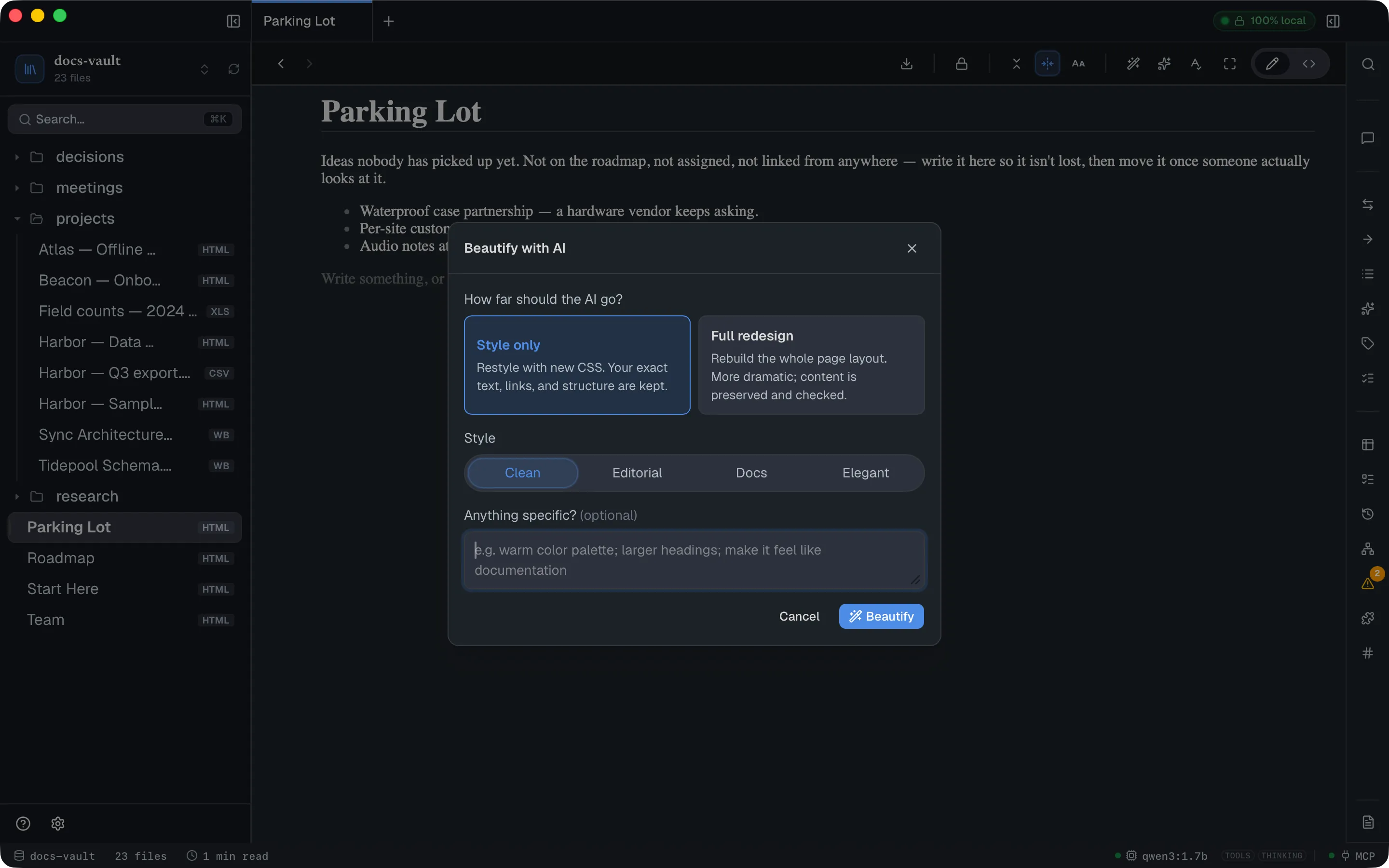
- Style only rewrites the CSS and keeps your exact text, links and structure.
- Full redesign rebuilds the layout. More dramatic, and the result is checked — if the redesign drops more than a quarter of your words it is refused rather than saved, with a message telling you to use Style only.
- The four presets (Clean, Editorial, Docs, Elegant) set the direction; the optional instruction field tunes it (“warm color palette; larger headings”).
- Run on picks the model (see Choosing the model).
You can also open it with /beautify in the page.
Beautify saves immediately and reloads the page. A review bar appears at the top so you can decide afterwards:
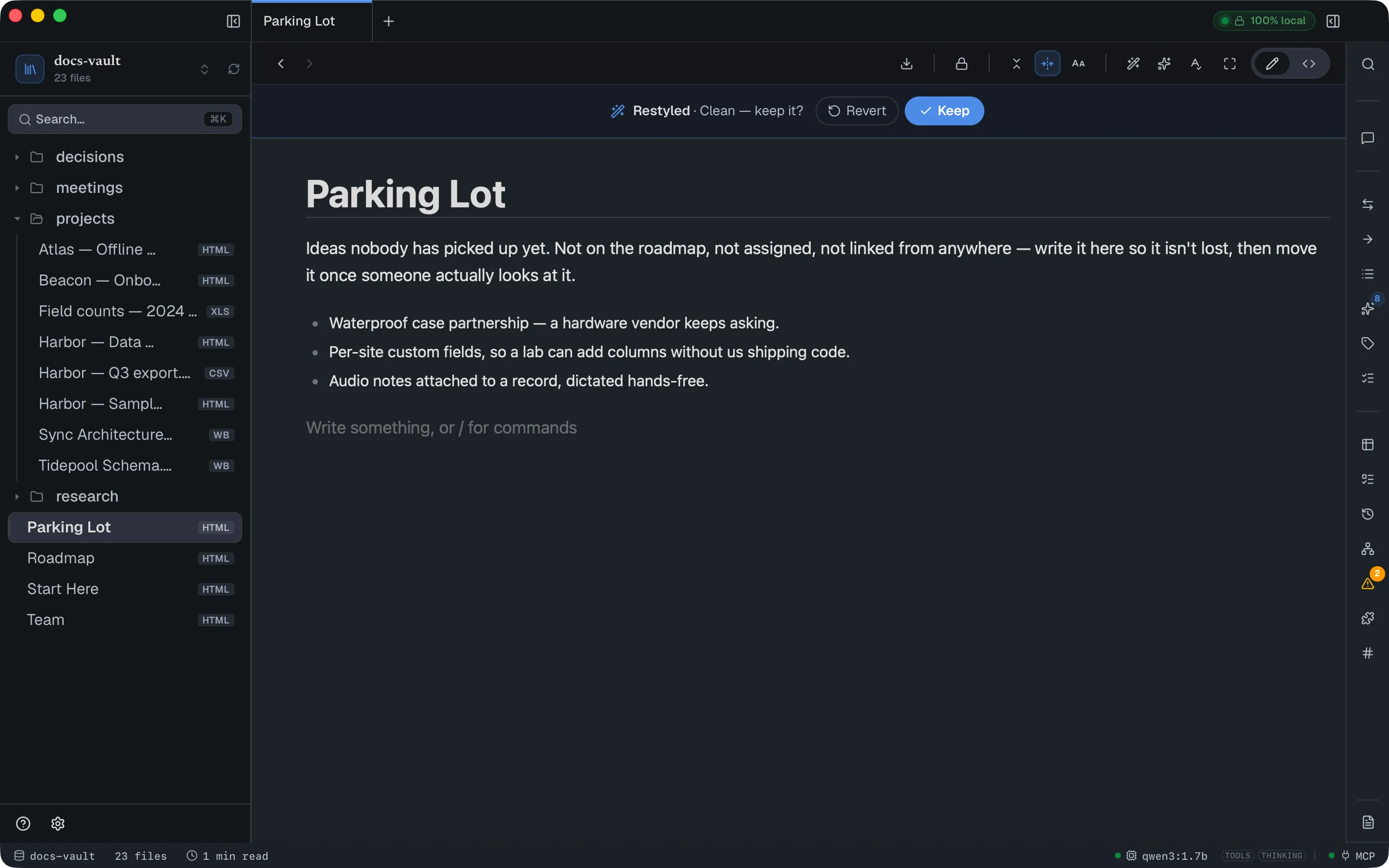
Revert restores the previous version of the page byte-for-byte. Keep just dismisses the bar. If a full redesign rewrote lines that carried block properties or link targets, the bar says how many were lost (“2 lines lost their properties”) — Revert gets them back.
Write with AI
Section titled “Write with AI”Type / in a page and the menu’s AI group offers five commands:
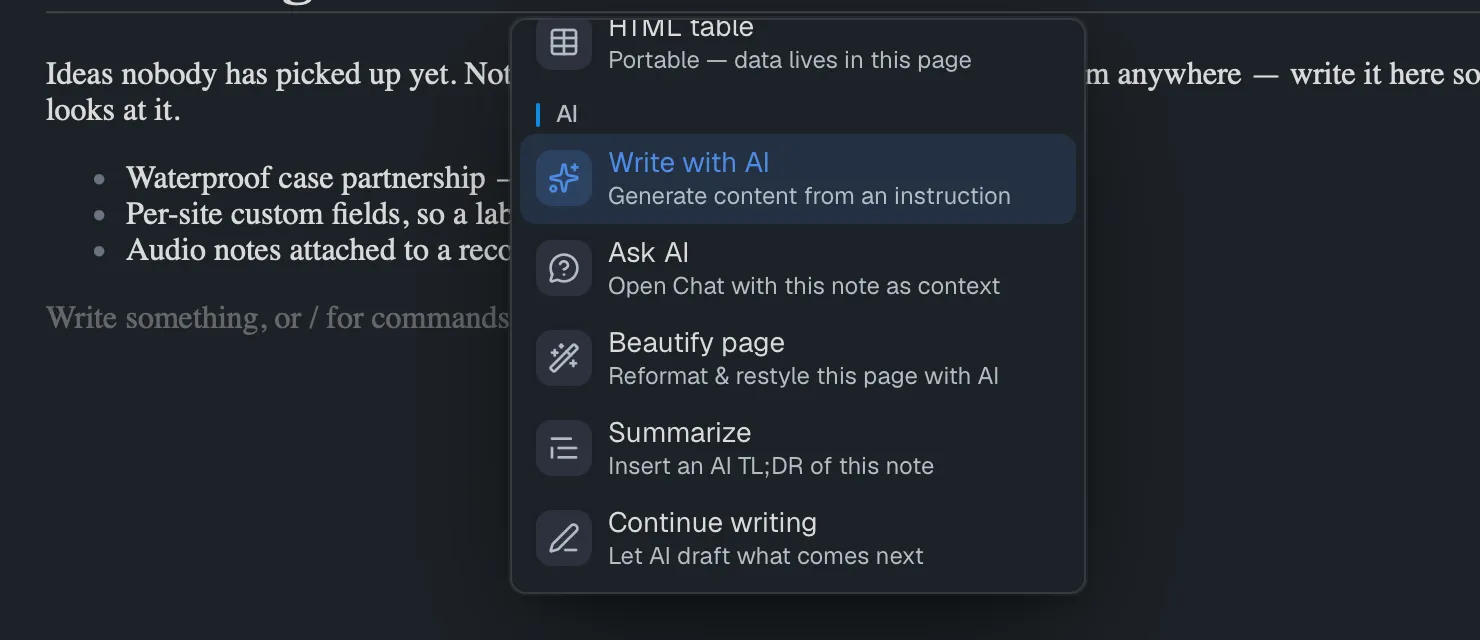
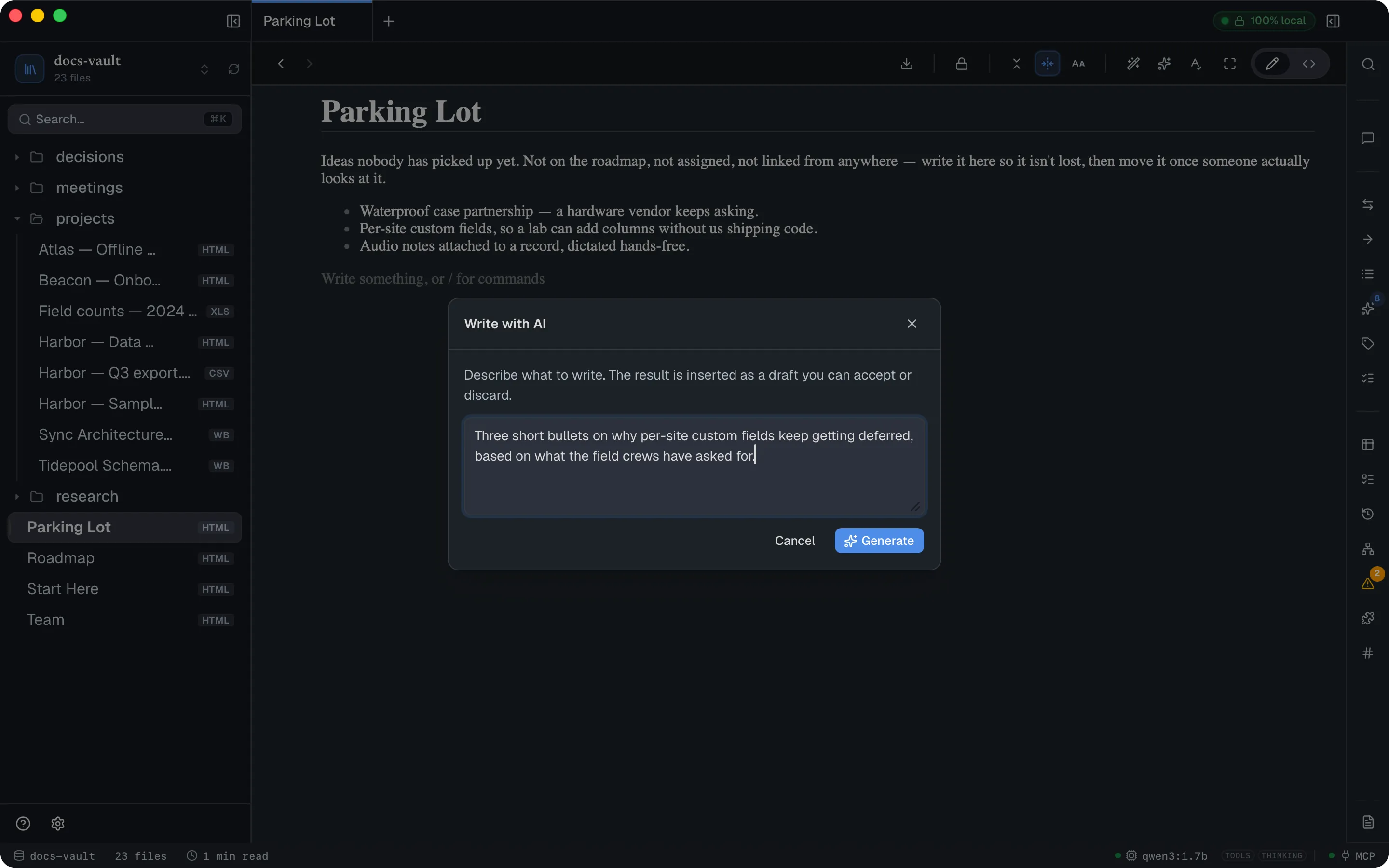
Write with AI asks what you want, then inserts the result as a draft rather than committing it straight into the page:
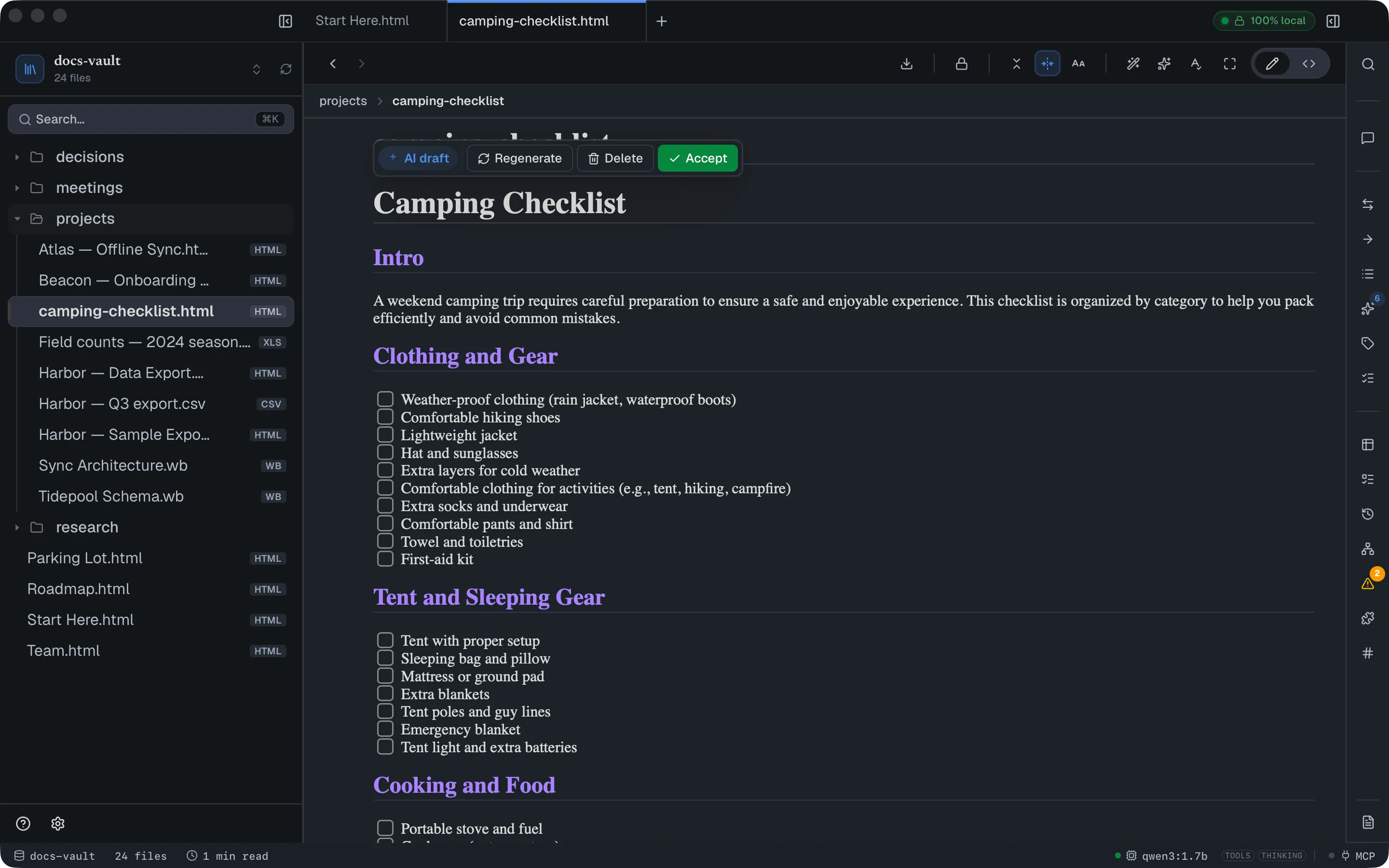
The generated block arrives with a floating toolbar attached:
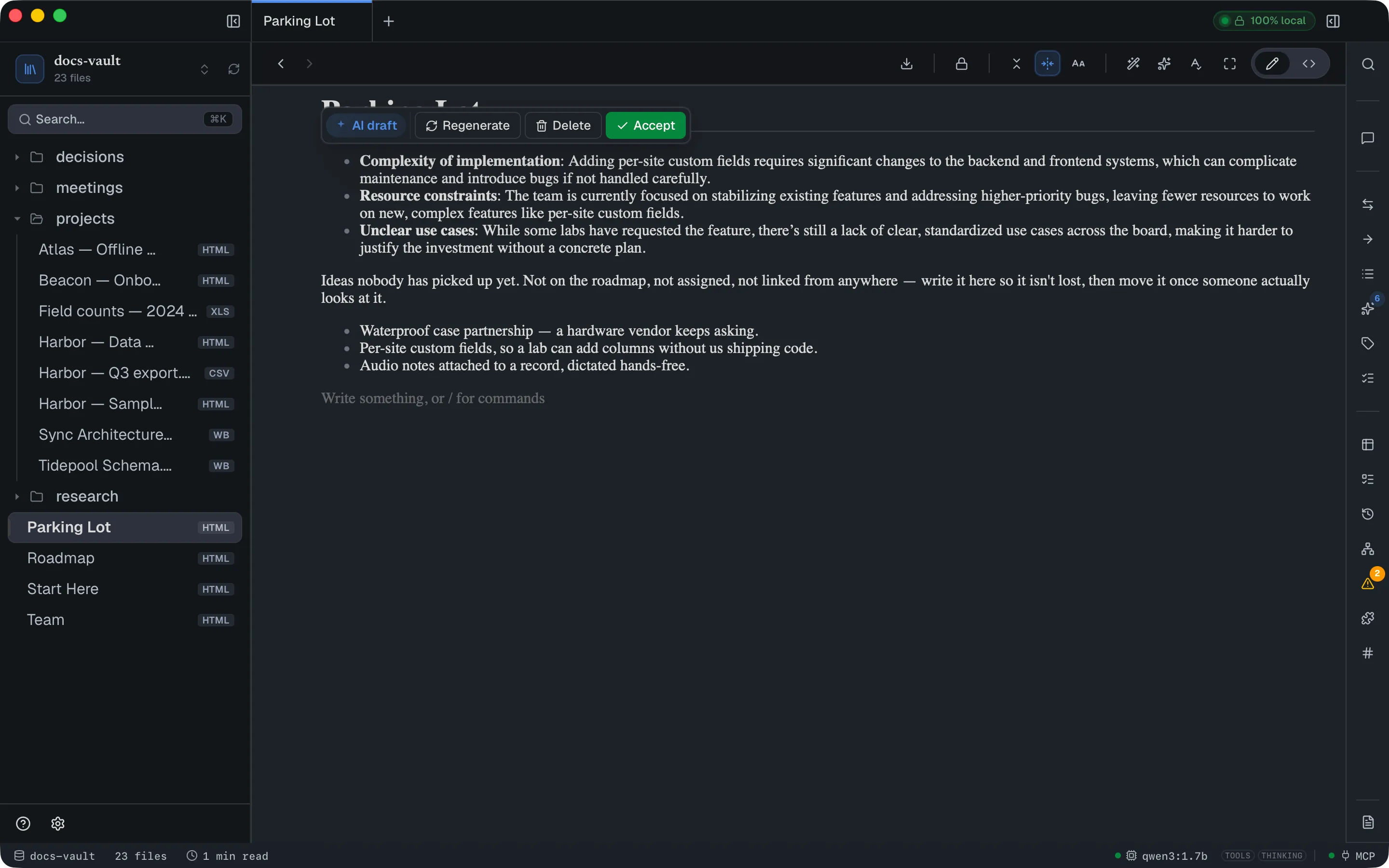
- Regenerate re-runs the same instruction.
- Delete removes the block.
- Accept unwraps the draft, turning its contents into ordinary blocks you can edit like anything else.
Continue writing drafts one to three paragraphs following on from the page, and Summarize inserts the AI’s summary into the page as a blockquote. Both write directly — there’s no draft toolbar for those two. Ask AI answers a question from your notes and inserts the answer as a draft — the same Regenerate / Delete / Accept toolbar as Write with AI — with the notes it used as links. Ask in Chat instead opens the chat panel with the current note as context.
Draft a new page from a prompt
Section titled “Draft a new page from a prompt”You don’t have to create the page first. When AI is on, the New HTML file dialog carries an extra collapsed row — ✨ Write with AI (optional). Open it, describe what the page should contain, and DocGraph creates the file and drafts the content into it.
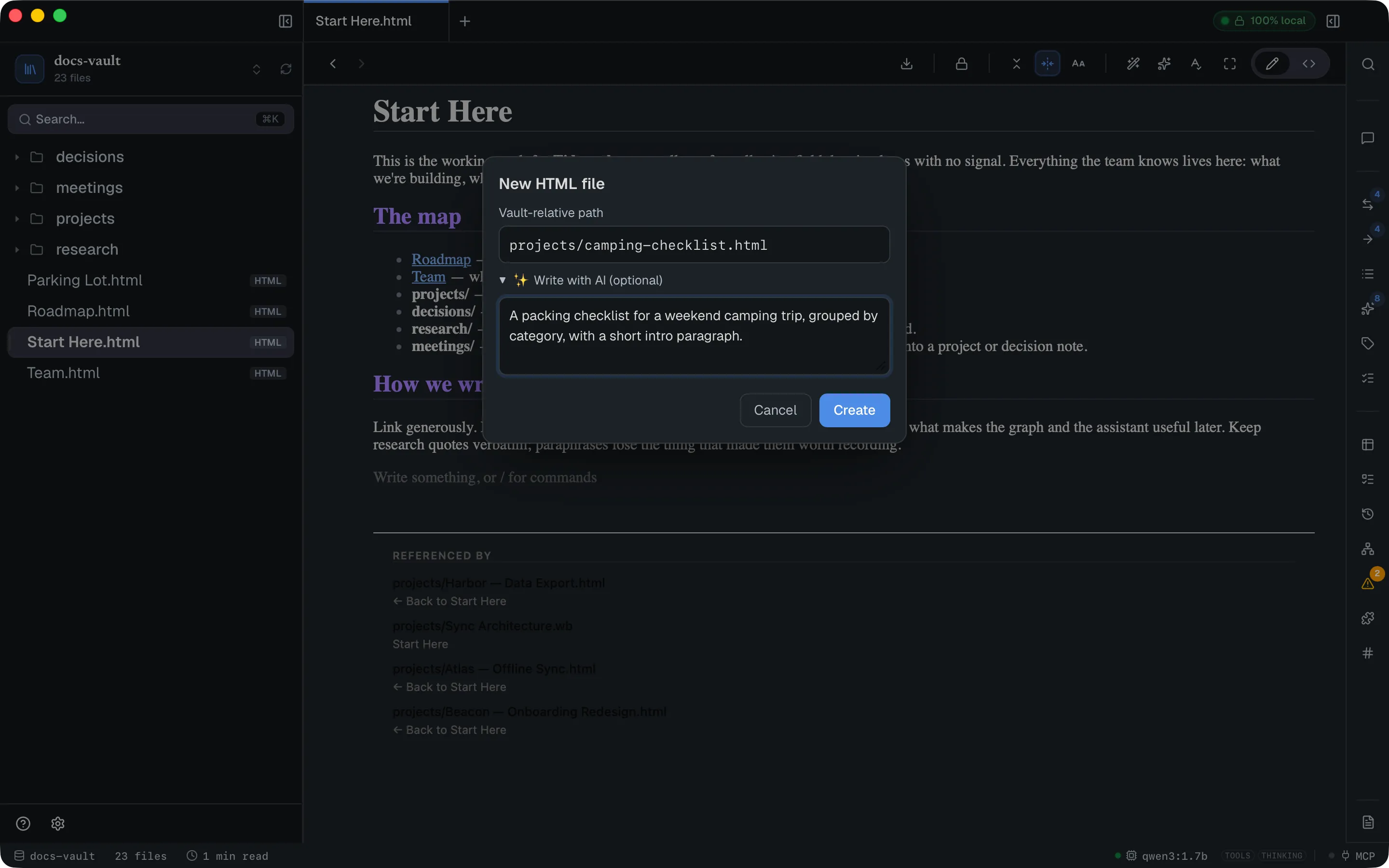
The row is collapsed by default, so creating an ordinary empty page is unchanged — one field, Enter, done. Inside the textarea, Enter makes a newline (the instruction is prose) and ⌘Enter submits; the Create button works either way. Collapsing the row again before you press Create discards the instruction.
Every way of creating an HTML file offers it: ⌘N, the + in the title bar, and New HTML file… from the file tree’s right-click menu — the first two ask for a vault-relative path, the menu asks for a name inside the folder you clicked.
Creating never waits for the model. The file is written and the tab opens immediately, with a Writing with AI… placeholder where the content will land:
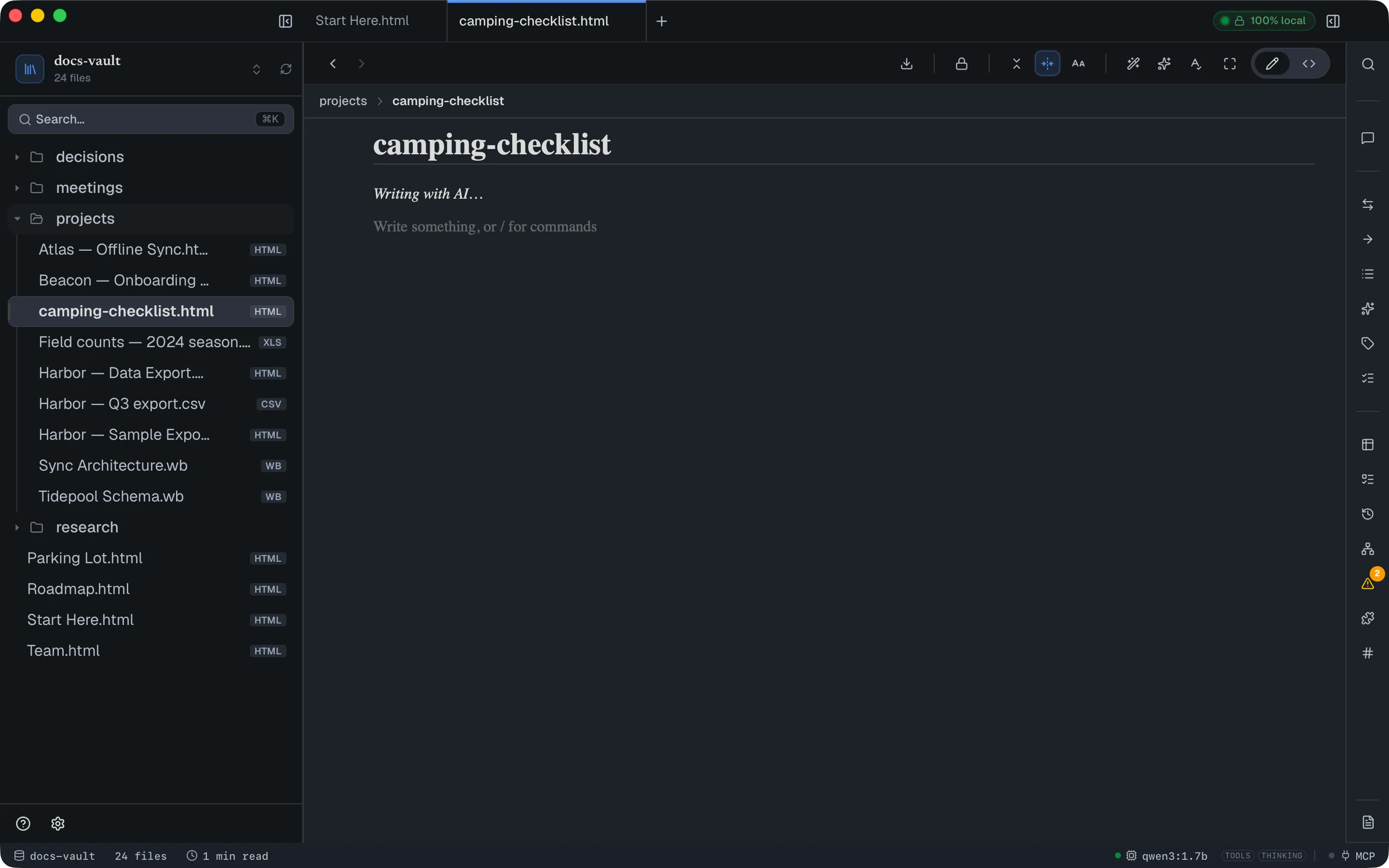
When the model finishes, the result arrives as the same AI draft as /write above — with Regenerate, Delete and Accept:
Drafts use DocGraph’s own building blocks
Section titled “Drafts use DocGraph’s own building blocks”Whether it comes from /write or the new-file dialog, a draft isn’t limited to plain prose — the generator is taught the page features DocGraph already has, and the same conversions run on any Markdown you paste:
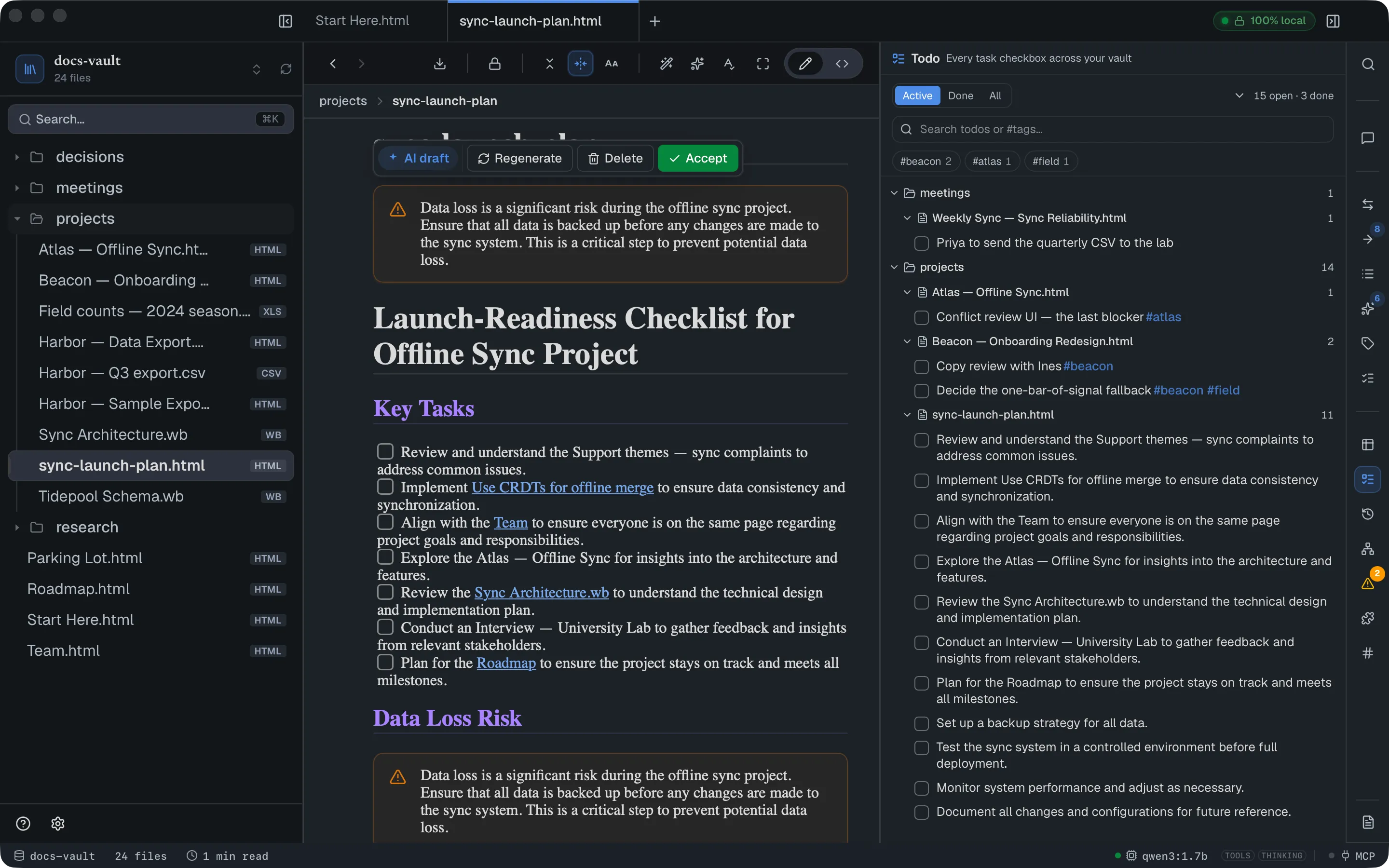
- Checklists arrive as real checkboxes. Ask for a checklist, packing list, or action items and you get the same task items you’d make by typing
- [ ]— clickable in the page and counted in the vault-wide Todo panel immediately. - Tables arrive editable. A generated table is the same first-class table the
/tablecommand makes — row and column handles, sorting, chartable. - Asides arrive as callouts. Notes, tips and warnings come as the styled callout blocks from the
/menu, not bare paragraphs. - Diagram requests can arrive as Mermaid. Ask for a flowchart or process map and the draft may carry a live-rendered diagram you can click to edit.
- Links point at notes that exist. The generator is offered a short list of real vault notes related to your instruction, and may link only to those. If the model invents a path anyway, the link is stripped to plain text before it reaches the page — an AI draft never adds broken links to your graph.
So the file exists from the moment you press Create, whatever the model does next: if generation fails you get an error and an ordinary empty page, and if you don’t like the draft, Delete leaves you with the same empty page.
Rewrite a selection
Section titled “Rewrite a selection”Select text in a page and the formatting toolbar appears. Its ✨ button opens three AI actions:
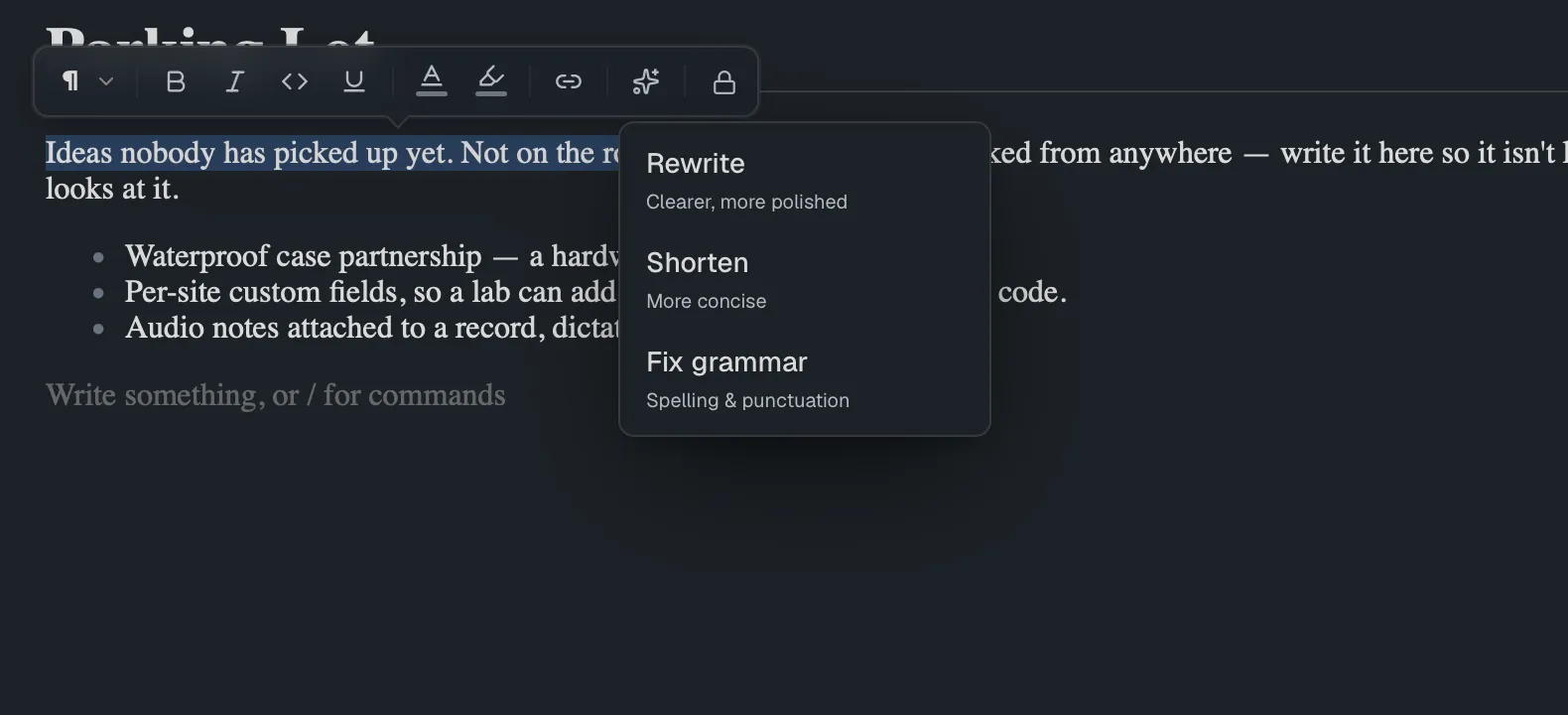
Rewrite (clearer, more polished), Shorten (more concise), and Fix grammar (spelling & punctuation). Each proposes a replacement for just the selected text in a preview window, showing the change as a Diff or as plain Text. Nothing is written until you click Apply; Cancel leaves the page as it was.
The page’s right-click menu has more selection actions that hand the passage to the chat panel — Ask about this, Explain this, Rewrite this and Make tasks from this. They fill in the chat box; you press Send.
Suggestions while you type
Section titled “Suggestions while you type”Off by default. Turn on “Suggest completions while editing” in Settings → AI → Chat & index (it needs AI on and a chat model set).
With it on, pause for half a second while writing at the end of a paragraph and the model proposes a continuation in grey after your cursor. Tab accepts it and it becomes normal text; Esc, or simply typing on, dismisses it. Nothing is written to the file unless you accept.
Suggestions are deliberately narrow: they only appear at the end of a paragraph or heading, and never inside a list, a quote, a code block, or a table.
Work on a whole folder
Section titled “Work on a whole folder”Right-click a folder in the file tree for two AI items, which read several notes at once. They appear only when AI is enabled, and never on the vault root.
Synthesize notes… builds a Map of Content for the folder:
- Right-click the folder and choose Synthesize notes…. The item needs at least two notes in the folder, counting its subfolders.
- A dialog reads the notes — up to the first 12, and the first part of each — and shows an overview, a themed outline with a line per note, and a short How they connect section. Every note it mentions is cited by path. The summary runs on your utility model, or the chat model if none is set.
- Nothing is written yet. Click Create note from this to save it as an HTML page named
map-of-content.htmlinside the folder (map-of-content-2.htmland so on if the name is taken), which then opens. Close the dialog to discard it.
Extract to table… pulls structured rows out of the folder’s notes:
- Right-click the folder and choose Extract to table…. It needs a chat model chosen and at least one text note in the folder.
- Pick a preset — Action items, Decisions or People — or Custom… and type what to extract and its comma-separated columns, then click Extract.
- Review the preview grid. Re-extract runs it again; Create table writes a managed table and a page that embeds it.
Extract reads up to 12 notes and returns at most 100 rows. How the resulting table behaves — editing, queries, charts — is covered under tables and charts.
Choosing the model (Run on)
Section titled “Choosing the model (Run on)”Write with AI, Ask AI and Beautify have a Run on choice in their dialogs, and the Summarize and Spelling popovers offer it for Regenerate and Re-check. The choice appears only once you’ve set up and allowed a cloud provider; it always starts on your local model, and picking a cloud model says, right under the choice, that the document will be sent to that provider. On the local model these actions use your utility model (or the chat model if none is set).
More AI shortcuts
Section titled “More AI shortcuts”- TL;DR bar. With Auto-surface TL;DR summaries on (Settings → AI → Chat & index, on by default), a page that already has a cached summary shows it in a bar above the content. It marks itself when the page has changed since, and can be refreshed or dismissed.
- File menu. Right-click a file in the tree for Summarize (in a window), Suggest tags (click a suggested chip to add it as a tag; it is stored in DocGraph’s tag index, not written into the file), and Ask AI about this (opens the chat about that file).
- ⌘K (command palette). Brief me on my day opens today’s daily note, and Insert answer into the open note puts a short briefing in it — what’s due, what’s scheduled, who you’ll deal with; What changed this week summarizes the last seven days of saved versions.
- Quick switcher (⌃⌥K). Start with
?to send the rest straight to the chat as a question (Ask DocGraph’s assistant).
Reference
Section titled “Reference”What writes to your file
Section titled “What writes to your file”| Feature | Writes? | Undo |
|---|---|---|
| Summarize (toolbar) | No | — |
| Proofread → Fix | Yes | ⌘Z |
| Suggestion → Tab | Yes | ⌘Z |
| Rewrite / Shorten / Fix grammar | Only on Apply | ⌘Z |
/write → Accept or Delete | Yes | No |
| New file → Write with AI | Yes | No (same draft as /write) |
| Beautify | Yes, immediately | Revert only |
/summarize, /continue | Yes | ⌘Z |
| Ask AI | Yes, as a draft (on Accept or Delete) | No (same draft as /write) |
| Synthesize notes… (folder) | Only on Create note from this — a new file | Delete the new note |
| Extract to table… (folder) | Only on Create table — a new table and page | Delete the table and page |
Markdown support
Section titled “Markdown support”The document-surface AI features are mostly HTML-only. On a .md file:
| Feature | Markdown |
|---|---|
| Summarize (toolbar) | Works |
| Proofread, including Fix | Works |
| Selection AI (Rewrite / Shorten / Fix grammar) | Works |
The whole AI group in the / menu | Absent — no AI slash commands at all |
| Write with AI on a new file | Absent — the create dialog offers it for HTML only |
| Suggestions while typing | Not implemented |
| Beautify | Absent — the rewrite is HTML and CSS, so the menu row is hidden on Markdown |
Limits & troubleshooting
Section titled “Limits & troubleshooting”The ✦ AI menu isn’t there. AI is off. These controls are hidden rather than greyed out — check the bottom status bar, which reads “AI off” and opens the right settings pane when clicked.
“Ollama is unreachable. Is it running?” You chose Ollama and it isn’t up. Start it, or switch to the built-in runtime or Apple’s model. See Local AI Setup.
A popover says there’s no readable text. Summarize and Proofread need extractable text. An empty page, or a scanned PDF with no text layer, has none.
/summarize and /continue fail with a system alert box. Those two report failures through a native dialog rather than in-app UI, so an error there looks jarring but means the same thing as any other AI error — usually the model or the daemon.
Beautify on a large page is refused. There’s a size ceiling; the message tells you the file’s size and the limit. Beautify a shorter page, or split it.