Whiteboard Basics
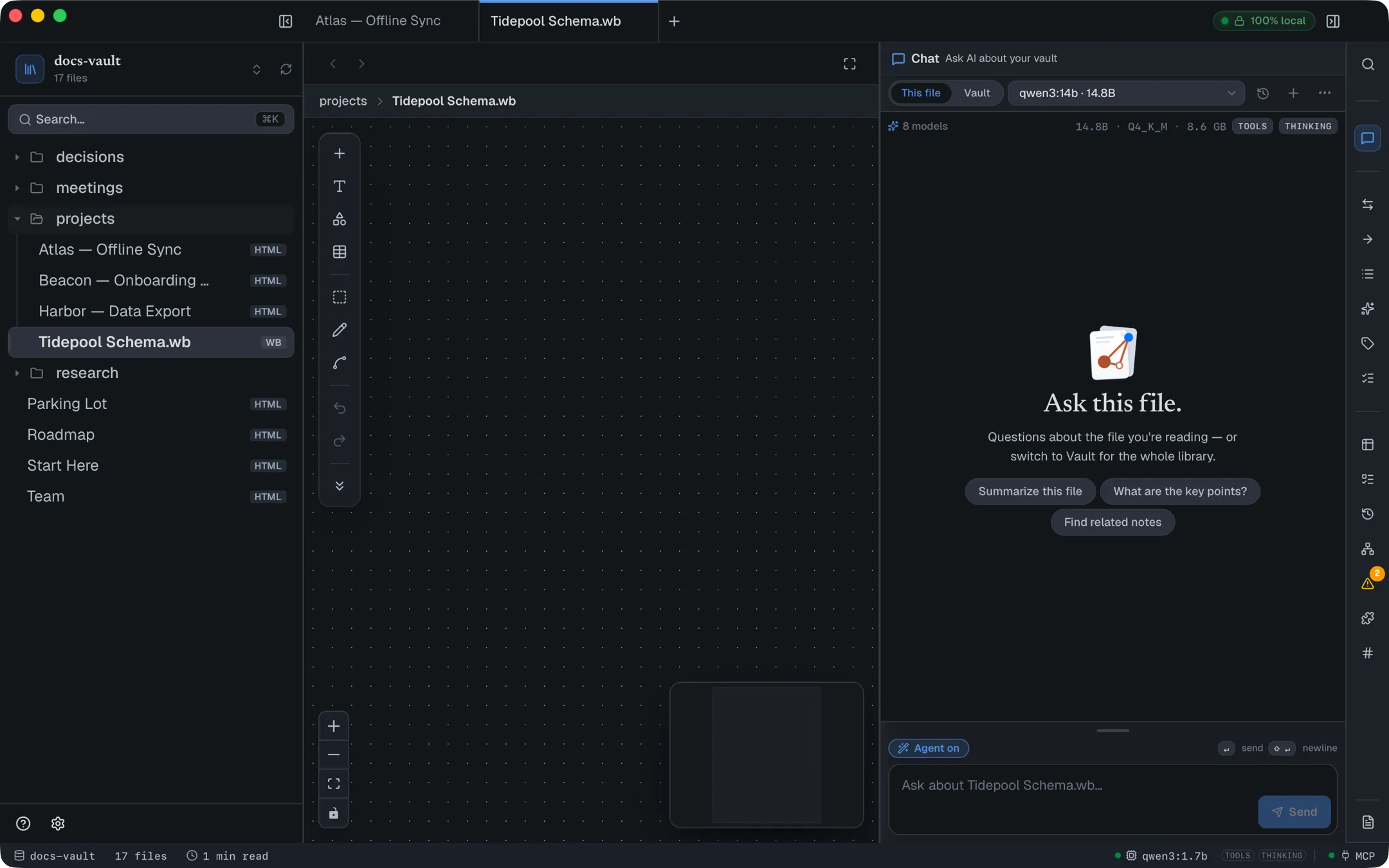
A whiteboard (.wb) is an infinite canvas that lives in your vault like any other file — it shows in the file tree, is searchable, and autosaves as you work. Use it for diagrams, brainstorming, and system sketches.
Creating one
Section titled “Creating one”Right-click a folder (or the vault root) in the file tree and choose New Whiteboard…, or type /Whiteboard inside an HTML note — that second path both creates the board and embeds a live preview of it in the note you were writing, in one step (more on that below).
Opening a .wb file replaces the normal document view with the whiteboard editor — it’s a fundamentally different surface from reading a note, not a rendered page.
What you can add
Section titled “What you can add”The dock on the left is the whole toolbox. The four primary tools:
-
Text card — a resizable box with a background fill, for a labeled block.
-
Plain text — borderless text with no box; drag its corner to scale the font itself, from small captions up to a section heading.
-
Shape — opens a picker with two tabs’ worth of content in one panel: ten basic shapes (rectangle, rounded rectangle, hexagon, circle, diamond, cylinder, triangle, parallelogram, and two arrow/plus variants), and a categorized library of infrastructure and system-design icons — Compute, Data, Network, Messaging, Security and Actors, plus business sets for Process & Flow, Documents, Finance and Product & Market — for sketching architecture diagrams without leaving the canvas.
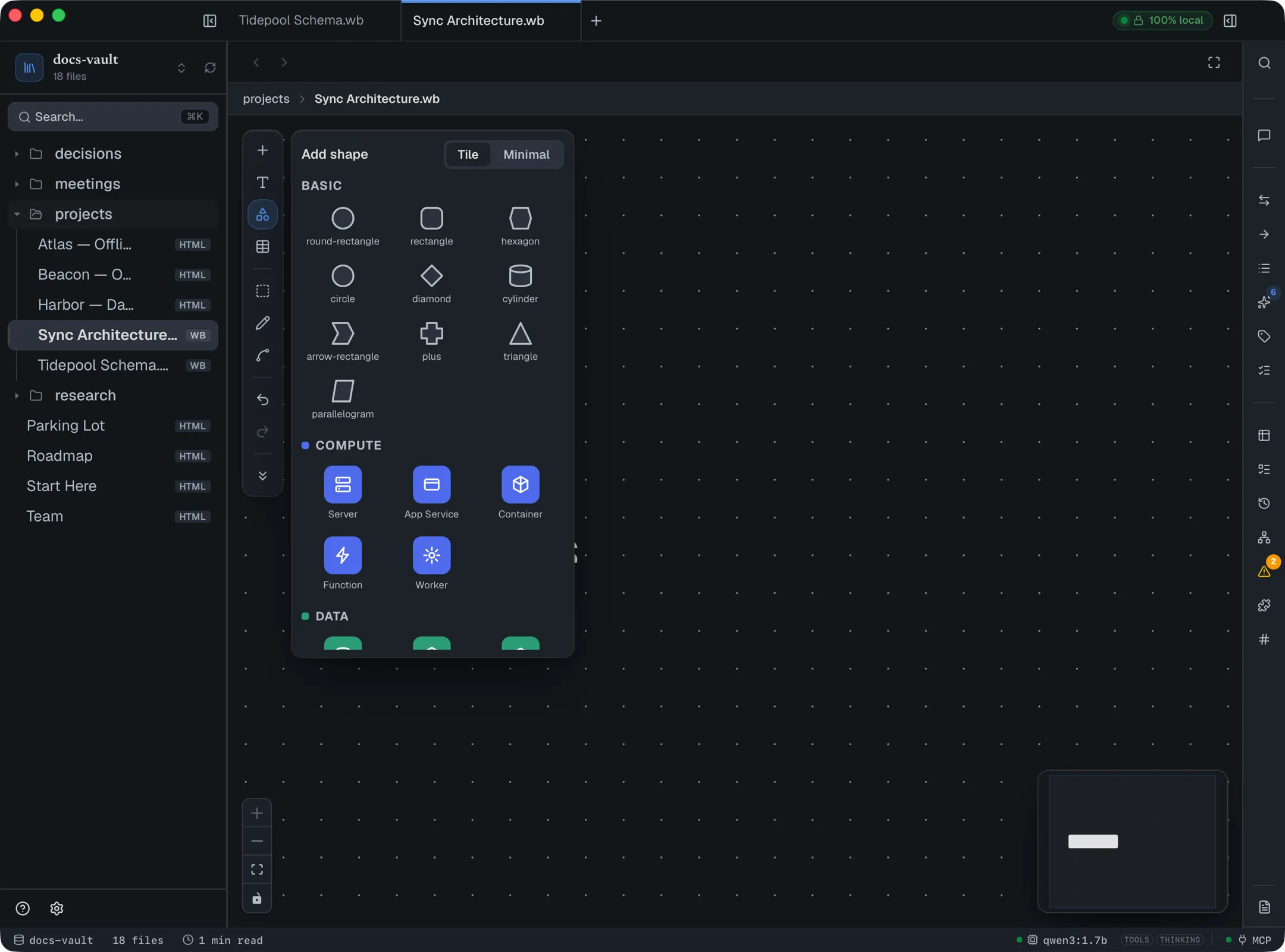
The Tile / Minimal toggle at the top of the picker sets the style for infrastructure icons you add from now on, if you want a flatter look. Icons already on the board keep their style. The choice is an app-wide preference, remembered across boards and sessions.
-
Table — a dedicated ERD node for database design; see ERD Table Nodes.
Both text card and shape nodes share the same styling: an 8-swatch color palette, three fonts, six font sizes, bold/italic, and alignment controls, shown in a panel whenever a node is selected.
Double-click to edit text. Double-click a text card, plain text, shape, infrastructure icon, or note-link card to edit its text; Enter or clicking away commits, Esc cancels. On a note-link card this renames the card’s title only — the linked note keeps its name.
Two more node types live behind the dock’s More tools chevron:
-
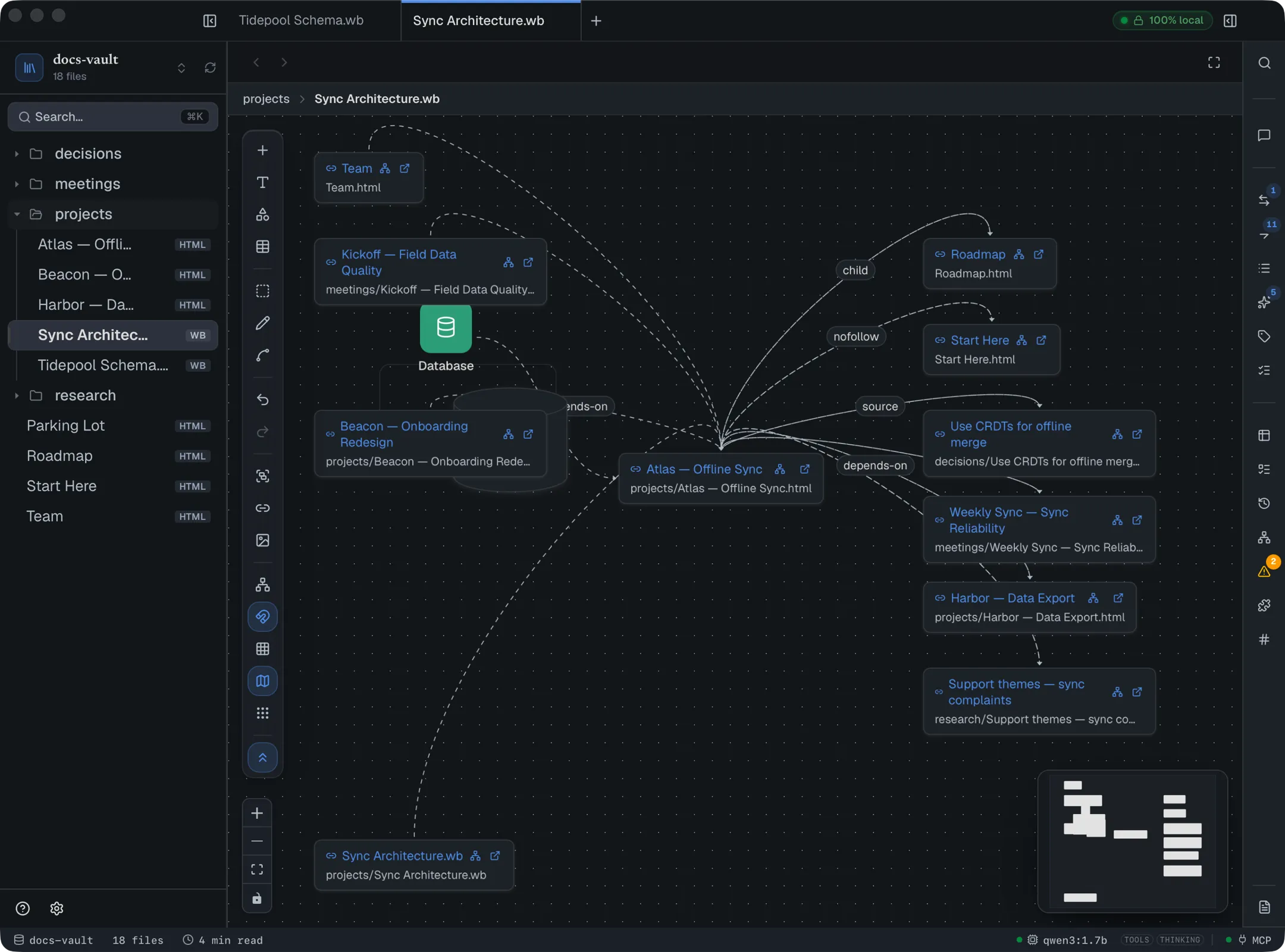
Note link — a card bound to a file in your vault, showing its title and path with two buttons: open (jumps to that note) and expand, which pulls the note’s own links — everything it points to and everything that points to it — onto the board as new note-link cards. It’s a quick way to grow a board out from one note into its neighborhood — including the relationship type, when the link is typed.
-
Image — pick a PNG, JPEG, GIF or WebP from your vault in a searchable list; it’s resizable with its aspect ratio locked. Images are added through this picker only — dragging a file onto the board doesn’t add it.
A plain freehand pen is also on the dock — draw mode gets its own sub-toolbar (Hand / Pen / Eraser, four stroke widths, the same 8-color palette), and a finished stroke becomes an ordinary node you can move, recolor, resize, or delete like anything else. The eraser removes a whole stroke at a time, not part of one.
Connecting things
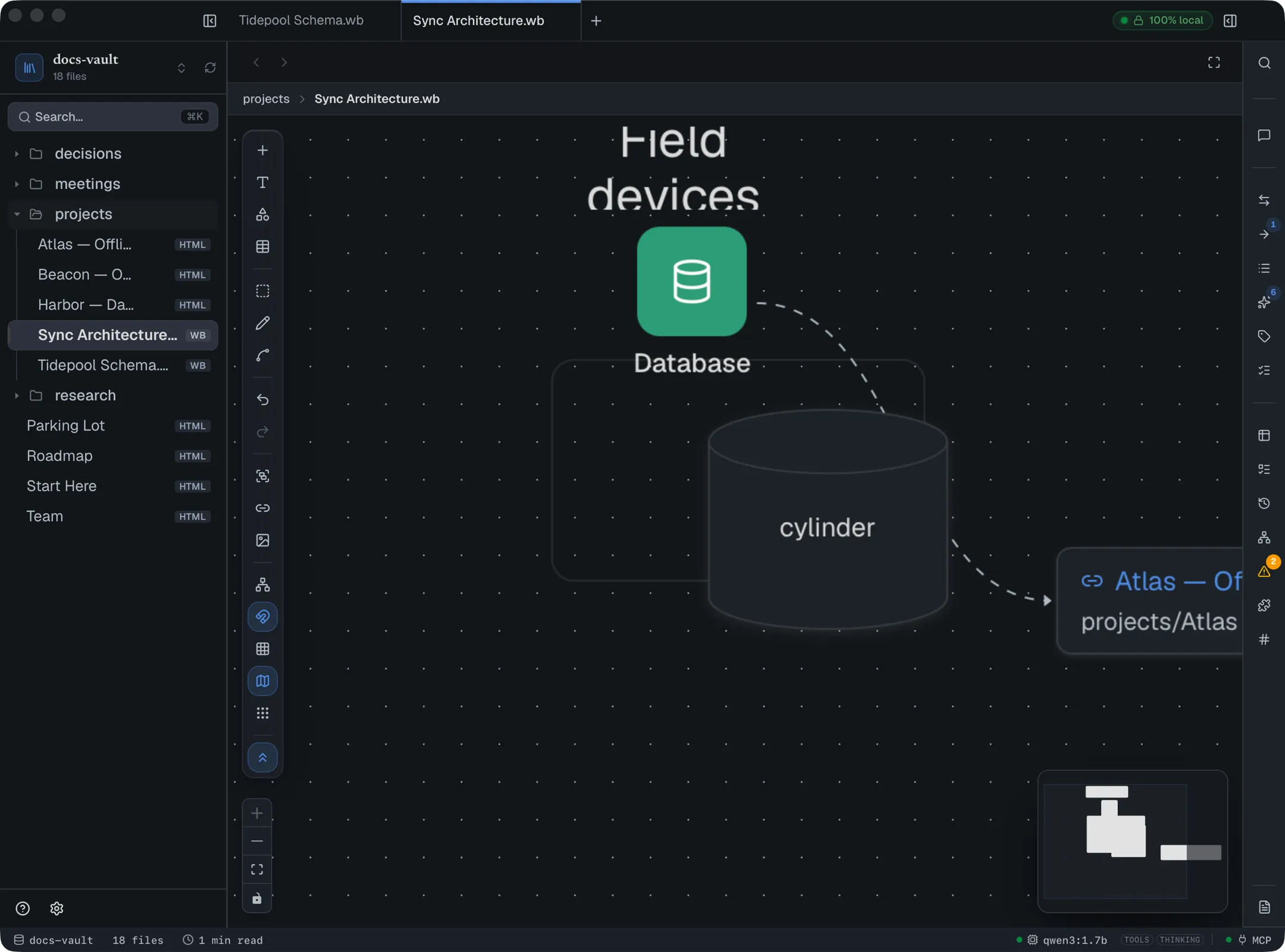
Section titled “Connecting things”Drag from any node’s edge to another node — text cards, shapes, tables, note-links, images, all of it connects the same way, and any handle can start or receive a connection. To label a connection, double-click the edge itself. A label is a single line of up to 120 characters.
Edge options
Section titled “Edge options”Click an edge and the edge-style panel appears. The same panel opens from the Edge style button in the dock (the curved-line icon) with no edge selected, and then it edits the default for new edges instead; everything you draw afterwards starts in that style.
| Option | Choices |
|---|---|
| Line | Curved, Straight, Step, Smooth step |
| Arrow | None, Arrow, Solid arrow |
| Animation | None, Flowing dashes, Moving dot |
| Color | A row of swatches |
| From (ERD) / To (ERD) | Crow’s-foot ends for database diagrams |
Edit several at once. Select more than one edge (⌘-click) and the panel’s heading changes to Editing N selected edges; every change applies to all of them.
Bend an edge. With an edge selected, small handles appear on the line. Drag the hollow handle at the middle of a segment to add a bend, drag a filled dot to move it, and double-click a dot to remove it. Straighten, in the panel’s Routing section, clears every bend on the selected edges. It is greyed out when none of them has any.
Grouping with frames
Section titled “Grouping with frames”The Group tool (under More tools) drops a labeled rectangle behind other nodes. Drag the frame and whatever currently sits inside it moves along for that drag — a lightweight, informal grouping rather than a real parent-child relationship. Nothing about “what’s in the frame” is saved to the file; it’s recomputed live each time you pick the frame up.
A frame can carry a name, shown as a caption in its top-left corner — double-click the frame to type or change it; clearing the name hides the caption. Frames the AI draws (in chat or over MCP) arrive already named.
Working the canvas
Section titled “Working the canvas”- Pan and zoom freely — drag empty canvas or use a trackpad gesture; pinch or ⌘-scroll to zoom.
- Multi-select with a marquee (toggle the dock’s select tool, or hold Shift and drag, to draw a selection box) or ⌘-click to add or remove single items.
- Undo and Redo buttons sit in the dock below the drawing tools (⌘Z / ⌘⇧Z also work), and copy/paste works as expected, including across boards in the same session.
The More tools menu
Section titled “The More tools menu”The chevron at the bottom of the dock opens the less-used tools:
| Item | Does |
|---|---|
| Group | Adds a frame (see Grouping with frames) |
| Note link | Adds a card bound to a vault note |
| Image | Adds a picture from your vault |
| Auto-layout | Rearranges the whole board |
| Alignment guides on / off | Toggles guide lines while dragging |
| Snap to grid on / off | Toggles snapping |
| Show map / Hide map | Toggles the minimap |
| Grid: dots / lines / cross | Cycles the background pattern; the tooltip names the current one |
Auto-layout
Section titled “Auto-layout”Auto-layout arranges the board in layers flowing left to right, following the connections. Frames are left out of the arrangement and then resized to fit around the nodes they held. A board made by the AI (in chat or over MCP) is auto-laid-out the first time you open it.
Zoom and lock controls
Section titled “Zoom and lock controls”The controls in the canvas corner zoom in, zoom out, and fit the whole board in view. The lock button freezes editing — nodes can’t be dragged, selected or connected — while you pan and zoom. The lock isn’t saved: reopening the board unlocks it.
| Shortcut | Does |
|---|---|
| ⌘Z | Undo |
| ⌘⇧Z or ⌘Y | Redo |
| ⌘C / ⌘X / ⌘V | Copy, cut and paste the selected nodes |
| ⌘D | Duplicate the selected nodes |
| Delete or Backspace | Remove the selection |
| Hold Space and drag | Pan the canvas. With the pen or eraser active it pans temporarily, and letting go returns to drawing |
| Esc | Leave draw mode, or the marquee select tool |
These shortcuts are ignored while you are typing in a label, so the text field keeps its own undo and editing keys.
Let an agent draw it
Section titled “Let an agent draw it”You don’t have to draw a board by hand. Describe the diagram to DocGraph’s chat, or to Claude Code and other MCP clients connected to the vault, and the agent authors the .wb from a plain node-and-edge description — flowcharts, architecture sketches, ERDs — with layout handled for you. See Author a diagram from Claude Code.
Embed a board preview in a note
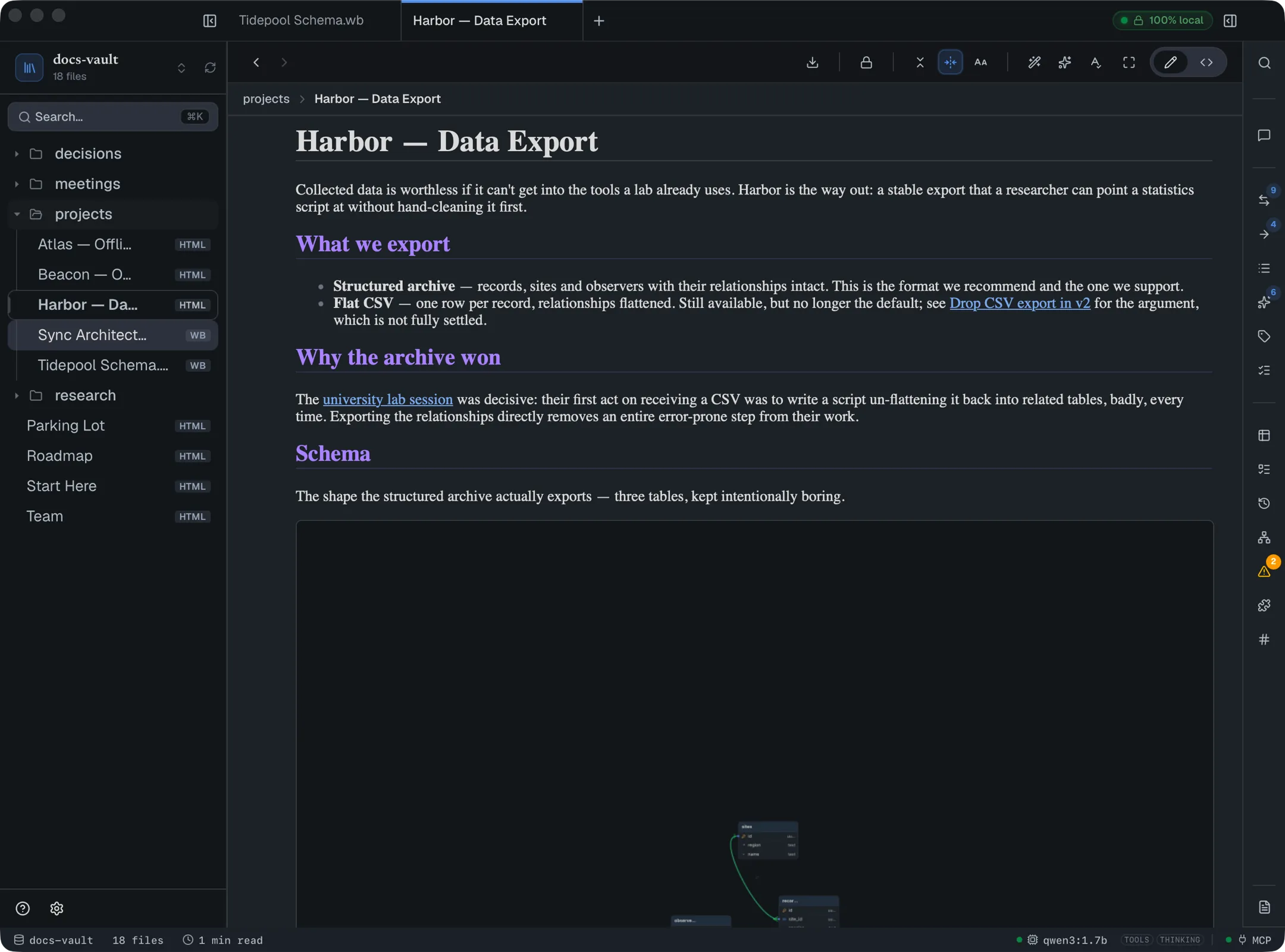
Section titled “Embed a board preview in a note”A whiteboard can appear inside a regular note — not as a link, as a live picture. Type /Whiteboard while writing an HTML page and DocGraph creates a new board and drops a preview of it right where your cursor is. In a Markdown note, write ![[board.wb]] on a line of its own to show an existing board the same way. That preview is a real snapshot, regenerated automatically every time the board is saved, and clicking it opens the full editor.
Embedding a board you already have
Section titled “Embedding a board you already have”To show an existing board in an HTML note, put a marker in the page source that points at the board file:
<div data-docgraph-flow="boards/onboarding.wb"></div>The path is relative to the vault root. The note shows the board’s saved snapshot as an image, and clicking it opens the board. The snapshot is written when the board is saved in DocGraph, so a board that has never been saved here (for example one copied in from another machine, or edited outside the app) has no current snapshot. Until you open it and it saves, the note shows a placeholder with the board’s name and Open board to render preview, rather than an outdated picture. A path that doesn’t exist shows Board not found, and one that isn’t a whiteboard file shows Not a board file.
For a diagram that lives in a DocGraph note, this is usually what you want — the embed is always current, and always one click from its source. To take a board out of DocGraph, export it as an image instead.
Export the board as a PNG
Section titled “Export the board as a PNG”The dock’s Export PNG button (the download arrow, just above the More tools chevron) writes the whole board to an image file wherever you choose to put it — a slide deck, a ticket, a chat message.
What you get:
- The whole board, framed to its contents with a small margin, whatever you happen to be looking at — panning or zooming the canvas first changes nothing about the export.
- Twice the on-screen resolution, so the image stays sharp when it’s scaled up in a deck or on a high-density display.
- The board, not the editor: connection dots, resize handles, selection outlines, and the per-node style toolbar are all left out, so an exported board looks the same whether or not something was selected when you exported it.
- Your current theme’s background — export from a dark theme and you get a dark image.
Long node labels can wrap or shorten by a character or two compared to the screen, because the exported image is drawn with your system font rather than the app’s own. Nothing else about the board changes.
Limits
Section titled “Limits”A frame’s contents aren’t remembered between sessions — treat it as a visual aid while arranging a board, not as a way to organize one. Export is PNG only: there’s no SVG or PDF export, and no way to export just the selected nodes.