Timeline
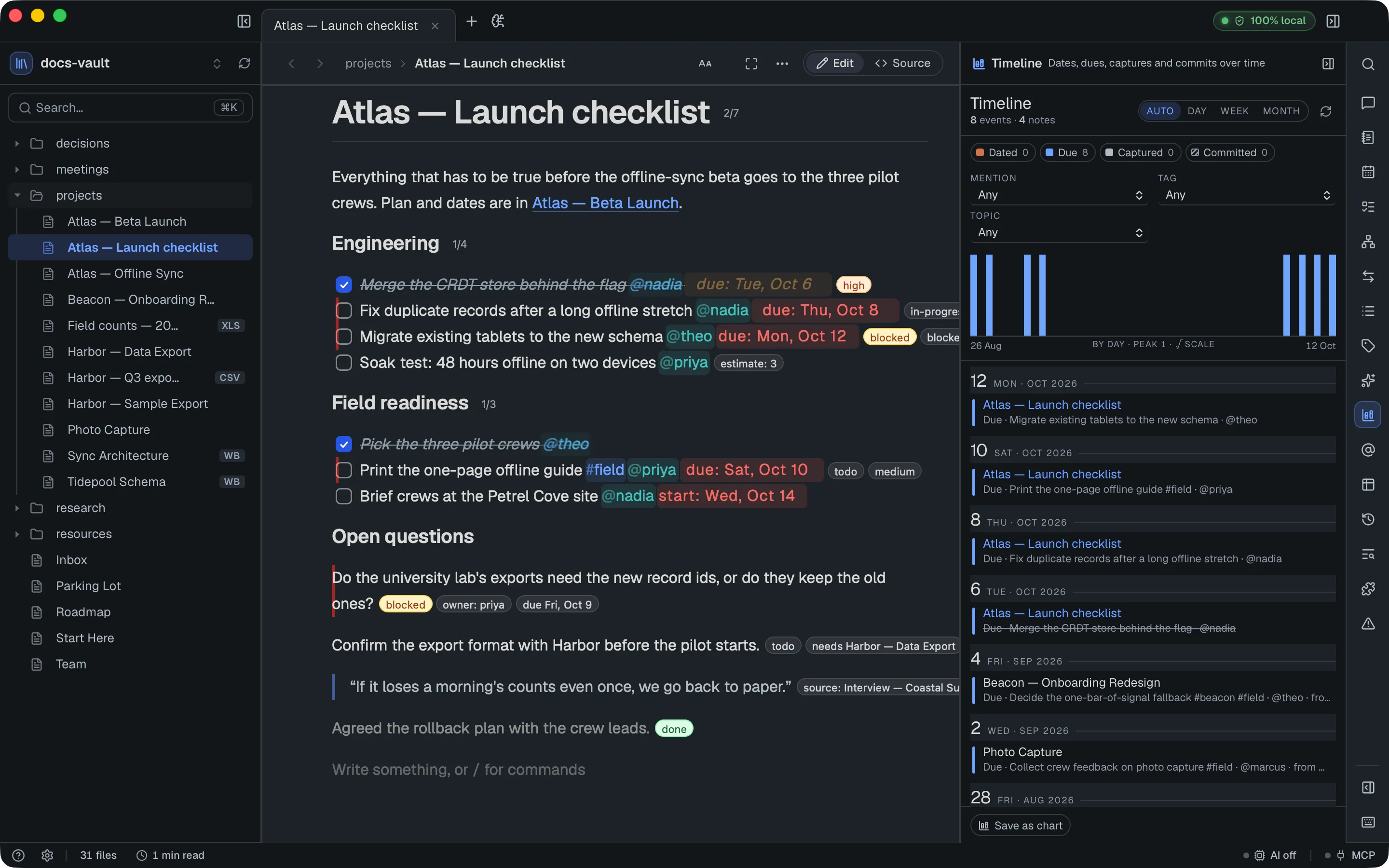
The Timeline panel puts everything in your vault that has a date on one axis. Open it from the rail (the stacked-columns icon, right after Related). With the Curated rail it sits in ⋯. Where Calendar reads one month of daily notes, Timeline reads the whole span of the vault.
What lands on it
Section titled “What lands on it”Four kinds of event, each read from something you already wrote. Nothing new is stored in your notes.
| Kind | Where it comes from |
|---|---|
| Dated | A date written in a note as @@2026-09-29 (one row per note per day) |
| Due | A task’s due: date (task properties) |
| Captured | A note’s created stamp from quick capture (⌥Space, then ⌘⏎), or a captured / stamped line |
| Committed | A version-history commit that changed the note |
Markdown and HTML notes both contribute. Commits appear only when version history is on for the vault.
Reading the strip
Section titled “Reading the strip”The strip at the top is a stacked column per day, week or month, coloured by kind: indigo for due, clay for dated, ink for captured, and a hatched texture for commits. The caption shows the busiest bucket.
The four buttons in the panel’s header, Auto, Day, Week and Month, choose the bucket size. Auto is the default and picks one from how long the vault’s history is; the other three force that size. Changing the bucket clears a range you had selected, since the columns it pointed at no longer exist. Next to them, the Refresh icon reloads the timeline on demand. The panel also reloads by itself shortly after the vault’s index settles, so Refresh is for when you want to be sure you’re looking at the latest.
Below the strip, the ledger lists every event, newest first, grouped by day. Done tasks are struck through, and rows from the note you have open are highlighted. Click a row to open its note. A very busy view shows the newest events and says how many more there are; narrow the range or the filters to see the rest.
Filtering
Section titled “Filtering”- Kinds. Click a kind’s chip to hide or show it.
- Mention, Type, Tag, Topic. Each picker narrows the timeline to notes that mention that name, have that note type, carry that tag, or belong to that graph topic. The Mention list puts people first, then each other kind of @mention with its kind after the name; a name includes every spelling DocGraph resolved to it. A type includes its subtypes. Each option shows its count, and a picker with nothing to offer is hidden.
Filters combine. Clear filters resets them. The strip redraws with each filter, so you see the shape of just that person, project or topic over time.
Selecting a range
Section titled “Selecting a range”Click a column to select it. Shift-click another column, or drag across several, to extend the range. The ledger then lists only that range, and everything outside it dims.
Ask AI about N notes hands exactly the notes behind the range to Chat as the next question’s sources. For example: select last quarter, filter to one project, and ask what changed. Click the selected column again, or the ×, to clear the range.
Save as chart
Section titled “Save as chart”Save as chart turns the current view (filters and range) into a saved query and a bar chart. If the open note is an HTML page, the chart is added to the end of it. Otherwise the chart is saved and you can add it anywhere with /chart.
The chart is an ordinary chart over the vault’s Timeline data source, so it stays live: it recounts every time the note is shown. A saved chart has at most 50 columns. A long span is drawn by week or month, and a very long one shows the latest 50 months.