AI & your data
By default DocGraph’s AI runs on your computer: a model run by DocGraph’s built-in runtime, by Apple’s on-device model, or by Ollama reads your notes and nothing is sent anywhere. Every way for AI to send note content somewhere else is off until you turn it on, and each says what it sends before you do.
| Where the AI runs | Your content goes to | Off until you… |
|---|---|---|
| The built-in runtime, or Apple’s on-device model | Nowhere | — (this is the default) |
| Ollama on this computer | Nowhere | — |
| A custom endpoint on this computer (LM Studio, llama.cpp) | Nowhere | Set its address |
| A cloud provider (OpenAI, Anthropic, OpenRouter, a remote endpoint) | That company (and, for OpenRouter, the company it routes to) | Save a key and allow the provider in a system dialog |
| Ollama on another computer | That computer | Turn on Allow remote Ollama |
| An external agent (Claude Code, Codex, …) | Wherever the agent sends it — DocGraph can’t see | Enable that agent |
| An MCP client connected to DocGraph | That client, and wherever it sends it | Turn the MCP server on |
See it before you send
Section titled “See it before you send”The chat’s model picker shows where each model runs: local groups first, under a heading with a laptop icon, then off-machine groups under a heading with a cloud icon and the provider’s name. Every off-machine model also carries a small cloud badge on its icon — in the list, on the picker’s button and in the footer under each answer; local models carry no mark. The picker’s own button, the privacy badge and a strip above the message box all change as soon as you pick a model — before anything is sent.
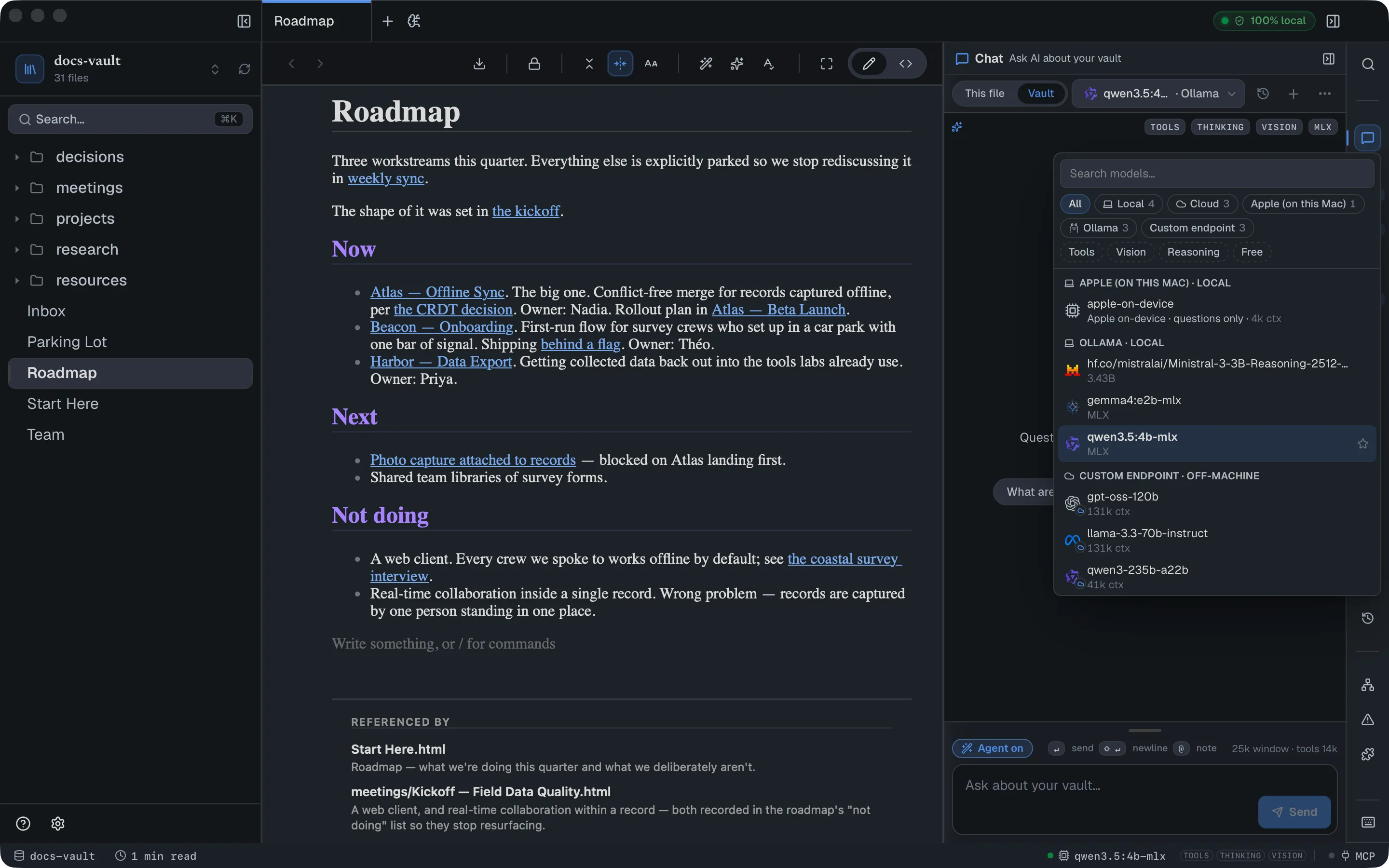
If you switch a conversation from a local model to a cloud one, the thread shows a line before your next message: from here, this conversation — including earlier answers and the note excerpts they used — is sent off this machine. It offers Start a fresh chat instead if you’d rather the earlier history stayed local. Each answer also names the model and provider that produced it.
Keep a page out of AI
Section titled “Keep a page out of AI”To keep one page away from the AI completely, mark it:
- in an HTML page, add
<meta name="docgraph:ai" content="exclude">to its<head>; - in a Markdown note, add
ai: excludeto its front matter.
A marked page is never split into chunks, embedded or summarised (no topic summaries, no extracted facts), and the AI’s tools can’t read it or find it. An answer that cited it is dropped. The page stays everywhere else: ⌘K search, the graph and backlinks still show it.
Cloud providers
Section titled “Cloud providers”Settings → AI → Models & providers, in the AI Providers section below the local models.
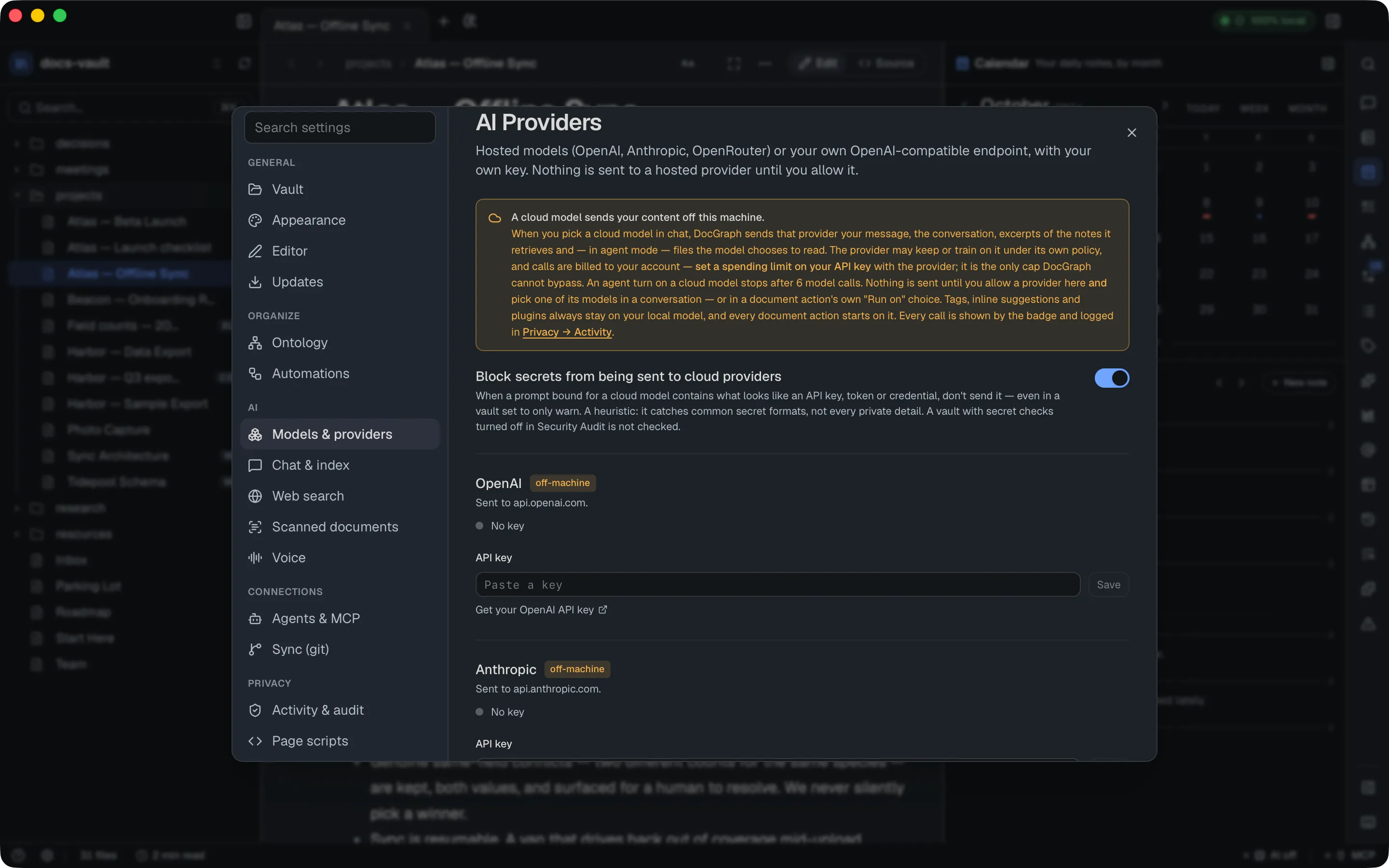
A provider becomes usable only after two steps:
- Save your API key. It is stored in your operating system’s keychain — never in a file, and never shown back to you.
- Allow the provider in a system dialog that says exactly what will be sent:
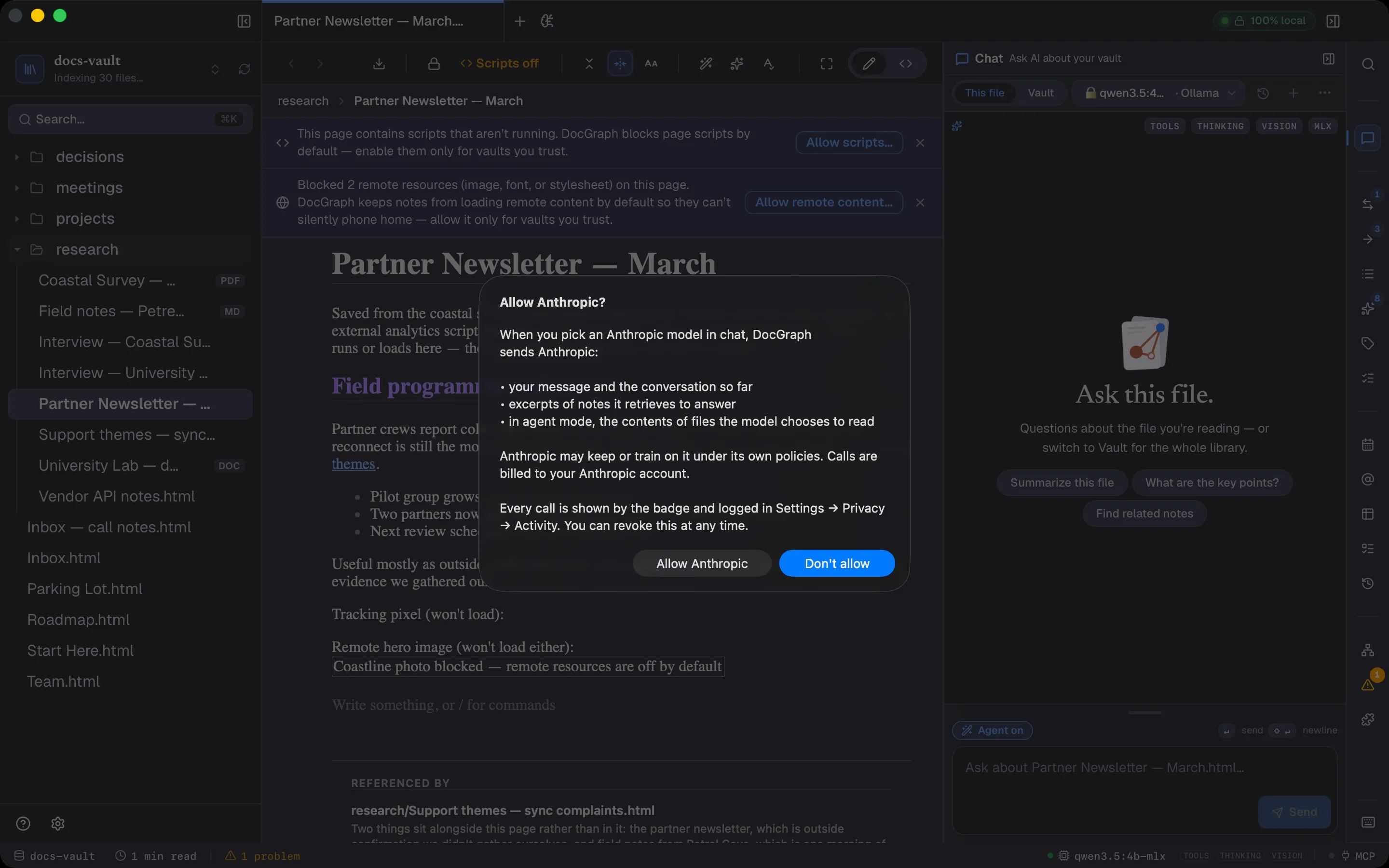
Don’t allow is the default button, so pressing Return declines. For OpenRouter, the dialog adds that OpenRouter forwards each request to the company that runs the model you pick.
- Revoke permission on a provider’s card takes effect immediately.
- A custom endpoint on another machine must use
https://, and changing its address removes its permission — you allowed a destination, not a name. - Set a spending limit on your key with the provider; it is the only cap DocGraph can’t bypass. An agent turn on a cloud model stops after 6 model calls.
- Block secrets from being sent to cloud providers is on by default — see Secrets & leak protection.
Everything else DocGraph does with AI — summaries, tags, inline suggestions — stays on your local model. A document action (proofread, rewrite) uses a cloud model only when you pick one in that action’s own Run on choice.
Full setup: Cloud AI providers.
A remote Ollama
Section titled “A remote Ollama”Settings → AI → Chat & index → Allow remote Ollama is off by default; without it, DocGraph refuses to send to an Ollama that isn’t on this computer. Turning it on asks first, and macOS asks again (Keep AI local / Allow remote AI) if the address is already remote. Every chat request to it is logged in the Activity log.
On a local network this may be plain http, so prompts cross the network unencrypted. The badge reads Remote AI · Ollama while such a model is selected.
External agents
Section titled “External agents”Settings → Connections → Agents & MCP lists the AI command-line tools DocGraph supports. One it can’t find on your computer reads Not installed, with a How to install link; enabling an installed one asks you to confirm three things — that its network activity isn’t monitored, that it can read and write your vault, and that it is billed to your own account — every time you enable it.
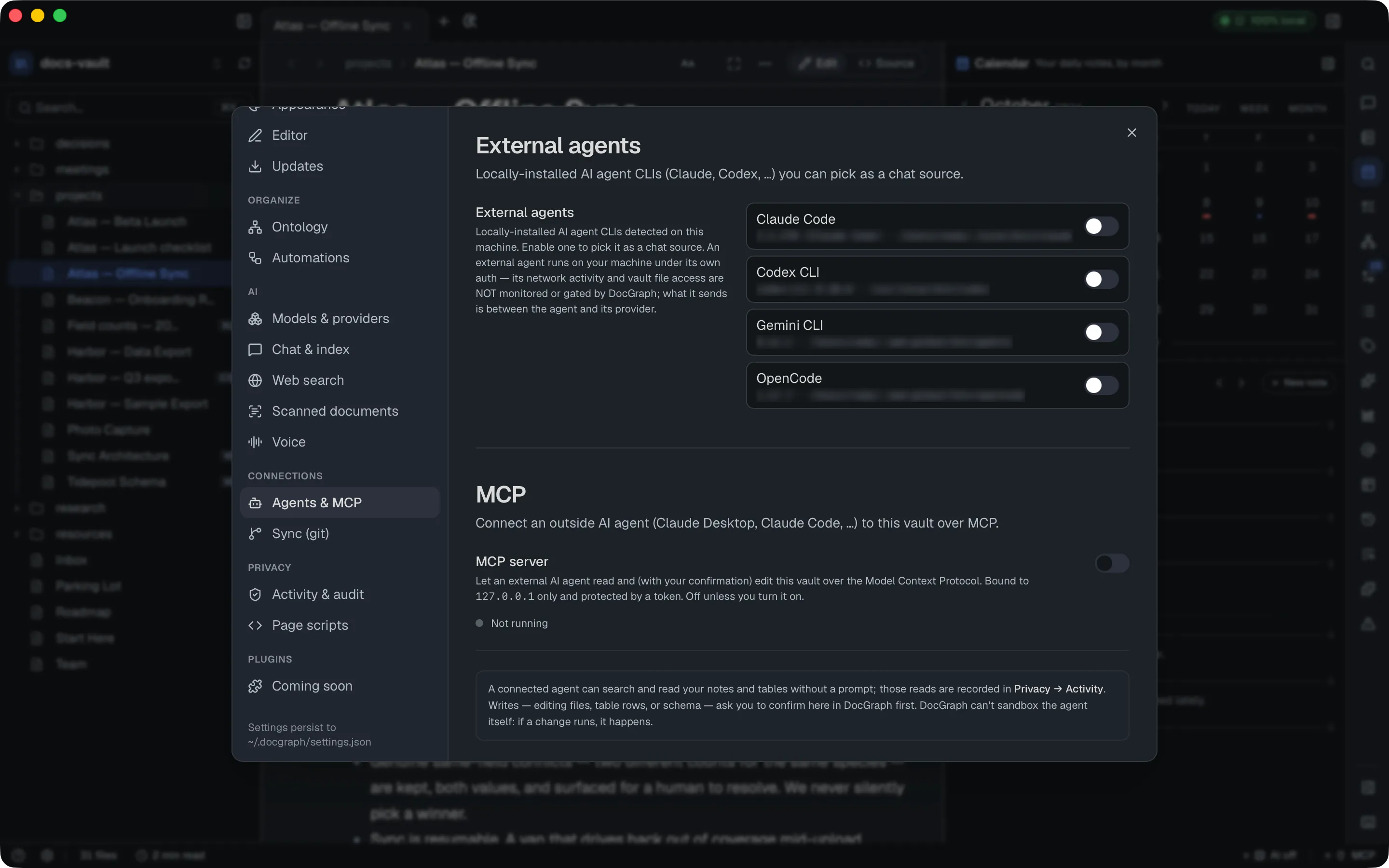
DocGraph checks the prompt it hands to the agent for secrets. After that, the agent runs under its own account, on its own connections: DocGraph can’t see or record what it sends. This is the largest path by which vault content can leave your machine, and the one DocGraph can say least about.
DocGraph never sees or stores an agent’s sign-in. When an agent answers with a sign-in error, the chat shows a Sign-in required callout with that agent’s sign-in command instead of the raw error.
Settings → Connections → Agents & MCP lets an outside AI app (Claude Desktop, Claude Code, …) work with your vault. It is off by default.
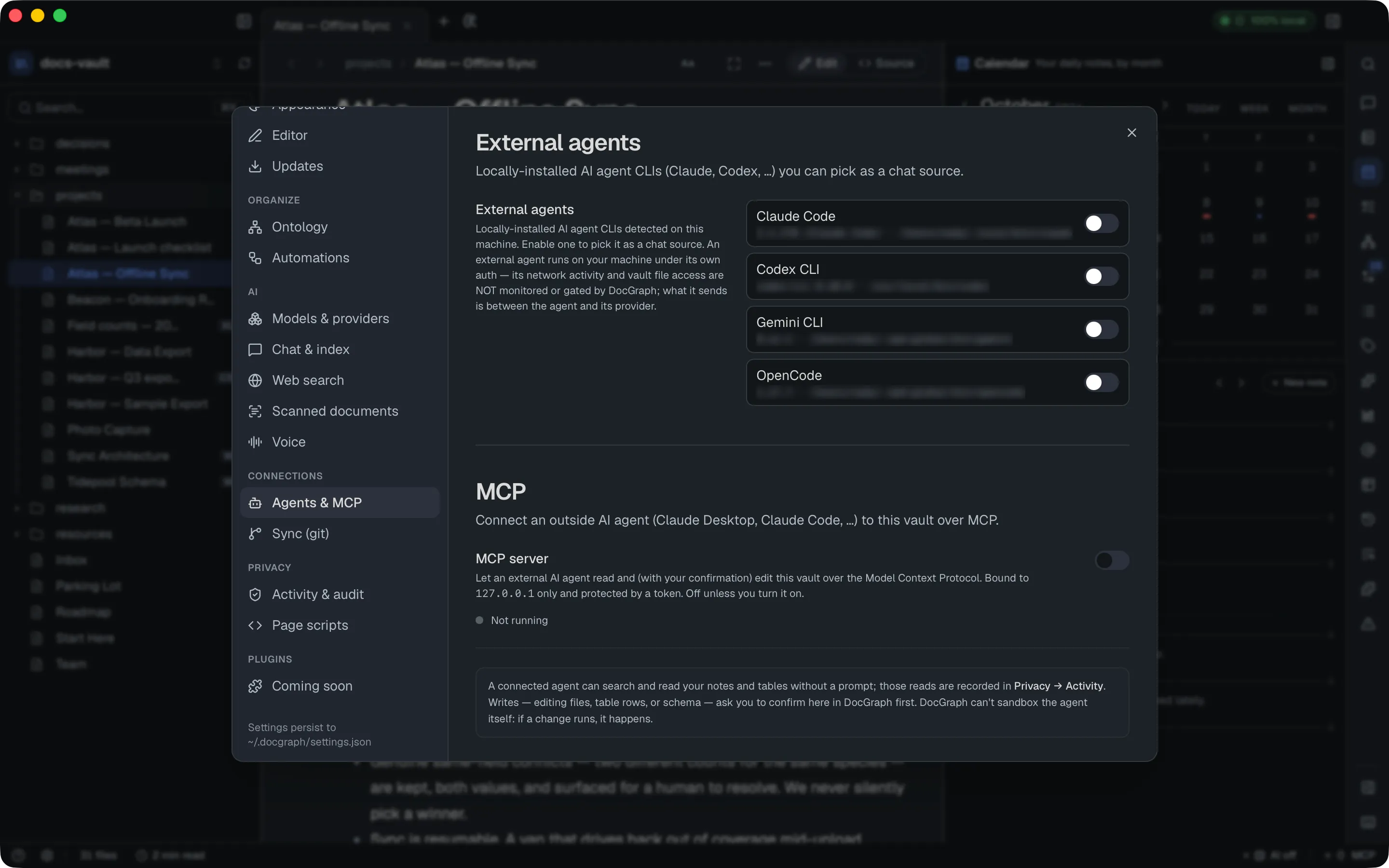
- It listens on this computer only (
127.0.0.1), behind a token you copy into the client. - Turning it on the first time asks you to confirm that an external agent can read your vault and may send its contents off this machine.
- A connected client can read without asking; every write asks you first. Auto-approve routine edits (off by default) skips that for everyday edits. Deleting, renaming or moving, renaming a table or changing a column, saving an AI memory and changing block properties still ask — see the full list.
- It refuses any request from a web page (one with a browser
Origin, or a Host that isn’t this computer), so a website you visit can’t reach it. - A write request nobody answers within 2 minutes is denied. Writes it makes can be undone like the assistant’s own edits.
- Its actions are logged in the AI tab of the Activity log.
With Keep running in the menu bar on (the default), the MCP server keeps running after you close the window.
Web search
Section titled “Web search”Settings → AI → Web search lets the assistant search the web through a SearXNG server you run. It is off by default, and each query is shown to you before it leaves: Send search sends it, Not now declines. Allow in this chat stops the prompts for the rest of that one conversation; it doesn’t carry to other chats and ends when DocGraph quits.
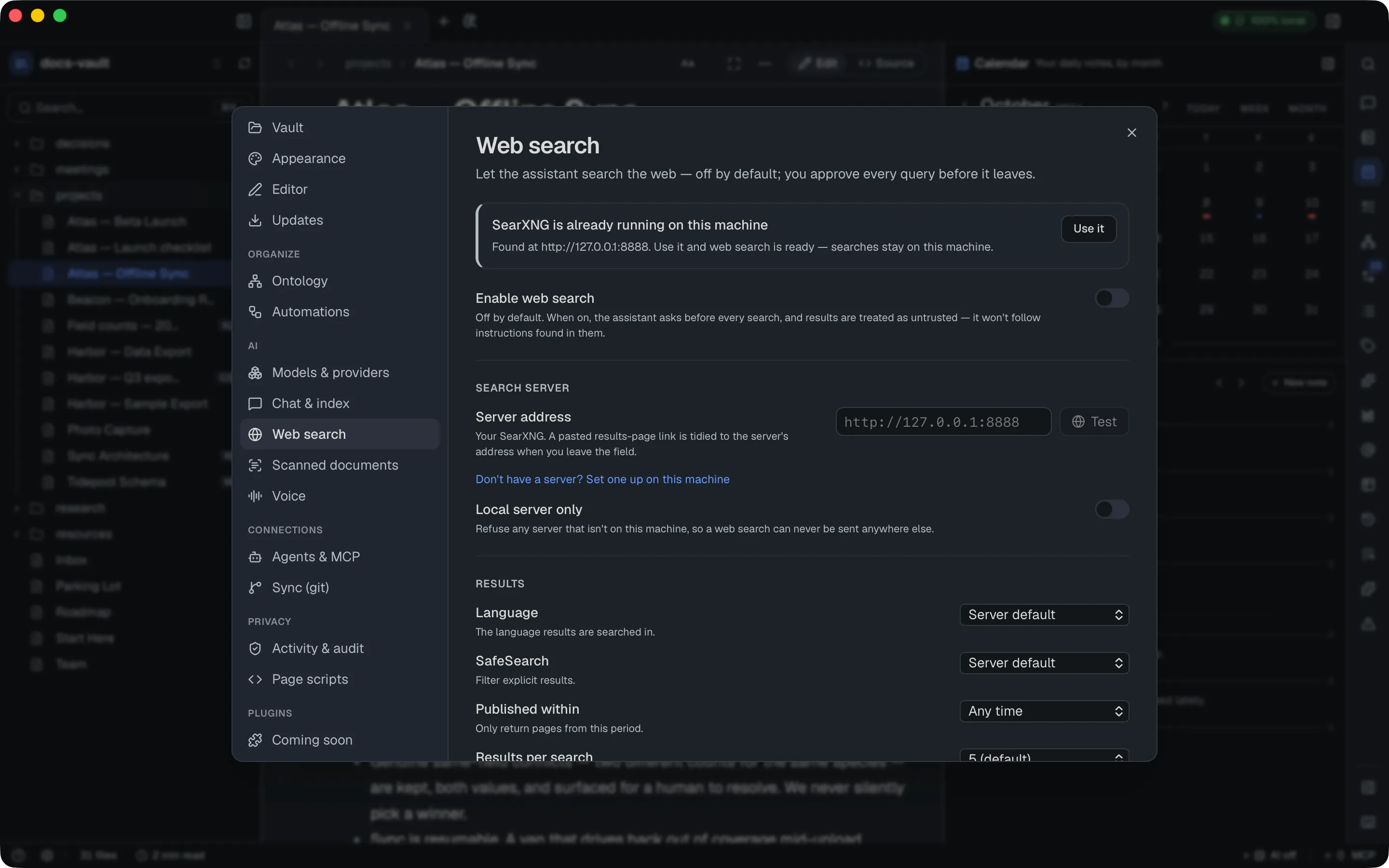
- Only the query is sent. It is checked for secrets when the server is off-machine.
- Local server only refuses any server that isn’t on this computer.
- The query is kept in full in the network log.
- If you approve a card in chat that offers to turn web search on, the assistant can switch it on for you.
Model downloads
Section titled “Model downloads”Local AI needs model files. DocGraph downloads one only when you start it, and never sends your notes or audio with the request. Where a file comes from depends on what it is:
- Search helper and voice models. The search helper and its reranker, and the speech models, ask first in a Download the … ? dialog that names the size. They come from Hugging Face (
huggingface.coandhf.co). The download policy also allowspyke.io, the host of the ONNX runtime the search helper is built on. Choosing a search language is that approval, because the choice shows its size: about 75 MB for English, about 270 MB for many languages, covering the helper and its reranker. Until you choose, nothing is downloaded for search. - Chat models for the built-in runtime. You start the download yourself in the setup wizard or Settings → AI → Models & providers, after the wizard has shown its size. The suggested models are downloaded from Hugging Face and its content servers. Each file is checked against the checksum the registry or Hugging Face publishes, and is only put in place if it matches.
- A model you paste in. The wizard’s Advanced: a model from Hugging Face or a link accepts a Hugging Face file or an
https://link to a.gguffile. A link can point at any host: DocGraph allows that one host for the length of that download, then closes it again. DocGraph does not check models from elsewhere; for a link with no published checksum it records the checksum it saw, which only catches later corruption. A model file already on your disk, added with Add a model file you have…, involves no download. - Check for new models. This button in Settings → AI → Models & providers fetches MMF’s registry — the list of models that fit your computer — from
modelfit.docgraph.app, falling back to its mirrorsmodelfit-registry.pages.devandraw.githubusercontent.com. Nothing about you or your notes is sent, and it only happens when you click it. The wizard shows the list already built into DocGraph. - Ollama. Models you pull through Ollama are downloaded by Ollama itself, not by DocGraph. The MLX? button next to an Ollama model sends that model’s name to
registry.ollama.aito ask whether an MLX build exists; it only runs when clicked.