PDF, Excel, CSV & Word
A DocGraph vault isn’t only HTML and Markdown. Drop a PDF, an Excel workbook, a CSV or a Word document into the folder and it becomes a first-class part of the vault: it opens in the app, its text is searchable, and the chat assistant can retrieve from it. These formats are read-only — DocGraph shows them, indexes them, and links to them, but doesn’t edit them.
Getting there
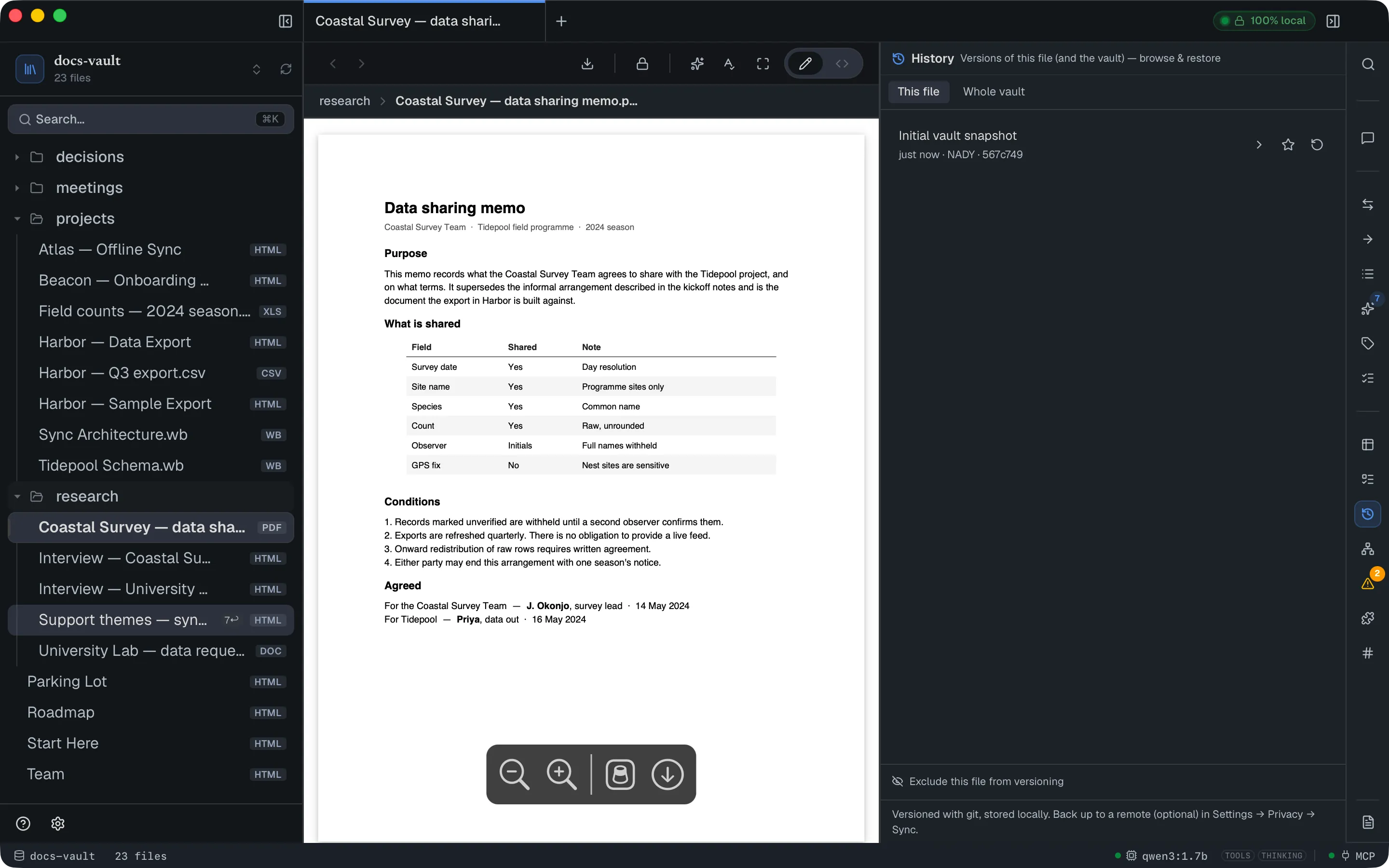
Section titled “Getting there”There is no import step. Copy the file into your vault folder — in Finder, from another app’s export dialog, or by dragging it onto the file tree — and it appears in the tree straight away, with a format badge (MD, PDF, XLS, CSV, DOC, TXT, RTF, JSON, WB, IMG) where an HTML note shows none at all. A scanned PDF’s badge reads Scan. Click it like any other file.
The file watcher picks up new files while the app is running, so you don’t need to reopen the vault or rebuild anything.
Core tasks
Section titled “Core tasks”Read a PDF
Section titled “Read a PDF”PDFs render in the system’s own PDF viewer, embedded in the document pane — real pages, real fonts, with the built-in zoom, page-fit and download controls. This is a genuine PDF render, not a text extraction, so layout, tables and images all appear as they do in any other PDF reader.
Read a spreadsheet
Section titled “Read a spreadsheet”Excel workbooks (.xlsx, .xlsm, .xls) and OpenDocument spreadsheets (.ods) render as a read-only grid — one heading and one table per sheet, in sheet order:
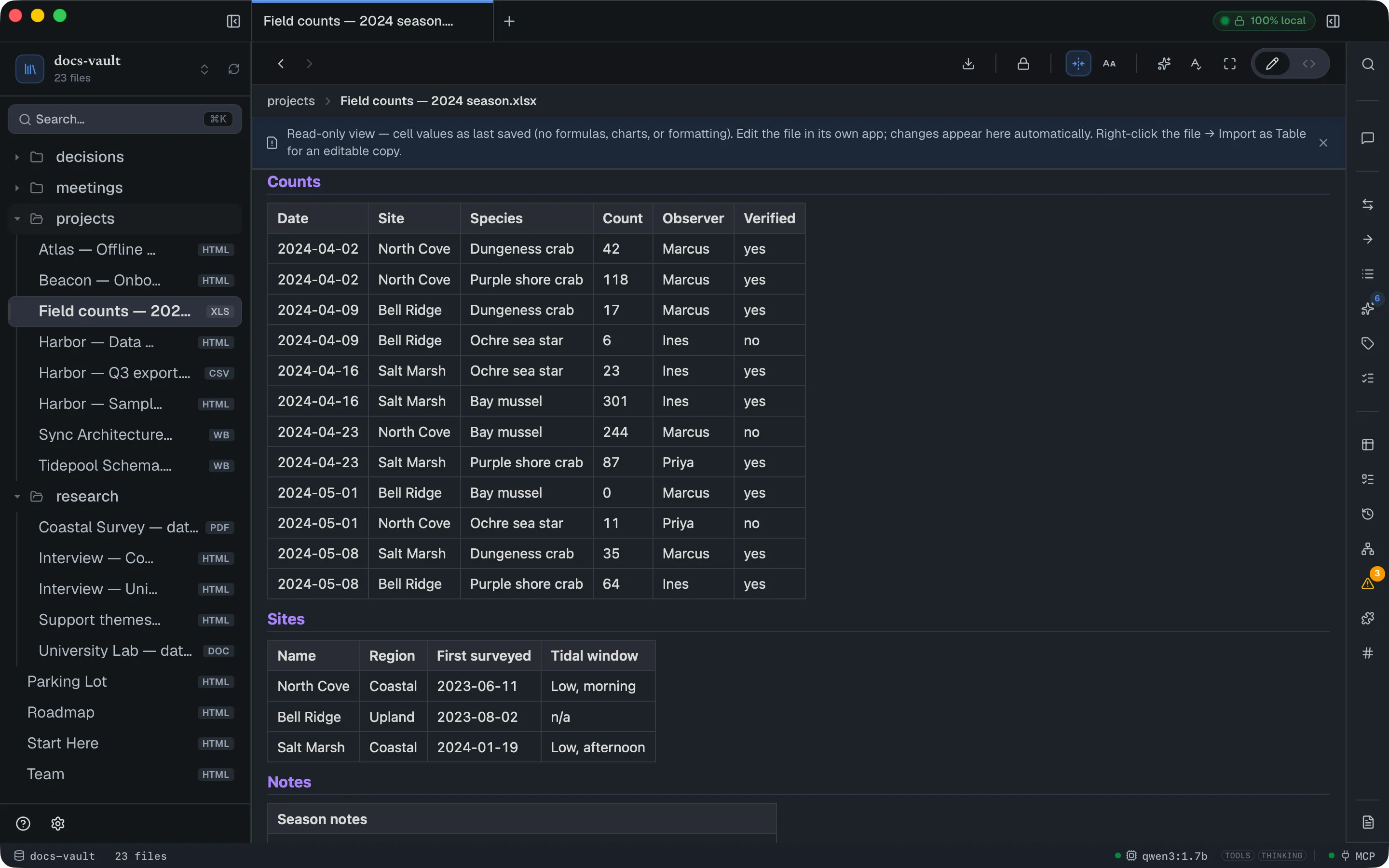
What you see is cell values as last saved by Excel — DocGraph reads the stored results, not the formulas. Formulas, charts, conditional formatting, colours and merged-cell layout are not reproduced. A banner at the top of the document says so and offers the next step: Import as Table makes an editable copy and opens it, and Open in its app hands the file to your Mac’s default app for it. Its × dismisses that kind of banner for this vault.
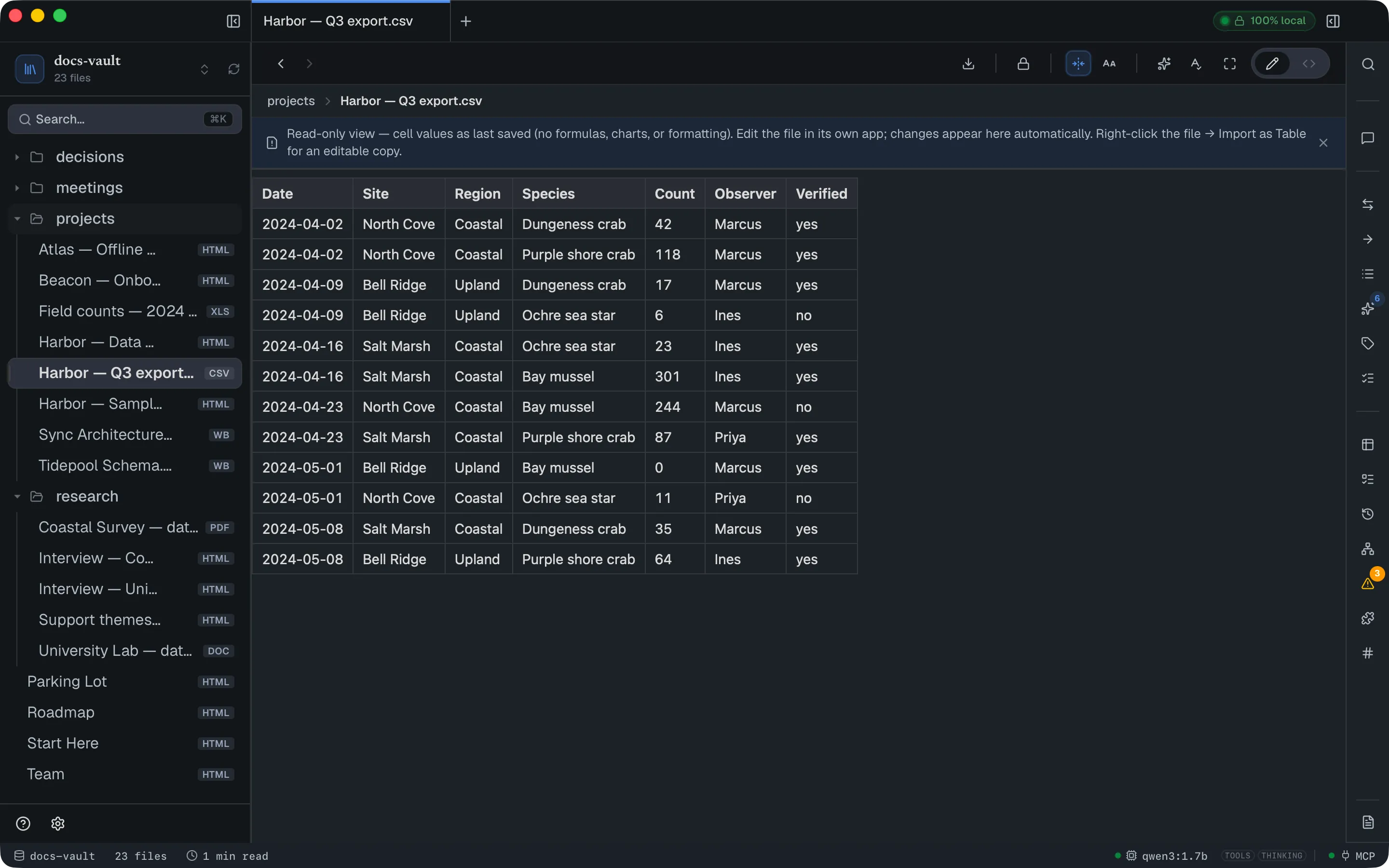
A CSV renders through the same grid, as a single unnamed sheet with its first row treated as the header:
Read a Word document
Section titled “Read a Word document”.docx files open in a reader view — a centred prose column showing the document’s text and heading structure:
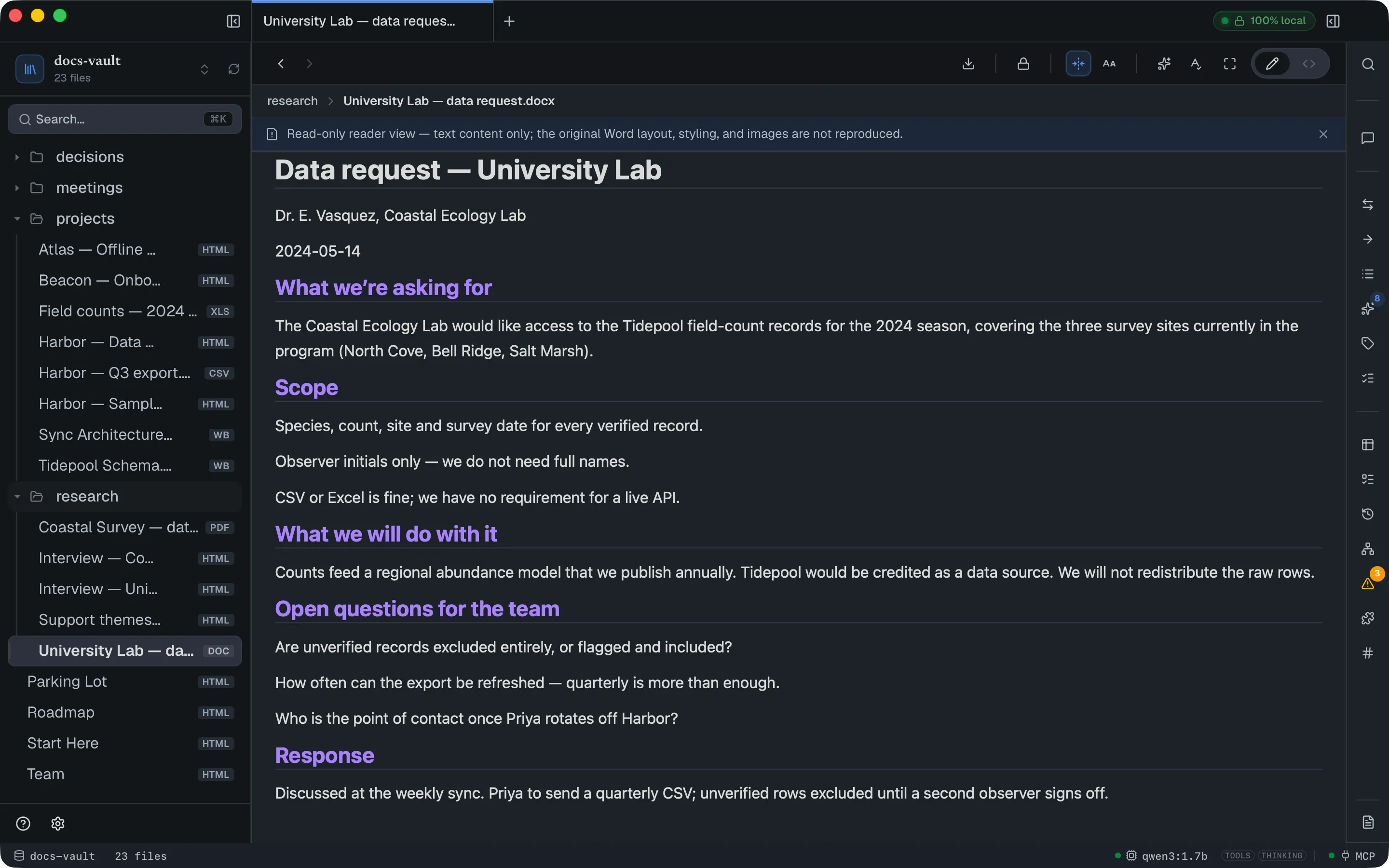
This is text content only. Images, tables-as-laid-out, page geometry, fonts and styling from the original Word file are not reproduced, and the banner says as much. Its Open in its app button opens the file in your Mac’s default app for Word documents. It is designed for reading and searching the content of a Word document that someone sent you — not for reviewing its formatting.
Read a plain-text or RTF file
Section titled “Read a plain-text or RTF file”Plain text (.txt, .text) and Rich Text (.rtf) files open in the same reader view. A text file keeps its line breaks, and each blank-line-separated block reads as a paragraph. Accented and non-Latin text reads correctly whether the file is UTF-8, UTF-16 (with a byte-order mark) or an older Windows encoding. No headings are guessed, so the Outline stays empty.
An RTF file shows its text with the formatting stripped, under a notice saying so, with Open in its app to open it in the app your Mac uses for RTF. Plain text gets no notice: the reader view is the file.
Adjust width and text size
Section titled “Adjust width and text size”Spreadsheets, CSVs, Word, plain-text and RTF files take the same reading controls as a note: the Display & reading popover in the toolbar (text size, line spacing, font and full width). A PDF and an image don’t; use the PDF viewer’s own zoom. See Reading preferences.
Edit a JSON file
Section titled “Edit a JSON file”A .json file opens in the <>Source editor only; the Edit pill is locked. You get JSON highlighting, folding by bracket, and Format document.
- Comments and trailing commas (the
tsconfig.jsonstyle) are accepted, and//and/* */comments are coloured. - Errors are marked where they are. The first syntax error gets a red dot in the gutter and an underline; point at it for the reason, with line and column. ⌘⇧M opens the problems list and F8 jumps to the next error.
- Format leaves a broken file untouched and moves the cursor to the error instead. On a valid file it keeps numbers as you wrote them (
1.50stays1.50), and Windows line endings and a byte-order mark survive saving.
Turn a spreadsheet into an editable table
Section titled “Turn a spreadsheet into an editable table”Read-only is the rule, with one deliberate exception: right-click an .xlsx, .xlsm, .xls, .ods or .csv in the file tree and choose Import as Table… to copy its rows into a managed DocGraph table, which is editable and can be queried and charted.
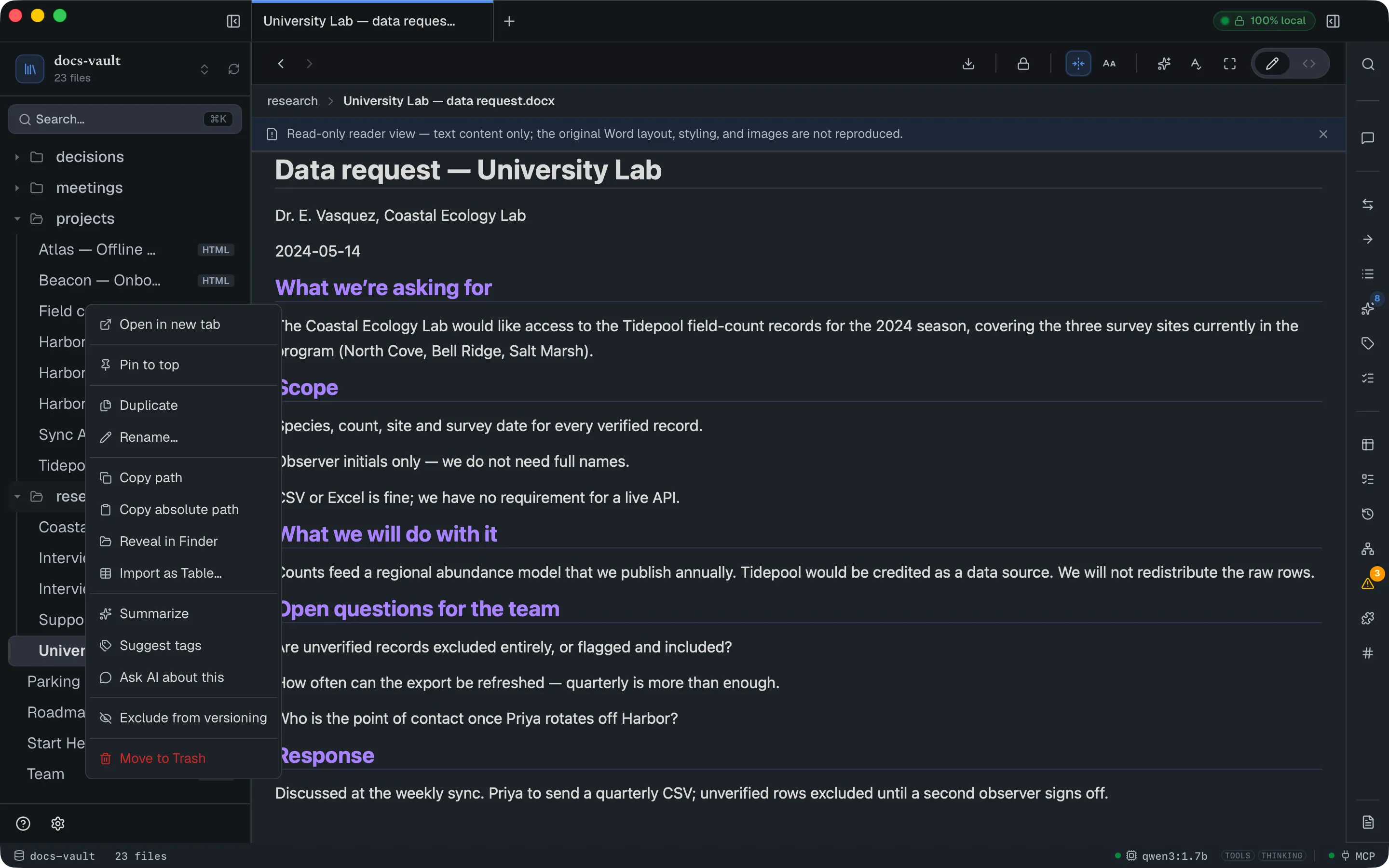
This creates a copy. The original file is untouched, and the two do not stay in sync afterwards. A workbook with several sheets becomes one table per sheet, plus a new page next to the file that embeds them; see Tables, Charts & Queries for what you can do with the result.
Search inside them
Section titled “Search inside them”Text extracted from all of these formats goes into the same full-text index as your notes, so keyword search reaches inside a PDF’s text layer, a spreadsheet’s cells, and a Word document’s paragraphs:
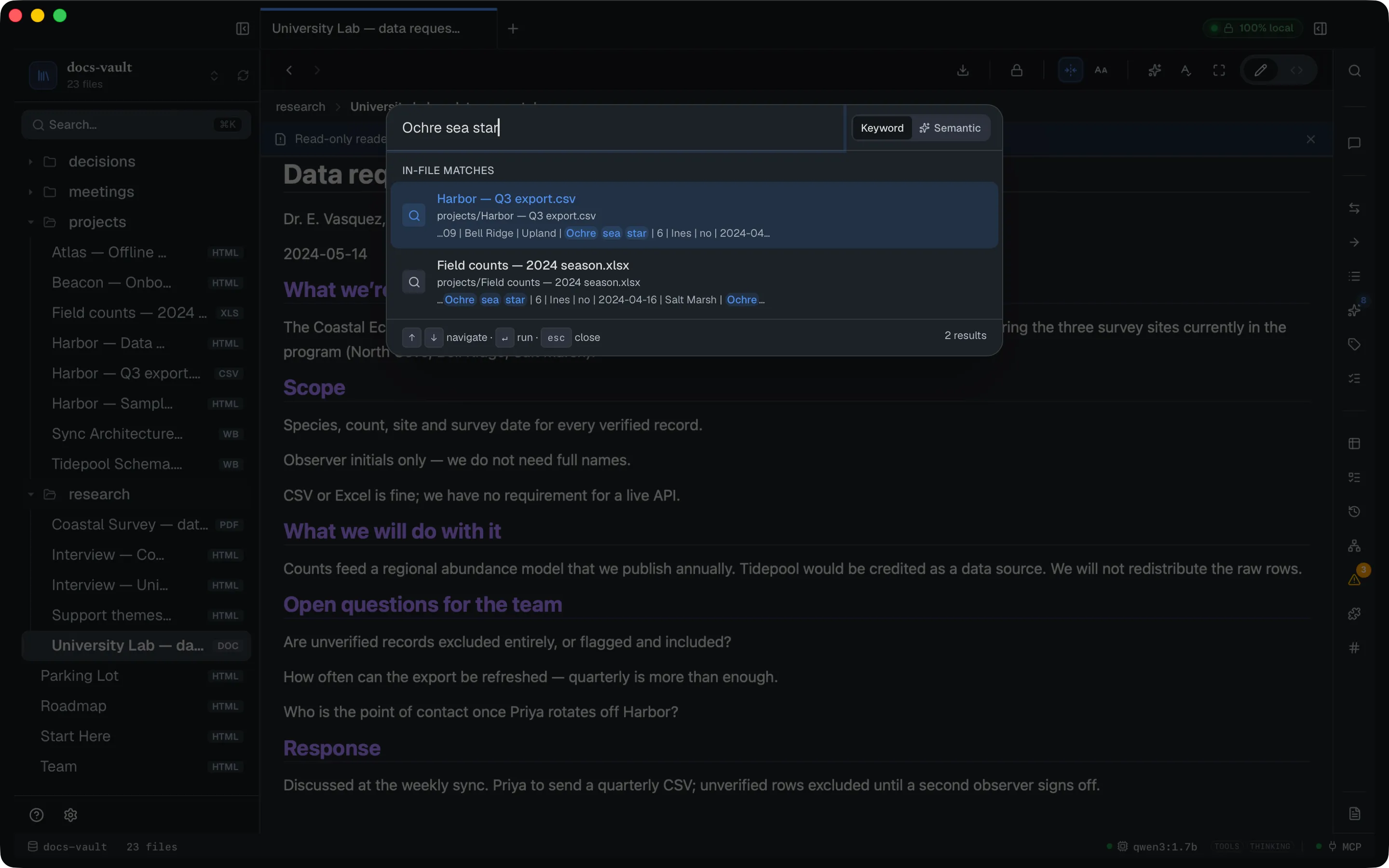
Spreadsheet matches show their row as pipe-separated cells, so you can see which record matched. PDF matches carry a Page N breadcrumb.
A scanned PDF has no text layer, so there is nothing to search until you make it searchable — see Scanned PDFs & Images.
The same extracted text feeds the chat assistant’s retrieval, so a vault-wide question can find and cite a passage from a PDF or a Word document exactly as it would from a note.
Link to them
Section titled “Link to them”An ordinary link from a note reaches these files:
<a href="research/Coastal Survey — data sharing memo.pdf">the signed memo</a>The link resolves, the target appears in the graph, and the note shows up in the memo’s Links panel, under In. Note that links only go one way: a PDF or spreadsheet has no outbound links of its own, so it always sits at the edge of the graph as a leaf.
Reference
Section titled “Reference”| Format | Extensions | How it’s shown | Text indexed |
|---|---|---|---|
.pdf | Native PDF render | Yes — text layer only | |
| Excel | .xlsx, .xlsm, .xls | Read-only grid, one table per sheet | Yes |
| OpenDocument | .ods | Read-only grid | Yes |
| CSV | .csv | Read-only grid, single sheet | Yes |
| Word | .docx | Reader view, text + headings | Yes |
| Plain text | .txt, .text | Reader view, blank lines as paragraphs | Yes |
| Rich Text | .rtf | Reader view, formatting stripped | Yes |
| JSON | .json | The <>Source editor, with folding and Format document (details) | Yes |
| Images | .png, .jpg, .jpeg, .gif, .webp, .svg, .avif, .bmp, .ico | Opened for viewing | Only once you make it searchable |
Size and complexity limits
Section titled “Size and complexity limits”| Limit | Value |
|---|---|
| PDF text extraction | Files above 64 MB are shown but not indexed |
| Spreadsheet file size | Files above 64 MB are not read |
| Spreadsheet cells indexed | 50,000 cells total across all sheets |
| Word document | 64 MB file, 48 MB of uncompressed document text |
| Dragging files onto the tree | 256 MB per file |
Exceeding a limit affects indexing, not viewing — a very large PDF still opens, it just won’t be searchable.
Limits & troubleshooting
Section titled “Limits & troubleshooting”A scanned PDF has no text to find — until you ask. DocGraph reads a PDF’s text layer, and a PDF that is really a photograph of a page has none, so it displays perfectly and returns nothing in search. Its badge reads Scan, and opening it shows a strip offering Make Searchable, which reads the text on your Mac. See Scanned PDFs & Images.
There is no editing, and no round-trip. The <>Source button is disabled on these formats (its tooltip reads “View-only document — no editable source”), and Edit (⌘E) just shows the reader view. To change the file, edit it in the app that owns it and save it back into the vault — DocGraph picks up the change automatically. Import as Table copies data out; nothing writes back.
The per-file AI actions read the same text search does. Right-clicking a PDF, Excel, Word or CSV file offers Summarize, Suggest tags and Ask AI about this. These run on the file’s extracted text — the same projection that feeds search, chat and the link graph — so a summary of a spreadsheet is about its cells and a summary of a PDF is about its pages.
Other formats are invisible, not broken. .doc (the pre-2007 Word format), .pptx, archives, and audio and video files are not listed in the file tree. They can sit in the vault folder and can be linked to from a note without the link being reported as broken — they just can’t be opened from the tree. Audio and video are the exception worth knowing: they don’t appear in the tree, but a note that embeds one with <audio controls> or <video controls> plays it, streamed in chunks.