Version History
DocGraph can keep a full history of your vault: every version of every file, with a message saying what changed, a diff, and one-click restore. It’s git underneath — real commits in a real repository in your vault folder — but you never have to touch git to use it.
Getting there
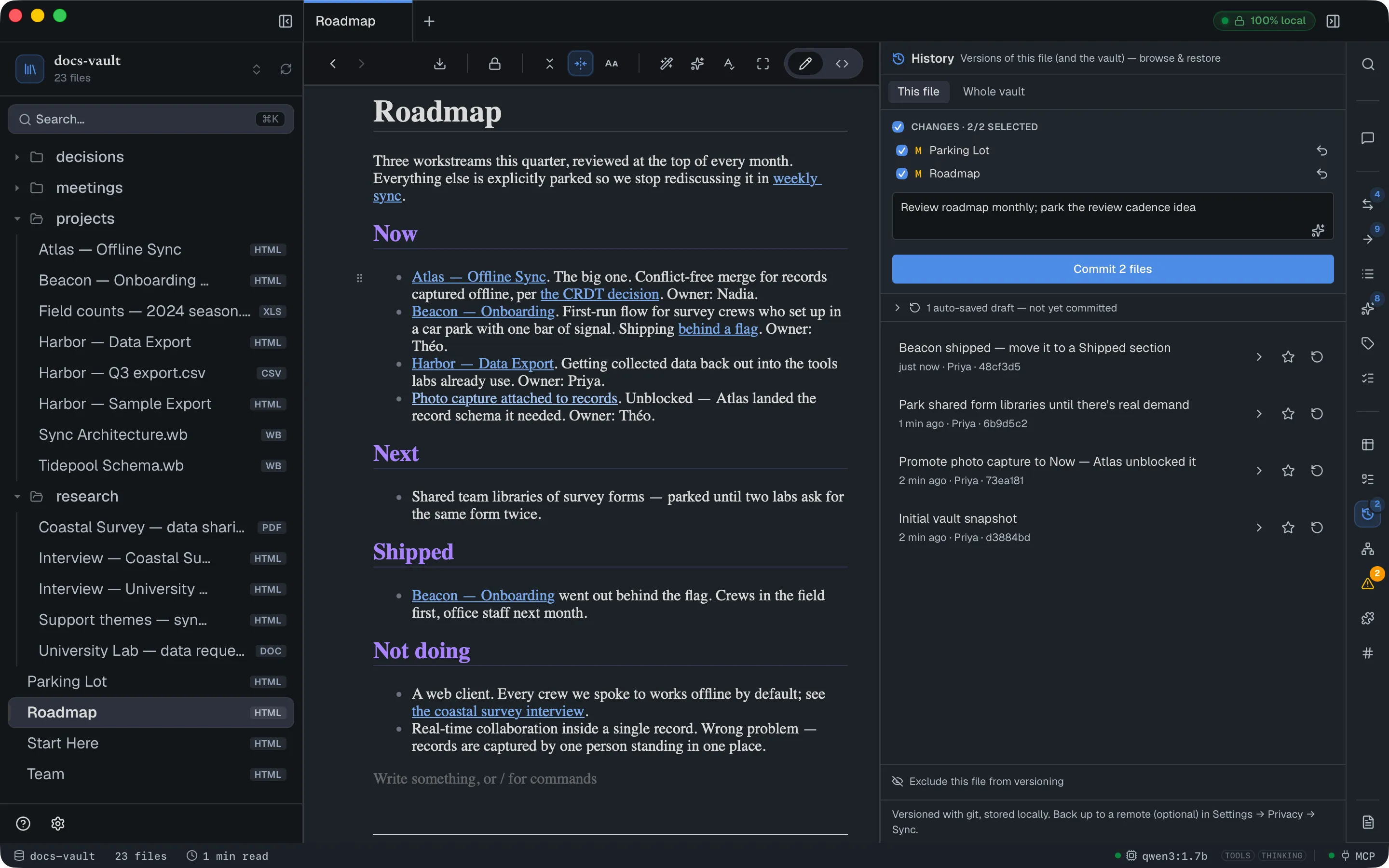
Section titled “Getting there”History lives in the right-hand sidebar. Click the clock icon in the icon rail on the far right to open the History panel — it shows versions of whichever file is open, plus the whole vault.
Versioning is off until you turn it on, once per vault. The first time you open the panel you get a one-time prompt:
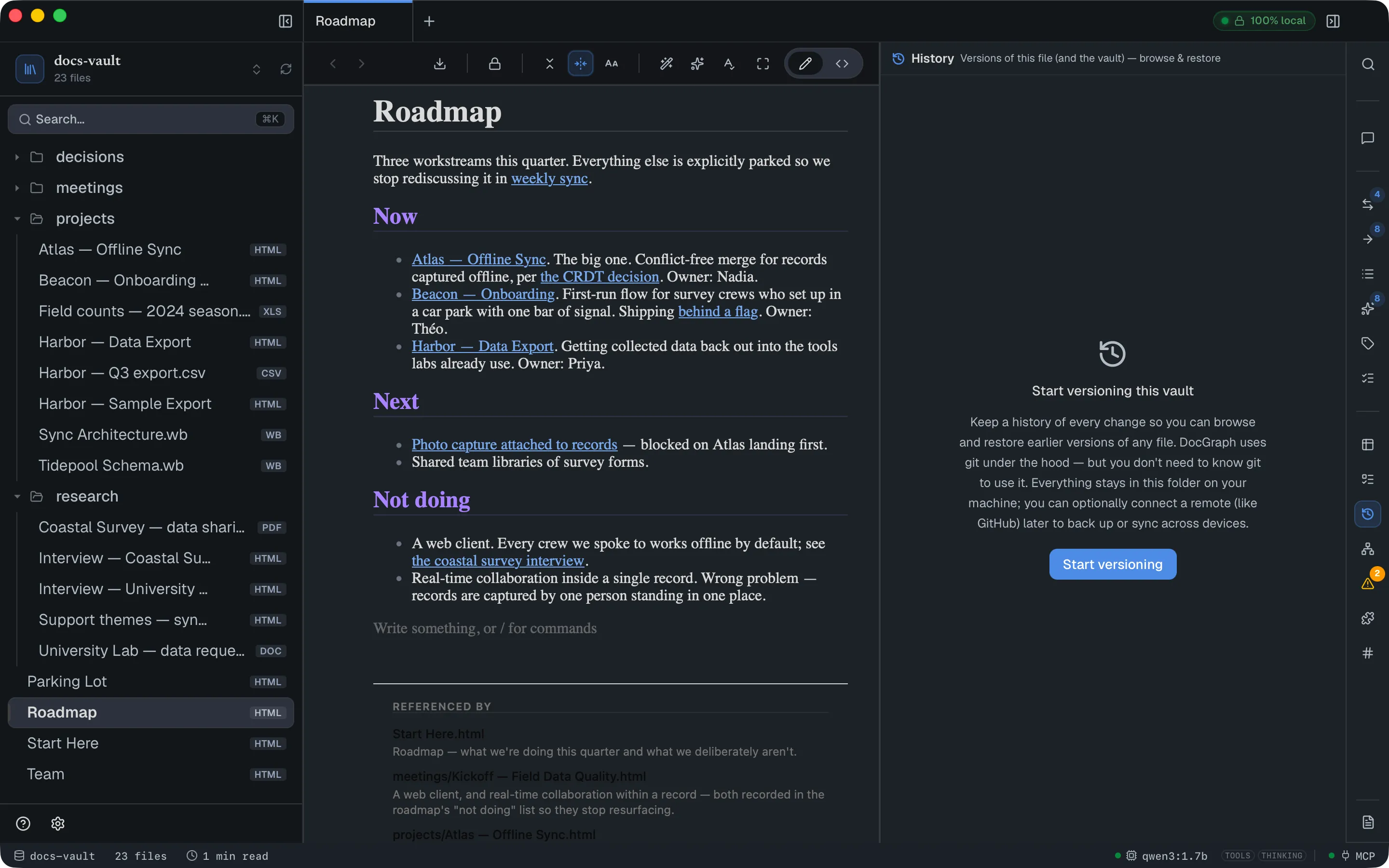
Start versioning creates a git repository at the vault root, writes a small managed .gitignore (.DS_Store, Thumbs.db), and takes an initial snapshot of everything called Initial vault snapshot. Nothing leaves your machine — this is entirely local, and separate from the optional remote backup in Settings → Connections → Sync (git).
You don’t need git installed. DocGraph uses the git library directly, so local versioning works on a machine with no git command at all. (The system git is required for the optional remote push/pull, and the app says so if it’s missing.)
Core tasks
Section titled “Core tasks”Save a version
Section titled “Save a version”Saving a file to disk and saving a version are two different things. Edits are written to disk continuously — there is no save button — but they don’t become versions on their own. You decide when a version is worth keeping, so your history reads as a list of meaningful changes rather than a keystroke log.
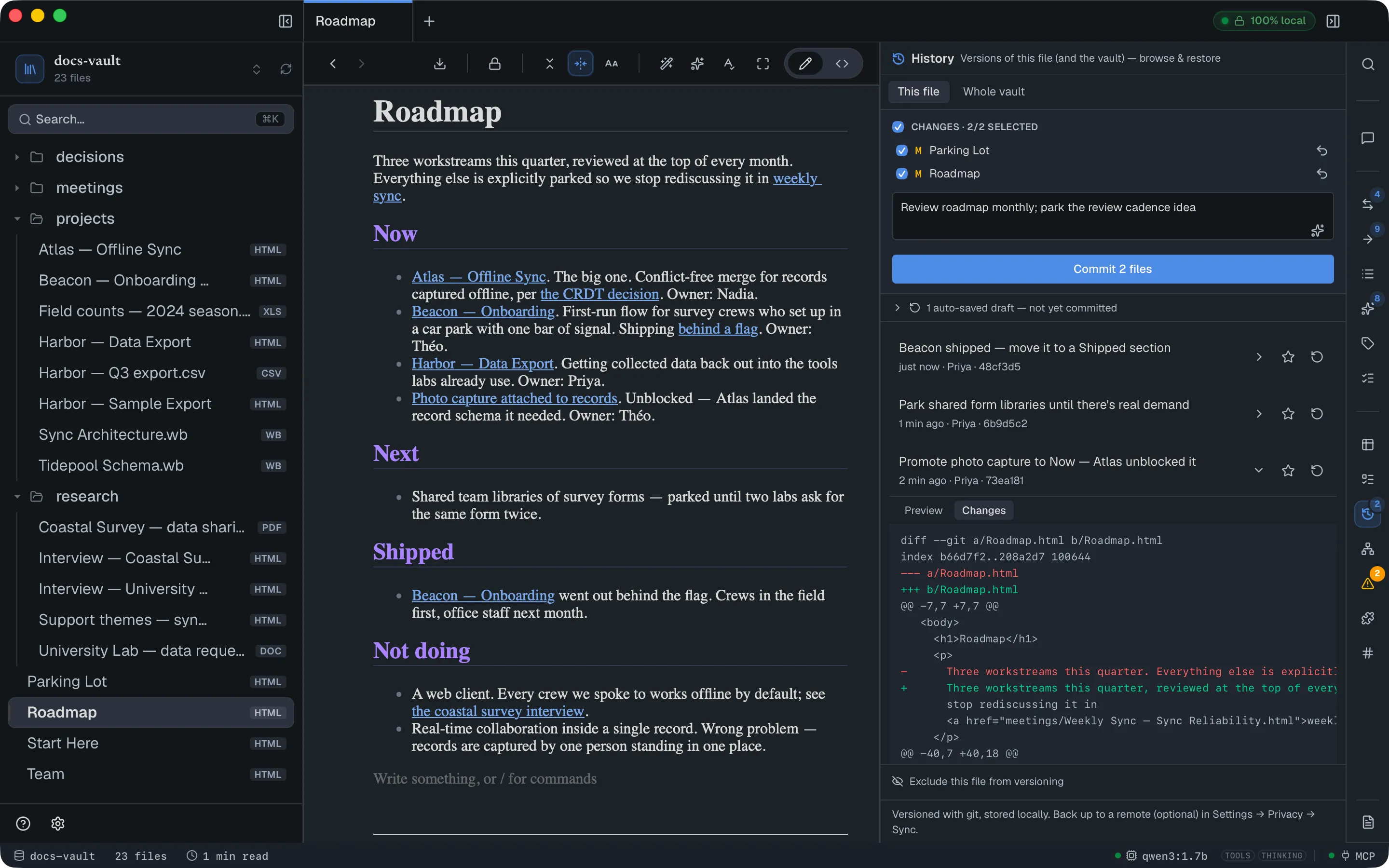
Files you’ve changed since the last version appear at the top of the panel under Changes, each with a status letter (M modified, A added, D deleted, R renamed, T type changed) and a checkbox. Select all at the top ticks or unticks every file. The rail’s History icon shows how many changes are waiting. Write a message describing what changed, and press Commit:
- Untick any file you don’t want in this version — the button label follows your selection (Commit 2 files).
- Type a message in the box. The sparkle button drafts one for you with the local model; it sends only the file paths and what kind of change each was, never the contents of your notes.
- Click Commit, or press ⌘Enter.
The undo arrow on a change row is a different, destructive action: it discards that file’s uncommitted edits rather than saving them. It can’t be undone, and the dialog says so.
Nothing is lost between versions
Section titled “Nothing is lost between versions”Because versions are manual, there’s a safety net underneath them. About four seconds after you stop typing, DocGraph quietly snapshots the whole vault to a private auto-save draft. These appear in the panel as “1 auto-saved draft — not yet committed”. Open that list and restore one: it is saved as a new version, like any restore.
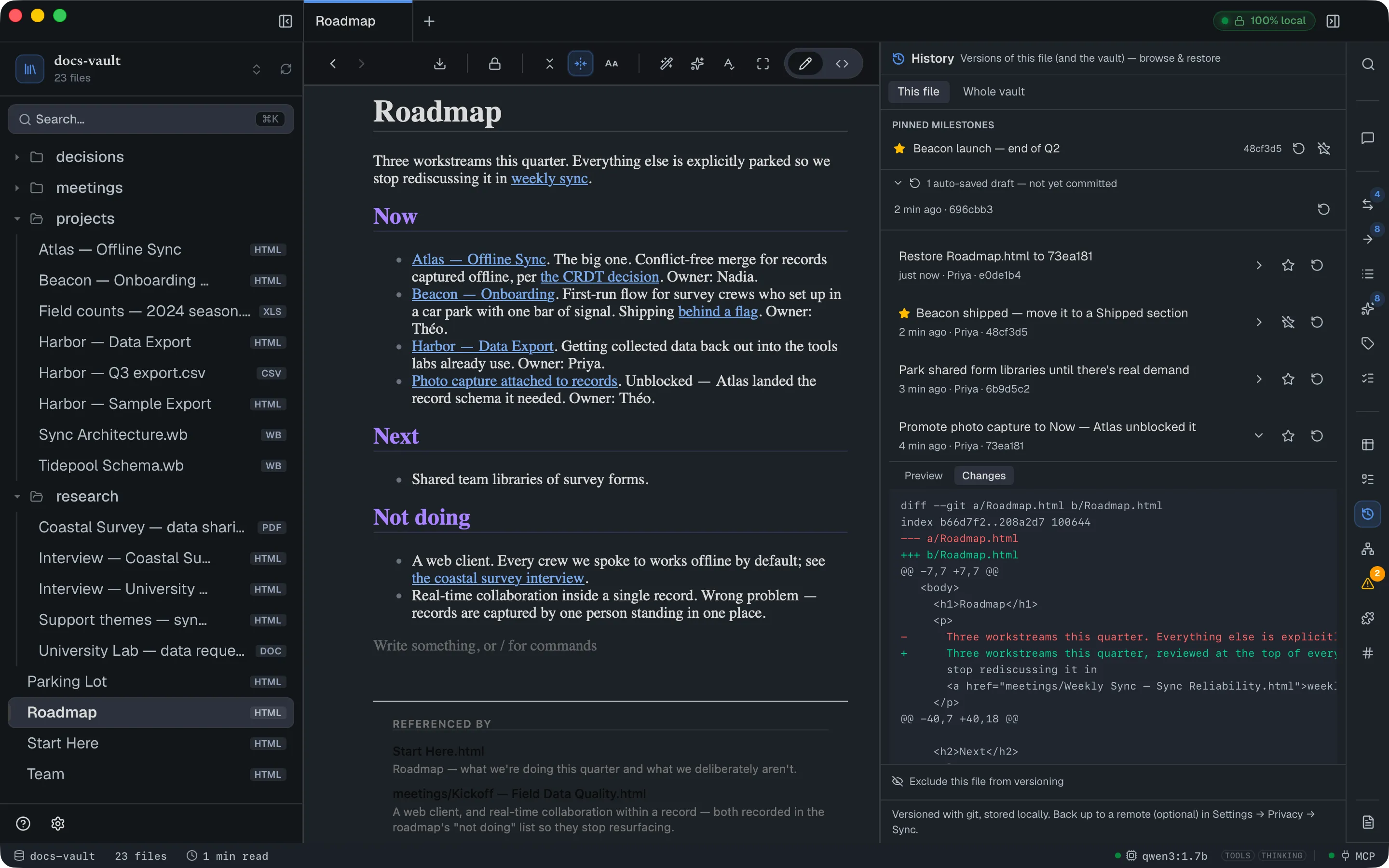
Drafts are kept outside the normal history, so they never clutter your version list and are never pushed to a remote.
Look at an old version
Section titled “Look at an old version”Each version row expands (the chevron on the right) into two tabs:
Preview renders that old version of the page as it looked, next to the current one — the fastest way to answer “what did this note say last week?” without touching anything. HTML files only.
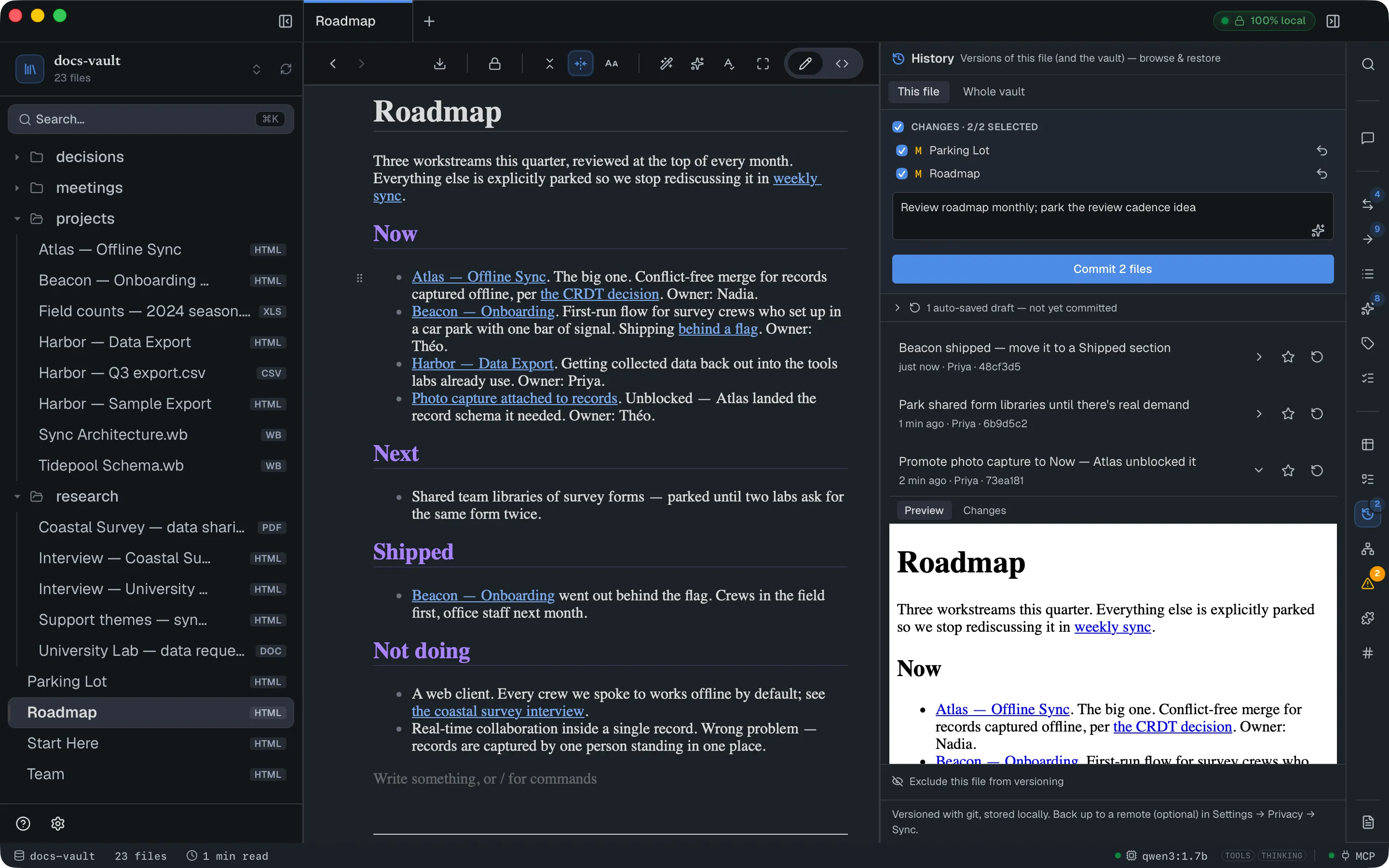
Changes shows a unified diff — removed lines in red, added lines in green — comparing that version against the file as it stands right now.
Restore an earlier version
Section titled “Restore an earlier version”The circular-arrow button on a version row restores the currently open file to that version. You’re asked to confirm first:
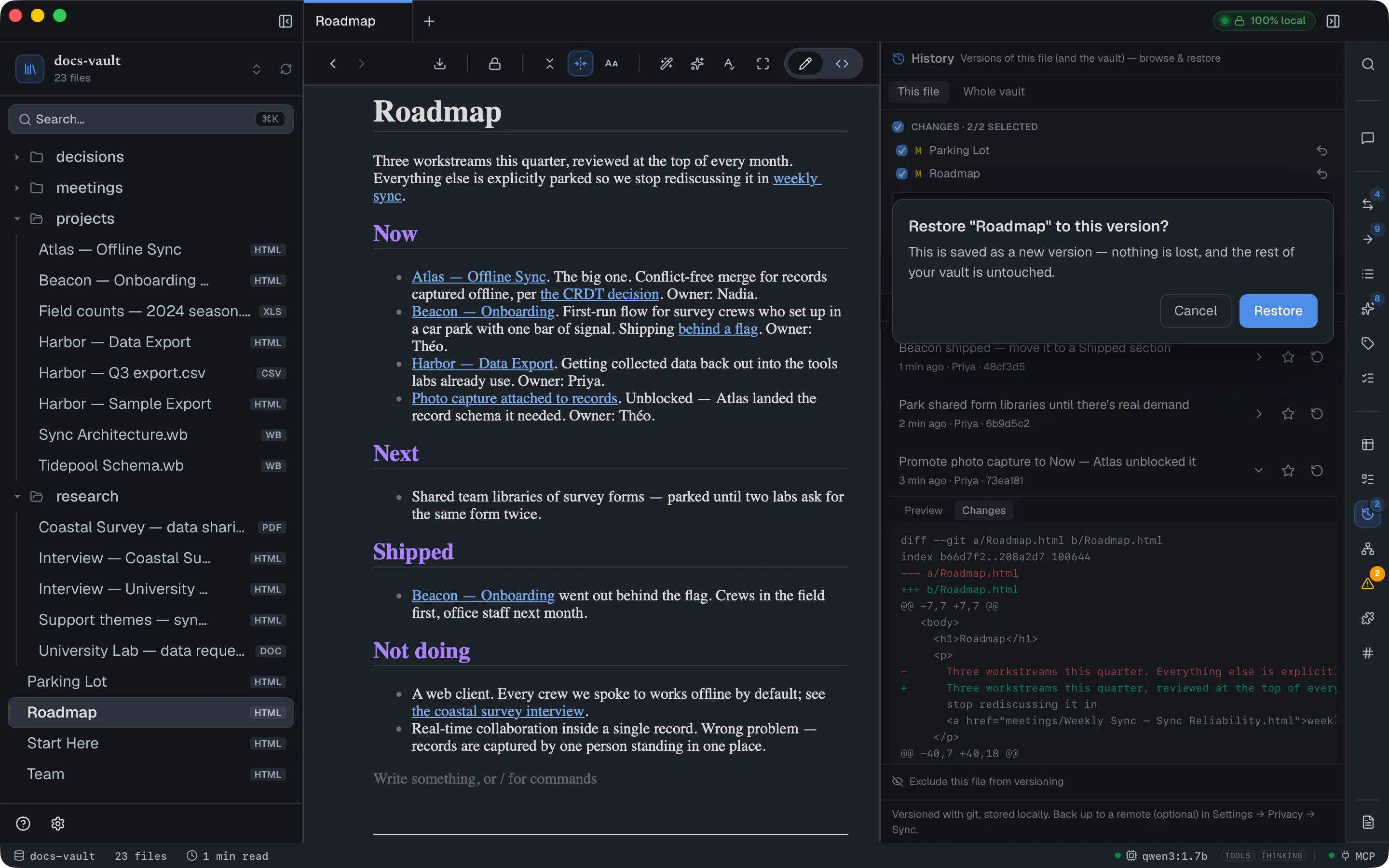
Restoring writes a new version on top — it never rewinds or erases history. The version you restored from stays exactly where it was in the list, and so does everything after it, so you can always restore forward again if you change your mind. The restored file reopens in the editor immediately, and a new entry appears at the top of the list reading Restore Roadmap.html to 73ea181.
One thing the confirmation doesn’t spell out: that new version is a snapshot of the whole vault, so any other uncommitted edits you had in flight get swept into the same commit as the restore. Your files on disk are exactly as you’d expect — but if you want the restore to stand alone in the history, commit or discard your other changes first.
Restore is only available in This file scope, and only for the file that’s currently open.
Name a milestone
Section titled “Name a milestone”The star on a version row pins it as a named milestone — “before big rewrite”, “end of Q2” — and lifts it to a Pinned milestones block at the top of the panel, where it stays easy to find however many versions pile up after it. Leave the name blank and it is called milestone. Pinned versions can be restored straight from that block (in This file scope).
To unpin one, click Remove pin on it in the block, or the star on its row again. The version itself stays in history; only the name goes.
See the whole vault’s history
Section titled “See the whole vault’s history”The Whole vault tab switches from “versions of this file” to every version in the vault, in order:
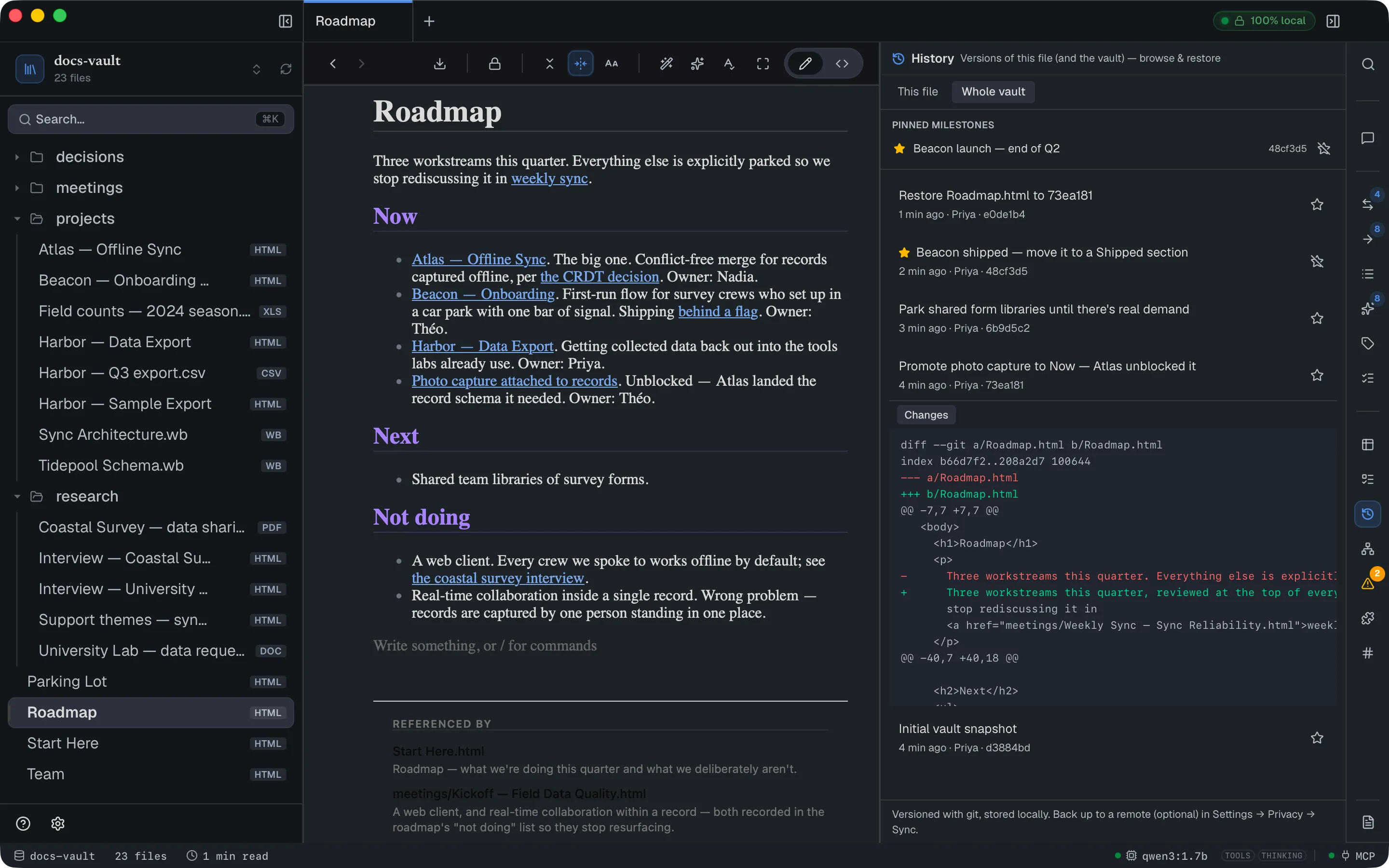
This is the view for “what happened in here recently”. Restore and the per-version diff are per-file operations, so they aren’t offered here — open the file first, then use This file.
Leave a file out of versioning
Section titled “Leave a file out of versioning”Right-click a file in the tree and choose Exclude from versioning to stop snapshotting it. The file stays on disk and stays in your vault; it’s just no longer tracked, and versions already saved for it remain in history. Re-including it is the same menu item (Include in versioning). Neither direction asks for confirmation — the file stays on disk either way.
The History panel offers the same switch for the open file: Exclude this file from versioning at the bottom of This file scope. From the panel it asks you to confirm first. Once a file is excluded, the panel shows This file is excluded from versioning. with an Include button that turns tracking back on.
Back up to a remote
Section titled “Back up to a remote”Once a remote is set up, the History panel shows a backup bar: Not yet backed up to the remote, 3 commits to back up, or Backed up — up to date with the remote. Its button reads Push (3) when there are versions waiting, or Back up otherwise, and pushes your versions to the remote. Pulling, overwriting and the access token stay in Settings → Connections → Sync (git); see Sync & updates.
Reference
Section titled “Reference”| Action | Where | Notes |
|---|---|---|
| Open History | Clock icon, right-hand icon rail | No keyboard shortcut |
| Turn versioning on | Start versioning, first-run panel | Once per vault |
| Commit | Commit button, or ⌘Enter in the message box | Empty commits are refused |
| Suggest a message | Sparkle button in the message box | Local model; sends paths only |
| Discard a file’s edits | Undo arrow on a change row | Destructive, confirmed |
| Expand a version | Chevron on a version row | Preview (HTML only) / Changes |
| Restore | Circular arrow on a version row | Confirmed; makes a new version |
| Pin a milestone | Star on a version row | Prompts for a name |
| Remove a pin | Remove pin in Pinned milestones | The version stays |
| Exclude a file | File tree right-click, or Exclude this file from versioning in the panel | Tree: no confirmation. Panel: confirmed |
| Back up versions | Push (n) / Back up in the panel | Only when a remote is set up |
| Remote backup | Settings → Connections → Sync (git) | Optional, see Sync & updates |
What gets versioned: everything in the vault, regardless of type — HTML notes, Markdown, .wb whiteboards, PDFs, spreadsheets, images. There’s no extension filter and no size limit. Only the Preview tab is format-specific (HTML only); everything else shows a diff, which for a whiteboard means a diff of its underlying JSON.
Where it lives: a .git directory at the root of your vault folder. It’s an ordinary git repository — you can inspect it with git tools if you want to. DocGraph never creates one without being asked, and never commits to a repository whose root sits outside your vault; one you made yourself at the vault root is adopted and used as it is.
Limits & troubleshooting
Section titled “Limits & troubleshooting”Renaming a file breaks its history in the panel. History is tracked per path. After you rename or move a file, its History panel shows only the versions since the rename — the earlier ones still exist in the repository under the old path, but the panel has no way to reach them. Rename deliberately if a file’s history matters to you.
A vault inside another git repository. If your vault folder sits inside an existing git repo (a code checkout, for instance), DocGraph won’t quietly start committing files outside it. You get a different first-run prompt offering to make a dedicated repository at the vault root instead:
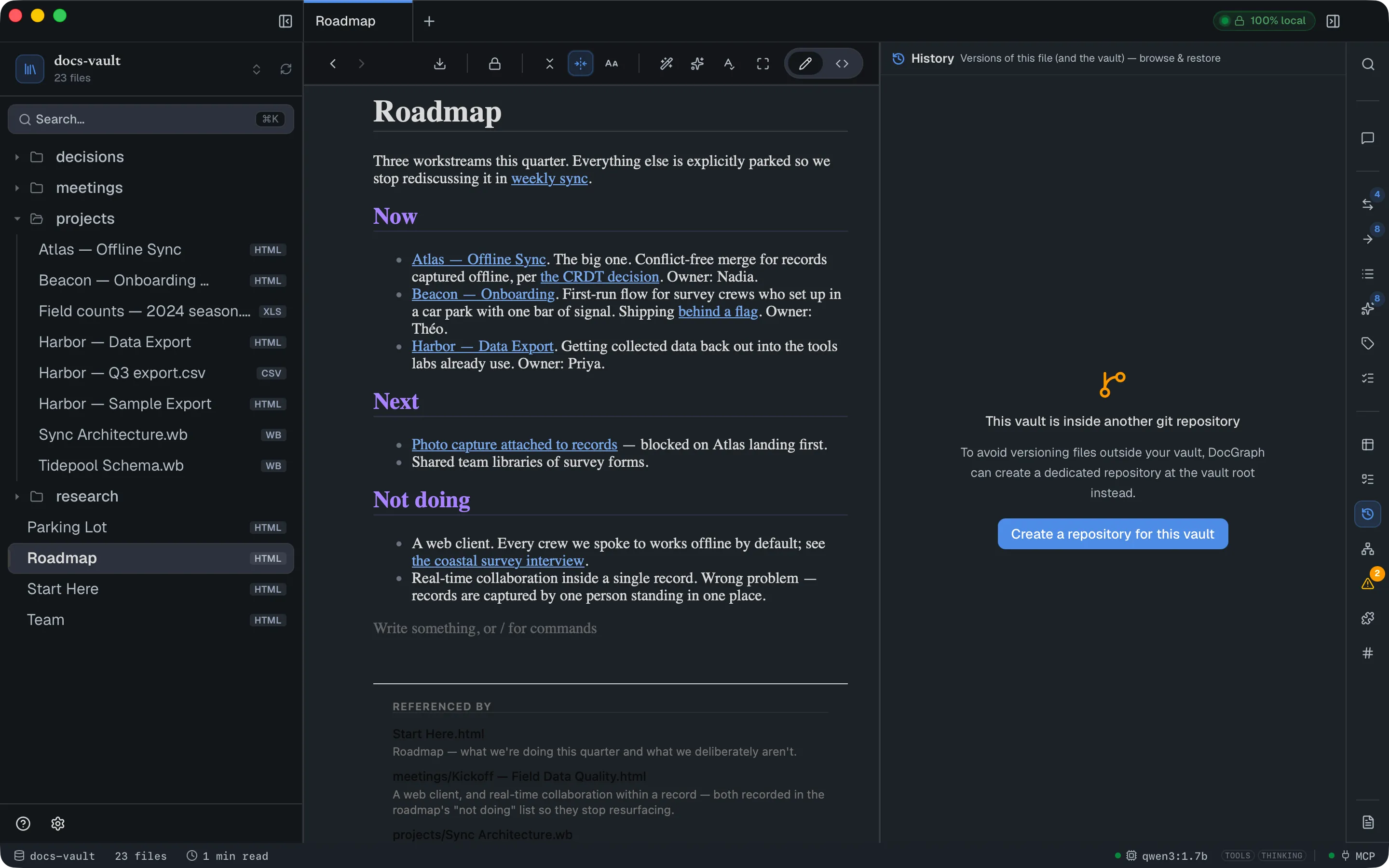
Every version is a whole-vault snapshot. Committing a subset of files still produces one commit; the per-file view is a filter over vault history, not a separate timeline per file. This is why a restore can pick up unrelated pending edits, as described above.
A bare repository. If the vault folder holds a bare git repository (one with no working files, as on a server), the panel explains that it can’t keep versions there and offers no actions.
There’s no side-by-side compare of two old versions. Every diff is this version vs. the file as it is now. To compare two historical versions with each other, restore one and read the other’s diff — or use git directly on the repository.
Author names come from your git identity. Version rows show the name from your git configuration (or “DocGraph” if you’ve never set one). Email addresses are never displayed.