The Side Panels
The icon rail down the right edge of the window opens a stack of panels about the note you’re reading and about the vault as a whole. Click an icon to open its panel; click the same icon again to close the sidebar.
Some panels are note-scoped — they describe the open file, and their icon is greyed out with the tooltip “Open a page to use this” when nothing is open. Others are vault-scoped and always available.
The table lists the panels in rail order. A new install shows every panel in the rail. Inbound and Outbound share one Links entry, with an In / Out switch in the panel header.
| Panel | Scope | What it shows |
|---|---|---|
| Chat | Vault or open file | The AI assistant |
| This note | Note | Facts, tasks, properties, tags, outline and links of the open note, in one place |
| Calendar | Vault | Your daily notes by month, with what is due on each day |
| Todo | Vault | Every task checkbox |
| Graph | Vault | The link graph |
| Inbound | Note | Notes that link to this one |
| Outbound | Note | Links out of this one |
| Outline | Note | Its headings |
| Tags | Note or vault | The open note’s tags, or every tag in the vault |
| Related | Note | Semantically similar notes, and titles you mention without linking |
| Timeline | Vault | Dates, due dates, captures and commits on one axis |
| Mentions | Vault | Every @name and its kind, pages for each, and 1:1s |
| Tables | Vault | Every table and saved query |
| History | File / vault | Saved versions |
| Find & Replace | Vault or open note | Find text across your notes and replace it |
| Vault Map | Vault | Graph health at a glance |
| Problems | Vault | Broken links and contradictions |
| Pinned query | Vault | A saved query you pinned, as a table or board |
The rail itself
Section titled “The rail itself”The rail holds more than the panel tabs, and it has behaviour of its own worth knowing.
The magnifier at the top opens the command palette — the same thing ⌘K does. It sits there so content search is discoverable without knowing the shortcut; it isn’t a panel and nothing in the rail stays selected after you use it.
The very bottom icon opens the keyboard-shortcuts dialog — the same list ⌘/ shows, including the system-wide hotkeys, put there so it is reachable without knowing a shortcut.
Badges. Inbound and Outbound show a count of their rows, and Related does too while AI is on. History shows the number of uncommitted changes, so you notice unsaved work without opening it — no badge means clean, or versioning is off. Problems shows an amber badge with the number of problems it found.
Opening and closing. Click an icon to open its panel, or click the active icon to close it. ⌘⇧B toggles the panel, as does the button at the far right of the title bar. Whether the panel is open persists across restarts; which tab you were on does not — it returns to its home tab each launch: Chat when AI is on, Calendar when it is off.
Resizing. Drag the divider between the document and the panel. It won’t go below 240px or past 60% of the window.
On a narrow window the panel gets out of the way. Below roughly 960px of usable width the two side panels won’t both fit, so the right panel hides itself — your preference is untouched and it comes back when the window widens. Opening a panel at that width collapses the left sidebar instead, so you get one side panel at a time. The rail keeps rendering throughout, which is what makes it the reliable way back in.
The rail is hidden entirely in focus and presentation modes, along with the rest of the chrome.
Open a panel directly
Section titled “Open a panel directly”Some panels have their own way in, so you don’t have to find the icon:
| To open | Do this |
|---|---|
| Graph | ⌘⇧G, or Open graph view in the command palette |
| Calendar | Calendar in the command palette, or click a date in This note → Dates or in a chat answer (it opens on that day). Clicking an @@date chip in a note opens the inline date picker instead |
| Mentions | ⌘-click an @name chip (it opens the name’s page if it has one, otherwise Mentions), or Open @name in Mentions in the command palette |
| Find & Replace | ⌘⇧H, or Find and replace in vault |
| Problems | Click N problems in the status bar |
| This note for a folder | Right-click the folder → Properties… |
Choose which panels the rail shows
Section titled “Choose which panels the rail shows”The order of the tabs is fixed. To make the rail shorter:
- Hide one tab. Right-click it and choose Hide from rail. It moves into the
⋯menu at the bottom of the rail. To bring it back, click the + beside it in that menu. Opening a panel from⋯uses it without putting it back in the rail. - Show only the main five. In Settings → General → Appearance → Side panels, choose Curated: the rail then shows Chat, This note, Calendar, Todo and Graph, and keeps the rest in
⋯. Show all (the default) puts every panel back. Choosing either resets the rail to it; hiding single tabs still works on top.
Problems is the exception: while it has something to report, it shows in the rail even when hidden, with its amber badge, and goes back into ⋯ once the count is zero.
Show panel names beside the icons
Section titled “Show panel names beside the icons”The toggle above the keyboard-shortcuts button (Show labels / Hide labels) widens the rail and prints each panel’s name beside its icon. The choice is remembered on this Mac.
Use the rail from the keyboard
Section titled “Use the rail from the keyboard”Tab to the rail, then use ↑ and ↓ to move between tabs (they wrap around), and Home and End to jump to the first and last. Greyed-out tabs are skipped.
Links: Inbound and Outbound
Section titled “Links: Inbound and Outbound”Inbound is the backlinks list: every note that links to the one you’re reading. Outbound is the reverse — everything this note links to.
Both show the same row: the note’s name, its folder, and a snippet of the sentence the link sits in, so you can see the context without opening anything. A link into a specific section shows the fragment (#section) alongside. Links from a whiteboard are marked with a Whiteboard pill.
Clicking an Inbound row opens that note scrolled to the link itself, in a .md note as well as an HTML one. Clicking an Outbound row opens the target at the top.
If any of the links use typed relationships — rel="depends-on" in HTML, {rel=depends-on} after a link or a relation key in front matter in Markdown — the list groups by relationship type, largest group first, with a coloured swatch and a count per group; untyped links collect last under a group simply labelled links.
Inbound also appears inside the note, as the Referenced by block at the bottom of the page. That’s the same data with less detail — no grouping, no whiteboard pills — and you can turn it off per vault.
Outline
Section titled “Outline”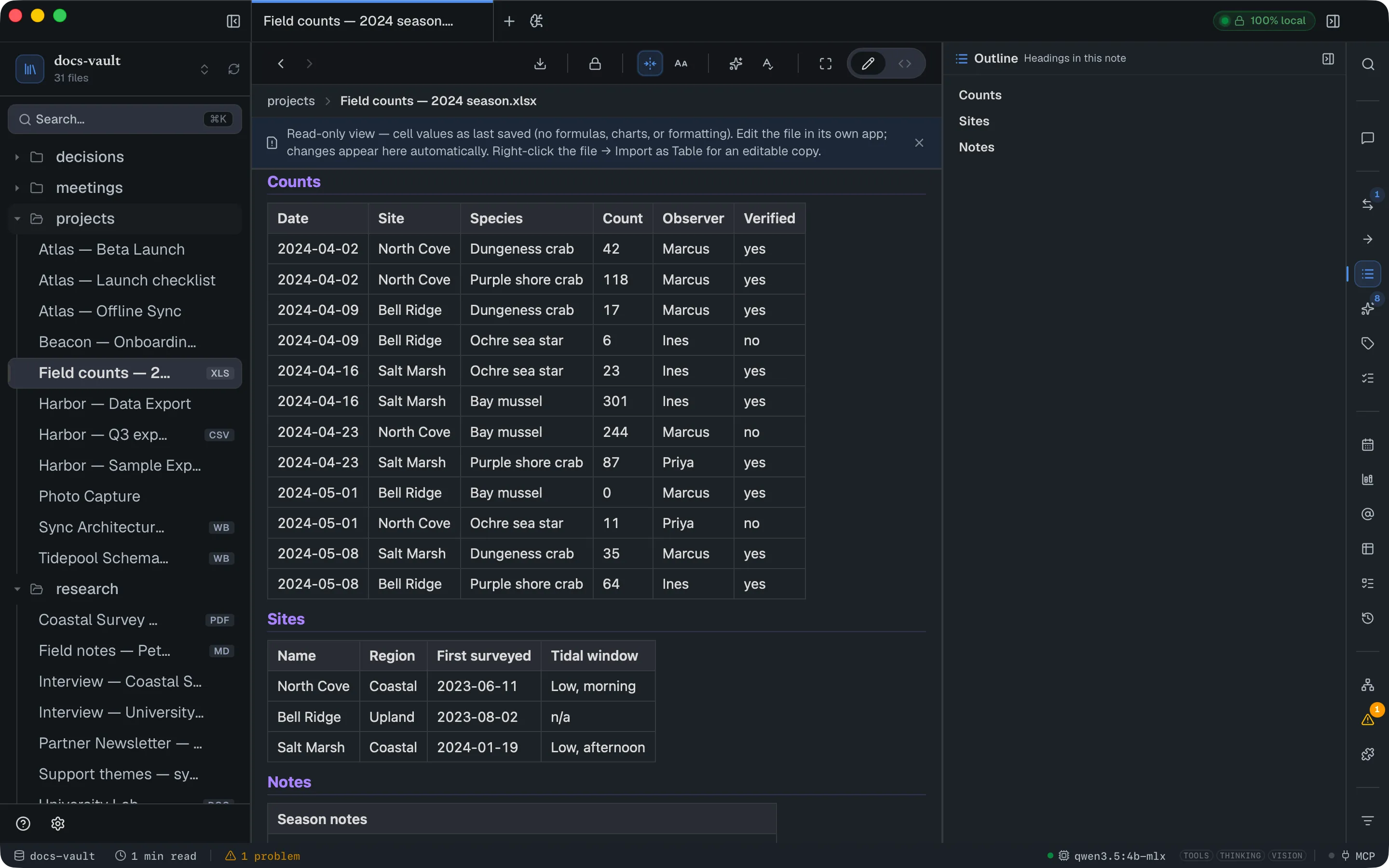
The headings in the current note, indented by level. Clicking one scrolls the page to it — and if that heading is inside a collapsed section, the section opens first.
The heading you’re reading is highlighted, and the list keeps it in view as you scroll the note, so a long outline doubles as a “you are here” marker. A heading counts as the one you’re reading once it has passed about a third of the way down the page.
Outline works on Markdown as well as HTML, and on the projected formats: a spreadsheet lists one entry per sheet, and a Word document its real heading structure.
A CSV has no headings (it renders as a single unnamed sheet), and a PDF returns none because it renders in the system’s own viewer, which DocGraph can’t scroll to a position inside.
The list refreshes as you edit the note.
Reorder sections by dragging
Section titled “Reorder sections by dragging”In an HTML page, drag a heading in the Outline to move it, together with its whole section — everything up to the next heading of the same or a higher level. A line shows where it will land. It is one write and one undo step.
A heading can only be dropped among headings of the same level; a drop onto another level is refused with a shake and nothing is written. Headings nested inside a container (rather than at the top level of the page) and headings in Markdown notes can’t be dragged.
Related
Section titled “Related”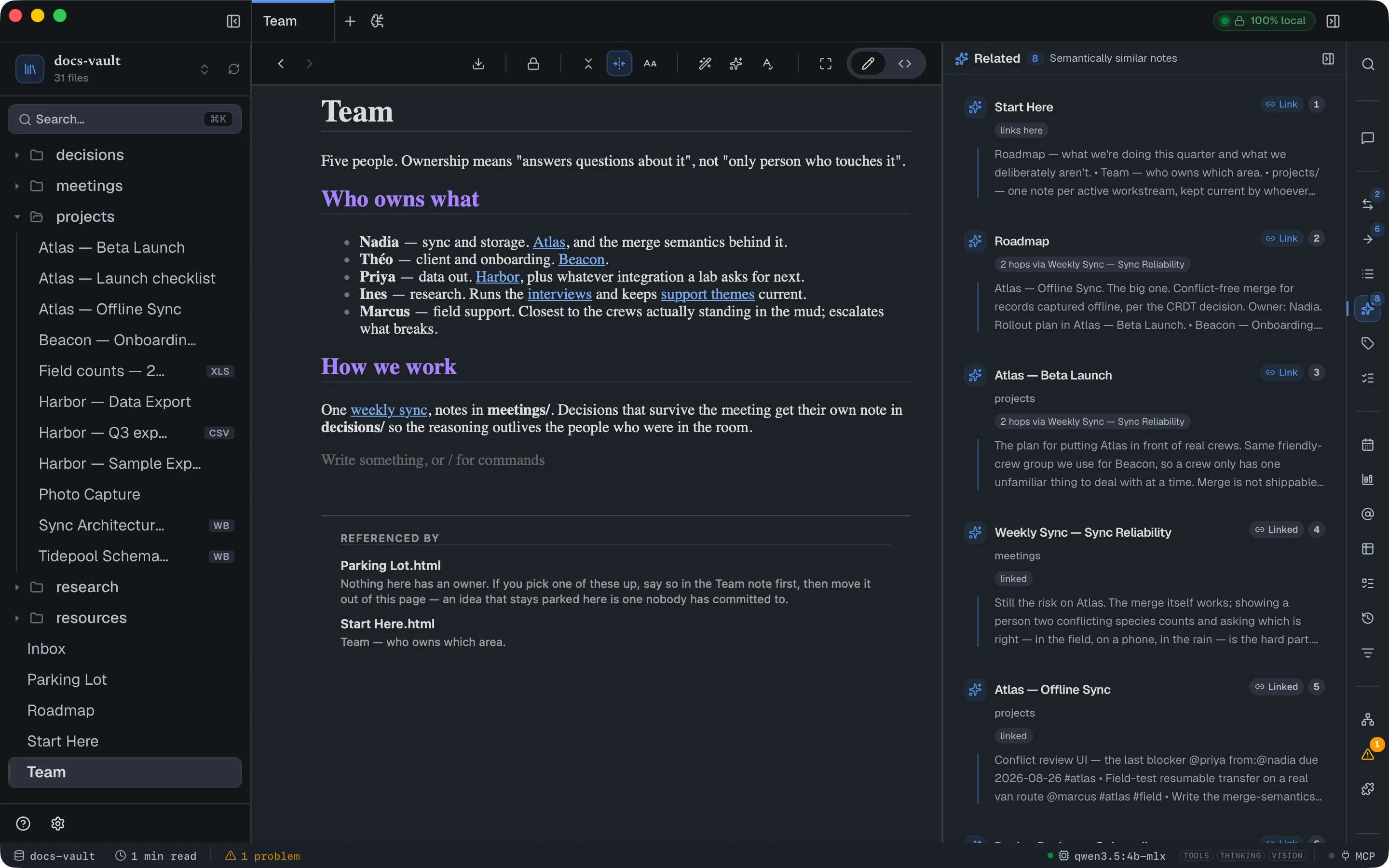
Notes that are semantically similar to the open one — not linked, but about the same thing. This runs on the same local embedding index that powers AI chat retrieval, so it needs AI enabled and a search language chosen; with AI off the panel shows the mention sections below and a line saying similar notes appear once AI is on, with a Set up AI link, and with no search language chosen it tells you to pick one in Settings → AI → Chat & index (AI Index).
Each row shows the note, a rank number, a snippet of its closest-matching passage, and one or more why chips explaining the connection: links here, linked, 2 hops via …, or the tags the two notes share. A pill reads Linked if the open note already links to it. If it doesn’t, the row has a Link button instead.
Link adds the link for you, without opening anything. It lands in a Related list at the very end of the note: the first click adds a Related heading and a bulleted list, and every later click adds another item to the same list. In a .md note that is a ## Related heading with a bullet per link. The button then turns into Linked. Clicking it twice never adds a second copy, and ⌘Z undoes it.
Only reasonably close matches appear, and at most eight. A rank number is a position, not a score — the underlying similarity is deliberately not shown.
Asking the AI for link types
Section titled “Asking the AI for link types”With AI on, Suggest link types above the related notes asks your local model what kind of link each one is from this note: does this note depend on it (it reads from it, calls it, posts through it), or does this note supersede it (it is the newer policy, limit or decision that replaces it)? It always runs on the local model, never a cloud one, and only when you click.
A suggestion shows as Link as depends-on (or supersedes) on the related note, with the sentence from this note it is based on. It only appears when that sentence is really in the note, names the other note, and says so plainly; a sentence that only points at the other note (“see the on-call guide”) is not enough. When nothing passes, the panel says No link types found for these notes. Accepting works like the suggestions below; Dismiss hides one.
How well this works depends on the model. On our test set qwen3.5:4b-mlx got all 21 of its suggestions right and found most of the real relations; smaller models suggest fewer, and some find none.
Suggested link types
Section titled “Suggested link types”Above the unlinked titles, DocGraph suggests a type for some of this note’s links. It works out two kinds on its own, so the suggestions appear with AI off too:
- Mark as source: this note links to a document in your vault (a PDF, Word file, spreadsheet, CSV or RTF) with a plain link. It is most likely what the note cites.
- Link as parent: another note in the same folder has a title this one starts with, such as Hydra for Hydra rollout. It is most likely this note’s parent. The longest such title wins.
Accepting a suggestion types the existing link, or adds a typed one to the note’s Related list when there is none. ⌘Z undoes it. A link that already has a type is never second-guessed. Dismiss hides a suggestion until you open the note again.
Unlinked titles
Section titled “Unlinked titles”Below the related list, DocGraph lists places where this note names another note by its title without linking to it. Each row has a Link button that wraps that text in a real link for you.
A note shows at most 12 of them, and at most three per target note. Titles shorter than five characters are never matched, so a note called API or Q3 will not show up here even when a note spells it out. A match has to be the whole title, not part of a longer word.
When there is more than one, Link all (n) links every title listed in one go. The note is written once, and a strip appears — Linked 3 titles · Undo — whose Undo reverts the whole run.
This part needs no AI — it comes from the link index — so it works even with AI turned off.
Named elsewhere, not linked
Section titled “Named elsewhere, not linked”The other direction: other notes that name this note’s title without linking to it, each with the sentence it appears in. The list shows six notes, then Show all N / Show fewer. Link everywhere (n) links the first place it is named in each of those notes to this one. It is one gesture, so it is one undo: Undo in the strip that follows puts every note back exactly as it was. A note you edit in the meantime keeps your edit and is reported as skipped rather than rolled back.
The same rules as unlinked titles apply: whole words only, never inside an existing link or code, and a title two notes share is never linked (there is no right target). Needs no AI.
Calendar
Section titled “Calendar”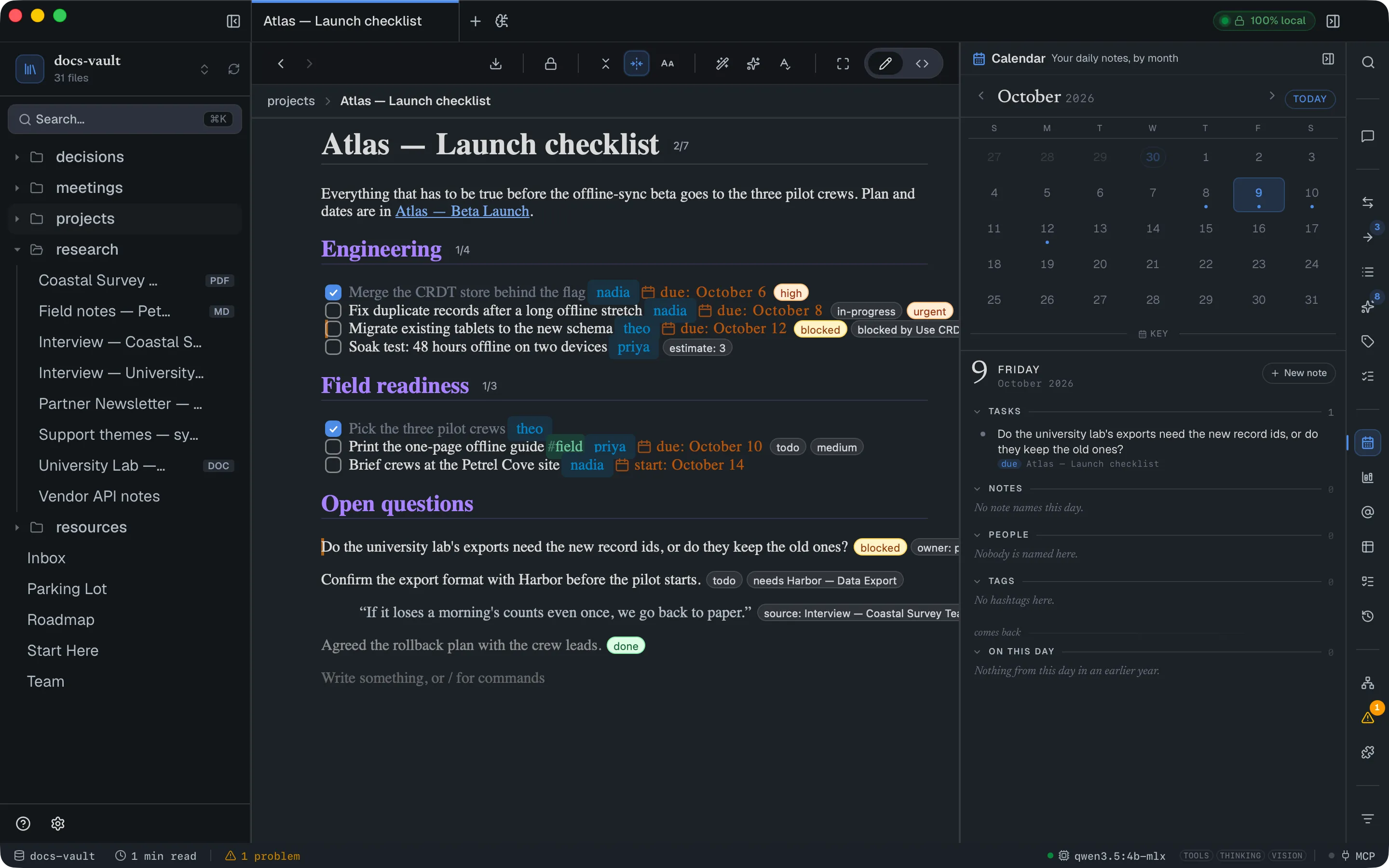
A month grid of your daily notes, with dots for what is due, and below it the selected day: its tasks, the notes that date that day, and the @mentions and tags written in them. Click a mention or tag chip to narrow the day’s notes to the ones carrying it.
Reading the month
Section titled “Reading the month”Clicking a day selects it and fills the sections below. It opens that day’s note only if the note already exists; it never creates one. Enter or Space on the selected day is the deliberate step: it opens the note, or creates it from your daily template first. The day header has the same choice as a button, Open when the note exists and New note when it doesn’t.
Each day cell has a bar for how much you wrote (one step per 250 words, up to three) and small marks for what else is on that day. Point at a day for a one-line summary (“3 overdue, 2 due, 1 unfinished task…”). Open Key beneath the grid (it then reads Hide key) for the legend:
| Mark | Meaning |
|---|---|
| Bar | How much you wrote that day |
| Filled dot | Something is due that day: a task’s due date, or a line with a due property |
| Red dot | Overdue: an unticked task whose due date has passed |
| Hollow ring | The day’s note has unfinished tasks |
| Clay dot | Another note dates that day |
In the header, the month name jumps the view back to the current month without opening anything. Today jumps there and opens today’s note (the same as ⌘D), creating it if needed; it lights up only when you have navigated to another month. The chevrons step one month at a time. Days from the neighbouring months at the edges of the grid show their real marks too.
The first day of the week follows your Mac’s region settings.
Move around with the keyboard
Section titled “Move around with the keyboard”The grid is a single tab stop. Once it has focus, the arrow keys move the selection by a day (left and right) or a week (up and down), Page Up and Page Down move by a month, and Home and End go to the start and end of the week shown. Moving past the edge of the month carries the view along. Moving selects a day and reads it; it never writes a file. Enter or Space opens the day’s note, creating it if needed.
Open a weekly or monthly note
Section titled “Open a weekly or monthly note”The column of numbers on the left is the ISO week number of each row. Click one to open that week’s note, created from your weekly template if it doesn’t exist yet. A week whose note exists is shown in bold, and the current week in indigo.
Week and Month in the header open (or create) the weekly or monthly note for the selected day. Where those notes go, and which templates they use, is set in Settings → General → Vault → Templates & daily notes; if a pattern there is wrong, the panel says so and where to fix it.
Reschedule a task by dragging
Section titled “Reschedule a task by dragging”Drag a task row from the selected day’s Tasks section onto another day in the grid. Its due date moves to that day; a due time, if it had one, is kept. If the note changed in the meantime and the write is refused, the panel says so and reloads.
The selected day
Section titled “The selected day”The header shows the date, with ‹ and › to step to the previous or next day (the grid follows when the month changes).
Its Tasks section lists tasks for that day, each with a small badge that says why it is there:
- due (with the time, when there is one) — the task’s
due:date is this day. A line carrying adueproperty is listed the same way. - overdue (red) — an open task whose due date has passed.
- dated — the task’s text names the day with a bare
@@2026-09-15. That dates the task; it is not a deadline. - in note — the task is simply written in this day’s own daily note. These sort after the dated ones.
Ticking a box here edits the source file, as in the Todo panel. A long list stops after eight rows with Show N more in Todo, which opens the Todo panel filtered to that day (due:2026-09-15).
Below Tasks come Notes (the notes that name the day, plus the day’s own note marked daily), Mentions and Tags. Click an @name or #tag chip to narrow Notes to the ones carrying it; only one chip filter is active at a time, and it clears when you pick another day. A day with no note shows New note in its header, which creates the note from your daily template and opens it.
Coming back
Section titled “Coming back”Under the day, three sections bring older notes back to you. None of them uses AI — each is built from ordinary saved queries created when the vault opens, so you can edit it, delete it (it stays deleted), or ask the AI to run it by name.
| Section | Shows | When |
|---|---|---|
| On this day | notes that name this calendar day in an earlier year (@@ dates), marked 1 yr ago, 2 yrs ago | any day you select |
| Untouched | notes linked from 3 or more others that nobody has edited in 90 days | today |
| Decisions to revisit | notes of type decision whose review-by property is in the past, and notes with a line whose review-by block property is in the past | today |
review-by is one property, on a page or on a line. On a page it counts only when the note’s type is decision; on a line it counts in any note, because setting it is already asking to see that line again. A note shows once, with its earliest review date.
The queries are On this day (resurface-on-this-day), Untouched (resurface-untouched), and for Decisions to revisit both Decisions to revisit (resurface-decisions, the notes) and Lines to revisit (resurface-review-lines, the lines). Deleting one of the two keeps the other’s rows in the section.
The Tags panel has two views, switched at the top: This note and All tags. It remembers the one you used last. With no note open it shows All tags.
Tag the open note
Section titled “Tag the open note”This note shows the note’s tags as chips. Each chip shows where the tag comes from:
| Chip | Source | Removable |
|---|---|---|
# glyph | An inline #hashtag written in the note | No — edit the note |
| Page glyph | Declared only in front matter (tags: in a Markdown note) or <meta name="keywords"> in an HTML note | No — edit the note |
| List glyph | The note’s tags property | No — edit the property |
| Sparkle | Suggested by AI and accepted | Yes |
| Plain | Added by you here | Yes |
Type in the box and press Enter to add a tag; it is lowercased, and a duplicate is ignored. Suggest tags asks the local model for candidates and shows them as dashed pills you click to accept. Nothing is saved until you click a suggestion. The model is shown your vault’s most-used tags and prefers one of them over a near-duplicate, and a suggestion your vault already uses shows how often (+ meeting · 42). With AI turned off the button is greyed out and the panel says Turn on AI features in Settings to suggest tags.
Click a chip to jump to that tag in All tags; its back link (‹ This note) returns you. Point at a chip for a card with how many notes use the tag and the three most recently edited ones. A tag the note writes more than once shows ×N; each click on it scrolls the page to the next use.
Under the chips, Notes like this lists up to five notes that share the most tags with this one. A rare shared tag counts for more than a common one.
The distinction that matters: an inline #hashtag is part of the file’s text and is searchable. A tag added here is stored beside the vault and never touches the document — it won’t appear in the note and won’t turn up in a full-text search.
Browse every tag in the vault
Section titled “Browse every tag in the vault”All tags lists every tag with a bar for how often it is used. Sort by Most, A–Z or Recent (the tag on the most recently edited note). Nested tags such as #project/alpha form a tree you can fold; a parent’s count includes its children. A dot marks tags in the open note. Type in Find a tag to narrow the list; ↑/↓ and Enter work from the box.
Click a tag to see every place it is used, grouped by note. Click a place to open the note scrolled to that exact use, flashed so you can spot it. A #tag inside code or a link is not a use.
Find notes with several tags
Section titled “Find notes with several tags”⌘-click a second tag (or press ⌘Enter on it) to add it to a filter. A box under the search shows the picked tags, such as #ops and #incident, with how many notes carry every one of them. Show places lists the uses in just those notes; Clear removes the filter.
Rename or merge a tag
Section titled “Rename or merge a tag”Open a tag and click Rename, or click the pencil on a row. As you type, the panel says what will happen: a plain rename, or a merge into a tag that already exists. Press Enter for a preview of how many uses in how many notes will change, and confirm. Esc cancels.
The rename rewrites the #tag in the text (never inside code or links), front-matter tags: lists, HTML <meta name="keywords">, and tags you added in the panel. Nested tags follow: renaming #project to #work turns #project/alpha into #work/alpha. Each note is written separately and can be undone on its own; any note that couldn’t be written is listed afterwards. A tags property value is not rewritten — edit the property.
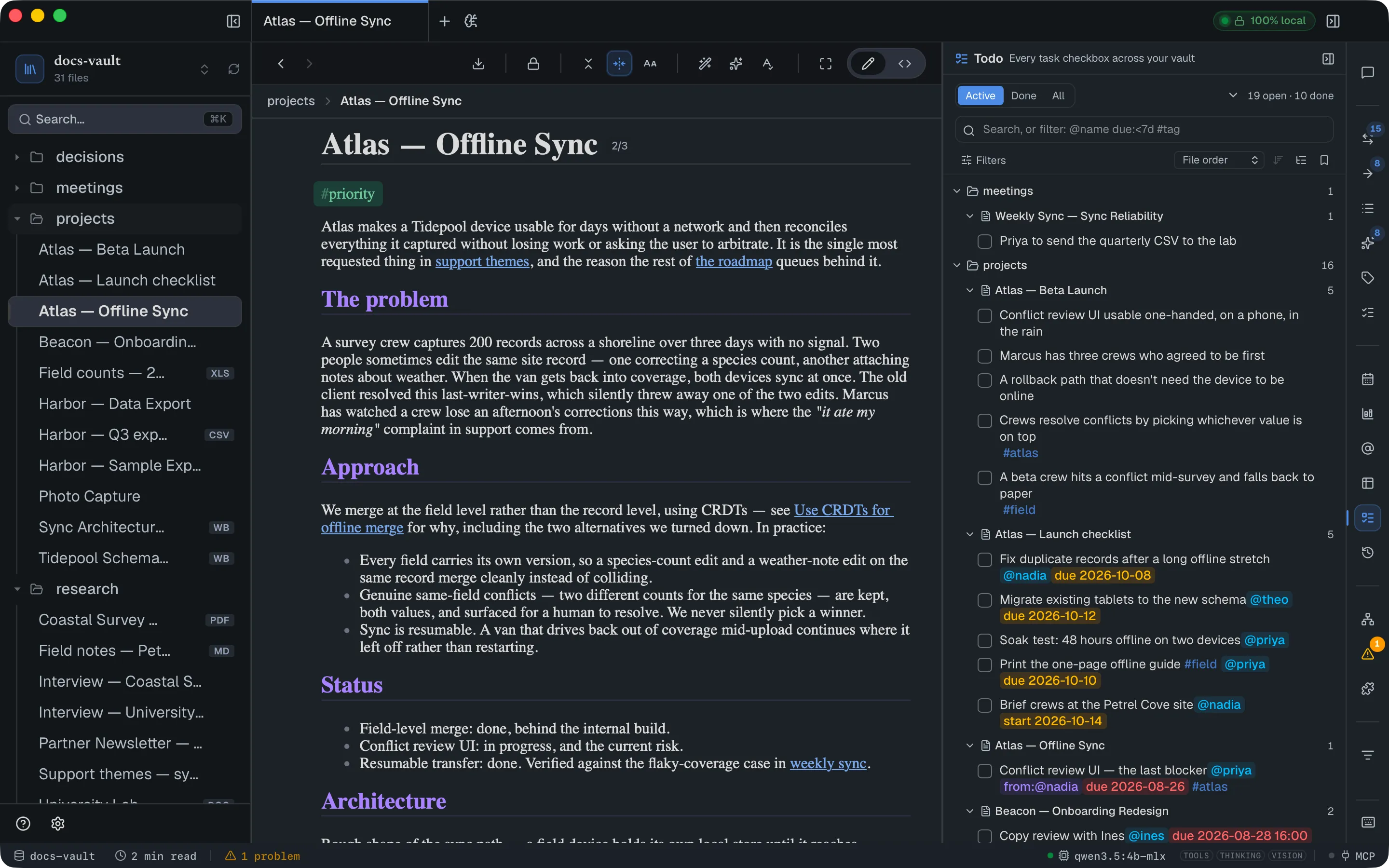
Every task checkbox in the vault, as a folder → file → task tree — from HTML and Markdown notes alike.
Create one by typing [ ] at the start of a list item, or via the / menu. Tasks can carry an assignee, a due date, a start date and #tags, all written in the task’s own text, and the panel filters on every one of them.
- Filter by active / done / all — active is the default.
- Filter by person (assigned to, or assigned by), by due / start / created date, and by tag.
- Search task text, or type filters like
@sarah due:overduedirectly into the search box. - Sort by due date and switch to a flat list to see what’s next across the whole vault.
- The header count (
N open · N done) covers the whole vault, whatever you’ve filtered to.
Ticking a box here edits the source file. This is one of the few panels that writes.
See Todos & Task Properties for the full picture.
Mentions
Section titled “Mentions”Every @name in the vault — people, organisations, places, projects — with how often each is mentioned and, for anything not a person, its kind: @Acme (organisation). Click a name to choose its kind, see every place it’s written, rename it everywhere, or drop the @ from it.
From a name you can also create its page, whose sections fill themselves (a person’s open items, #feedback/… lines and mentions; for other kinds, its mentions, what is named with it and the notes linking to it), and, for a person, start a dated 1:1 that carries forward the open action items from your last one.
See Mentions & Their Pages for the full picture.
Find & Replace
Section titled “Find & Replace”Find a word or phrase across every note and replace it, with a preview of each change before anything is written. Open it with ⌘⇧H (also while you are typing in a note), with Find and replace in vault in the command palette, or from the rail. Choose Vault or This note as the scope.
Find text across the vault
Section titled “Find text across the vault”Results appear as you type, over the source of every .html and .md note, up to 2,000 hits. Toggle match case, whole word or regular expression (Rust syntax). In the replacement, $1 is a captured group, $<name> a named one, $& the whole match and $$ a literal $.
Only your prose is searched. Tags and attributes, comments, the page <head>, scripts and styles, DocGraph’s own blocks (tables, charts, queries, embeds, math), and encrypted text or notes are never matched. Code and Markdown front matter are skipped too unless you turn them on under Also look in.
Hits are grouped by note, each with its line number and the change shown as a redline: the match struck through, the replacement beside it. Click a note’s name to open it. Click a hit’s text to open the note on that hit: the page scrolls to it, opens a collapsed section around it and flashes it. In <>Source the match is selected instead.
The list searches again by itself when notes change on disk (an edit, an undo, a sync), and keeps the hits you unticked.
Replace
Section titled “Replace”Each hit and each note has a checkbox. Replace asks once more, inline, then writes only the ticked hits: one write and one undo step per note. In HTML notes, &, < and > in the replacement are written as entities.
A note that changed after the preview, or whose hit moved, is skipped and listed with the reason; nothing is overwritten blindly. A note with unsaved <>Source edits is skipped too — save it, then search again. A note you have open that was rewritten reloads.
Problems
Section titled “Problems”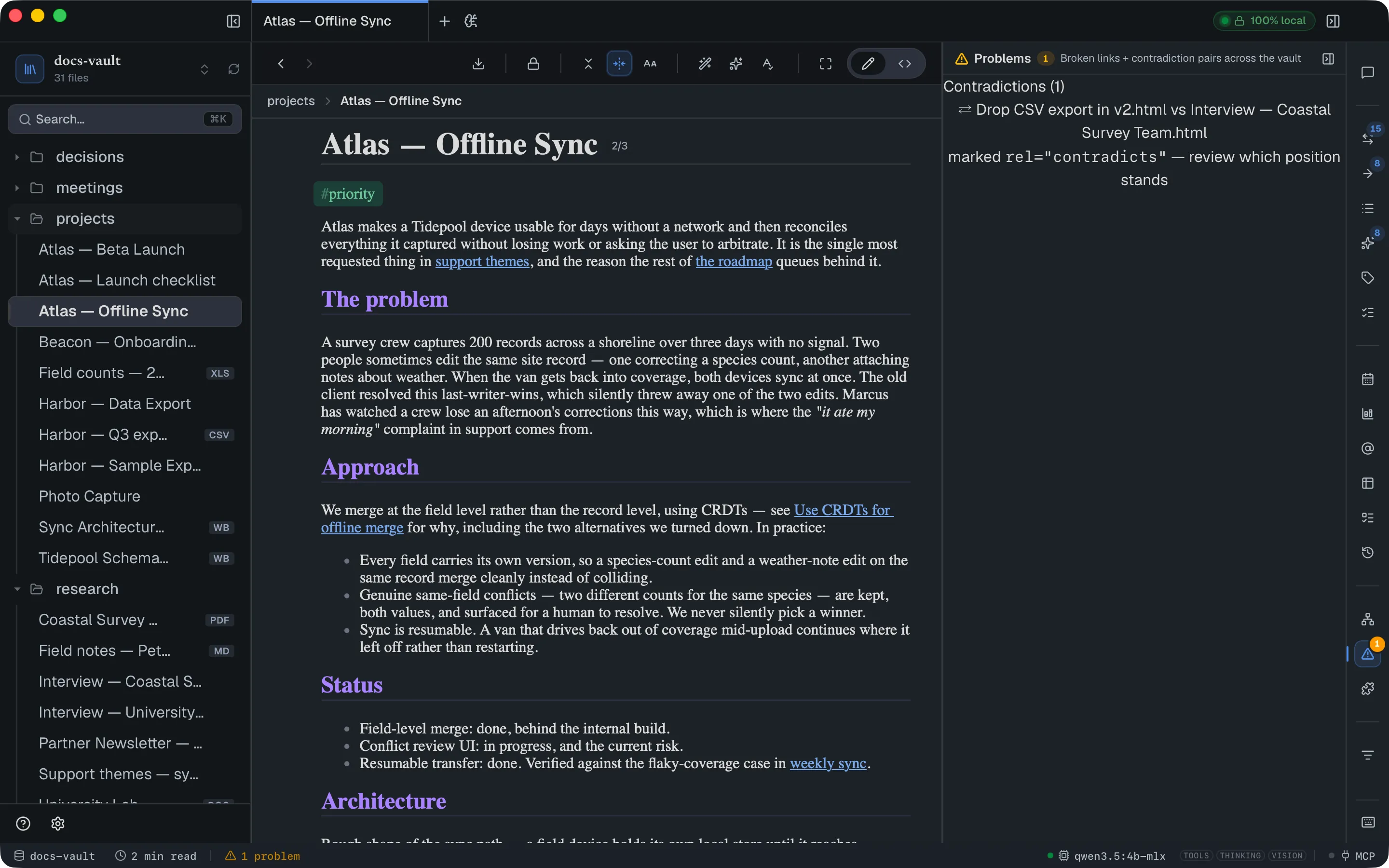
Two kinds of issue, and only two:
Broken links — an internal link whose target doesn’t exist. The row names the file the link is in and the href that failed; clicking it opens that file scrolled to the offending link, in a .md file as well as an HTML one. Links to real non-indexable files (images, archives) aren’t reported. A [[wikilink]] naming a note that doesn’t exist yet is listed here too, pointing at <name>.md at the vault root — which is where following it creates the note, and creating it clears the row.
Contradictions — pairs of notes you explicitly marked with a contradicts link type, one row per pair; clicking it opens the first note. The row says so: marked rel="contradicts" — review which position stands. These are review items you created, not errors DocGraph inferred.
The amber badge is both counts added together. The N problems item in the status bar opens this panel too.
Broken links are found in Markdown as well as HTML.
Vault Map
Section titled “Vault Map”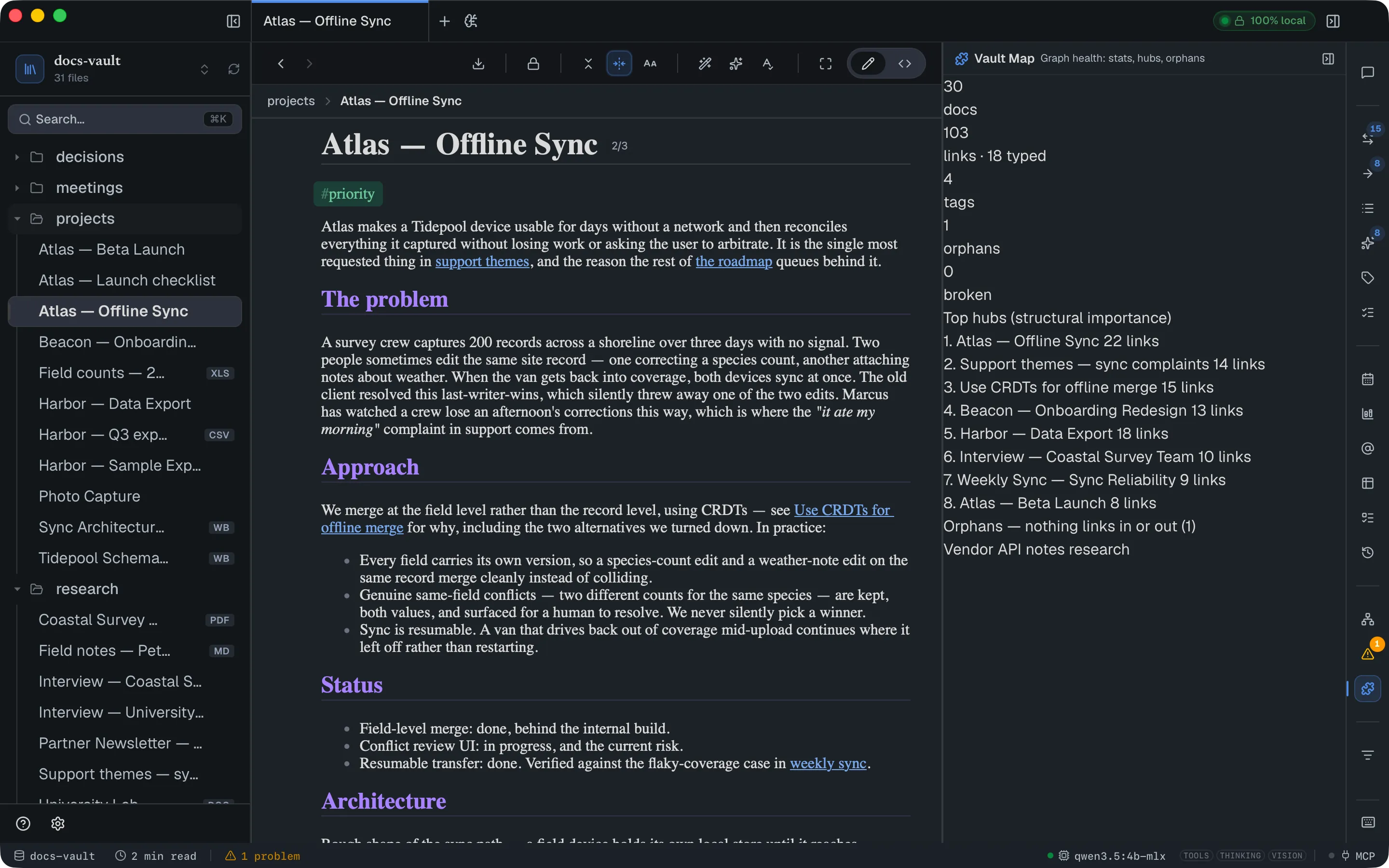
Not a picture — a health readout over the same data the Graph draws:
- Counts of documents, links (and how many are typed), tags, orphans and broken links.
- Top hubs — the most structurally important notes, ranked, with their link counts. This is the same importance measure the graph uses to size nodes.
- Orphans — notes with nothing linking in or out (the first 30, then +N more).
- When there are broken links, a line counts them and points to Problems for each one.
Every entry opens that file. Use Graph to explore your vault’s shape; use Vault Map when you want a worklist.
Its document count is the whole indexed vault, so PDFs, spreadsheets and whiteboards count too — and since those formats have no outbound links, most of them will sit in the orphans list unless something links to them.
Strips above a note
Section titled “Strips above a note”The TL;DR bar appears at the top of a note in reading view, and the disagreement strip above any open note. Neither is a panel, but both relate to the panels above.
The TL;DR bar
Section titled “The TL;DR bar”If you have already summarized a note, its cached summary shows here. The bar never runs the model on its own; it only displays what is cached, so a note you’ve never summarized has no bar. Create the first summary with the toolbar’s Summarize button.
- Expand / collapse. Click the TL;DR label to open or close the summary. The bar starts collapsed, and whichever state you leave it in is remembered for every note.
- Outdated. If the note changed after the summary was made, the label gains an outdated tag. Open the bar and click Refresh to write a new summary (this does run the model).
- Dismiss. The ✕ at the right drops this note’s cached summary and hides the bar. Summarize in the toolbar brings it back.
- Turn it off everywhere. In Settings → AI → Chat & index, switch off Auto-surface TL;DR summaries. The cached summaries are kept, and chat stays on.
It needs AI to be enabled.
The disagreement strip
Section titled “The disagreement strip”When the optional Find contradictions job (Settings → AI → Chat & index, under Contradictions) has found that another note states a fact differently, a strip above this note lists each fact with the value here, the value there and the other note, which you can click to open. It shows the first three. When there are more, Show all N expands the rest and Show fewer folds it back. Under each row, This note is newer / The other is newer records the newer note as superseding the older one (the row goes away), and Mark as contradicting links the two as contradicts (the row stays, marked as such). Each is one write you can undo with ⌘Z; a failed write says so in the row. With the job off, or AI off, nothing is shown. How disagreements are found is covered in When your notes disagree.
Graph, Problems and Vault Map
Section titled “Graph, Problems and Vault Map”Graph, Problems and Vault Map are built into the app and always available, whatever you hide from the rail. Problems shows itself in the rail while it has something to report, even if you hid it.