Pages you open
An HTML note can carry more than text: scripts, tracking pixels, fonts and images hosted somewhere else. A page pasted from the web or saved from an email usually does. DocGraph shows the text and keeps the rest from running or loading, until you decide a vault is trustworthy.
Getting there
Section titled “Getting there”Settings → Privacy → Page scripts. Both switches are per vault and both are off by default.
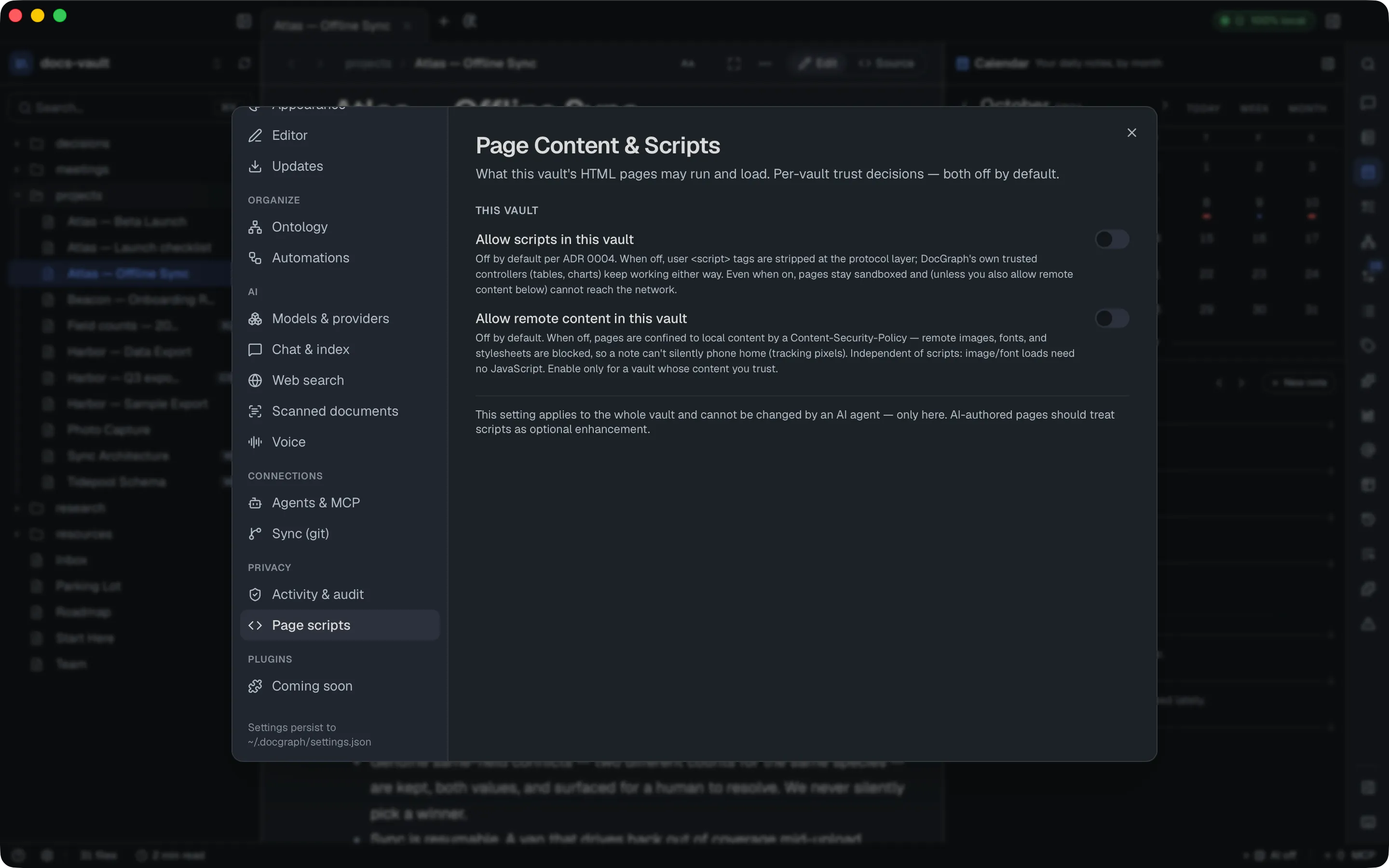
| Switch | Off (default) | On |
|---|---|---|
| Allow scripts in this vault | <script> in your pages is removed before the page is shown. DocGraph’s own features — tables, charts, the editor — work either way. | Pages run their own scripts, still inside a sandbox with no access to the app or your other files. Pages with scripts become read-only in place; edit them in <> Source. |
| Allow remote content in this vault | Images, fonts, stylesheets and anything else from the internet are blocked, so a note can’t silently report that it was opened. | Pages load remote images, fonts, stylesheets and other resources — and, if scripts are also allowed, can contact the internet themselves. |
The two are independent: a tracking pixel needs no script.
When something is blocked
Section titled “When something is blocked”You’re never left guessing why a page looks unfinished. When a page contains scripts that aren’t running, or DocGraph blocked remote resources on it, a notice appears above the page — and the toolbar shows a Scripts off reminder:
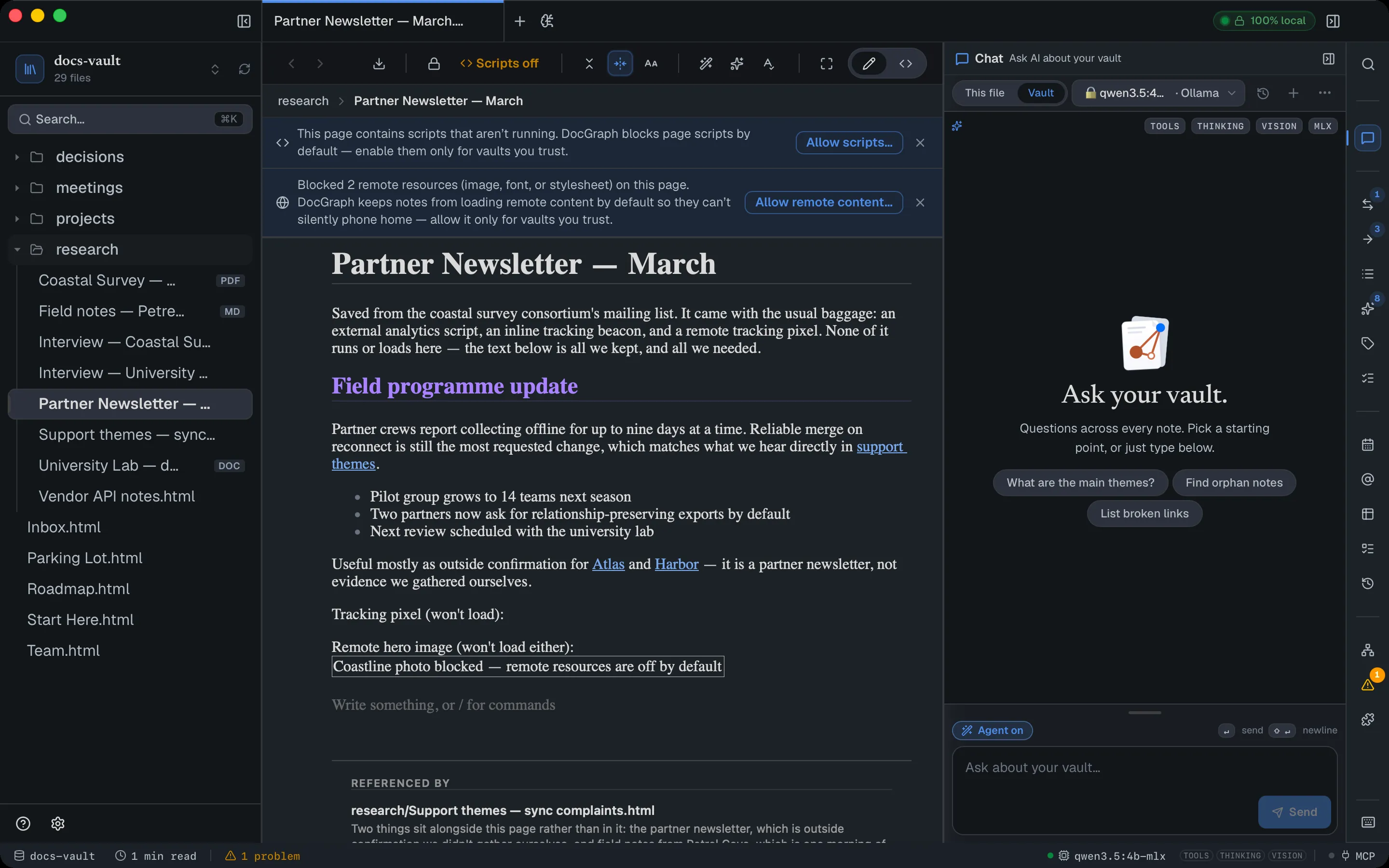
A notice only appears when there is something to act on. A page without scripts never shows the scripts notice, and the remote-content notice counts what it actually blocked.
Allowing scripts
Section titled “Allowing scripts”Allow scripts… asks first, and is explicit that the decision covers the whole vault:
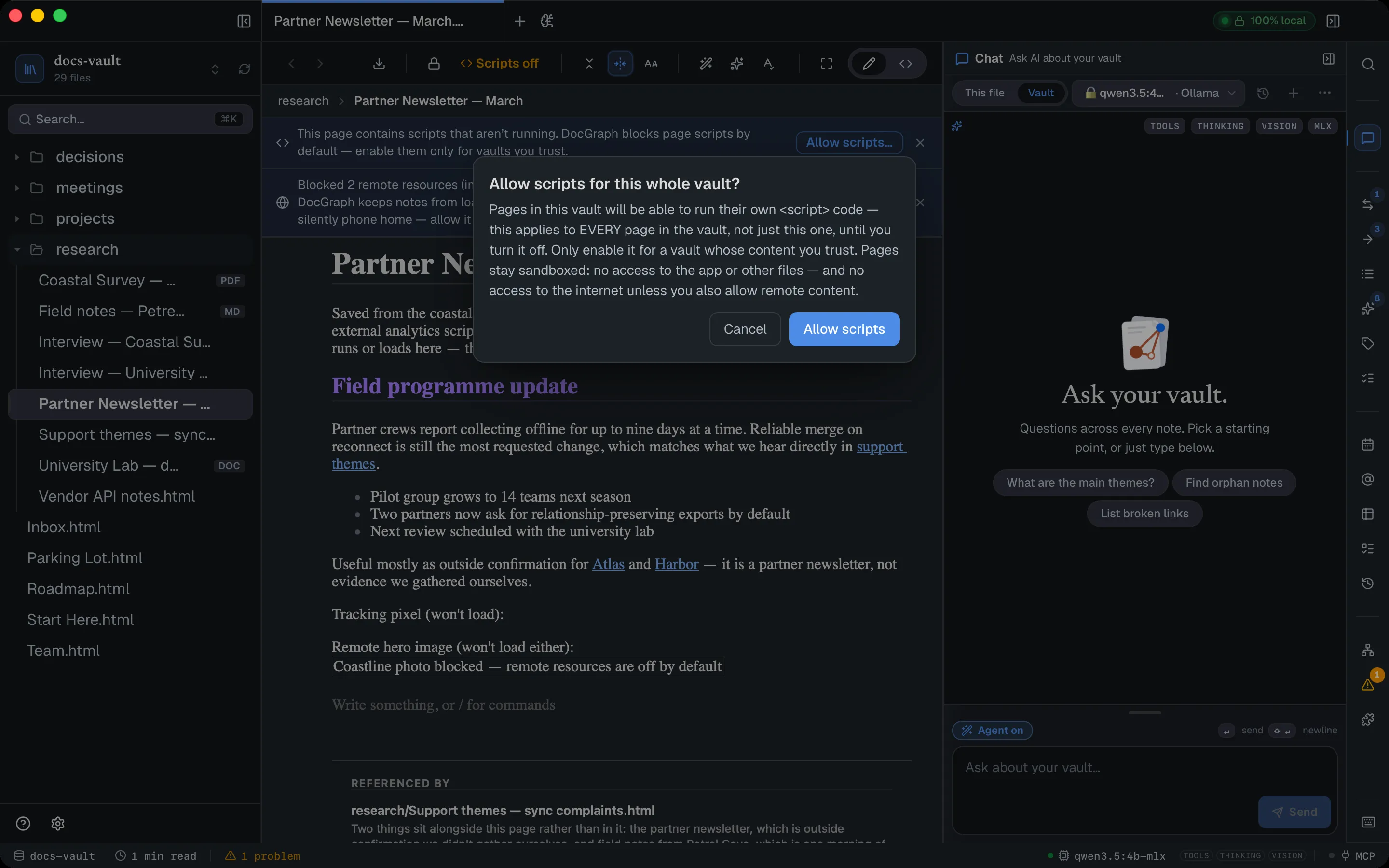
Allowing remote content
Section titled “Allowing remote content”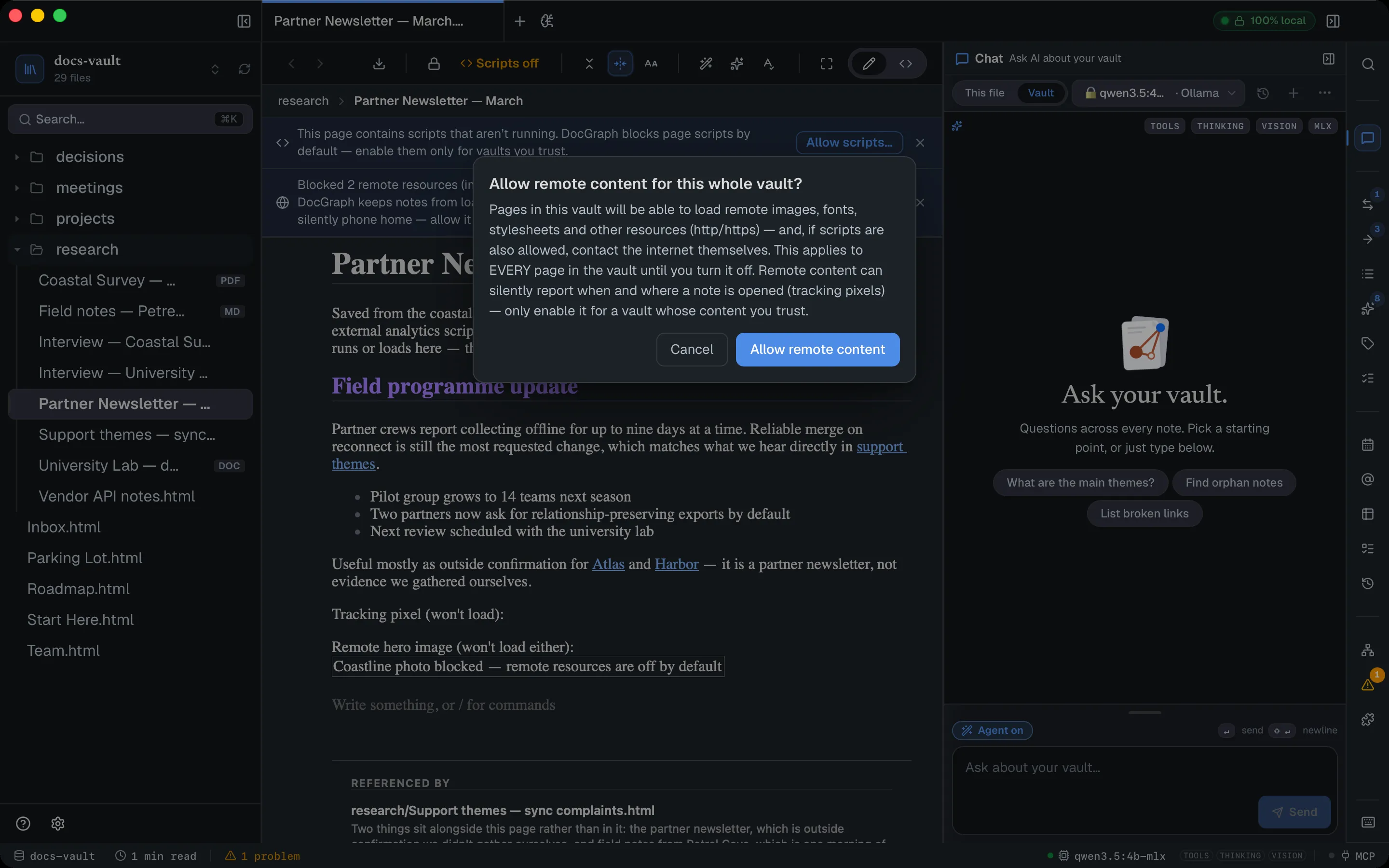
Unlike scripts, allowing remote content does not make pages read-only.
Before you click
Section titled “Before you click”- There is no per-page allowance. Both switches cover the whole vault. If you trust one page but not the rest, keep them off.
- The notice’s ✕ is permanent for that vault. Dismissing means “stop telling me about this vault”, not “hide this once”, and there is no in-app way to bring it back. The Scripts off reminder in the toolbar stays; there is no equivalent reminder for remote content, so a dismissed vault blocks it silently from then on.
- Allowing remote content re-admits plain
httpfor those resources. - A page with an encrypted passage never runs scripts, even with Allow scripts in this vault on, so its code can’t read the passage once you unlock it.
Clicking a link to a website opens it in your normal browser; the note itself never navigates away. Only http, https, mailto, tel and sms links are let through — anything else is refused. There is no confirmation: one click and your browser opens.
A link you type or paste into a note is refused if it uses javascript:, vbscript:, data: or file:.