Privacy recipes
Each recipe says which settings to use, how to check they’re working, and what they don’t cover. The defaults already match the first recipe; the others are about opening a door deliberately and knowing where it leads.
Local AI only
Section titled “Local AI only”You want AI help, and nothing leaving your computer.
This is how DocGraph starts. To keep it that way:
- Use a model from a group marked local in the chat’s model picker — the built-in runtime, Apple’s on-device model, or Ollama on this computer. Don’t add a key in the AI Providers section of AI → Models & providers.
- Leave AI → Chat & index → Allow remote Ollama and AI → Web search off, and leave the external agents and the MCP server in Connections → Agents & MCP off.
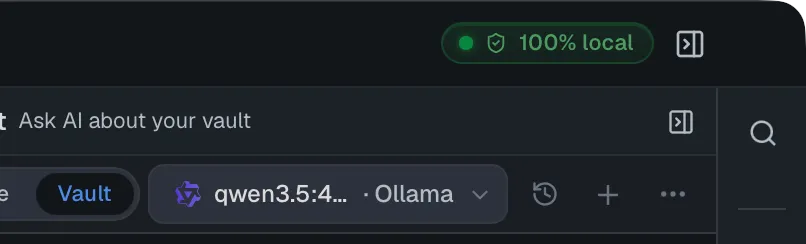
How to check: the privacy badge reads 100% local (with a shield icon) while you chat, and the Network tab of the Activity log gains no rows when you ask a question.
Not covered: model downloads (each one asks first) and anything you turn on later — the badge will tell you when that happens.
Cloud AI for some chats
Section titled “Cloud AI for some chats”Most of the time local is fine, but for some questions you want a stronger hosted model.
- AI → Models & providers: save a key for one provider, then allow it in the system dialog. Set a spending limit on the key at the provider’s website.
- Leave Block secrets from being sent to cloud providers on.
- In chat, pick the provider’s model only for the conversations that need it; pick a local model again afterwards.
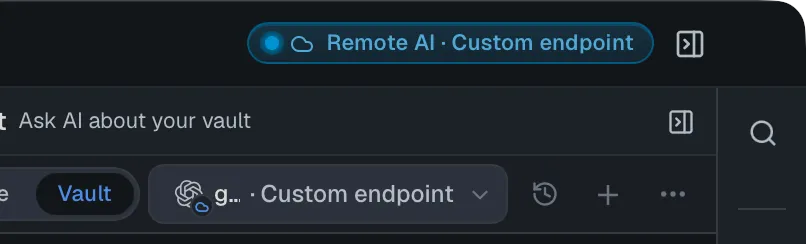
How to check: while a cloud model is selected, the badge reads Cloud AI · provider and a strip above the message box says where messages go. Switching an existing conversation to a cloud model shows a line in the thread — before you send — warning that the earlier history will go too; choose Start a fresh chat instead to keep it local.
Not covered: what the provider does with your content once it has it — that’s its policy. More.
I keep API keys in my notes
Section titled “I keep API keys in my notes”Your notes include setup steps, and sometimes the keys that go with them.
- Privacy → Activity & audit → Security Audit → Scan now to find what’s already there. Move real secrets to a password manager, or encrypt the notes that must keep them.
- Keep Warn me when saving a file adds a new secret on.
- Set When content is about to leave this machine to Block it if nothing sensitive should ever leave by accident.
- Add known-harmless values (test keys) to Ignore these values rather than dismissing each finding.
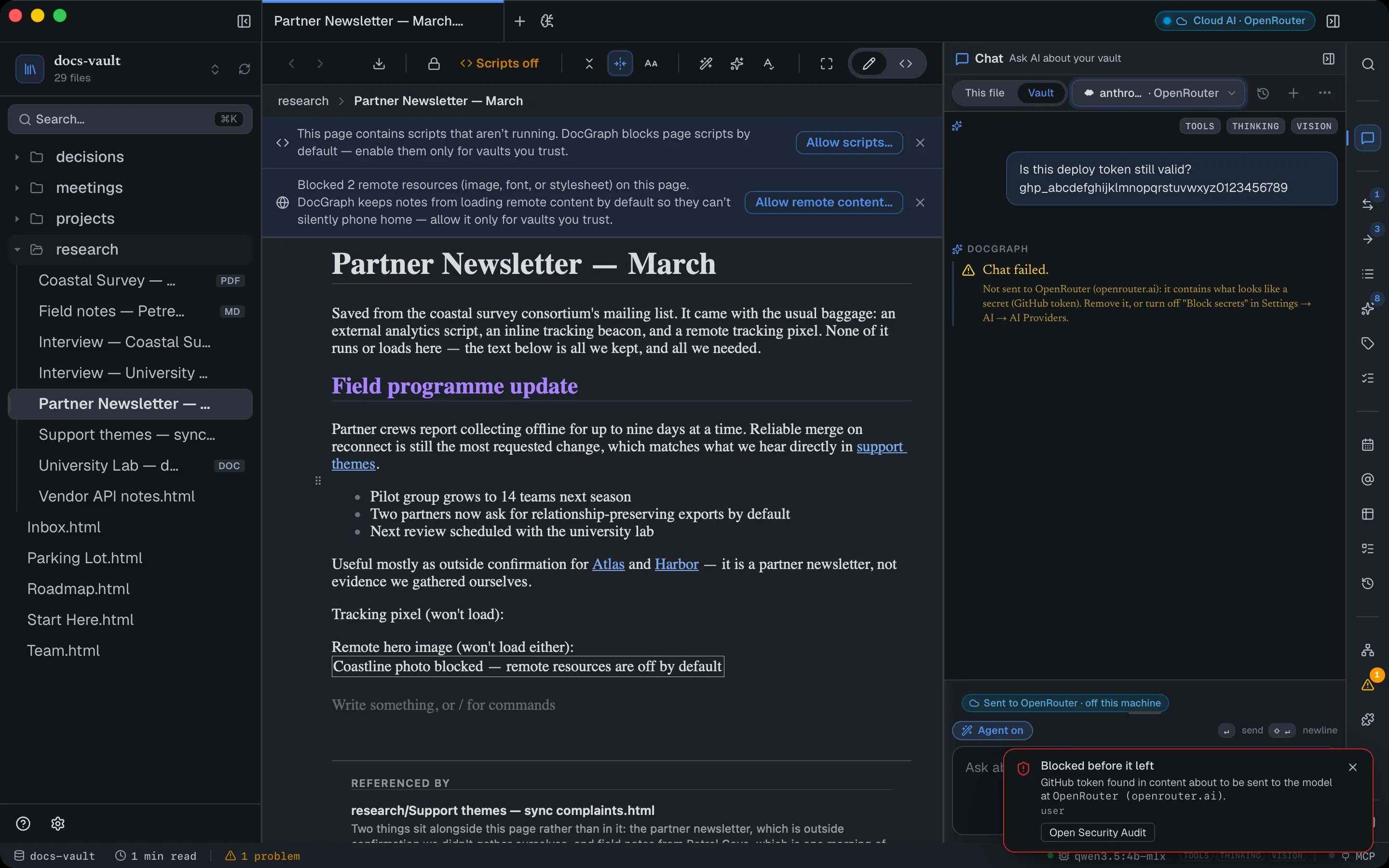
How to check: saving a note with a new key shows Possible secret in file; sending one to a cloud model shows Blocked before it left.
Not covered: a scan reads HTML notes only (Markdown is checked when DocGraph saves it), and a secret without a recognisable format can be missed. A local model’s prompts aren’t checked unless you turn on Inspect prompts to my local model too. More.
Sensitive client notes
Section titled “Sensitive client notes”Some notes must stay private even from someone with access to your computer.
- Encrypt those notes — the whole file, or just the passages that matter — from the lock icon in the document toolbar. Use a strong passphrase you keep elsewhere; there is no recovery.
- Encrypted notes are left out of search and out of the notes the AI retrieves, so a cloud model never receives them as context. Keep conversations about those clients on a local model all the same — what you type in chat is sent as written.
- Turn on your computer’s full-disk encryption (FileVault). DocGraph’s search index holds the text of every note you haven’t encrypted.
- If the vault is backed up with git, encrypt before the notes’ first commit — earlier versions keep the plain text.
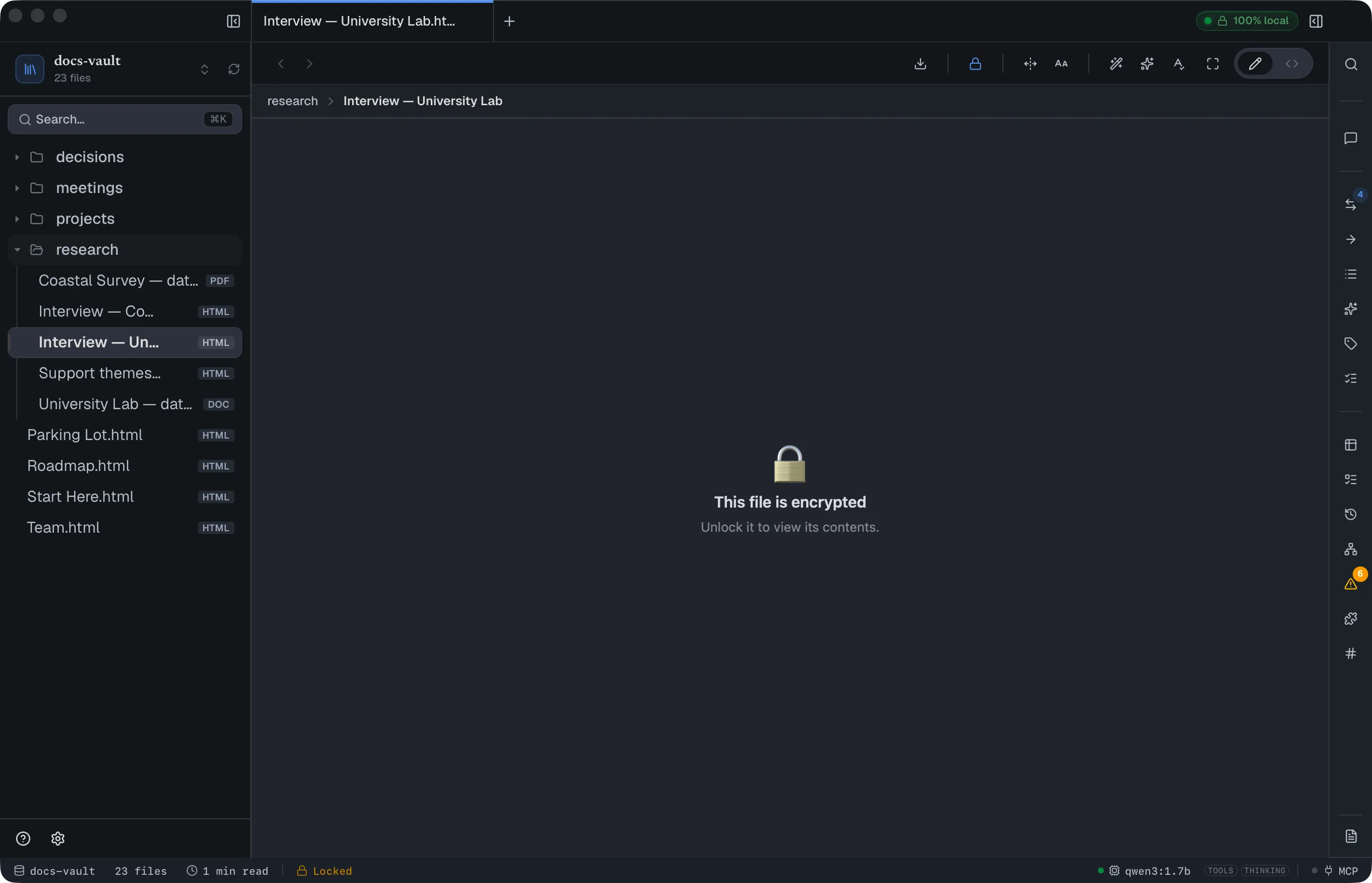
How to check: a locked note opens as 🔒 This file is encrypted, and its words no longer turn up in search.
Not covered: a note you’ve unlocked is readable until it locks again (when the window loses focus or after 15 minutes idle). More.
Sharing a vault with git
Section titled “Sharing a vault with git”You back the vault up to a git server, or share it with a colleague through one.
- Connections → Sync (git): start versioning, add the remote, and push.
- Choose a remote you control, and treat it like a copy of your notes: it is a backup, not a private or encrypted one.
- Keep secret checks on — before every push, DocGraph checks the files it’s about to upload. Block it stops a push that carries a secret.
- Encrypt anything the remote shouldn’t be able to read.
How to check: each push shows on the badge and in the network log.
Not covered: your git access token is stored in a file readable only by you (~/.docgraph/git-credentials.json), not in the keychain; and a colleague who pulls the vault can open everything that isn’t encrypted. More.
I open HTML saved from the web
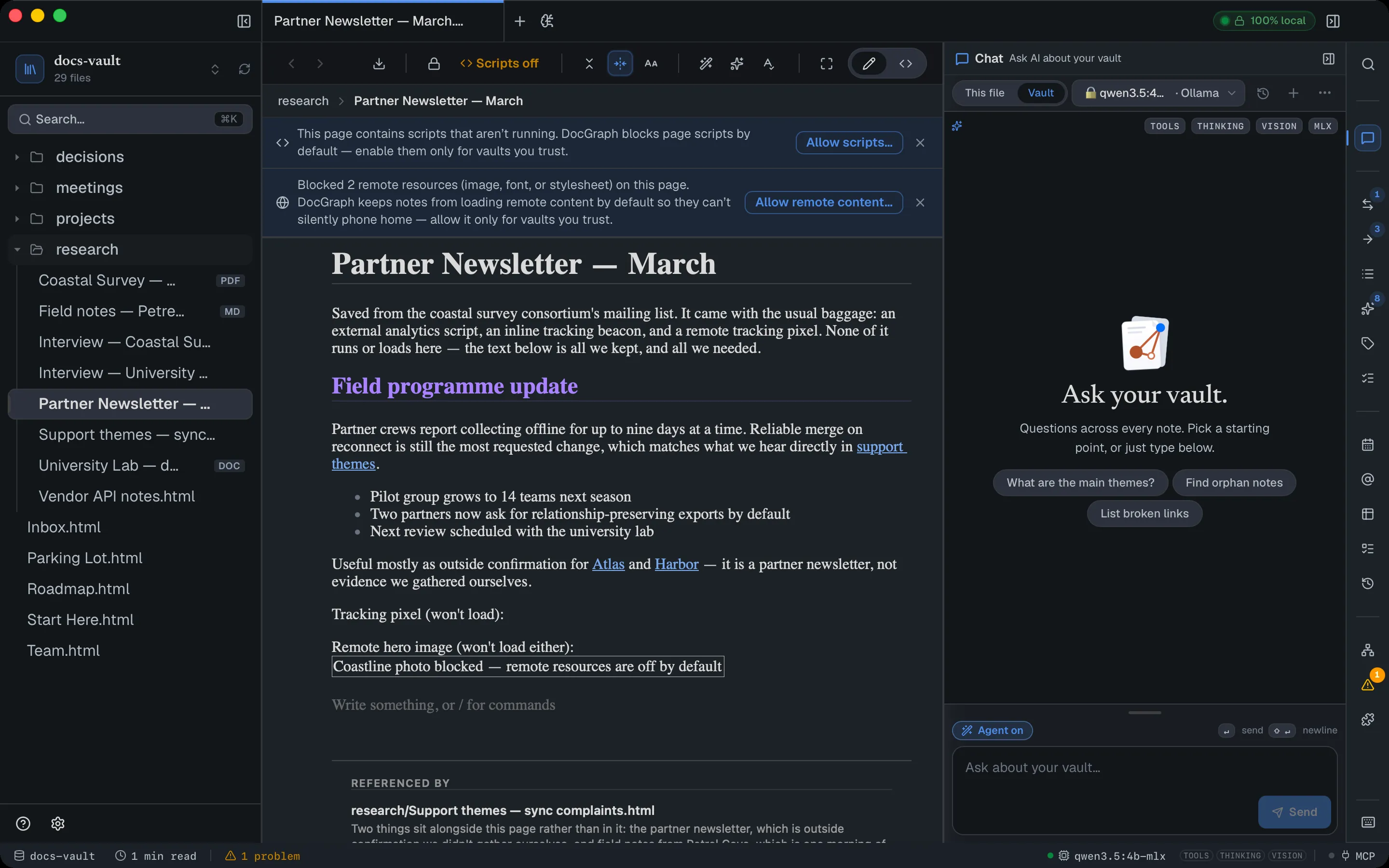
Section titled “I open HTML saved from the web”You collect articles, newsletters and exported pages, which often carry scripts and tracking pixels.
- Keep them in a vault where Privacy → Page scripts has both switches off (the default).
- Read the notice above each page: it tells you when scripts didn’t run and how many remote resources were blocked.
- If you must allow either switch, do it in a separate vault for pages you trust — the choice covers every page in the vault.
How to check: the toolbar shows Scripts off, and blocked images show their description instead.
Not covered: clicking a link opens your browser straight away, with no confirmation. Dismissing a notice silences it for that vault permanently. More.