Secrets & leak protection
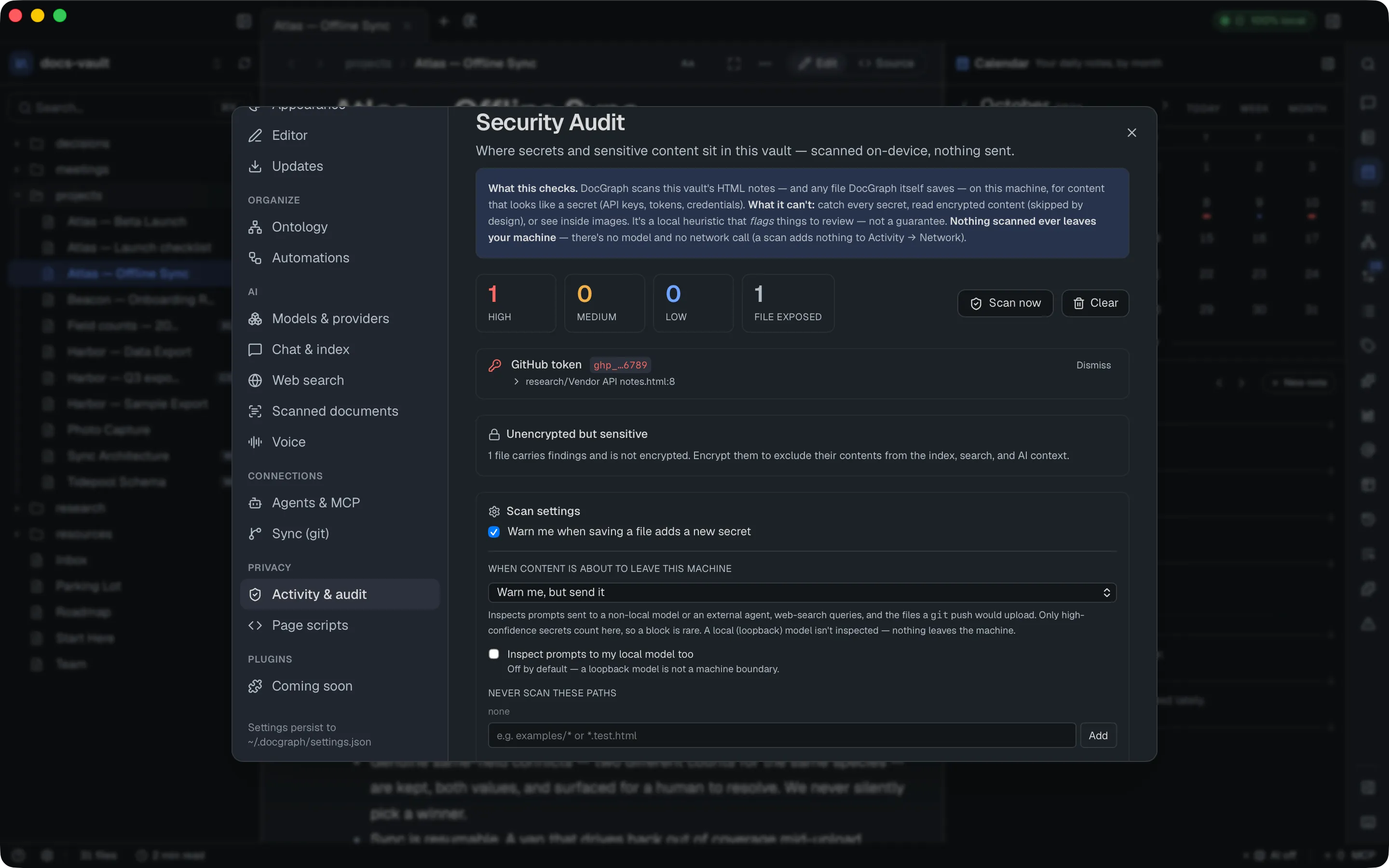
Notes collect secrets by accident: a token pasted during a call, a key copied from a setup guide. DocGraph looks for them in three places — in the notes you already have, the moment you save one, and just before content leaves your machine — and everything it checks is checked on your computer, with no model and no network call.
It is a heuristic, not a guarantee. It recognises the common formats (below); it cannot recognise a password that looks like an ordinary word.
Getting there
Section titled “Getting there”Settings → Privacy → Activity & audit, in the Security Audit section below the Activity log. Everything on this page is configured there, per vault.
Find the secrets you already have
Section titled “Find the secrets you already have”Press Scan now. DocGraph reads the vault’s notes and lists every match with its type, the file and line, and a masked value — the first four and last four characters, never the whole thing. Click a finding to see the surrounding text, with any neighbouring secrets masked too.
- Dismiss hides a finding that is fine where it is (a test key, a revoked token). It stays hidden on later scans. There is no un-dismiss button, so dismiss only what you are sure about.
- Clear empties the list; your dismissals are kept.
- The summary counts findings by severity, and Files exposed counts the notes that carry any.
- Below the list, Duplicate secrets shows a value that appears in more than one place, and Unencrypted but sensitive points out notes with findings that you haven’t encrypted. Encrypting a note takes its text out of the search index and AI context.
- Large sensitive files lists notes over 100 KB that carry at least one finding, with each file’s size and finding count.
What the AI’s index has read
Section titled “What the AI’s index has read”The last section of the pane, What the AI’s index has read, counts the files and chunks the local AI index has taken in, and flags files not yet indexed. View full coverage in AI Index → opens the per-file list in Settings → AI → Chat & index, under AI Index.
What it recognises
Section titled “What it recognises”| Type | Severity |
|---|---|
| AWS access and secret keys, GitHub tokens, Slack tokens, Google API keys, Stripe live keys, Anthropic and OpenAI keys, Azure account keys, private-key blocks | High |
| JSON Web Tokens | Medium |
password = …, token: … and similar assignments | Medium |
| Long random-looking strings | Low — hidden behind “Show low-confidence matches” |
Well-known documentation examples (AWS’s AKIAIOSFODNN7EXAMPLE, xoxb-1234567890… and the like) are recognised as placeholders and never flagged. Add your own under Ignore these values — it matches any text containing the value, case-insensitively.
Warned when you save one
Section titled “Warned when you save one”With Warn me when saving a file adds a new secret on (the default), saving a note that introduces a new high-severity secret shows a warning in the corner. The save still happens — this is a nudge, not a gate — and nothing is sent anywhere.
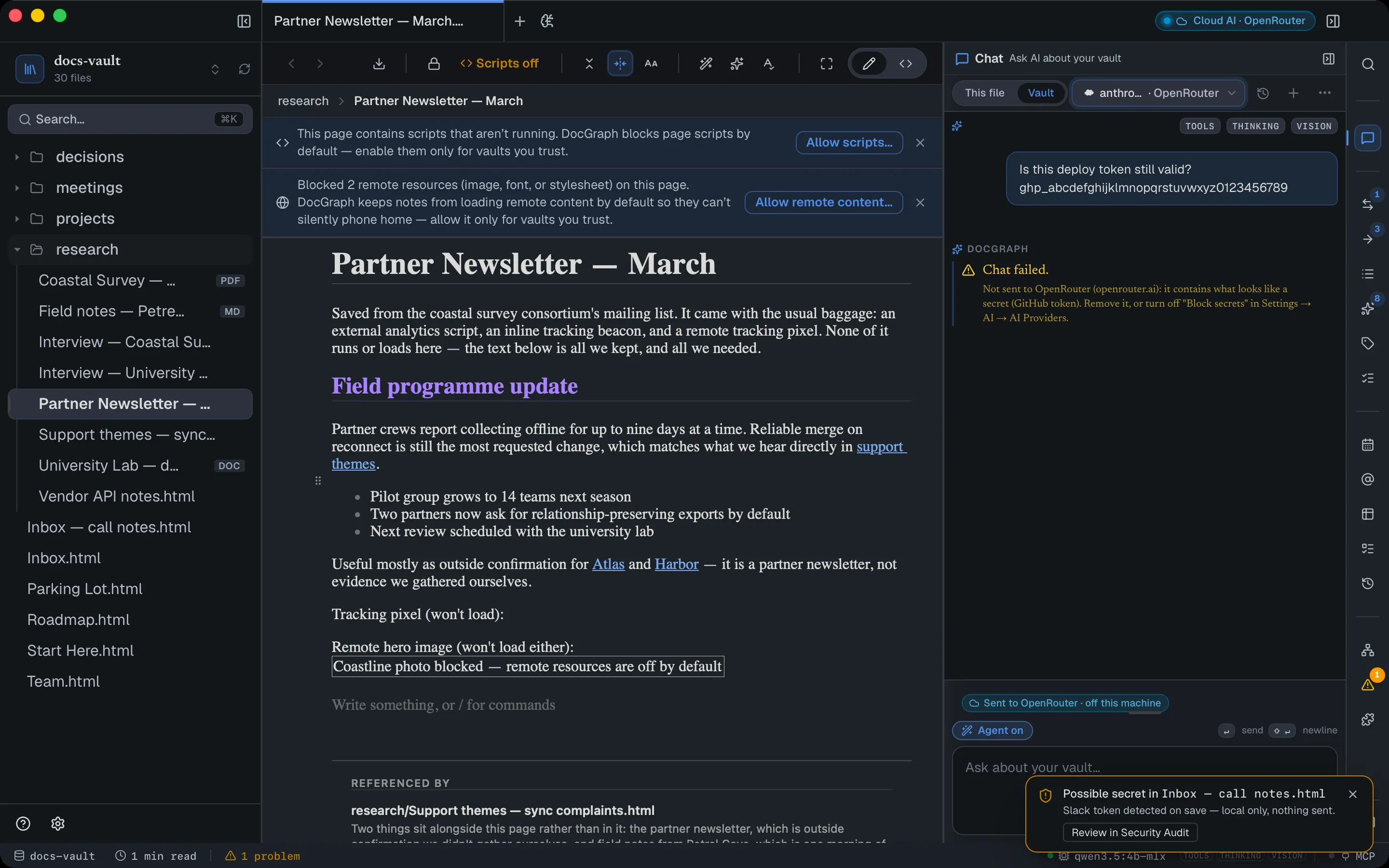
This covers any file DocGraph writes — HTML or Markdown — but not edits made in another app while DocGraph is closed; those are found by the next scan.
Stopped before it leaves
Section titled “Stopped before it leaves”When content is about to leave this machine decides what happens when something DocGraph is about to send contains a high-confidence secret:
| Setting | What happens |
|---|---|
| Don’t inspect | Nothing is checked. |
| Warn me, but send it (default) | It is sent, and a card tells you what went where. |
| Block it | It is not sent. A card tells you why. A git push is also refused when DocGraph can’t check all of it (see below). |
What is checked, and what isn’t:
| Checked | Not checked |
|---|---|
| Prompts to an off-machine AI model — a cloud provider or a remote Ollama | Prompts to a model on your own computer — nothing leaves (turn on Inspect prompts to my local model too to check them anyway) |
| Web-search queries sent to an off-machine search service | Anything an external agent sends once it is running |
| The prompt handed to an external agent | Pulls, and model-list requests |
| The files a git push would upload | Older commits already ahead of the remote — only the latest version of each changed file is read; files over 1 MB and binaries are skipped |
With Block it, a git push is refused, and the error says why, when:
- the text it would upload is more than 64 MB, so the check can’t read all of it, or
- DocGraph can’t open or read the vault’s git repository to see what would be uploaded.
To push anyway, switch to Warn me, but send it for that push. With Warn, DocGraph pushes whatever it checked and notes the unchecked part in its log.
Only high-confidence matches count here, so a block is rare. Dismissing a finding in the Security Audit does not exempt it here — “fine in my vault” isn’t the same as “fine to send”. The Ignore these values and Never scan these paths lists do apply.
Cloud models are stricter
Section titled “Cloud models are stricter”Settings → AI → Models & providers → Block secrets from being sent to cloud providers is on by default. With it on, a prompt bound for a cloud provider that contains a secret is blocked even when the vault is set to Warn — a cloud provider is a company, not your server. Don’t inspect still turns every check off.
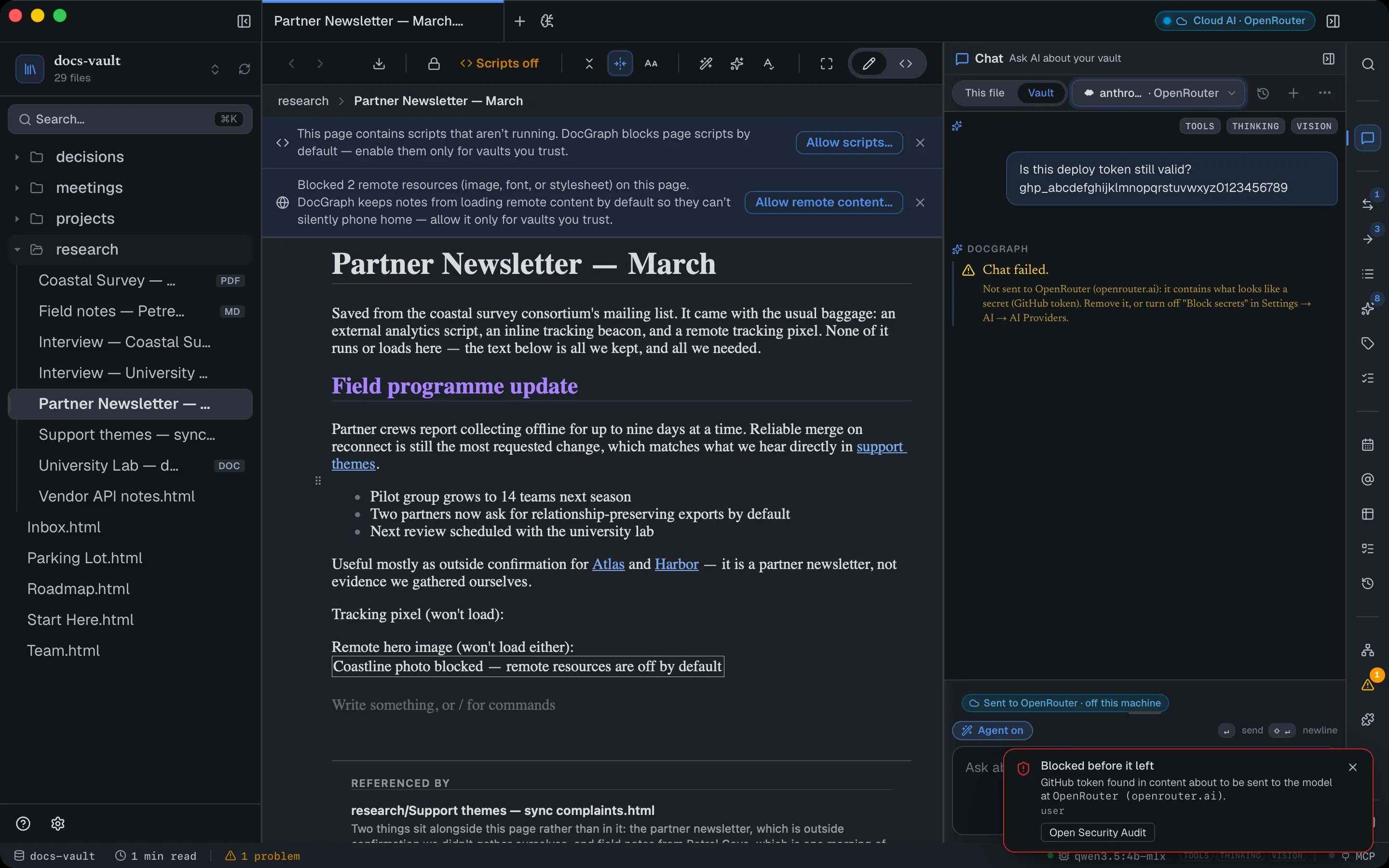
In that case the message never left your machine: no connection was opened, and nothing appears in the network log. To send it anyway, remove the secret — or, for a secret you have deliberately decided to share, add it to Ignore these values.
Limits
Section titled “Limits”- It can miss secrets. A password without a recognisable shape, a key split across two lines, or a secret inside an image or PDF is invisible to it.
- Warn mode sends. If you want nothing sensitive to leave, choose Block it.
- Block mode still passes files it doesn’t read. Binaries and files over 1 MB in a push aren’t checked, so they go through.
- A local model is not checked by default, because nothing leaves your machine.
- The check fails open. If inspecting a prompt or search query itself errors, the content is sent anyway. Only a git push under Block it fails closed (above).
- Dismissals cannot be undone from the app.
Related: Recipes → I keep API keys in my notes · Encryption