Properties
Properties attach structured metadata to a file: a status, a due date, an owner, a checkbox. They’re typed, editable from the side panel, and queryable — and they live entirely outside your document, so adding them never changes a single byte of the note.
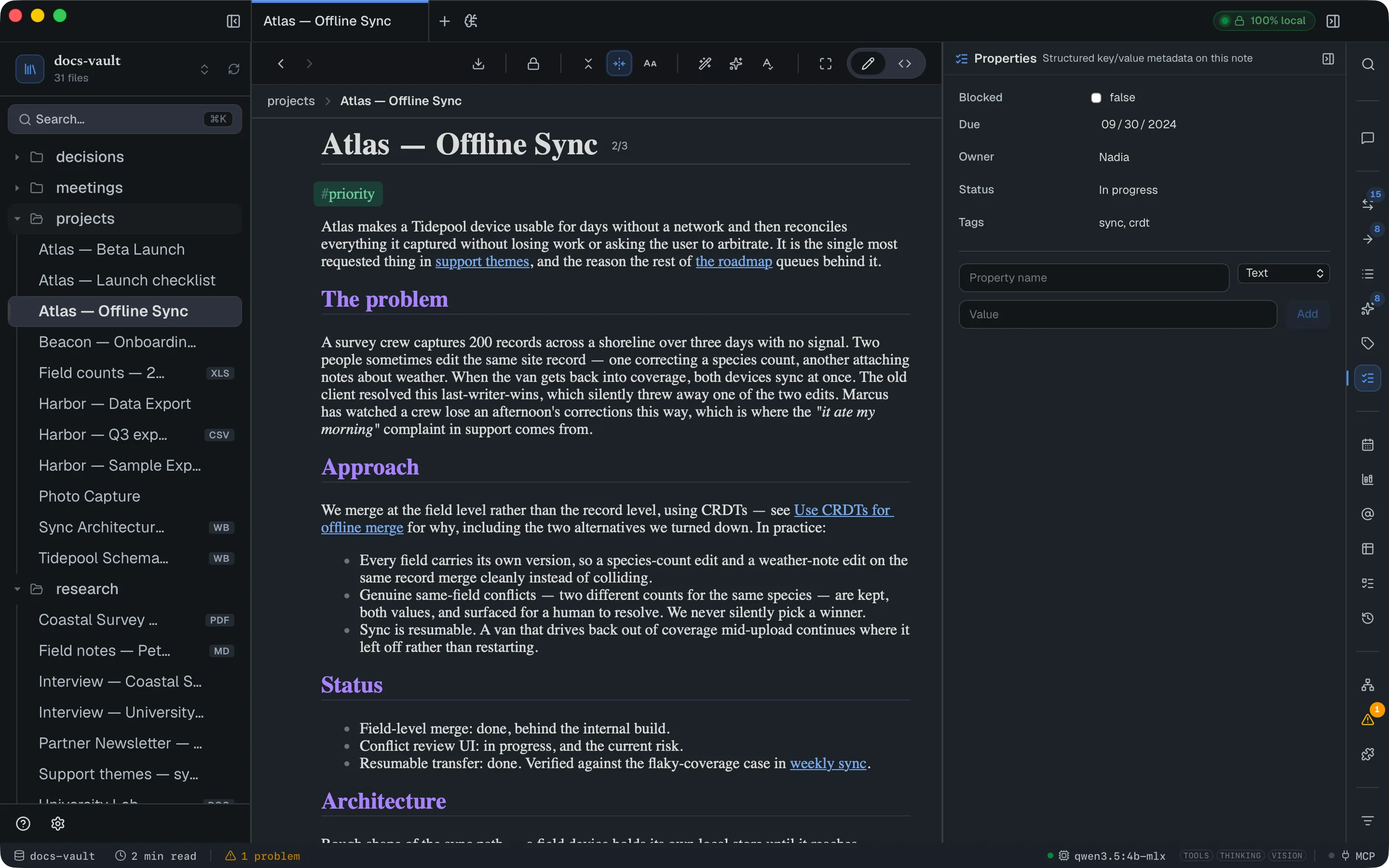
Properties is a section of the This note panel — open it from the right-hand rail with a file selected, then open Properties.
Getting there
Section titled “Getting there”The panel has one add-row: a name, a type, and a value.
- Type a Property name. Suggestions appear as you type — see Suggested names.
- Pick a type — Text, Number, Date, Date & time, Checkbox, or List.
- Enter a value (a List takes
comma, separated, values). - Click Add, or press Enter in the value field.
Existing properties are editable in place — type in the field and click away to commit, or press Enter. The ✕ on a row hover deletes it.
This panel edits properties of a whole file or folder. A single line or todo in an HTML page has its own properties, edited in a popover in the page itself — see Block Properties.
Properties work on any file the tree can select: HTML and Markdown notes, but also PDFs, spreadsheets, Word documents, whiteboards and images. There’s no format restriction. Folders can have properties too — see Folder properties.
Suggested names
Section titled “Suggested names”While the name field has focus, a short list under it suggests names. Any other name still works — type it and carry on.
- Built-in — names DocGraph itself reads, each with a line saying what it does. They’re offered only where they do something:
deck-minuteson a folder,slide-minuteson an HTML page. See Built-in properties. - In this vault — names you’ve already used on other files or folders, the most used first, up to eight at a time. Keep typing to narrow the list. Names this file already has aren’t offered again.
Use ↑ and ↓ to highlight a suggestion and Enter to pick it, or click it. Picking a name moves you on to the value field. With nothing highlighted, Enter just moves on with the name you typed. Esc closes the list.
Picking a name can also set the type, but only when the type is certain. A built-in sets its own type (Number for both timing names). A name from your vault sets Text when it has only ever held text, and Number or Checkbox when it’s recorded as that type in .docgraph/properties.schema.json. Anything else leaves the type alone — a date, for instance, since the same name might hold a date and time elsewhere. You can always change the type before adding.
Typing a near miss of a built-in — slide-minute, say — offers Did you mean slide-minutes? at the top of the list, because a misspelled built-in is stored like any other name and silently does nothing. Typing a built-in on the wrong kind of target shows a note, such as deck-minutes is read on folders, not pages.
Names added by the AI or an MCP agent show up in the list the next time you come back to the DocGraph window, or when you open another file or folder.
Built-in properties
Section titled “Built-in properties”Most property names are yours to choose. These few mean something to DocGraph:
| Name | On | Type | What it does |
|---|---|---|---|
slide-minutes | An HTML page | Number | Planned minutes for this slide when its folder is presented |
deck-minutes | A folder | Number | Planned length of the talk when the folder is presented |
Both take a positive number of minutes; decimals such as 1.5 work. Adding one from the Properties panel also records it as a Number for the whole vault, in .docgraph/properties.schema.json beside the properties themselves.
Note types
Section titled “Note types”Give a file a type property — meeting, project, decision, person — and DocGraph knows what kind of note it is. The types, and the keys each one should carry, are listed in Settings → Organize → Ontology (see The vault ontology).
When a typed note is missing a key its type requires, a hint appears at the top of the Properties panel: the type’s name, what it builds on (a one-on-one that extends meeting shows › meeting), and a Needs row with one chip per missing key. Click a chip to put that name in the add row, then type the value. Keys the type usually carries show on a quieter Usually row. The hint disappears once the required keys have values — including ones set by the AI or an MCP agent.
It’s only a hint. A note with a missing key saves and works exactly as before, and nothing is filled in for you. The same gaps are listed as missing_required rows in the vault_health query source, so one saved query shows every incomplete note in the vault.
Person pages are created as type: person. That type requires only person, which a person page already carries, so nothing about them changes.
The vault ontology
Section titled “The vault ontology”Settings → Organize → Ontology is the vault’s vocabulary in one place, stored as .docgraph/ontology.json beside the properties file:
- Note types — each with the keys it requires and usually carries, and optionally a type it extends: a
one-on-onethat extendsmeetingalso requires everything a meeting requires. Required and usual keys are edited in place as comma-separated lists. - Typed keys — a value type for a key, and optionally a range: what the value points at.
owner→personmeansowner: Sampoints at the person Sam;project→type:projectmeansproject: Apollopoints at the note typedprojectwhose title (or file name) is Apollo. - Entity kinds — what an @mention can be: person, project, tag, date, organisation, place. Add kind adds your own, such as
clientorvendor(lowercase letters, digits and-, starting with a letter). The × removes a kind other than person, tag and date; if names still use it, DocGraph asks which kind to move them to first. - Link relations — the
relvalues the AI may write on a link (the link types you see in the graph), each with how strongly AI search follows it. Arelyou type by hand is never restricted. - Inferred edge weights — weights for edges DocGraph derives rather than you write.
Until you change anything, the vault uses a built-in set of defaults and no file is written. Found in your vault at the top lists what the vault already uses but nobody declared yet: a rel on your links, a type value on two or more pages, a key used on five or more pages (with a range when every value is a known person, tag or typed note). Nothing in that list has any effect until you accept it (✓), or Accept all to take the whole list at once; dismissing an item (✕) stops it being offered again. Restore defaults deletes the file.
The chat assistant reads the ontology on every question, so it can narrow a search to a type (“meetings with Sam”) or to notes carrying a kind of entity, and an MCP agent can read it with get_ontology.
Folder properties
Section titled “Folder properties”Right-click a folder → Properties… — or right-click the empty area of the tree for the vault root — to open the Properties panel for the folder itself. A heading with the folder’s icon and name shows which folder you’re editing, so its fields are never mistaken for the open page’s. Opening a file, or switching to another panel tab, returns the panel to following the active file.
Folder properties work like a file’s, with a few differences:
- They belong to that folder only. Nothing is inherited by the pages inside it.
- Queries, embedded property tables and the calendar list files only, never folders.
- The AI and MCP agents can’t change them. Set them from the panel.
- They follow the folder inside DocGraph. Renaming or moving a folder from the tree or through the AI carries its properties, and those of everything under it, along. Moving a folder to the Trash removes them. A folder renamed or moved outside DocGraph — in Finder, or by a sync — leaves its properties behind under the old name.
- The folder’s icon and colour are stored the same way, as properties DocGraph manages itself. They don’t appear in the panel.
Where properties are stored
Section titled “Where properties are stored”This is the part worth understanding before you rely on them.
Properties are not front matter, and they are not written into your document. They live in a single file beside the vault:
<your vault>/.docgraph/properties.jsonThat’s one JSON file mapping each file’s path to its properties. A folder’s entry is keyed by its path with a trailing slash — talks/q4/ — and the vault root is /. The design is deliberate — your notes stay exactly as you wrote them, and a property value never leaks into the page or the full-text search index.
What you can do with them
Section titled “What you can do with them”Ask the AI
Section titled “Ask the AI”The chat assistant can read and filter properties — “which notes are status: blocked?” — and can set or clear them for you, gated behind the usual confirmation. The same tools are available to a connected MCP agent.
Embed a live query in a page
Section titled “Embed a live query in a page”You can drop a table into any HTML note that lists every file matching a property filter:
<div data-docgraph-properties='{"where":{"project":"tidepool"},"columns":["status","due"],"title":"Tidepool work"}'></div>DocGraph renders that into a real table when the page is served, refreshed from the current data every time.
Reference
Section titled “Reference”| Type | Stored as | Notes |
|---|---|---|
| Text | String | The fallback for anything unrecognised |
| Number | Number | Numeric input |
| Date | String, YYYY-MM-DD | Date picker |
| Date & time | String, YYYY-MM-DDTHH:MM | Date + time picker; local wall-clock, no timezone |
| Checkbox | Boolean | Just the checkbox |
| List | Array of strings | Entered and displayed comma-separated |
The panel doesn’t store a type with each value — it infers the editor from the value each time the panel loads. A text value that happens to look like 2026-08-22 will come back as a Date, and one that looks like 2026-08-22T14:30 as a Date & time. A value carrying a timezone (...Z or an offset) stays Text — it is never silently reinterpreted in your local zone.
Limits & troubleshooting
Section titled “Limits & troubleshooting”Properties are not searchable as text. ⌘K full-text search will not find a property value. This is intentional isolation, not an oversight: property values never enter the search index or the AI’s retrieval corpus. To find notes by property, ask the AI or use an embedded query view. Two exceptions: a tags property (a list, or text separated by commas or spaces) counts as the note’s tags, so tag: search, the Tags panel and the graph see them; and a key with a range in the ontology, whose value is an edge, so it shows in the graph (Show → Property edges) and in the links query source, and AI search follows it to the note it names.
No filtering or sorting in the panel. Properties render in alphabetical order by name. The panel is an editor, not a browser.
Editing the sidecar by hand. .docgraph/properties.json is plain, readable JSON and is safe to edit while the app is closed. If the file stops being valid JSON, DocGraph says so in the Properties panel and refuses every property change until it’s fixed, rather than overwriting what’s there. It’s also the thing to back up if properties matter to you — note that some sync setups skip dotfolders by default.