The privacy badge
The pill in the top-right corner of the window tells you, at a glance, where your content can go right now. It reads 100% local, with a shield icon, most of the time, and it changes the moment that stops being true — when the chat is set to a model on another computer, when a request is on its way out, or when DocGraph refuses one.
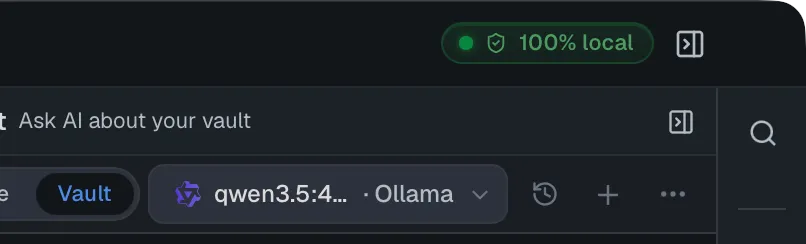
It is status, not a switch. Nothing is turned on or off by it; the rules live in the code that makes each connection, and the badge reports what those rules are doing. Click it (or press Enter on it) to open Settings → Privacy → Activity & audit, the log of the connections DocGraph has made off this machine.
The states
Section titled “The states”| Badge | What it means | When you see it |
|---|---|---|
| 🛡 100% local | Nothing is leaving your machine, and the chat’s model runs on it. | The normal state. |
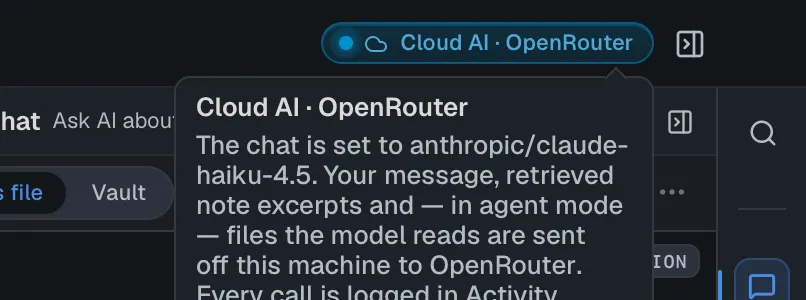
| ☁ Cloud AI · provider | The chat is set to a hosted model (OpenAI, Anthropic, OpenRouter, or a custom endpoint on the internet). Your messages, the note excerpts sent with them, and — in agent mode — files the model reads go to that provider. | While such a model is selected. The dot pulses while a request is in flight. |
| ☁ Remote AI · provider | The chat is set to a model running on another machine on your network — an Ollama server on a different computer, or a custom endpoint on your LAN. It is not “the cloud”, but your content still leaves this machine. | While such a model is selected. |
| External agent | An external agent (Claude Code, Codex, …) is the chat’s source. DocGraph hands your message to it, but the agent makes its own network calls with its own account, and DocGraph cannot see them. | While an agent is selected in the chat, and while one is running. |
| External | DocGraph itself is talking to the internet for something you asked for. The tooltip names what and where. | For the length of the request: an update check or download, a model download, a web search, a git push or pull, a request to a remote Ollama. |
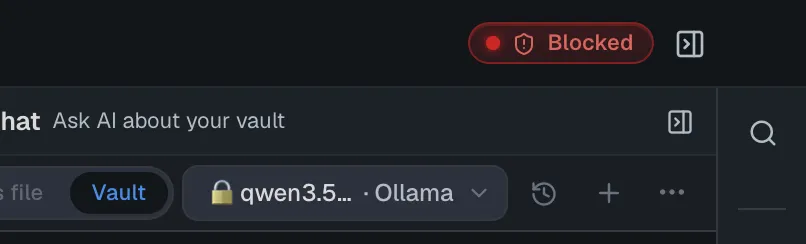
| Blocked | DocGraph refused a connection that isn’t on its allowlist. Nothing was sent. | For a few seconds after the refusal. |
| Agent auto-approve | The MCP server is on with auto-approve, so a connected client can create and edit notes without asking (deletes and schema changes still ask). | While that setting is on. |
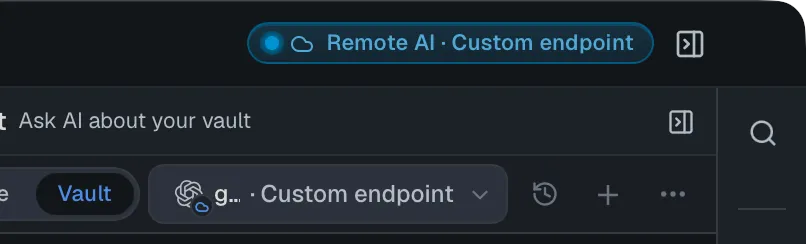
Hover the badge for the details — which model the chat is set to, and exactly what is sent:
What changes it
Section titled “What changes it”Picking a model in the chat is the most common change. The badge follows the model that will answer your next message, so it tells you before you press Send, not after:
- Pick a model under a group marked local — the built-in runtime, Apple’s on-device model, Ollama on this computer, or a custom endpoint on your own computer → 100% local.
- Pick a model under a group marked off-machine → Cloud AI or Remote AI, named after that provider.
- Pick an external agent → External agent.
- Switch back to a local model → 100% local again, straight away.
Local or not is decided by where the model’s server actually runs, never by its name. The same Custom endpoint is local when it points at 127.0.0.1 and off-machine when it points at another computer.
Other things that change it:
- A request going out — the badge shows External for as long as it lasts, then returns.
- A request being refused — Blocked, for a few seconds.
- Closing the chat panel — the chat’s selection no longer applies, so the badge returns to 100% local (unless something else is active).
- Turning on MCP auto-approve — Agent auto-approve, until you turn it off.
When several things are true at once, the badge shows the most important one, in this order: Blocked → External agent → Cloud AI / Remote AI → External → Agent auto-approve → 100% local. A cloud request that is still in flight keeps the Cloud AI state even if you have already switched the chat back to a local model — it ends when the request does.
Check it yourself
Section titled “Check it yourself”You don’t have to take the badge’s word for it. Settings → Privacy → Activity & audit has a Test now button: it makes a deliberately disallowed request, and you watch it being refused — the badge turns red and a “blocked” row appears in the log. Nothing leaves your machine.
The Network view of the same log lists the connections DocGraph has made off this machine — what, where and when — so what the badge showed while you weren’t looking is still there (what isn’t logged).
What it cannot tell you
Section titled “What it cannot tell you”- How much local AI ran. Chatting with a model on your own computer never changes the badge, because nothing leaves the machine. The AI view of the Activity log records those runs.
- What an external agent sends. The External agent state says that one is in play; its own traffic is outside DocGraph and is not recorded.
- What a provider does with your content. Cloud AI tells you that your content goes to a provider and to which one. Whether that provider keeps it or trains on it is set by its own policy, which DocGraph cannot see or enforce.
- Everything on your computer. The badge covers the connections DocGraph makes. Other apps on your computer are outside it.
Related: Cloud AI providers · Privacy & Security