Encryption
DocGraph can encrypt a file, or a single passage within a file, using a passphrase you choose. Encrypted content is unreadable on disk, excluded from search, and invisible to the AI.
It uses age — an audited, standard format — so an encrypted file is not locked into DocGraph. The age command-line tool can decrypt it.
Getting there
Section titled “Getting there”Open a note and click the lock icon in the document toolbar:
- On a normal file it reads Encrypt this file.
- On an encrypted one, Unlock file / Lock file.
To encrypt just a passage in an HTML note, select it (within one block) and choose Encrypt this passage from the selection toolbar or the right-click menu. (Passage encryption isn’t offered on .md files — encrypt the whole file instead.)
Once a page contains encrypted passages the toolbar also offers Unlock n and Decrypt passages permanently — the passage-level counterparts of unlocking and of Remove encryption.
Encryption is available in every build; there’s nothing to enable.
Core tasks
Section titled “Core tasks”Encrypt a whole file
Section titled “Encrypt a whole file”Click the lock, then set a passphrase twice. There’s a strength meter, and DocGraph won’t accept a weak one — at least 10 characters and a reasonable strength score.
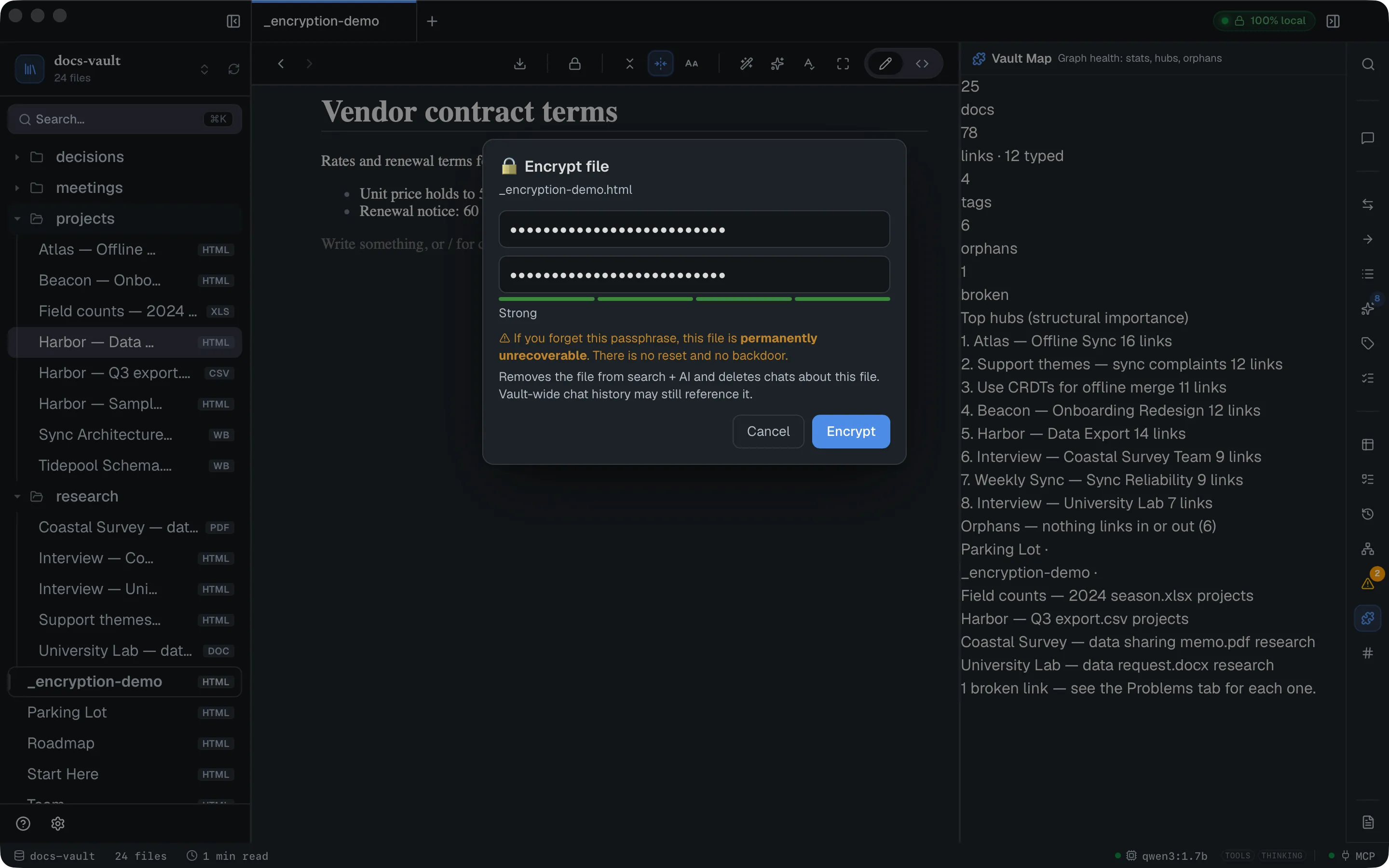
The dialog is blunt about the stakes, and means it:
⚠ If you forget this passphrase, this file is permanently unrecoverable. There is no reset and no backdoor.
Afterwards the file’s contents on disk are an age blob, and the note shows a placeholder in place of its content:
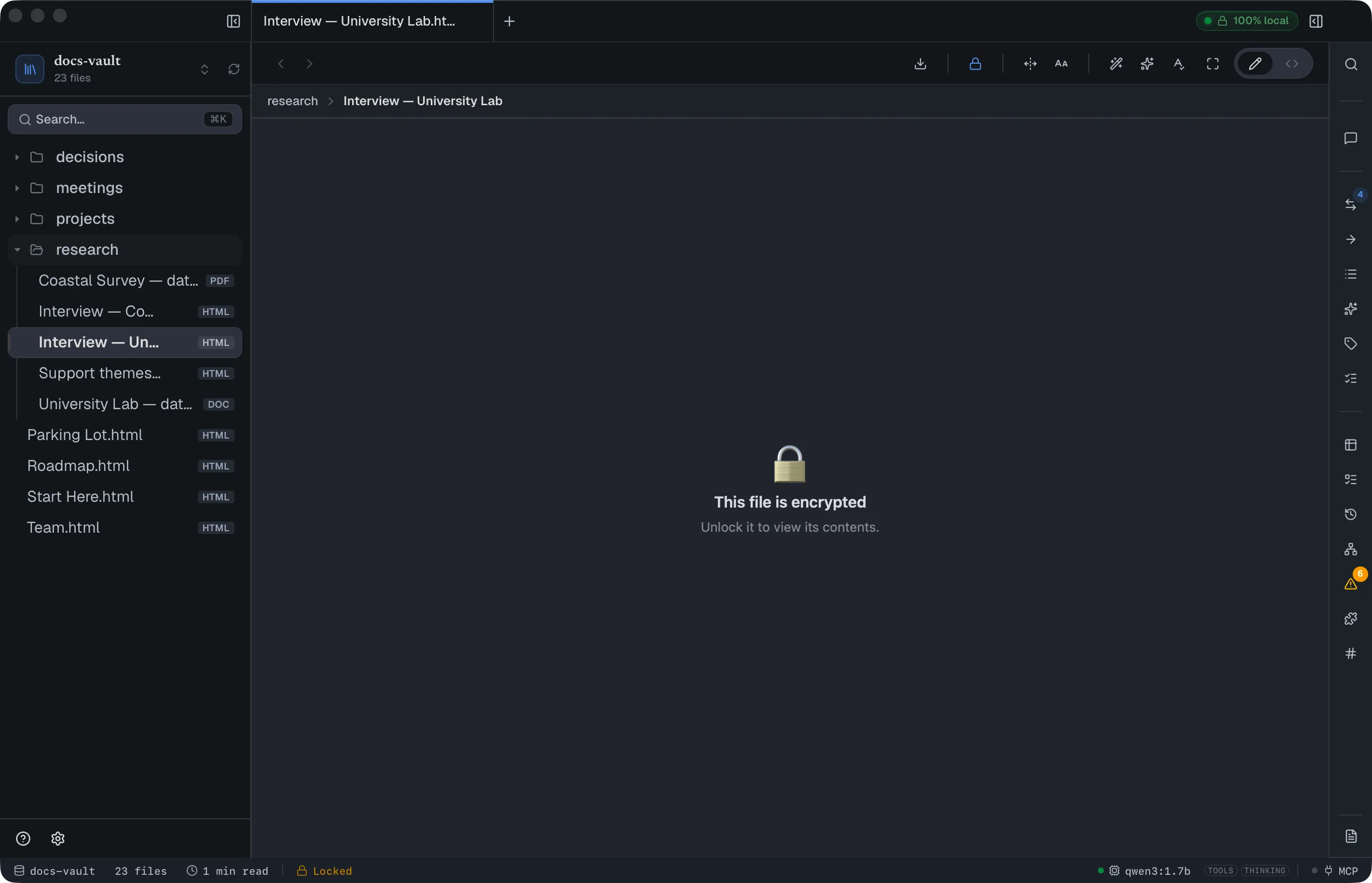 Opening it in DocGraph shows a placeholder — 🔒 This file is encrypted — until you unlock it.
Encrypting also removes the file from the search index and deletes AI chats that were about that specific file. Vault-wide chat history isn’t touched and may still reference it.
Unlock and lock
Section titled “Unlock and lock”Click the lock icon and enter the passphrase. It’s held in memory only, for this session — never written to disk, never in a keychain, never in the log.
Everything re-locks automatically when:
- the DocGraph window loses focus, or
- 15 minutes pass without interaction.
Neither is configurable. Unsaved edits in <> Source are saved first. Each file has its own passphrase; unlocking one doesn’t unlock others.
The status bar shows Locked or Unlocked for an encrypted file. Renaming or moving it keeps it unlocked, and a save never writes plain text over an encrypted file.
Encrypt one passage
Section titled “Encrypt one passage”Select text in a note and choose Encrypt this passage from the selection toolbar or the right-click menu. You set a passphrase the same way, and the passage is replaced on disk by an inert marker.
The rest of the page stays plain text and stays searchable — the point of this feature. It suits a note that’s mostly ordinary but holds one credential, one private paragraph, or one participant’s contact details:
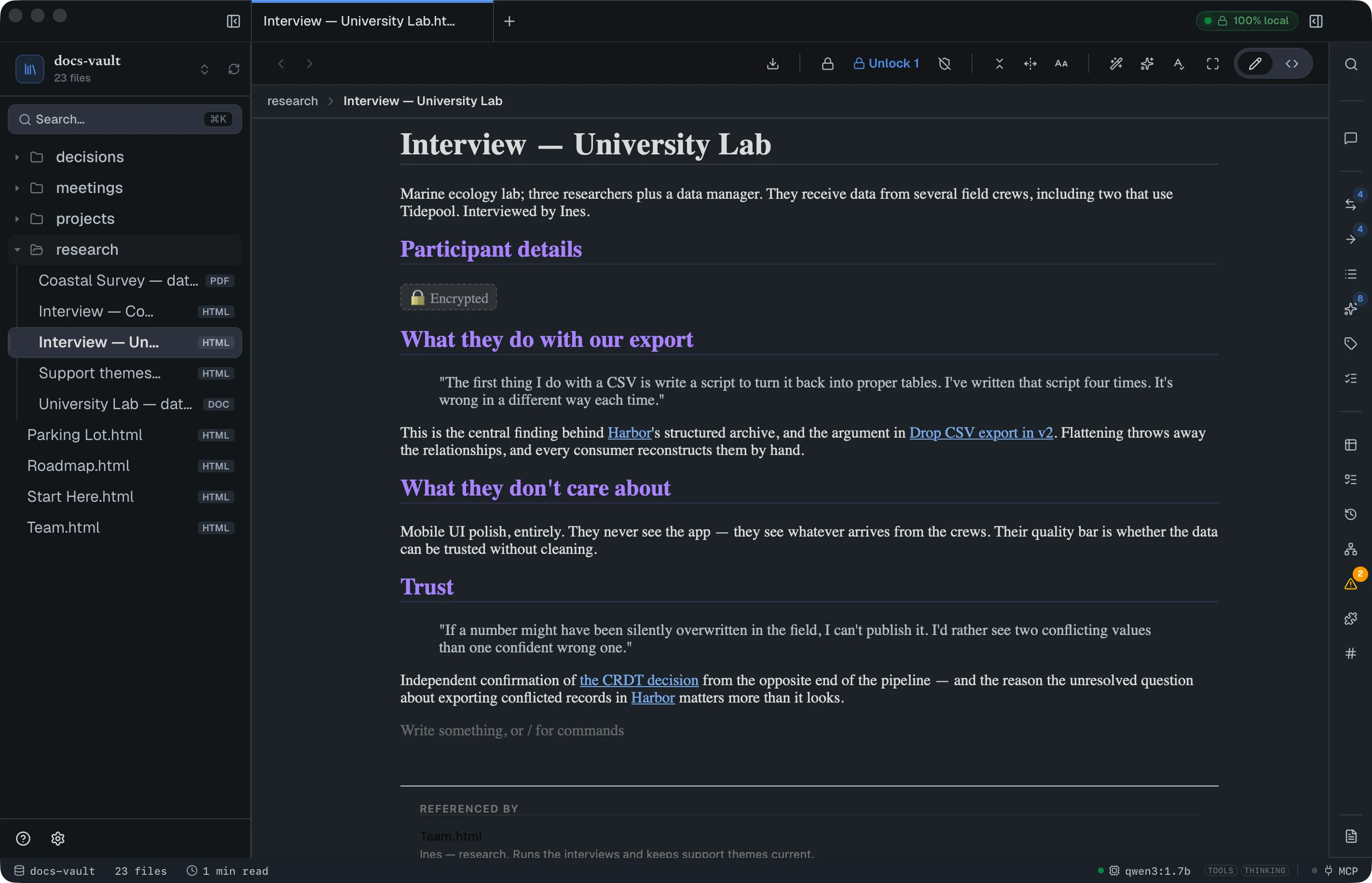
Encrypting a passage hides it straight away. The text you just encrypted disappears behind a 🔒 Encrypted chip on the spot — it isn’t left on screen to vanish later.
To read it again, either:
- click the 🔒 chip itself, or
- click Unlock n in the toolbar, which unlocks every encrypted passage on the page.
Either way you’re asked for that passage’s passphrase. An unlocked passage shows its text again with a 🔓 marker and a faint tint, so you can always tell which parts of a readable page are secret at rest. Lock puts them back.
A page with an encrypted passage never runs scripts, even in a vault where scripts are allowed. Otherwise the page’s own code could read a passage once you unlock it.
Decrypt passages permanently
Section titled “Decrypt passages permanently”Unlocking is temporary — it lasts for the session. To undo the encryption for good, click Decrypt passages permanently in the toolbar. DocGraph confirms first:
Decrypt these passages? This restores the encrypted passages to plain text in the file. They become searchable and visible to the AI again.
Then it asks for the passphrase (if the passages are currently locked) and writes the original text back into the file. The marker is gone; the note is an ordinary note again.
Remove encryption (whole file)
Section titled “Remove encryption (whole file)”The whole-file counterpart. Unlock the file first, then click Remove encryption and confirm:
This decrypts the file back to plaintext on disk. Its contents become searchable and visible to the AI again. (Any earlier ciphertext bytes may still linger on disk/backups.)
The decrypted file is byte-for-byte what you started with.
What encryption does not protect
Section titled “What encryption does not protect”This is the section to read twice. Encrypting a note protects that note’s contents. It does not protect:
| Not protected | Why it matters |
|---|---|
| The file’s name, folder and size | layoffs-q3.html still says so in the tree and in Finder |
| Every other note | The search index at ~/.docgraph/index/ holds the full plaintext of all your unencrypted notes — see Settings & data reference |
| Past versions in git | If you used version history before encrypting, every earlier commit still contains the plaintext, and the History panel will happily show it. Encrypting does not rewrite history |
| Tables, queries and charts | Live in .docgraph/ beside the vault as plain JSON, regardless of the note that embeds them |
| Images and attachments | Stored as ordinary image files in resources/; encrypting a note doesn’t encrypt the pictures in it |
| Vault-wide AI chat history | Only chats scoped to that specific file are deleted |
| Whiteboards | Can’t be encrypted at all |
Two more worth knowing: encrypting doesn’t scrub the previous plaintext from disk (nor does decrypting scrub the ciphertext) — on modern storage those blocks may linger. And while a file is unlocked, exporting it to PDF produces a plaintext PDF.
Reference
Section titled “Reference”| Format | age, ASCII-armored; readable by the age CLI |
| Cryptography | scrypt key derivation (work factor 2¹⁸) + ChaCha20-Poly1305, per the age spec — DocGraph hand-rolls none of it. A file asking for a work factor above 2²⁰ is refused |
| Passphrase scope | Per file (and per passage), cached for the session only |
| Minimum passphrase | 10 characters, plus a strength check |
| Auto-lock | On window blur, and after 15 minutes idle |
| Recovery | None. No reset, no escrow, no backdoor |
| Encryptable | Any file except whiteboards — including PDFs, spreadsheets and images |
| Editing | An encrypted file is read-only until unlocked; then editable via <>Source |
Limits & troubleshooting
Section titled “Limits & troubleshooting”A forgotten passphrase means the file is gone. There is no recovery path of any kind. Keep your passphrase in a password manager.
“Wrong passphrase. Try again.” on a passphrase you’re sure of. Corruption and a wrong passphrase are indistinguishable by design — the same message covers both. If the file was damaged or partially synced, this is what you’ll see.
There’s no “change passphrase” button. To move a file to a new passphrase, unlock it, Remove encryption, then encrypt it again with the new one.
Unlocking is deliberately slow. The key derivation is tuned to be expensive so guessing is impractical; it costs a moment and a few hundred MB of memory each time. A page with many encrypted passages pays that cost per passage.
The AI can still “read” a locked file — badly. If an AI tool reads an encrypted file directly, it receives the encrypted text itself rather than a clear “this is locked” message. No plaintext leaks, but the model will waste its context on gibberish. Search and chat retrieval are unaffected, because encrypted files are excluded from the index entirely.
Opening a locked file in <>Source shows the raw encrypted blob. That’s the actual file content; it isn’t an error.
A file encrypted with the age CLI opens here, provided it uses passphrase encryption at a standard cost setting.