The File Tree
The sidebar is the whole left column: a vault chip, a search button, an optional Pinned section, and the file tree itself. Finding Your Way Around covers search, tabs and shortcuts; this page is the tree — every gesture, every menu item, and every file type it can open.
⌘B toggles the sidebar. Drag its right edge to resize it — the width persists, clamped between 240px and half the window.
Anatomy of a row
Section titled “Anatomy of a row”A file row shows three things, left to right:
- The name. By default note extensions (
.html,.htm,.md,.markdown,.wb) are hidden (Settings → General → Appearance → Hide note extensions). A note keeps its extension when another note in the same folder has the same name, and other files always show theirs. That’s display-only — the file on disk keeps its extension. - A format badge —
PDF,XLS,CSV,DOC,TXT,RTF,JSON,WBorIMG. HTML and Markdown notes get no badge by default, so only the other files are marked. Settings → General → Appearance → Format badges chooses Only for other files (the default), On every file or Never. With On every file, Markdown notes showMD; HTML notes never show a badge. - A scan badge. A PDF of scanned pages reads Scan instead of
PDF. Once you make it searchable, the badge shows ✓ when its text is in search, … while it is waiting or being read, and ! when it couldn’t be read; hover for details. - A backlink count on hover, like
11↩— how many notes link to this one. The quickest way to spot which notes are load-bearing.
A folder row shows its icon (default, or one you chose) and its name. Folders sort above files; both sort alphabetically until you drag them into a custom order.
Clicking a file opens it in the current tab, browser-style. Double-click or middle-click opens it in a new tab. ⌘-click selects it instead — see Selecting several files.
The Pinned section above the tree lists the files you starred, each with an unpin button.
Selecting several files
Section titled “Selecting several files”To act on several notes at once, select them first:
- ⌘-click a file to add it to the selection or take it out. The note you have open joins the selection on the first ⌘-click.
- ⇧-click selects every visible row between the last one you clicked and this one.
- A plain click opens a file and clears the selection; Esc clears it too.
Selected rows are tinted. Folders can’t be selected. ⌘-click no longer opens a tab; double-click or middle-click does.
Right-click inside the selection for a menu headed N notes selected:
| Item | Does |
|---|---|
| Move to… | Moves them all into a folder you name (leave it empty for the vault root) |
| Add tag… | Adds one tag to each |
| Set property… | Sets one property on each, typed as key: value |
| Convert to HTML page | Converts the Markdown notes in the selection; the menu shows how many of them that is |
| Make Text Searchable | Reads the text of the scanned PDFs and images in the selection; the menu shows how many of them that is |
| Exclude from versioning | Only when version history is on |
| Move N to Trash | Asks once, listing the notes |
Dragging any selected row moves the whole selection into the folder you drop it on.
Each action asks for confirmation once, then runs note by note. A note that fails doesn’t stop the rest; the failures are listed together in one message. Moved and converted notes stay selected under their new names.
Drag and drop
Section titled “Drag and drop”Every row in the tree is draggable, and where you drop decides what happens:
| Drop where | What happens |
|---|---|
| On a folder row (its middle) | Move the item into that folder |
| Between two rows | Reorder — pins a manual order for that folder |
| On the empty space below the tree | Move the item to the vault root |
While you drag, a hollow ring and a line show exactly where the item will land, and the row you picked up dims in place:
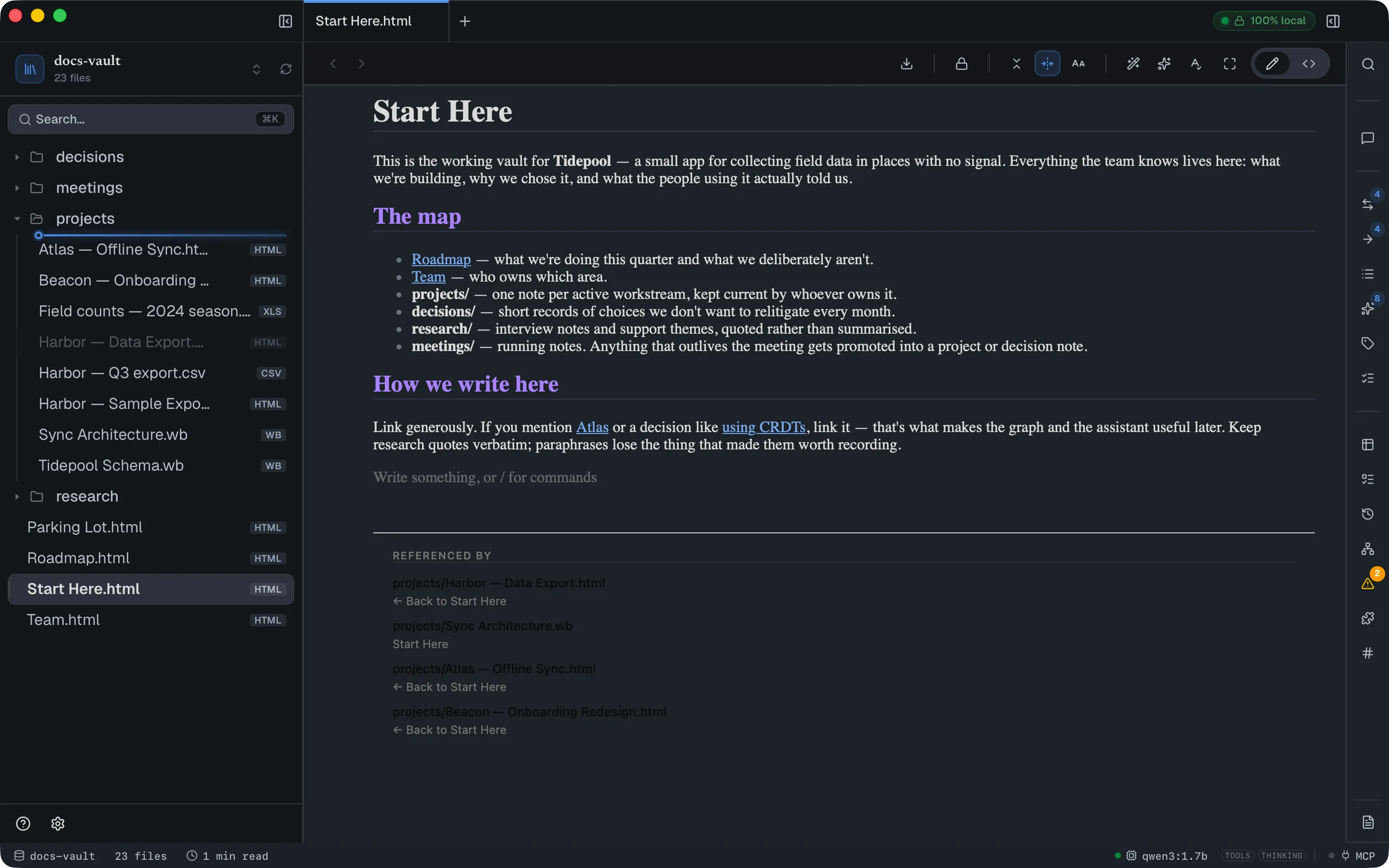
Moving
Section titled “Moving”Moving a file or folder rewrites links in both directions — links pointing at the moved file, and relative links inside it — so nothing breaks. Moving a folder carries its children and their custom order with it.
Reordering
Section titled “Reordering”Dropping between rows pins a manual order for that folder.
Folders always sort above files, and that wins over any manual order — a drag reorders within the folder group or within the file group, never interleaves the two. A newly created file or folder isn’t in the saved order yet, so it sorts to the top of its group where you can see it, rather than being buried below your manual arrangement.
The order is stored inside the vault, at <vault>/.docgraph/order.json, keyed by folder. It travels with the vault — sync the folder to another machine and your ordering comes with it.
Folders you have never reordered have no entry at all and stay alphabetical. To go back to alphabetical for a folder, delete its entry from that file.
Dragging in from Finder
Section titled “Dragging in from Finder”Drag files from your file manager onto a folder row, or onto the empty area, to copy them into the vault. Any file type is accepted, up to 256 MB each. A name that’s already taken gets a -2, -3… suffix. Folders can’t be imported this way; you’ll get a note listing what was skipped. If exactly one note you can edit was imported, it opens.
Dragging an image row onto an open HTML page in Inline mode embeds it into the page at that point.
Folder icons and colours
Section titled “Folder icons and colours”Right-click a folder → Change icon… opens the picker.
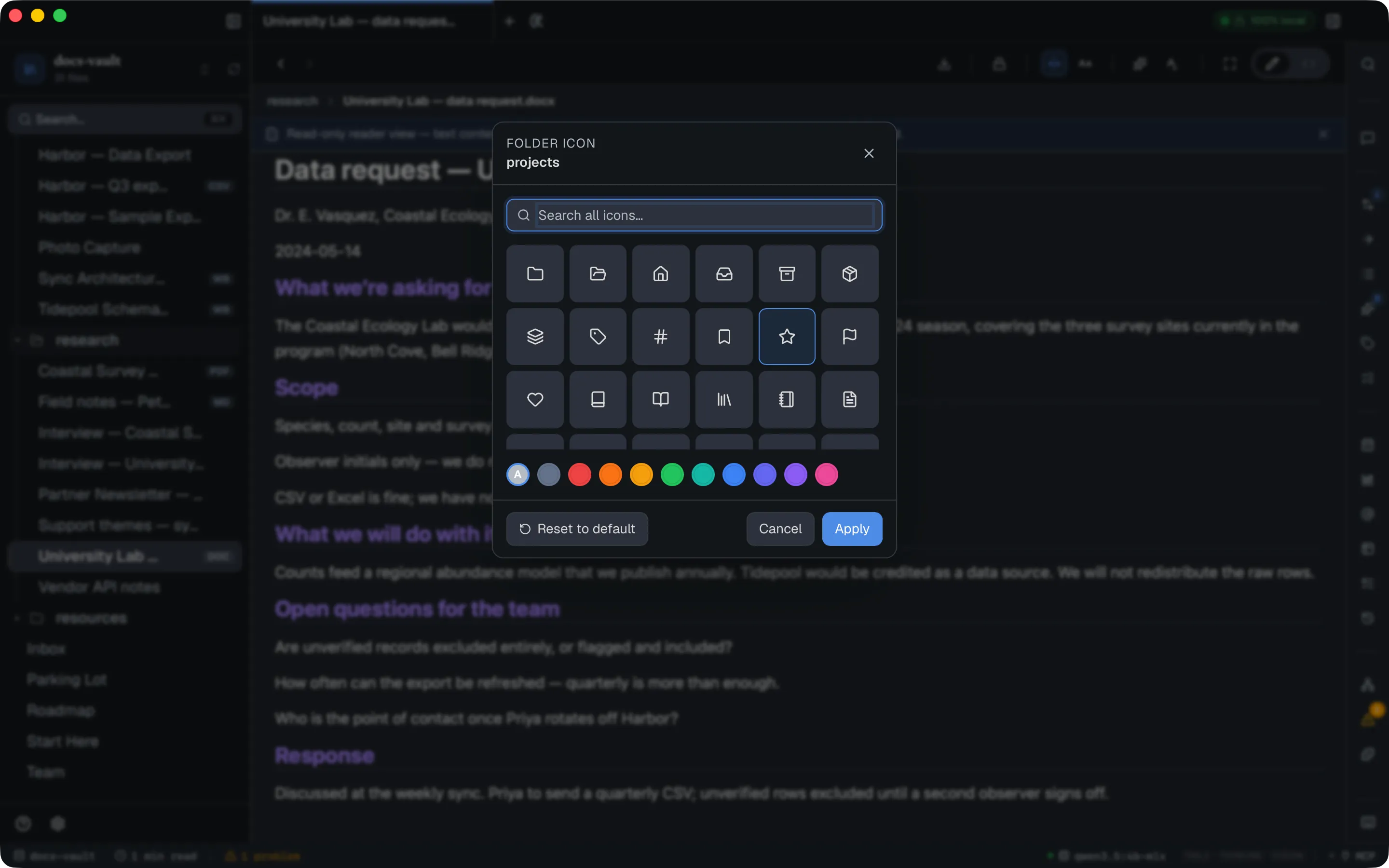
- The grid shows a curated set of ~75 icons grouped by theme — structural, writing, dev, science, media, life, nature.
- The search box goes further: type two or more characters and it searches the entire Lucide library (~1,960 icons), lazy-loaded, showing the first 50 matches with a hint telling you how many more matched. Enter picks the first result.
- The swatch row tints the icon: Default (follows your theme) plus Slate, Red, Orange, Amber, Green, Teal, Blue, Indigo, Violet and Pink.
- Apply saves, Cancel discards, Reset to default clears the override entirely.
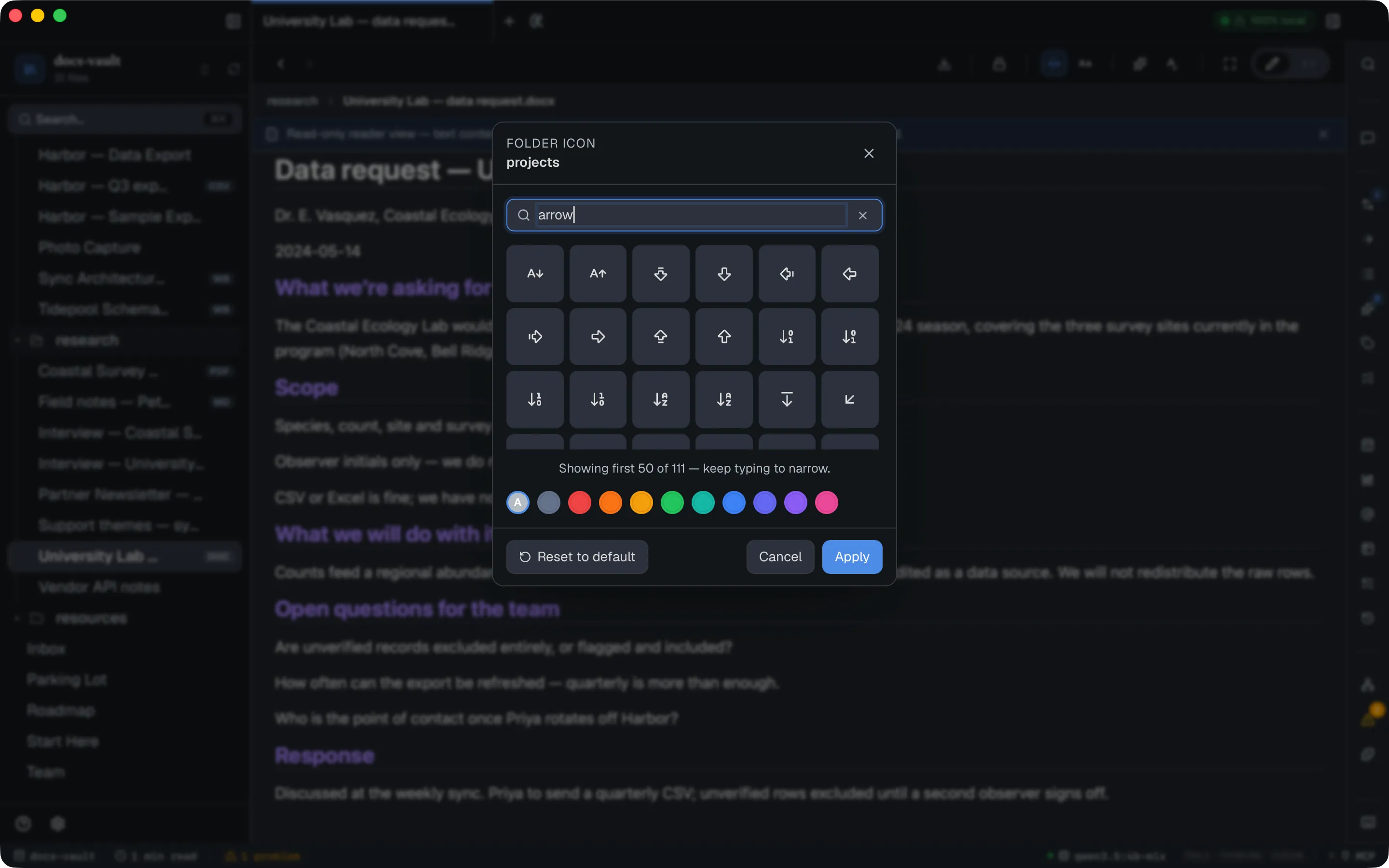
Icons and tints are stored inside the vault, in .docgraph/properties.json beside the folder’s other properties, so they travel with a synced or copied vault. Renaming or moving a folder in the tree carries its icon along. Icons chosen in an older version, which kept them in ~/.docgraph/settings.json, move into the vault the first time you open it. An icon name that no longer exists falls back to the default folder glyph rather than breaking the row.
Page icons
Section titled “Page icons”Pages can have an icon too: right-click a file → Change icon… opens the same picker, titled Page icon. The icon shows before the page’s name in the tree; a page without one shows no glyph, as before. Reset to default removes it.
A page’s icon is stored the same way as a folder’s — in .docgraph/properties.json, on the page’s own entry — so it follows the page when you rename, move or delete it. The welcome vault uses this: Start Here has a home icon and is listed first among its pages. With Agent Mode on, the AI can set or clear a page’s icon too, after asking.
Icons are for notes and folders. Other files, such as PDFs and spreadsheets, show their format badge instead.
Creating files and folders
Section titled “Creating files and folders”Right-click a folder (or the empty area, which targets the vault root) for:
- New HTML file…
- New Markdown file…
- New Whiteboard… — a
.wbcanvas - New folder…
Everything is created inside the folder you right-clicked. ⌘N and the + in the title bar create an HTML file and ask for a vault-relative path instead.
The dialog adds the extension for you, creates any missing parent folders in the path, and tells you while you type if a name is taken rather than failing after you commit.
When AI is enabled, the New HTML file dialog carries a collapsed ✨ Write with AI (optional) row. Expand it, describe what the page should contain, and the file is created immediately with the drafted content arriving after — as an AI draft you can Regenerate, Delete or Accept.
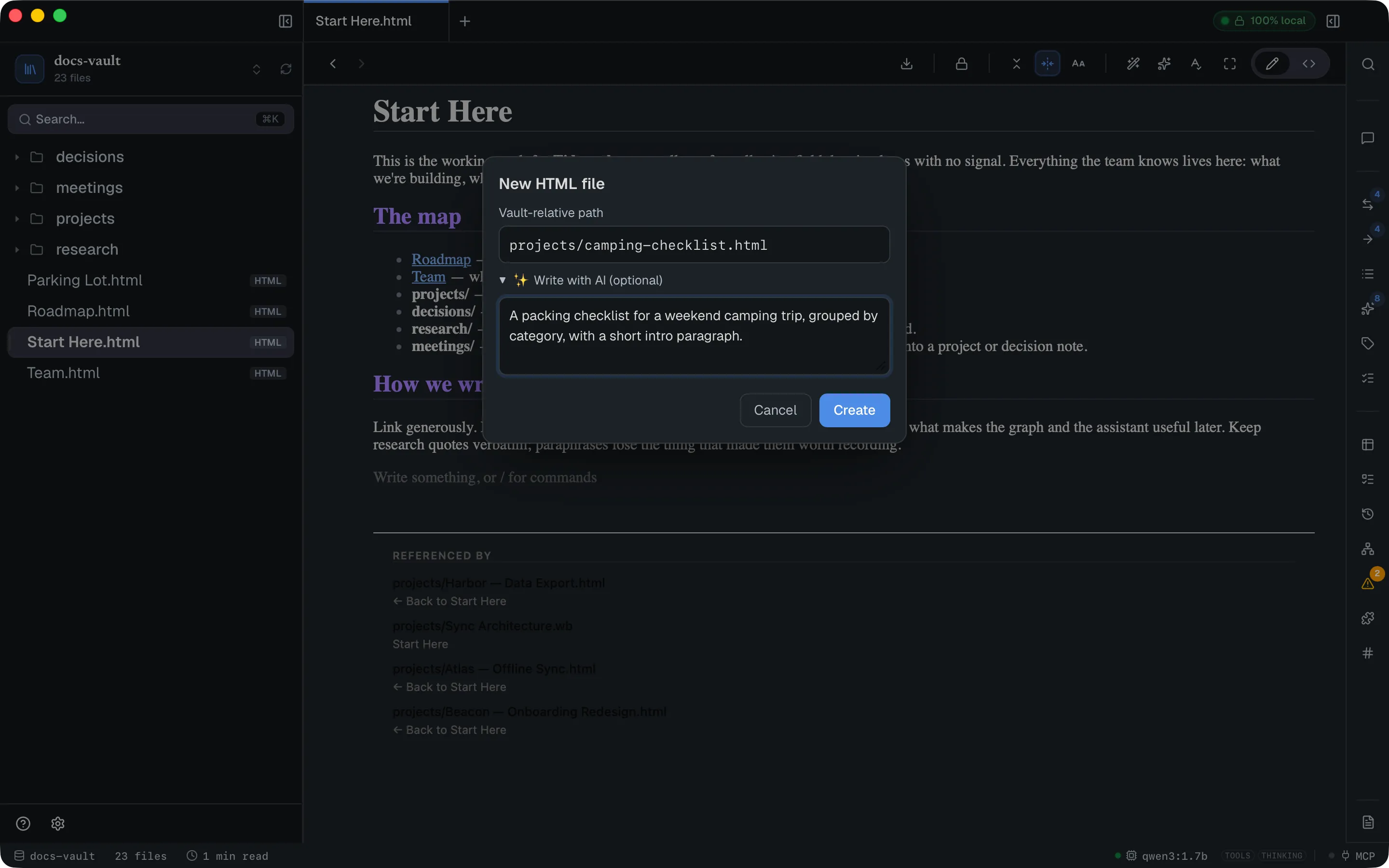
The AI row is HTML only. When your vault has templates, the HTML and Markdown dialogs also get a From template row (Blank, or any template); a picked template decides the new file’s format. Whiteboards get the plain name dialog.
Renaming, duplicating and deleting
Section titled “Renaming, duplicating and deleting”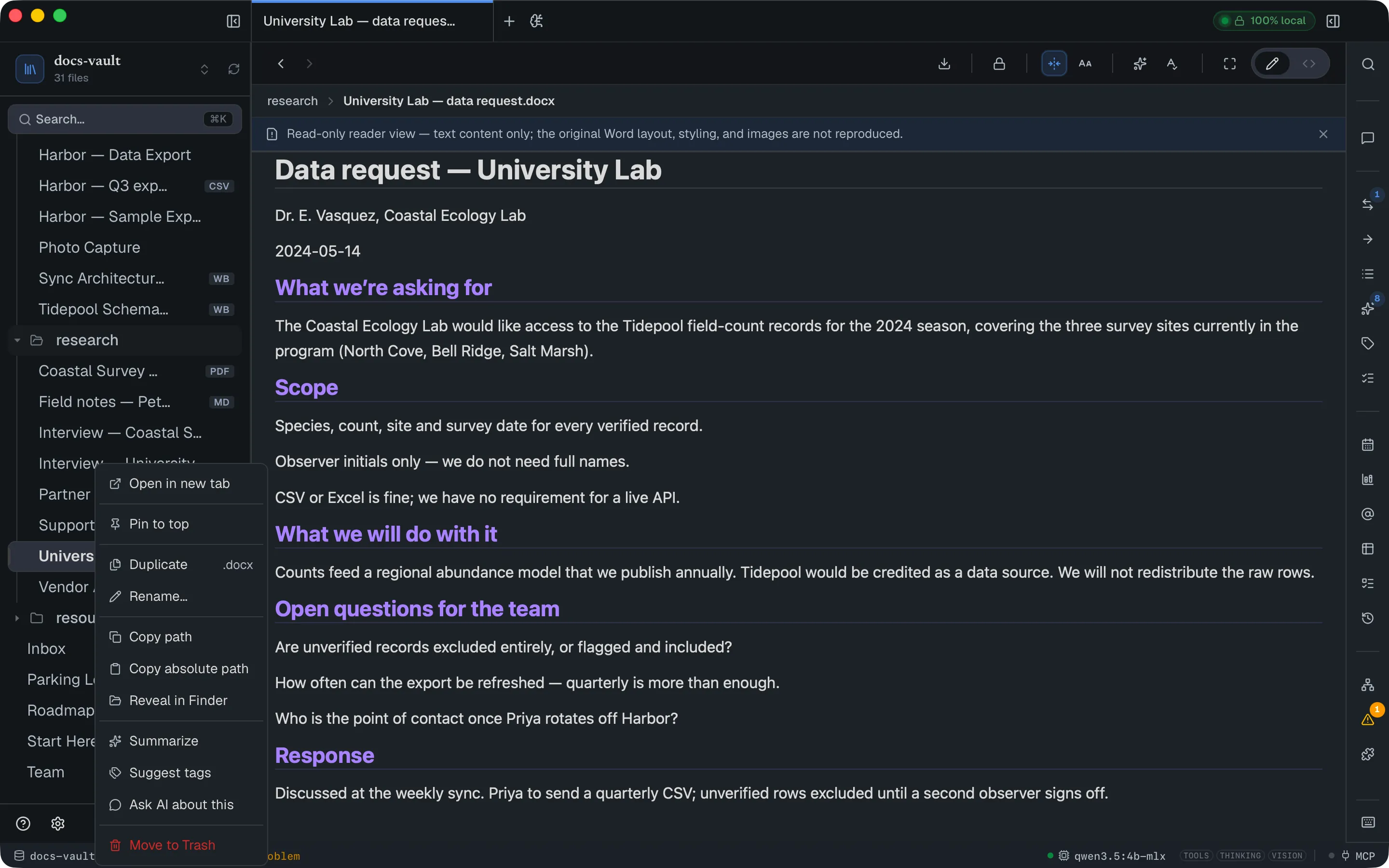
Rename… edits the name in place in the row, with the extension pre-excluded from the selection so you type over the stem only. Enter commits, Escape cancels. Renaming rewrites inbound links, exactly as moving does. Folders rename the same way.
Duplicate copies a file beside itself as <name>-copy (then -copy-2, -copy-3… if that is taken).
Move to Trash sends the file — or the whole folder — to your operating system’s trash. There is no in-app trash and no in-app undo, but you can restore it from the OS. If other notes link to the file, the confirmation warns you first:
3 other files link to it — those links will break. You can restore it from your OS trash if needed.
The rest of the right-click menu
Section titled “The rest of the right-click menu”On a file:
| Item | Notes |
|---|---|
| Open in new tab | Same as double-click or middle-click |
| Pin to top / Unpin | Puts the file in the Pinned section above the tree, with its page icon or a star. Per vault, survives restarts |
| Duplicate, Rename… | See above |
| Change icon… | An icon and tint for the page’s tree row — see Page icons |
| Insert into current page | Images only, while an HTML page is open in Inline mode |
| Copy link to note | A docgraph:// link that opens the note from any app; hold ⌥ to copy it as a Markdown link. See Linking to a note from another app |
| Copy path / Copy absolute path | Vault-relative, or full filesystem path |
| Reveal in Finder | Opens the OS file manager at the file |
| Export to PDF… | HTML and Markdown files — exports the page as viewed, with your reading preferences, always in the Light theme |
| Convert to HTML page… | Markdown files only. See below |
| Import as Table… | Spreadsheets only (.xlsx, .xlsm, .xls, .ods, .csv) → an editable managed table |
| Make Text Searchable | Scanned PDFs and images: reads their text on this computer so search and chat can find it. Once a file is in search, Remove from Search and Read Text Again take its place. See Scanned PDFs & images |
| Summarize / Suggest tags / Ask AI about this | Shown when AI is enabled and the file has extractable text |
| Exclude from versioning | Only when version history is on. Reversible; the file stays on disk |
| Move to Trash |
Convert to HTML page… turns a Markdown note into an HTML page, for when a note needs block properties that Markdown can’t hold. A confirmation names the new file and how many other notes link to the old one. On Convert:
- The HTML page is written beside the original with the same name. If that name is taken it gets a suffix (
-2,-3, and so on), and it opens in the tab. - Links to the note from other notes are rewritten to point at the page.
- The original
.mdgoes to your OS trash, so you can restore it. - Some things are not carried over: raw HTML fragments are dropped, so are
%%comments%%written inside a paragraph, and callouts lose their folded state. If anything was dropped, a message lists it. - An encrypted note is refused: remove its encryption first, since converting would write the plain text to a new file. So is a note with unsaved changes in the Source editor, and a file that isn’t valid UTF-8 or is too large.
The same action is in the command palette as Convert to HTML page.
On a folder: the four New… items, Rename…, the two Copy path items, Reveal, Present, Change icon…, Properties…, Make Scans in Folder Searchable and the Make New Scans Searchable Automatically switch (see Scanned PDFs & images), Exclude from versioning, and Move to Trash — plus Synthesize notes… (AI on, and at least two notes under the folder) and Extract to table… (AI on, a chat model chosen, and at least one text note under the folder). Present appears only when the folder has HTML pages directly inside it; it plays them as a slide deck (see Presenting a Folder). Properties… opens the Properties panel for the folder itself (see folder properties).
Which files show up
Section titled “Which files show up”The tree lists the formats DocGraph can open. Everything else stays invisible — it can sit in the vault folder and be linked to without the link being reported as broken; it just can’t be opened in the app.
| Badge (default setting) | Extensions | Opens as | Editable |
|---|---|---|---|
| (none) | .html, .htm | A rendered page | Yes — inline, and in <>Source |
| (none) | .md, .markdown | A rendered page | Yes — inline, and in <>Source |
WB | .wb | A whiteboard canvas | Yes |
PDF | .pdf | The system PDF viewer, embedded — real pages, real fonts | No |
Scan | A .pdf of scanned pages with no text layer | The same PDF viewer. Its text reaches search once you make it searchable | No |
XLS | .xlsx, .xlsm, .xls, .ods | A read-only grid, one table per sheet | No — but Import as Table… copies the rows out |
CSV | .csv | The same grid, one sheet, first row as header | No — same import path |
DOC | .docx | A reader view: text and headings, centred prose column | No |
TXT | .txt, .text | A plain-text reader view | No |
RTF | .rtf | The same reader view, formatting stripped | No |
JSON | .json | The <>Source editor itself, with folding and Format document | Yes — in <>Source only |
IMG | .png, .jpg, .jpeg, .gif, .webp, .svg, .avif, .bmp, .ico | The image, for viewing | No |
Spreadsheets show cell values as last saved, not formulas; Word documents show text and headings only. PDF, Excel, CSV & Word covers what each viewer does and doesn’t reproduce, the indexing limits, and how their text reaches search and chat.
Text from every format except images and scans is indexed, so search and the AI assistant reach inside them. Images and scans join once you make them searchable.
Formats that are not listed in the tree include .doc (pre-2007 Word), .pptx, archives, and audio and video files (those play inside a note instead). .txt, .rtf and .json are listed and open in the app.
The header and footer
Section titled “The header and footer”The vault chip at the top shows the vault’s name; clicking it opens Settings → General → Vault, where the vault picker and recent-vaults list live. The circular arrow beside it resyncs the tree — a re-walk of the folder to pick up files added or removed outside DocGraph. It does not rebuild the link index; that’s Settings → General → Vault → Index.
At the left end of the status bar, ? opens the shortcut list and the gear opens Settings. The file count is beside them.
Limits & troubleshooting
Section titled “Limits & troubleshooting”Folder expansion isn’t remembered. Which folders are open is per-session — reopening the vault collapses everything again.
Folders can’t join a multi-selection. Selecting several rows works for files only; move folders one at a time.
The tree has no keyboard navigation. Rows are buttons, so Tab reaches them, but there are no arrow-key bindings, no type-ahead, and no shortcut that focuses the tree.
Folders can’t be dragged in from Finder. Copy them in with your file manager instead, then hit the resync arrow.
A file you added outside the app hasn’t appeared. The watcher normally catches it; if not, the resync arrow re-walks the folder.