Finding Your Way Around
The left side of the window is your vault: a header, a search button, and the file tree. This page covers all of it, plus the command palette that search opens.
The vault header
Section titled “The vault header”The chip at the top shows the vault’s name. Clicking it opens Settings → General → Vault, which is where vault management lives — the Open vault… picker and the recent-vaults list. The file count is in the status bar.
The circular arrow beside it resyncs the file tree — a re-walk of the vault folder to pick up files added or removed outside DocGraph. It doesn’t rebuild the link index; that’s a separate, heavier action in Settings → General → Vault → Index, or the Rebuild link index command.
Switch to another vault
Section titled “Switch to another vault”Open Settings → General → Vault (click the vault chip, or press ⌘,). Click a vault under Recent vaults to switch to it, or Open vault… to pick a different folder. The command palette has Open vault… and Open demo vault too. With no vault open, the welcome screen offers the same choices.
Search
Section titled “Search”Clicking Search… (or pressing ⌘K or ⌘P) opens the command palette. There’s no inline filter box in the sidebar — the palette is the search.
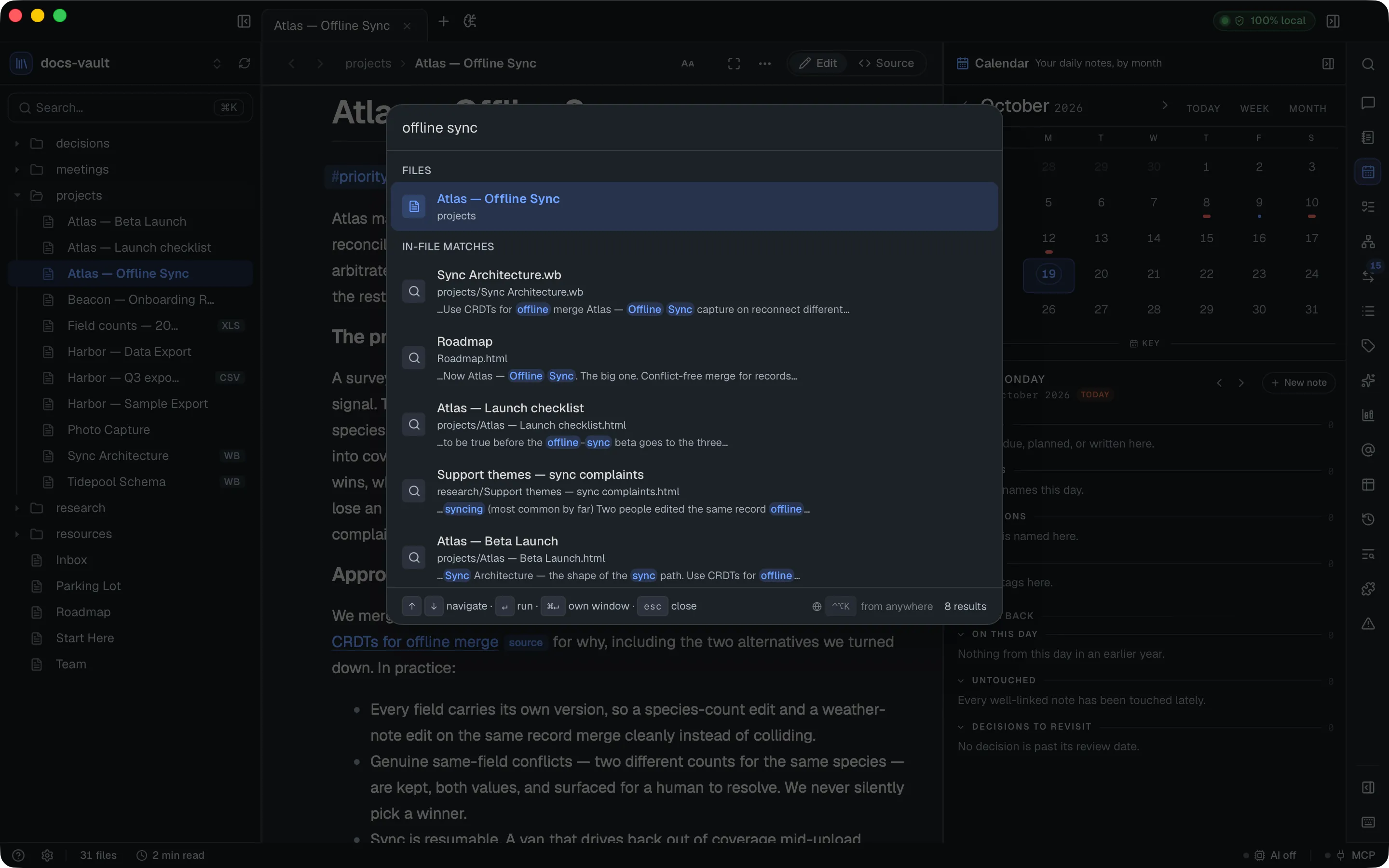
It does several things at once, and the results are grouped by kind:
- Recent — with nothing typed, up to five notes you opened recently come first (the same list as the menu-bar icon and the system-wide search, minus the note already open), then the commands, then your files.
- Commands — every action in the app, fuzzy-matched on name and description. Commands you run from the palette are remembered (the last eight, on this Mac only) and listed first on an empty query; they and recently opened notes also rank a little higher as you type.
- Files — fuzzy-matched on the whole path, so
proj/atlfindsprojects/Atlas — Offline Sync.html. A note is also found by its title when that differs from the file name, and by any alias it declares (aliases:in a Markdown note’s front matter). - In-file matches — full-text search across your notes’ contents, with the matching phrase highlighted in context. This reaches inside PDFs, spreadsheets and Word documents too.
- Tags — type
#to list every tag with its file count; pick one to drill into the files carrying it. Backspace steps back out. - @Mentions — type
@to list the names from your vault’s@mentionvocabulary, most-used first, each with its count (and its kind, when it is not a person). Keep typing to narrow the list. Pick a name to see every place it is mentioned, with a snippet of the surrounding text; picking one opens that note at the mention. The last row, Open @name in Mentions, jumps to that name in the Mentions panel instead. - Find notes — start with
?and describe the note you want (?the note about my Berlin trip). It uses the chat’s note finder, without a model, and lists notes with their dates and why each matched.↵opens one;⇧↵asks the question in the chat instead. Until a search language is chosen it matches by keyword only.
Results can also include a More group, and the list is capped at 50. The placeholder reminds you of the three prefixes: # for tags, @ for mentions and ? to describe a note.
The footer of the palette shows the shortcut for the system-wide search (⌃⌥K, see below) when it is switched on, and the number of results.
Create a note from the palette
Section titled “Create a note from the palette”A plain search ends with Create note ”…”, unless a note already has exactly that name. Choose it to open the new-file dialog with the name filled in.
Words and meaning in one search
Section titled “Words and meaning in one search”There is one search, with no mode to switch. Your words are matched first: a note whose title contains them ranks above one that only mentions them, and only the word you are still typing is completed — soak polic finds soak policy, but in aws ec2 the finished word aws no longer also matches awsome. Type a space after the last word to stop it being completed too.
With AI turned on and a search language chosen, up to six Related notes follow: notes found by meaning that the word match missed, whether or not they use your words. They appear for queries of three or more characters (not in the #, @ or ? modes), with Finding related notes… while they load. With AI off, the palette matches words only and says nothing about meaning search.
| Keys | In the palette |
|---|---|
↑ ↓ | Move through results |
↵ | Open, or run the command |
⌘↵, ⌃↵ or ⌥↵ | Open the selected file in its own window (see Separate windows) |
⌫ | Step back out of a picked tag |
esc | Close |
⌘-click on a result does the same as ⌘↵. On a command, the modifier changes nothing.
Commands worth knowing
Section titled “Commands worth knowing”The palette lists every action. These are the ones most easily missed, several of which have no shortcut or menu item. Type part of the name:
| Command | What it does |
|---|---|
| Toggle theme | Switches between Light and Dark. To follow your Mac’s appearance instead, choose System in Settings → General → Appearance → App theme |
| Increase interface size / Decrease interface size / Reset interface size | Scales the whole app (sidebar, toolbar, panels) and the page you’re reading, in steps from 80% to 200%. The same control is Settings → General → Appearance → Interface size. ⌘=, ⌘- and ⌘0 are not these: they zoom the text of the open page |
| Show Release Notes | Opens what changed in the version you are running (see What’s new after an update) |
| Find and replace in vault | Opens the Find & Replace panel (same as ⌘⇧H) |
| Random note | Opens a note picked at random — never a template, a capture note, a hidden file or the note already open |
| On this day | Opens the Calendar on today, whose digest lists what you wrote on this date in earlier years |
| Copy link to note / Copy Markdown link to note | Copies a docgraph:// link to the open note (see Linking to a note from another app) |
| Stamp new lines with the time | Switches per-line creation stamps on or off for the open HTML page (written into the page itself) |
| Report a Problem / Request a Feature | Open the matching form on GitHub (see Report a Bug or Request a Feature) |
| Open demo vault | Opens the bundled Welcome to DocGraph sample vault |
| Open vault… | Picks a different folder as the vault |
| Today’s note, Previous daily note, Next daily note, Go to date…, Calendar | See Daily notes |
| Open this week’s note / Open this month’s note | See Weekly and monthly notes |
| Quick capture, Add a todo, New 1:1 with… | Start a capture, a task or a 1:1 from wherever you are |
| Clipboard to Today’s Note | Adds the text you copied to the end of today’s note as a timestamped entry. A short confirmation in the window says where it went, with an Open note button |
| Show Unprocessed Captures | Opens a saved query of captured lines more than a week old that you haven’t filed yet, oldest first (see Quick Capture) |
| Toggle focus mode / Toggle presentation mode | Focus mode is also ⌘.; presentation mode is full-screen reading, and esc leaves it |
| Present folder of current file | Plays the HTML pages in the open note’s folder as a slide deck (see Presenting a Folder) |
| Ask your notes, Brief me on my day, What changed this week | Listed only when AI is on. Ask your notes is also ⌘⇧L |
| Convert to HTML page | Markdown notes only; see The File Tree |
| Pin current file / Unpin current file | Stars the open note in the Pinned section atop the file tree |
| Open presenter view | While presenting a folder: speaker notes, the next slide and a clock in a second window (same as P) |
| Open settings | Same as ⌘, |
| Show keyboard shortcuts | Same as ⌘/ |
Daily notes
Section titled “Daily notes”A daily note is one note per day, kept in the folder set in Settings → General → Vault → Templates & daily notes (Daily by default). The Filename there can include folders — a / makes a subfolder, as in {{date:%Y}}/{{date}} — and shows a live preview of today’s path.
Open today’s note
Section titled “Open today’s note”Press ⌘D, or choose Today’s note in the palette. The note is created from your daily template the first time. ⌘D is ignored in the <>Source editor, where it already means “select next occurrence”, and while a text field is focused. From any other app, use the system-wide ⌃⌥D or the menu-bar icon’s Today’s Note (see System-wide shortcuts).
Step to the previous or next daily note
Section titled “Step to the previous or next daily note”⌥⌘← and ⌥⌘→ (or Previous daily note / Next daily note in the palette) step to the nearest day you wrote on before or after the note you are reading. They skip days with no note and never create one. Pressing Next on the newest note does nothing, with no message, which is the normal state of a journal. This stepping is separate from the back and forward trail (⌘[ / ⌘]).
Go to any date
Section titled “Go to any date”Go to date… (palette only) opens any day’s note, and creates it if it doesn’t exist. It accepts:
| Type | Opens |
|---|---|
2026-08-25 (also 2026/08/25, 2026.08.25) | That date. Year-first only; 08-25-2026 is rejected |
08-25 or 8/25 | That day and month in this year |
25 | That day of this month |
today, yesterday, tomorrow | As named |
+3, -7 | That many days from today |
Anything else, or a date that doesn’t exist such as 2026-02-30, is refused with a hint instead of guessed.
Calendar (palette) opens the right-hand panel on its Calendar tab, a month view of your daily notes where you can click any day. See Side Panels.
Weekly and monthly notes
Section titled “Weekly and monthly notes”Alongside the daily note, a vault can keep one note per week and one per month. Their paths are set in Settings → General → Vault → Templates & daily notes: Weekly note defaults to Weekly/{{date:%G-W%V}} (the ISO week, such as 2026-W41) and Monthly note to Monthly/{{date:%Y-%m}}. Each can have its own template; in a weekly template, {{daily:list}} becomes links to that week’s daily notes, Monday first. Without a template, a new note is titled like Week 41, 2026 or October 2026.
To open one (it is created the first time):
- In the command palette, choose Open this week’s note or Open this month’s note.
- In the Calendar, use the Week or Month button in the header (for the selected day), or click a week number beside a row.
- Use the system-wide This week’s note and This month’s note shortcuts, which have no key until you record one (see System-wide shortcuts).
From a weekly or monthly note, ⌥⌘← and ⌥⌘→ step to the nearest week or month you wrote, and never create one.
The file tree
Section titled “The file tree”Folders sort above files, and both sort alphabetically unless you’ve dragged them into a custom order.
A row shows the file’s name, a format badge on files that aren’t notes (PDF, XLS, CSV, DOC, TXT, RTF, JSON, WB, IMG, Scan; HTML and Markdown notes carry none by default — with On every file, Markdown notes show MD, and HTML notes never show a badge), and — on hover — a small 11↩ glyph. That’s the backlink count: how many notes link to this one. It’s the fastest way to spot which notes are load-bearing.
Clicking a file opens it in the current tab; double-click or middle-click opens it in a new tab. ⌘-click adds the file to a selection instead, so you can move, tag or trash several notes at once (see Selecting several files).
Drag a row onto a folder to move it (links are rewritten both ways), or between rows to reorder. Right-click for the full set of actions: create, rename, duplicate, pin, copy a link, change a folder’s icon and colour, or move to trash.
The File Tree covers all of it in detail — every drag gesture, every menu item, and which file types open in the app.
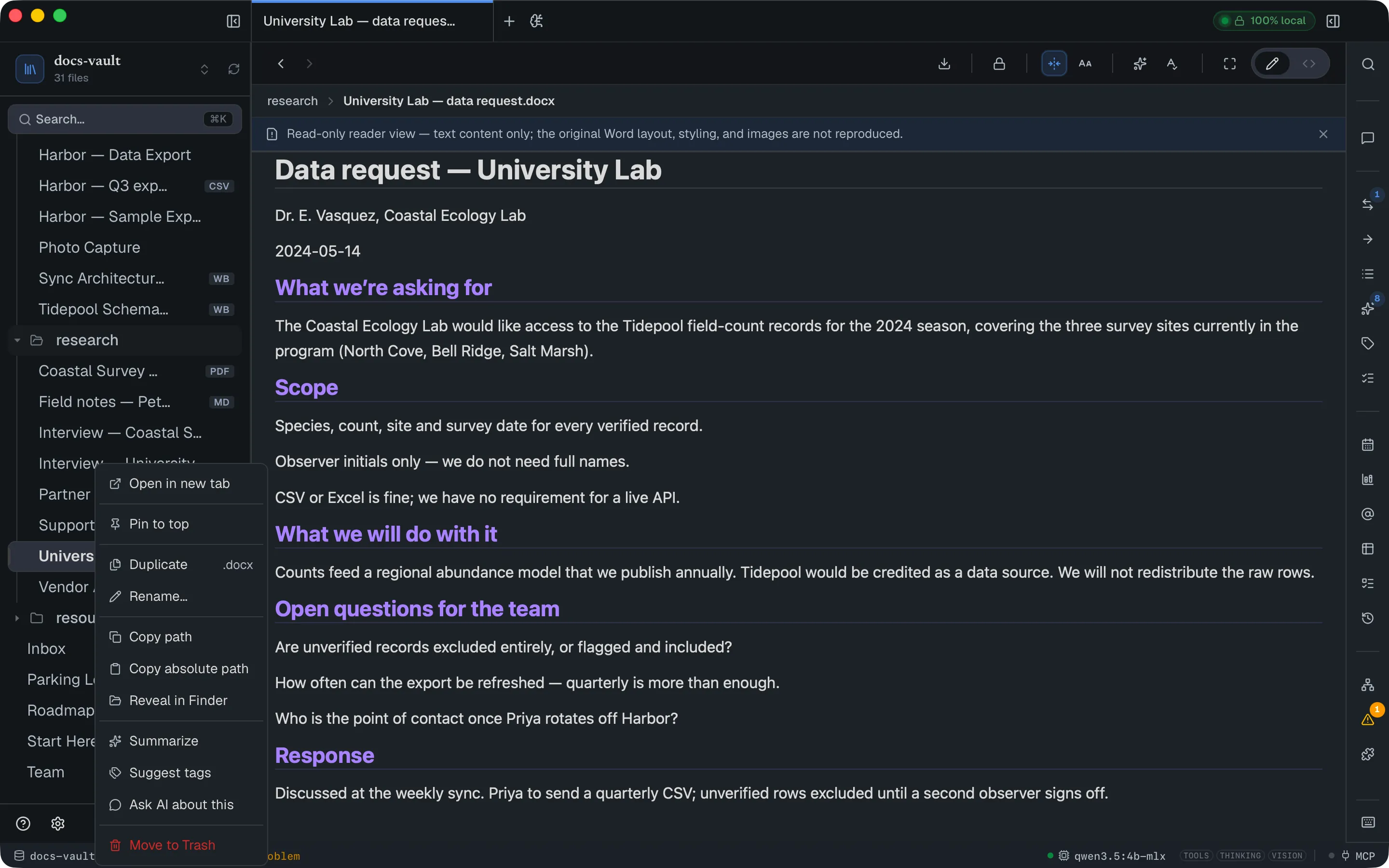
Open files appear as tabs in the title bar. A single click in the file tree navigates the current tab in place, browser-style — the tab’s file is replaced rather than a new tab piling up. To open a file in its own tab, double-click or middle-click it, or use Open in new tab from the right-click menu. (⌘-click in the tree selects the file instead.)
A dot on a tab means unsaved changes in the source editor. Closing such a tab asks Discard unsaved changes to ’…’?: Keep editing (the default, also ↵ and esc) leaves it open, and Discard closes it and leaves the file as last saved. Tabs can’t be dragged into a different order; when they overflow, a chevron opens a menu listing them all, where each row also has a button to move that tab to a new window. ⌘⇧T reopens the last closed tab.
Tabs are remembered per vault. When you reopen a vault, its tabs from last time come back with the same one active; any whose file has since been deleted or moved is dropped.
A note reopens where you left it. DocGraph remembers how far down each note you had scrolled, also across restarts, and puts you back there the next time you open it. A link aimed at a particular place, such as a block or a backlink, wins over that. The caret position isn’t restored, and positions older than 30 days are forgotten.
Right-click a tab for Move to New Window, Copy link to note (hold ⌥ to copy it as a Markdown link), Close, and Close Others (shown when more than one tab is open). See Separate windows.
Separate windows
Section titled “Separate windows”A note can live in its own window, which holds that one document and nothing else: no sidebar, no tabs, no side panels. It suits a note kept beside another app or on a second monitor. You can open several. Four ways to get one:
- Right-click its tab and choose Move to New Window.
- When the tabs overflow, open the ▾ (All open tabs) menu and click the move button on that tab’s row.
- Drag the tab off the tab strip, about 44 pixels above or below it or out of the window, and release. The tab turns visibly “armed” once the drag is far enough; nothing moves until you let go.
- In the command palette (
⌘K), or the system-wide search (⌃⌥K), press⌘↵or⌥↵on a result, or⌘-click it.
Detaching moves the tab; it does not copy it. A note is open in exactly one window at a time, so opening a note that already has its own window brings that window forward instead of making a second copy. Following a link inside a separate window navigates that window to the linked note, like a browser tab; a link to a note that already has a window hands you to that window. Close the window when you are done with it: pending edits are saved first, as they are on quit. The built-in What’s new tab can’t be moved to a window.
Status bar
Section titled “Status bar”The strip along the bottom of the window is a standing summary. Most of it is clickable:
| Item | Click to |
|---|---|
| ? and the gear | At the left end: open the shortcut list (⌘/) and Settings (⌘,) |
| N files | Open Settings → General → Vault. The count of files in the vault, always shown while a vault is open. It reads Scanning vault… or Indexing N files… while DocGraph works, and No access in the warning colour when macOS won’t let DocGraph read the folder. The vault’s name is in the sidebar header, not here |
| N min read | Not clickable. An estimate from the open note’s word count at about 200 words a minute; hidden for notes under about 50 words |
| Locked / Unlocked | Not clickable. Appears when the vault has encrypted notes and shows this session’s state |
| N problems | Open the first side panel that is reporting a problem (broken links, contradictions and the like). Hover for the per-panel counts. Hidden at zero |
| AI model (the chat model’s name, No model or AI off) | Open Settings → AI → Models & providers, or the AI setup when AI is off and no model is chosen. The dot is green when a model is set and runs on this computer, amber when a model is missing or runs elsewhere. A model on another computer is marked Remote. Hover for what the model can do (tools, thinking, vision) |
| MCP | Open Settings → Connections → Agents & MCP. The dot shows whether the MCP server is off, on, or enabled but not running |
Menu-bar icon
Section titled “Menu-bar icon”With Settings → General → Appearance → Keep running in the menu bar on (the default), DocGraph puts an icon in the menu bar. Closing the window then hides DocGraph instead of quitting: on macOS the Dock icon goes too, and the index, file watcher and MCP server keep running. Turn the setting off and the close button quits. The icon appears or disappears the moment you change the setting.
Use the menu-bar menu
Section titled “Use the menu-bar menu”Click the icon for its menu:
| Item | Does |
|---|---|
| Quick Capture | Opens the capture box without showing the main window |
| Quick Todo | Opens the capture box for a task |
| Today’s Note | Opens today’s daily note, creating it if needed |
| Clipboard to Today’s Note | Adds the text you copied to the end of today’s note as a timestamped entry, without opening anything. A notification says where it went, or why nothing was saved (empty clipboard, over 64 KB, no vault). macOS asks once whether DocGraph may show notifications; if you say no, the text is still saved |
| New Note… | Brings DocGraph forward with the new-file dialog |
| New from Template | A submenu of the template slots you set up in Settings → General → Vault → Templates & daily notes (see System-wide shortcuts), or a disabled Set up in Settings → Vault row when none is set |
| Search Notes… | Opens the system-wide search panel |
| Recent Notes | A submenu: up to five starred files (★), then the eight notes you opened most recently, newest first. Kept per vault, across restarts. Click one to bring DocGraph forward on it, or on its own window if it has one |
| Open DocGraph | Brings the main window back |
| Quit DocGraph | Quits for real (so does ⌘Q) |
Each item shows its system-wide shortcut beside it, but only while that shortcut is switched on. On a MacBook whose menu bar is too full for the icon to be drawn, DocGraph keeps its Dock icon so you can always get back in. Clicking the Dock icon while the window is hidden also brings it back.
The title bar
Section titled “The title bar”The title bar carries, left to right: the sidebar toggle (⌘B), your open tabs, a + for a new HTML page, a Quick capture button (⌘⇧N), a save warning, the privacy badge, and the right-panel toggle (⌘⇧B).
Quick capture opens a small dialog: ↵ adds your line to the top of the capture note, and ⌘↵ gives it a note of its own. Either way you stay on the page you were reading.
The save warning is silent most of the time. DocGraph saves as you type and doesn’t announce it, so there is no “Saving…” or “Saved” indicator. The only state that ever appears is a red Not saved, when the last change couldn’t be written. Its tooltip points you to the recovery prompt.
With no vault open, the title bar is bare: only the privacy badge, and the area you drag to move the window.
The page bar and path
Section titled “The page bar and path”Below the title bar, one page bar holds the ‹ › back and forward buttons, the path of the open file, the document toolbar and the Edit / Source switch.
The ‹ › arrows walk the trail of links you’ve followed, browser-style — the same as ⌘[ and ⌘]. A dimmed arrow means there is nowhere to go. Stepping between daily notes (⌥⌘← / ⌥⌘→) is separate from this trail.
The path shows where the open file lives — My Vault › research › interviews › University Lab, with the file name in bold. It appears for every page, including those at the vault root. Click a folder or the file to reveal it in the sidebar. A long path fades out its leading folders so the file name is never cut, and a path deeper than six segments keeps the first one, then …, then the last five.
Status and priority chips. When a page’s type property names a note type that declares status or priority, those show as chips at the right of the page bar: the current value, or a dashed Set status. Click one to pick a value (the vault’s declared choices, else the built-in list) or Clear; it writes the page property. Pages of other types get no chips.
System-wide shortcuts
Section titled “System-wide shortcuts”These shortcuts work from any app, including while DocGraph is closed to the menu bar. They are registered with the system, so they need DocGraph to be running. Each can be rebound or switched off in Settings → General → Vault: Quick capture in the Quick capture section, the rest under Templates & daily notes. The first five are on by default:
| Keys | Action |
|---|---|
⌃⌥K | Search your notes. The quick switcher, below |
⌥Space | Quick capture: a line into your capture note, over whatever app you are in. The main window is never brought forward |
⌃⌥T | Add a todo to your capture note |
⌃⌥D | Open today’s daily note in DocGraph |
⌃⌥N | Bring DocGraph forward with the new-file dialog |
The rest have no key and stay off until you record one:
| Shortcut | Action |
|---|---|
| Clipboard to today’s note | Adds the copied text to the end of today’s note as a timestamped entry. Nothing opens; a notification confirms it |
| This week’s note / This month’s note | Opens (or creates) the weekly or monthly note |
| Template slot 1–3 | Each slot names a template and where its text goes: a new note in a folder, the end of today’s note, or the end of the open note. Slots you set also appear in the menu-bar icon’s New from Template submenu |
Quick capture’s box starts with the text you copied, selected, so ↵ saves it and typing replaces it; turn that off with Prefill from clipboard in Settings → General → Vault → Quick capture. ⌘P in the capture box appends to a note you pick instead of the inbox. See Quick Capture.
The same list, limited to the ones currently on, appears under System-wide in the shortcut list (⌘/).
Changing a system-wide shortcut
Section titled “Changing a system-wide shortcut”Each shortcut in Settings → General → Vault has an on/off switch and a Shortcut field beneath it. Click the field, then press the combination you want; it is recorded as you press it, so there’s nothing to type. The combination needs at least one of ⌘, ⌃ or ⌥. If it can’t be registered, for example because it clashes with another shortcut, the hint under the field shows the error instead.
The quick switcher
Section titled “The quick switcher”⌃⌥K opens a small search panel floating over the current app. It searches the vault from the running process, whether or not a DocGraph window is open, and it is for finding notes, not running commands; the commands worth reaching from outside already have their own keys.
- With nothing typed, it lists the notes you opened most recently.
- Notes matching by name or path are listed first, then In content matches from full-text search, each with a highlighted excerpt. Where semantic search is available, notes matched by meaning fill in below after a moment.
↑↓move,↵opens the selection in the main window (bringing it forward), andescdismisses the panel and returns you to the app you were in.⌘↵,⌥↵or⌘-click opens the note in its own window and leaves the main window where it is. Holding the modifier highlights this in the panel footer.- Start with
?to ask instead of search:?what did we decide about the soak window+↵brings DocGraph forward, opens the chat and sends the question (AI must be on).
Opening files from Finder
Section titled “Opening files from Finder”DocGraph registers as an opener for .html/.htm, .md/.markdown and whiteboard (.wb) files, so it is listed under Finder’s Open With. Double-clicking such a file, choosing Open With → DocGraph, or dropping it on the Dock icon opens it here, including when DocGraph isn’t running yet.
- A file inside the vault you have open opens as a tab.
- A file outside it prompts Open this file? and offers Switch vault to the nearest enclosing folder that holds a DocGraph vault (a
.docgraphfolder), or else the file’s own folder. Nothing switches until you agree; Cancel leaves your workspace alone. If the file sits in a folder DocGraph refuses as a vault (your home folder, for instance), you get a message asking you to move it into a notes folder instead.
Make DocGraph the default app
Section titled “Make DocGraph the default app”To make DocGraph the default rather than an option, use Settings → General → Vault → File types → Make DocGraph the default. Each row there shows which app opens that type today. DocGraph never makes itself the default on its own. HTML files are the exception: macOS ties them to your web browser, so DocGraph doesn’t claim them and the row says so; use Open With for those. See Settings.
Linking to a note from another app
Section titled “Linking to a note from another app”Every note has a docgraph:// link that opens it from anywhere on macOS: a task manager, a calendar event, Shortcuts, a browser. Copy it with Copy link to note from the file tree’s right-click menu, a tab’s right-click menu, or the command palette. Hold ⌥ while choosing it (or use Copy Markdown link to note) to get a Markdown link, [title](docgraph://…).
The link has the form docgraph://open?vault=<name>&path=<path>&block=<id>:
- It works whether or not DocGraph is running.
vaultis optional. A link to another vault you have opened before asks before switching; an unknown vault is refused with a message.- With
block, the note opens scrolled to that block. A block that no longer exists opens the note at the top with Block not found. - If the note has moved, the closest title match opens, with a message saying so.
- Only opening is supported: the path is confined to the vault, and nothing in the link is run or fetched.
Reference
Section titled “Reference”Keyboard shortcuts
Section titled “Keyboard shortcuts”| Keys | Action |
|---|---|
⌘K or ⌘P | Command palette / search |
⌘⇧H | Find & Replace across the vault (works from inside a note too, unless text is selected there: then it highlights) |
⌘F | Find in the open note (outside <>Source) |
⌘B | Toggle the sidebar |
⌘⇧B | Toggle the right-hand panel |
⌘⇧G | Open the graph view (not in <>Source) |
⌘N | New HTML file |
⌘⇧N | Quick capture to your inbox |
⌘⇧L | Ask the AI: focus the chat |
⌘D | Today’s daily note |
⌥⌘← / ⌥⌘→ | Previous / next daily note |
⌘⇧T | Reopen the last closed tab |
⌘[ / ⌘] | Back / forward along the links you followed (not in <>Source) |
⌘E | Edit the page in place |
⌘⇧E | Toggle <>Source; press again to return to editing |
⌘S | Save now. Autosave already writes your edits; this flushes any pending one |
⌘⇧S | Save as… (in <>Source) |
⌘= / ⌘- / ⌘0 | Text size of the open page: larger, smaller, reset. Applies to HTML and Markdown pages, not PDFs or images |
⌘. | Focus mode |
⌘, | Settings |
⌘/ | This shortcut list. It has a search box: type sidebar, save or a key such as ⌘K to filter it |
The interface-size commands in the palette are separate from ⌘=/⌘-/⌘0, which change only the page’s text size.
⌘B applies bold instead when you have text selected in the editor. Shortcuts that would clash with typing, such as ⌘D and ⌘., are ignored while a text field has focus.
While editing a page
Section titled “While editing a page”These work on selected text in the page (Edit mode). Editing Documents covers the rest.
| Keys | Action |
|---|---|
⌘B / ⌘I / ⌘U | Bold / italic / underline (underline in HTML notes only) |
⌘` | Inline code |
⌘⇧X / ⌘⇧H | Strikethrough / highlight |
⌘L | Add a link. ⌘K opens the command palette everywhere, including inside a note |
⌘\ | Clear all formatting |
⌘⌥0 / ⌘⌥1–⌘⌥6 | Paragraph / heading 1–6 |
⌘⌥7 / ⌘⌥8 | Bulleted list / numbered list |
⌥↑ / ⌥↓ | Move the current block up or down |
Tab / ⇧Tab | Indent / outdent a list item |
⌘↵ | Check or uncheck the task the caret is in |
⌘Z / ⌘⇧Z | Undo / redo |
In the <>Source editor
Section titled “In the <>Source editor”| Keys | Action |
|---|---|
⌘F | Find / replace |
⌘G / ⌘⇧G | Find next / find previous |
⌘Z / ⌘⇧Z | Undo / redo |
⇧⌥F | Format document |
⌘⇧G means Find previous only in <>Source; everywhere else it opens the graph view.
While presenting a folder
Section titled “While presenting a folder”| Keys | Action |
|---|---|
→, Space or Page Down | Next slide |
←, ⌫ or Page Up | Previous slide |
Home / End | First / last slide |
P | Presenter view |
esc | Stop presenting |
⌘D and ⌘[/⌘] are left to the source editor while you are in <>Source, where they mean “select next occurrence” and indent.
System-wide shortcuts
Section titled “System-wide shortcuts”See above: ⌃⌥K, ⌥Space, ⌃⌥T, ⌃⌥D and ⌃⌥N by default, plus the unbound clipboard, weekly, monthly and template-slot shortcuts.
On macOS the Help menu has Release Notes (the in-app What’s new tab), DocGraph Website, Documentation, Contact Support…, Report a Problem… and Request a Feature…; all but Release Notes open your mail app or browser. About DocGraph is under the DocGraph menu. Quit DocGraph (⌘Q) saves pending edits in every window before it exits, and Edit → Undo / Redo (⌘Z / ⌘⇧Z) undo document edits while you are editing a page.
The ? and gear at the left end of the status bar open the shortcut list and Settings. The shortcut list groups its keys under Navigation, Viewer mode, Editor, Tree and System-wide, and leaves out shortcuts you have switched off.
The welcome screen
Section titled “The welcome screen”With no vault open, DocGraph shows the welcome screen:
- Open vault (
⌘O) picks an existing folder.↵does the same when nothing is focused. - New vault names a new folder, creates it and opens it.
- Try the demo opens the sample vault in its own folder (see Your First Vault).
- Recent lists up to five vaults, each with its parent folder, when you last opened it (2 days ago) and its shortcut,
⌘1to⌘5. A vault whose folder is missing (moved, deleted, or on a drive that isn’t plugged in) stays in the list, dimmed as Not found, with Remove; it comes back when the drive does. A vault that fails to open offers Remove from list. - The footer shows the version, What’s new (the release notes) and Docs (this site, in your browser).
If your last vault could not be reopened, a line at the top says why. Hold ⌥ while DocGraph launches to skip reopening the last vault and start on this screen.
Limits & troubleshooting
Section titled “Limits & troubleshooting”“Something went wrong.” If part of the interface hits an unexpected error while drawing, DocGraph shows a full-window screen with that title, the error message, and two buttons: Try again redraws the app, and Reload window reloads it. Your notes on disk are untouched either way.
The tree has its own limits — no keyboard navigation, and folder expansion isn’t remembered between sessions. See The File Tree.
A resync isn’t a reindex. If search or the graph looks stale after large external changes, the tree refresh won’t help — use Rebuild link index.