Voice
DocGraph can listen and speak — entirely on your machine, like everything else. Dictate notes hands-free with a local Whisper model, or have any page read back to you with a local Kokoro voice. No audio, and no transcript, ever leaves your computer — the only network request voice ever makes is the one-time, consent-gated model download.
Getting there
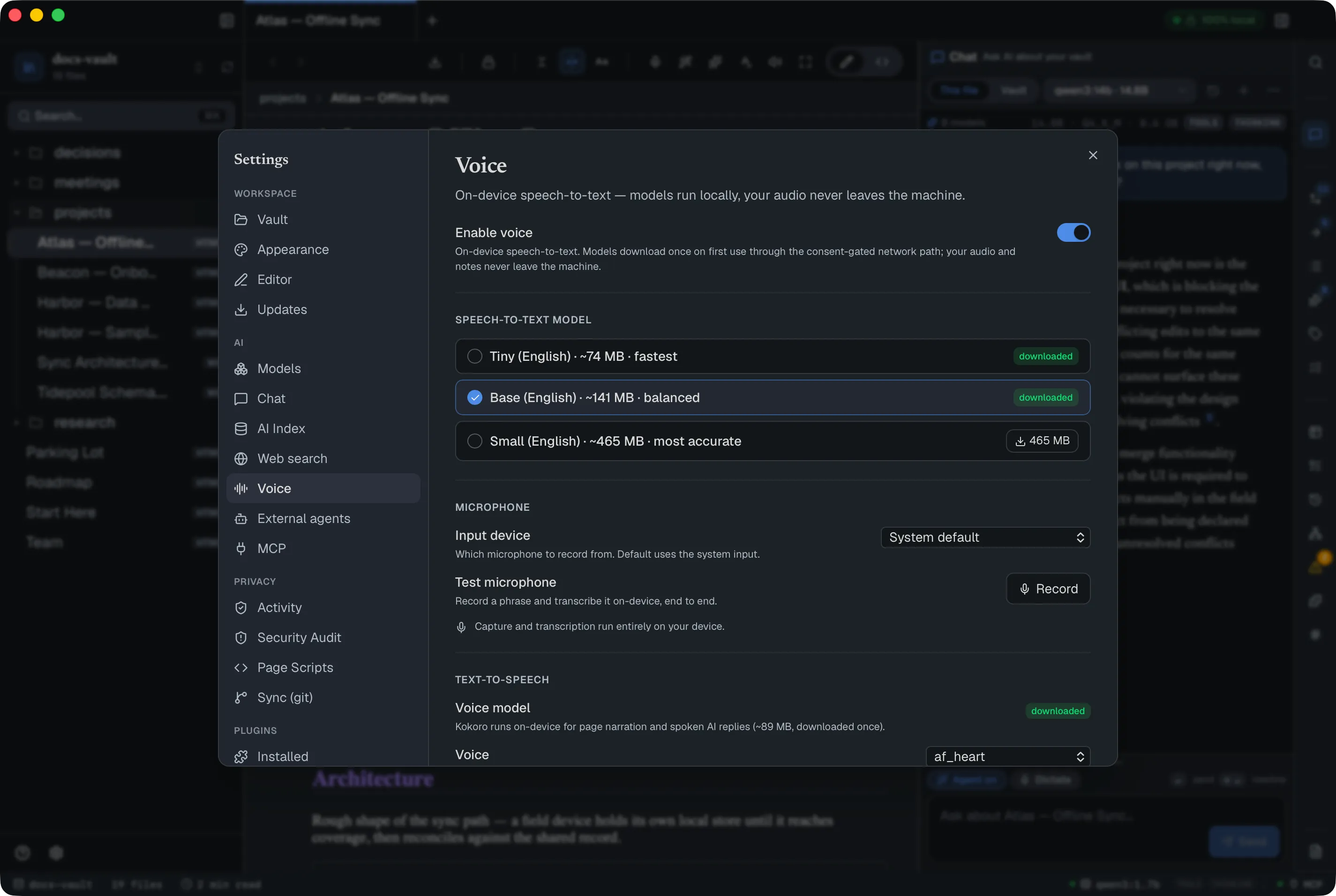
Section titled “Getting there”Voice is off by default. One Voice button sits in the page toolbar on every page except whiteboards. Click it for a small menu:
- Dictate here — speak into the page.
- Listen to page — have the page read aloud.
With voice off, the menu shows Turn on voice… instead, which opens Settings → AI → Voice; turn on the Enable voice toggle there. In <>Source, Dictate here is greyed out with the hint “Switch to Edit to dictate”. Listen to page works in either view. The chat composer gets a Dictate button as well.
The first time you use either feature, DocGraph asks to download its model — a one-time, per-model consent dialog naming the exact size and source, after which everything runs offline.
Core tasks
Section titled “Core tasks”Dictate into a page
Section titled “Dictate into a page”Open the Voice menu and choose Dictate here (or right-click in the page and choose Dictate here) to start recording. While it records, the Voice button itself becomes Stop & insert. A small overlay tracks the state — Recording… with Stop & insert and Cancel, then Transcribing… while Whisper runs on-device:
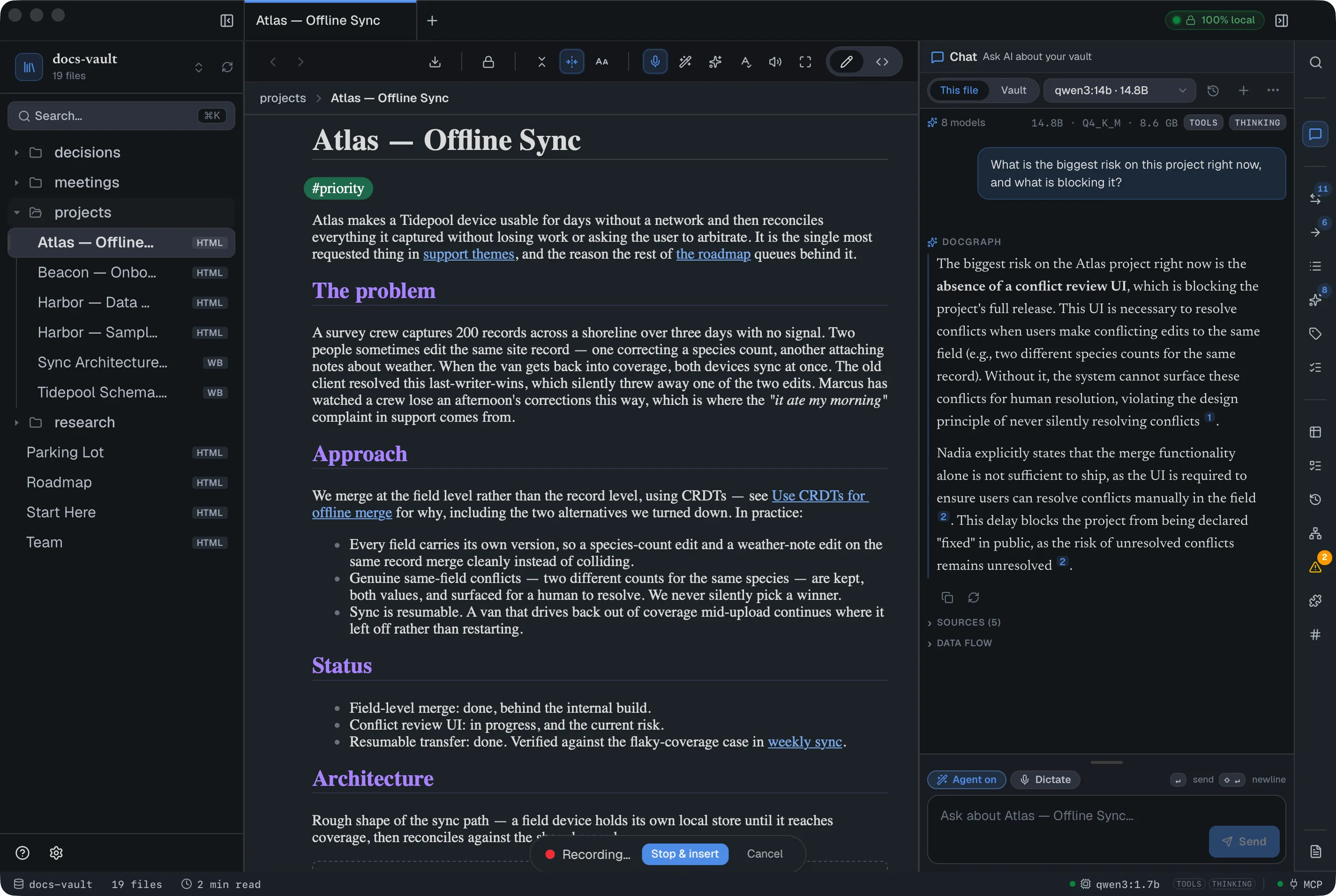
Stop, and the transcript is inserted at your cursor the same way a paste is — at the caret if you have one, or appended to the end of the page otherwise. Dictation works on both HTML and Markdown pages.
Speech-to-text is English only. If Whisper doesn’t catch any words — too quiet, too far from the mic, or a language it can’t transcribe — you get an honest message rather than a silent no-op:
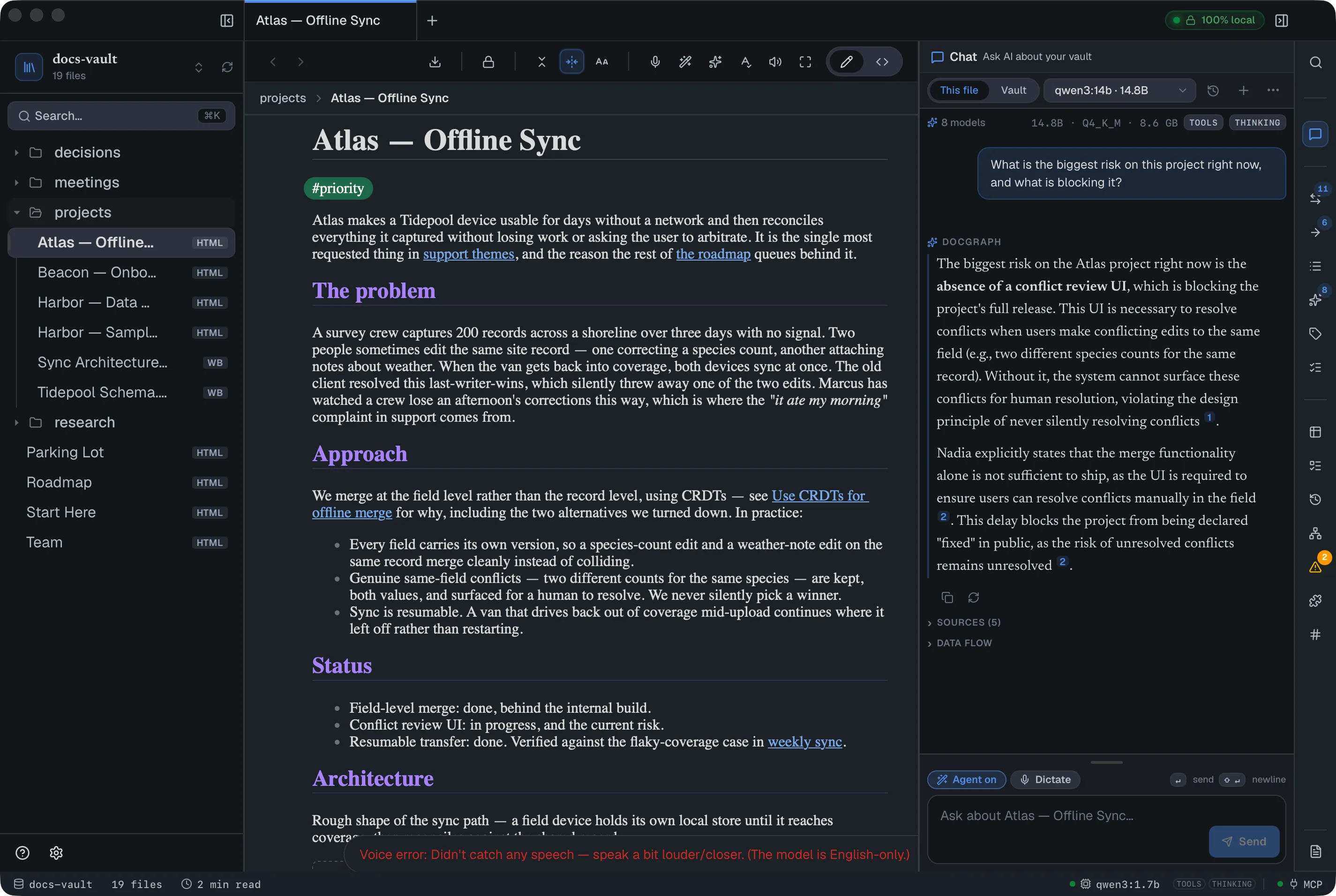
There’s no live partial transcript while you talk, and no punctuation commands (“period”, “new line”) — it’s push-to-talk, whole-recording transcription, verbatim.
Three model sizes are available in Settings → AI → Voice, trading download size for accuracy: Tiny (~74 MB, fastest), Base (~141 MB, balanced — the default), and Small (~465 MB, most accurate). Switch anytime; only your selected model needs to be downloaded.
Dictate a chat message
Section titled “Dictate a chat message”The chat panel has its own mic. With voice enabled and a chat model chosen, a Dictate button sits in the composer toolbar next to Agent. Click it to start recording (the button reads Stop), click again to stop: it shows Transcribing… while Whisper runs on-device, then adds the transcript to the end of whatever is already in the message box. The message is not sent; read it, edit it, and press ↵ yourself. It uses the same speech model, is English only, and is push-to-talk like page dictation.
Have a page read aloud
Section titled “Have a page read aloud”Open the Voice menu and choose Listen to page to narrate the current page with a local voice. While it plays, the Voice button becomes Pause narration (then Resume narration), with a separate Stop narration button beside it:
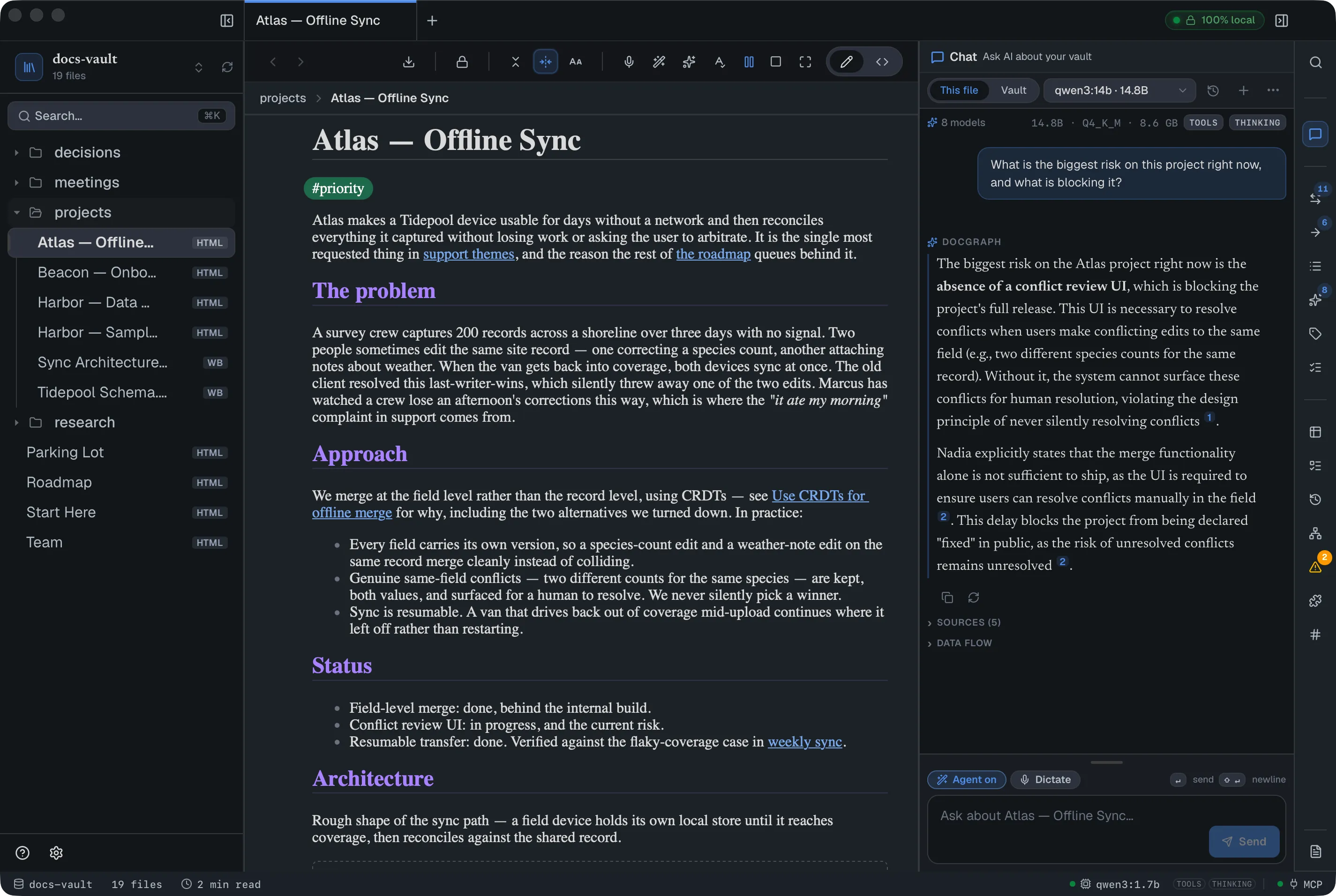
Read-aloud narrates the whole current page — there’s no read-selection option — and skips anything inside an encrypted section. A note encrypted as a whole file is read only while it’s unlocked; while it’s locked, DocGraph tells you to unlock it first. One English voice (Kokoro’s af_heart) ships today; adjust its playback speed (0.5×–2×) in Settings → AI → Voice. The same voice also narrates AI chat replies if you turn on Speak AI replies (Markdown formatting is stripped first, so you don’t hear asterisks and hashes).
Reference
Section titled “Reference”| Setting | What it does |
|---|---|
| Enable voice | Master on/off for both dictation and read-aloud. Off by default. |
| Speech-to-text model | Tiny / Base / Small, English only. Download and switch anytime. |
| Input device | Which microphone to record from — defaults to System default. |
| Test microphone | Record, then Stop & transcribe: shows the transcript (or no speech detected) on-device, without leaving Settings. |
| Voice model (TTS) | Kokoro, downloaded once (~89 MB). |
| Voice | The narration voice — currently one option, af_heart. |
| Speed | Narration playback speed, 0.5×–2× (default 1.00×). |
| Speak AI replies | Auto-narrate the assistant’s chat answers as they finish. Off by default. Below it, a note says whether your chat model suits being spoken to — it warns about reasoning models and large (13B+) models that make you wait for each reply. |
Limits
Section titled “Limits”- English only, for both dictation and narration — no other languages or voices ship today.
- No live partial transcript. Dictation is push-to-talk: nothing appears until you stop, and the whole recording is transcribed at once.
- No punctuation or formatting commands. What you say is what gets typed, literally.
- Dictation needs the editing view. In
<>Source, Dictate here is greyed out — switch to Edit to dictate. - Model downloads have no progress bar or resume — one download per model, shown as a spinner until it completes.