Quick Capture
Press ⌥Space from any app — or ⌘⇧N inside DocGraph — type one line, press Enter. The thought is saved and you are back where you were.
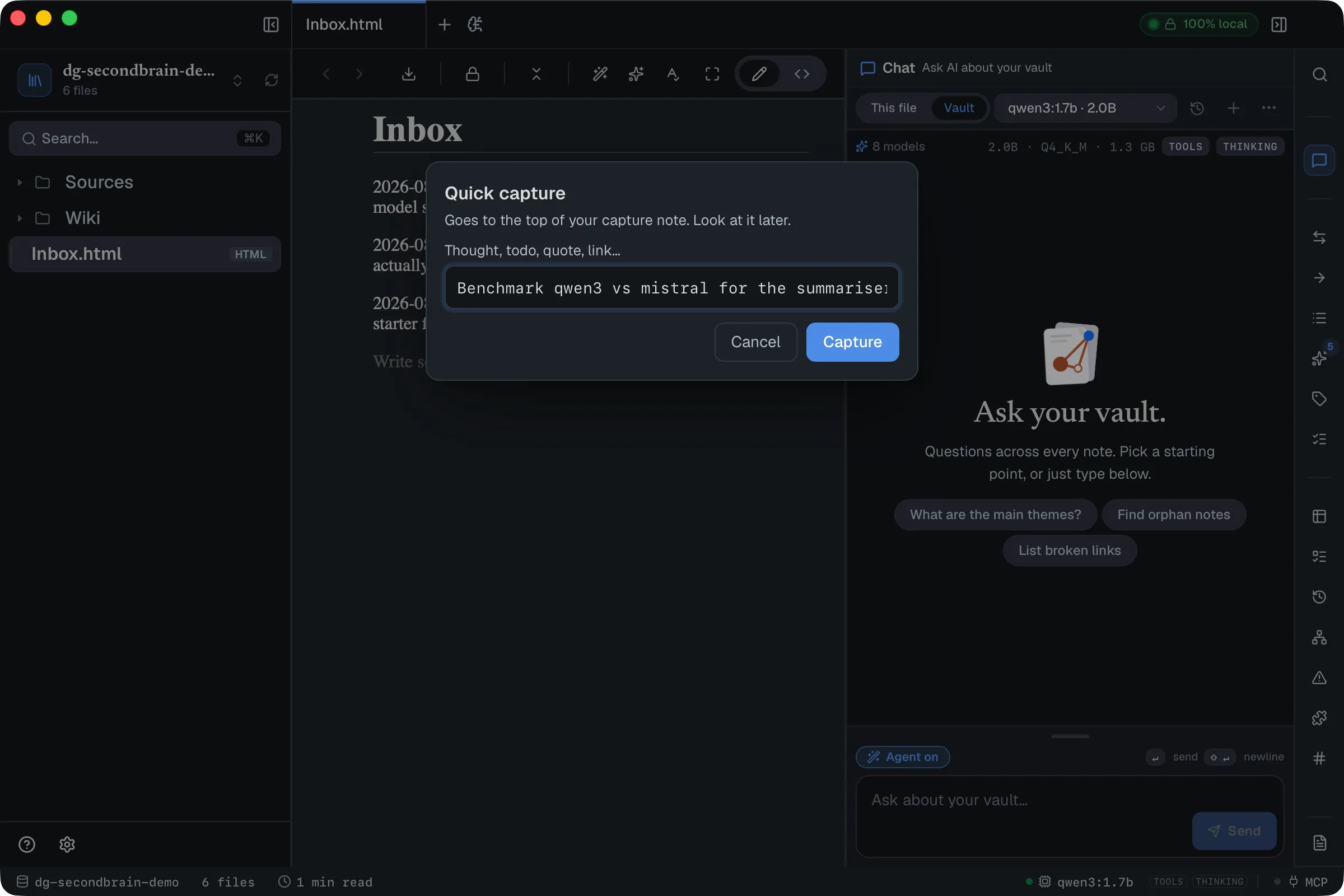
No folder to pick, no filename, no tags. That is the entire point: a capture that costs you a context switch is a capture you don’t make.
You can also start it from the brain icon in the title bar, or from the command palette (⌘K → Quick capture).
⌥Space is a system-wide shortcut, so it only works while DocGraph is running (a window, or just the menu-bar icon, is enough). You can rebind it or switch it off in Settings → General → Vault — see System-wide shortcuts.
Starting from the clipboard
Section titled “Starting from the clipboard”If you’ve just copied some text, the capture and todo panels open with it already in the box, selected: press ⏎ to save it, or start typing to replace it. A from clipboard chip in the footer says where the text came from and disappears on your first keystroke.
- Each copied text is offered once, shared by both panels — open a panel again with the same clipboard and it starts empty.
- Whitespace is ignored. Text over 4 KB isn’t filled in; the chip shows its size and ⌘V still pastes it.
- A copied link is offered as text; nothing is fetched.
Turn it off with Prefill from clipboard in Settings → General → Vault → Quick capture (on by default).
Capturing a todo
Section titled “Capturing a todo”⌃⌥T, from any app, opens a one-line panel that adds an unchecked todo to the same capture note. It has no visible timestamp, but it counts as a real task everywhere — the Todo panel included.
Write it the way you’d say it — call adam tomorrow 6pm. The line under the box
shows what DocGraph read before you press ↵ (@adam · due Fri 9 Oct
18:00): a word becomes a person only if it is a name already in your vault (or
you type @), and the date is read on your clock. The todo is written with the
person and due date as real task properties. A line with neither is added as
written.
Where it goes
Section titled “Where it goes”Everything lands at the top of one note, so the newest thing is the first
thing you see. In an HTML capture note, entries are grouped under one heading
per day, newest day first, and each entry’s time shows in the margin beside it
(in your date and time format) rather than as text in front of the thought.
Captured todos stay above the day headings. A Markdown capture note gets a plain
**time** — text line instead, with no day headings.
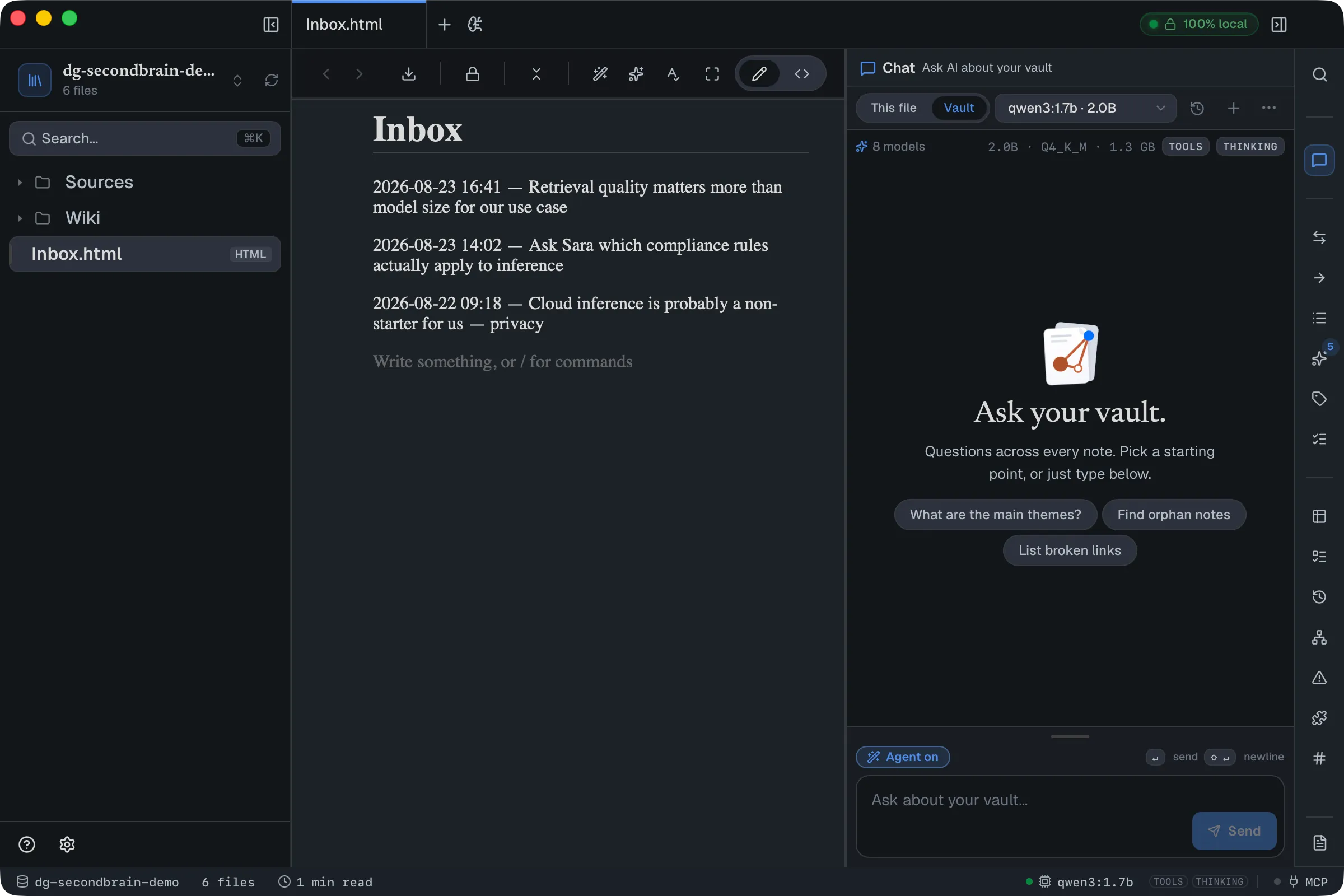
The note is created on your first capture — you don’t need to make it first. Its own heading stays at the top; entries stack underneath it.
Every entry also carries a captured property saying how it arrived: panel
(the capture panel, including ⌘P), clipboard (Clipboard to Today’s
Note) or ai (the AI’s capture tool). It isn’t shown as a chip, but the
properties window lists it, and a query on the
blocks source can filter on it — captured is not empty finds everything you
ever captured, wherever you filed it.
To review, just scroll. Old entries sink on their own, and anything you scroll past without caring has answered its own question. When something turns out to matter, move it into a real note.
Adding properties
Section titled “Adding properties”End a capture or a todo with key:value words and they’re saved as properties rather than text: call the bank priority:high project:hydra. Only a run at the very end counts, so a colon in the middle of a sentence stays as written.
- Keys are the built-in block properties (
status,priority,owner,estimate…) plus keys you’ve declared under Settings → Organize → Ontology — a name that merely appears on some page doesn’t count. A value forstatusorprioritymust be one of its options. - In the capture panel, a date after due, by or before — send the deck by friday — becomes a
dueproperty; the words stay in the text. - In the todo panel,
due,start, people andfrom:stay task tokens in the text; other keys become properties on the todo. - An inbox entry or todo gets them as block properties, which needs an HTML capture note. A ⌘⏎ note gets them as page properties.
The footer previews what will be written (due Fri 9 Oct · priority high). If a property isn’t valid, nothing is saved and your text stays in the box.
When the thought is a whole note
Section titled “When the thought is a whole note”Not every capture is a fragment. Some are the first paragraph of something you mean to come back and write — and sending those to the inbox only means digging them out again later.
So the capture box has more than one destination:
| key | where it goes |
|---|---|
| ⏎ | the top of your capture note |
| ⌘⏎ | its own new note under Capture/ |
| ⌘P | the end of a note you pick — see below |
In the in-app dialog you can also click New note instead of Capture — the shortcut is for speed, the button is so you never have to know it exists.
The first line becomes the title, and the filename is made from it (a long single line is trimmed at a word boundary). Everything you typed is kept in the note; the first line is only removed from the body when it was used as the title exactly as written. Press ⇧⏎ in the capture panel to start a second line.
The choice is never remembered — every capture starts on the inbox, so pressing Enter without thinking always does the ordinary thing.
Adding to a note you pick
Section titled “Adding to a note you pick”Press ⌘P in the capture panel and a note picker opens under your text. With nothing typed it lists the five notes you’ve captured into most recently; type to search note names. ↑ / ↓ move, ⏎ adds the text to the end of that note, timestamped, in the note’s own format, and closes the panel. Esc closes only the picker and keeps your text.
The note must already exist — the picker never creates one — and it must be an unencrypted .html or .md note in the vault; otherwise nothing is written and a message says why. Like ⌘⏎, the choice isn’t remembered.
Finding your seeds again
Section titled “Finding your seeds again”A note made with ⌘⏎ records two properties of its own:
| property | value |
|---|---|
created | the moment you captured it |
captured | panel |
They are why a pile of seeds stays reviewable. Ask the vault for
captured = panel, sort by created, and you have every half-thought you
started and never came back to — see Tables and queries.
The captured property is the part that keeps working. Filing a seed into the
project it belongs to is exactly what you’re meant to do with it, and the moment
you do, a query that looked in Capture/ stops finding it. The property travels
with the note, so the same query keeps answering.
The note also shows its capture time under the title, in the note itself. That one stays with the file even if it leaves your vault entirely.
Reviewing unprocessed captures
Section titled “Reviewing unprocessed captures”Run Show Unprocessed Captures from ⌘K to see every captured line, wherever
it now lives, that is more than a week old and not yet filed — oldest first. A
line counts as filed once you’ve moved it with the block handle’s
Move to note… (or set filed
on it by hand). The command pins and opens a saved query called Unprocessed
captures, creating it on first use (and again if you deleted it).
Recording which app you captured from
Section titled “Recording which app you captured from”Switch on Record the app you captured from in Settings → General → Vault → Quick
capture (off by default, per vault) and a capture made in the system-wide
capture box records the app that was in front when it opened, as a from-app
property — on the entry, or as a page property on a ⌘⏎ note.
Captures made inside DocGraph never get one, and nothing else about the app (a
browser’s address, say) is recorded.
Choosing the note
Section titled “Choosing the note”By default captures go to Capture/Inbox.html — the same folder that holds the
notes ⌘⏎ creates, so everything you capture lives in one place. The
folder and the note are created on your first capture. Change it in
Settings → General → Vault → Quick capture; clearing the field goes back to the default:
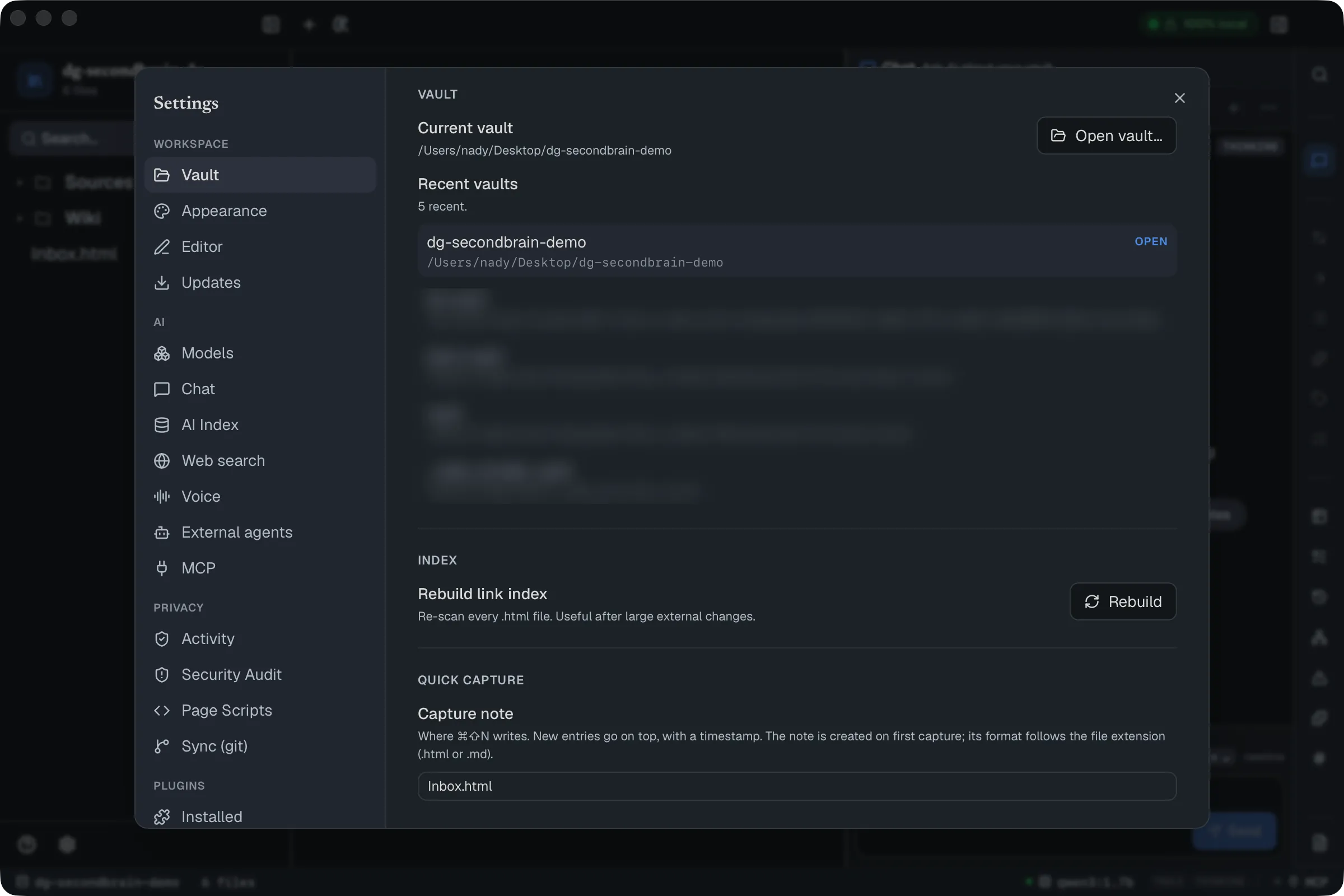
The path is per-vault, so a work vault and a personal one can capture to different notes.
New note folder in the same group is where ⌘⏎ puts a capture that
becomes its own note (Capture by default; a single dot means the vault root).
Those notes use the same format as the capture note above, so one choice covers
both.
The format follows the file extension: point it at Daily.md and entries are
written as Markdown; point it at an .html note and they are written as HTML.
An existing note is always written in its own format, so changing the path never
mixes the two inside one file.
Clipboard to today’s note
Section titled “Clipboard to today’s note”Clipboard to Today’s Note adds whatever you’ve copied to the end of today’s daily note as a timestamped entry, creating the note if needed — without opening anything. A notification says where it went, or why nothing was saved (an empty clipboard, or more than 64 KB). Run it from the menu-bar icon, from ⌘K, or give it a system-wide shortcut under Settings → General → Vault → Templates & daily notes (it has none by default).
- No AI involved. The capture panel never calls a model, so it works with AI
turned off. Separately, the AI has a
capturetool (it asks before writing) that adds a note or a todo to the same capture note when you ask it to in chat. - It doesn’t open the note. Writing something down and going to read it are separate acts; jumping to the note would undo the point.
- Captured text is stored as ordinary content — indexed, searchable and linkable like anything else in your vault.
If you want to build on this, see Build a Second Brain, which uses quick capture as the front door to a larger note-keeping method.