Todos & Task Properties
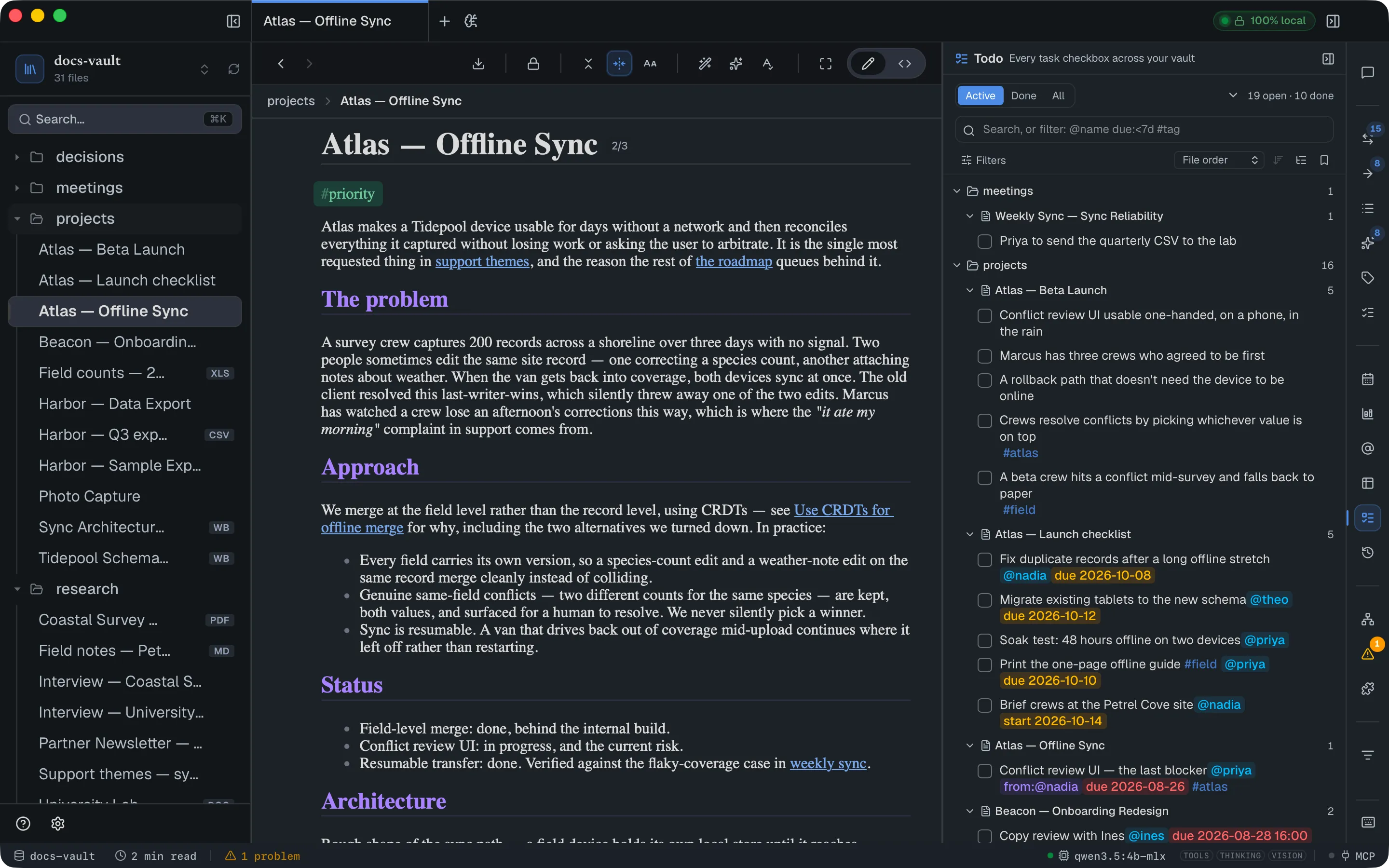
A DocGraph todo is a line in a note, not a record in a database. Tick it in the page and the file changes; give it a due date and that date is a few characters in the task’s own text.
That’s the whole design, and everything below follows from it: properties travel with the task wherever it goes, survive a copy-paste into another app, and can never end up attached to the wrong one.
Making a task
Section titled “Making a task”Type [ ] at the start of a list item, or use the / menu → To-do list. [x] makes one that’s already done.
Task checkboxes work in HTML and Markdown alike, and both kinds appear in the Todo panel.
The five properties
Section titled “The five properties”Four you type, one the app keeps for you. They go anywhere in the task’s text.
| Property | What you type | Example |
|---|---|---|
| Assigned to | @name | @sarah |
| Assigned by | from:@name | from:@omar |
| Due | due: + a date | due:@@2026-09-01T17:00 |
| Start | start: + a date | start:@@2026-08-30 |
| Created | nothing — it’s automatic | — |
Every one of them, with its edge cases, is listed in the Task Token Reference.
A finished task line looks like this, and this is exactly what’s on disk:
<li data-docgraph-task="0">send the deck @sarah from:@omar due:@@2026-09-01T17:00 #work</li>- [ ] send the deck @sarah from:@omar due:@@2026-09-01T17:00 #workIn an HTML note each token renders as a coloured chip while you read (a .md note shows the plain text), and shows as raw text when your cursor is inside it — the same way #hashtags behave.
You can name several assignees; a task has one assigned by, because “who gave me this” has one answer. Names are case-folded, so @Sarah and @sarah are the same person. There’s no list of people to set up anywhere: a name exists because a task uses it, and stops existing when the last task using it is edited.
You don’t have to type it all
Section titled “You don’t have to type it all”Two menus open as you type inside a task:
@— every name already used anywhere in your vault, plus whatever you’re typing as a new one. It opens afterfrom:@too.due:orstart:— Today, Tomorrow, the timed rows This morning, This afternoon and This evening (only while still ahead) and Tomorrow morning, then In 3 days, Next week, Next Monday, and Pick a date & time… for anything else. Type a2026-09-01yourself and it’s offered first, as typed.
Dates are frozen when you pick them
Section titled “Dates are frozen when you pick them”Choosing “Next Monday” writes the actual date into your note, not the phrase. A relative date that quietly re-evaluates every morning is a lie in a document — next Monday stops being next Monday.
That’s why the stored form always looks like due:@@2026-09-01, with an optional T17:00 for a time. The @@ marks it as a real, absolute date.
Created is different
Section titled “Created is different”Creation time is recorded when the task is made — including a task you start with Enter in the middle, at the end or at the start of another one — kept out of the text, and never typed by you — a timestamp in front of every todo is noise. It shows in the row’s tooltip in the panel and can be filtered on.
It’s stored as an attribute, which Markdown cannot carry, so .md tasks have no creation time. Nothing is guessed or back-filled, and tasks written before this feature existed simply don’t have one.
Editing without typing tokens
Section titled “Editing without typing tokens”In an HTML note, click any chip on a task, the ⋯ at the end of the line, or press ⌘⇧P with the cursor in it. That opens the same properties window every line has (see Block Properties). The four properties above are rows marked in text: setting one writes its token, clearing one deletes it. The same window lets a todo carry more — a status, a priority, an estimate, or any name of your own — which are stored on the todo rather than in its text.
On a panel row, a click does different things depending on the chip. A due or start chip opens the panel’s form: both name fields, both dates, and the creation time read-only. An @name, from:@name or #tag chip is a filter instead: click it and the panel narrows to tasks with the same person or tag (click again to undo). To open the form from any row — a .md task, or one with no chips yet — hover the row and click the small slider button (Edit task properties) at its right edge. It edits the same tokens. For a todo in an HTML note the form also lists its other properties — status, priority, your own names — and has a row to add one.
In the panel’s form, Save writes your changes, and so does clicking outside it; Cancel or Esc throws them away.
Either way the four task properties are edited in the text — neither is a second place the value is kept.
Finding tasks
Section titled “Finding tasks”The panel lists every task in the vault as a folder → file → task tree. Ticking a box here edits the source file — it’s one of the few panels that writes.
Above the tree:
- Active / Done / All — active is the default.
- A search box that also understands filters (below).
- Filters — a fold-out with the date and people controls. While any filter is narrowing the list, the button shows how many are active, and a small ✕ beside it (Clear every filter) resets them.
- Sort, a flat-list toggle, and saved views.
- A chevron beside the count that collapses every file in the tree, or expands them all again once any is collapsed. It is hidden in the flat list.
The header count (N open · N done) always covers the whole vault, whatever you’ve filtered to.
By person
Section titled “By person”The people filter has an axis: Anyone, Assigned to, or From. That distinction is the point of having two fields — what did I hand to Sarah and what did Sarah hand me are different questions.
The name chips only ever list names that exist on the chosen axis, and switching the axis clears your selection, so a filter can’t be left naming somebody who can’t match. Clicking a chip on a task row picks the right axis for you: @sarah filters by assignee, from:@omar by assigner.
There’s also an Unassigned chip, for the pile nobody has picked up.
By date
Section titled “By date”Choose a field — Due, Start or Created — and then a window. Each field offers only what makes sense for it:
| Field | Windows |
|---|---|
| Due | Overdue · Today · 7 days · Later · No due date |
| Start | Started · Starts today · Not started · Within 7 days · No start |
| Created | Today · Last 7 days · Last 30 days · Older · No stamp |
Two details worth knowing: Overdue means before today and still open — a task you finished late isn’t overdue, it’s finished. And 7 days deliberately includes what has already slipped, because “what should I be looking at” is answered partly by what you missed.
Under the windows there’s a from–to range for an exact span. It narrows further rather than replacing the window, so “overdue, but only since July” is one filter.
By typing
Section titled “By typing”The search box takes plain words — matched against the task’s text and its file path — and also understands filters. Anything it doesn’t recognise stays a plain search, so it never quietly narrows to something you didn’t mean.
Click into an empty box and it lists the filters available — that’s how the syntax is meant to be learned. Keep typing and it narrows to your own names, tags and dates.
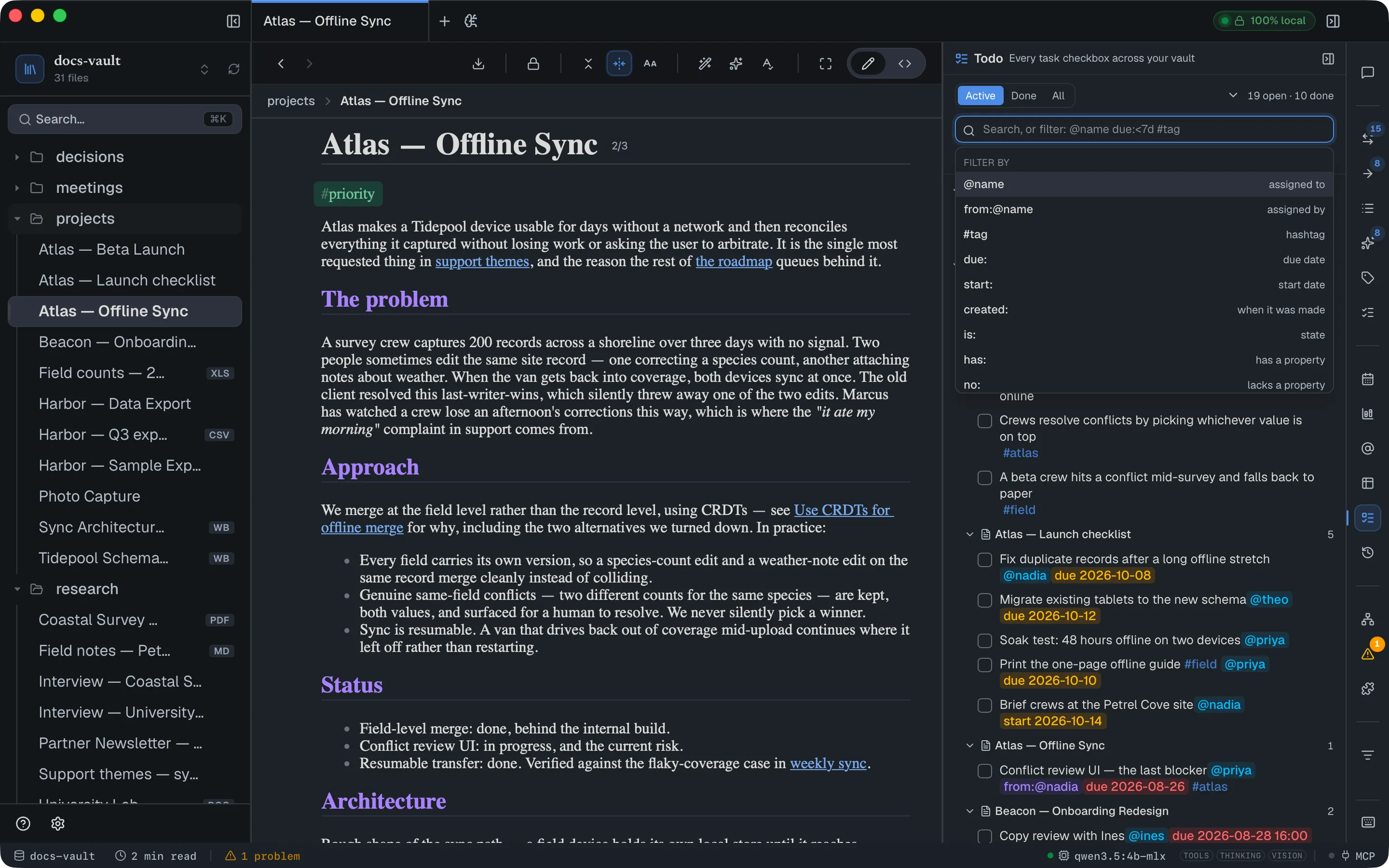
| Type | To find |
|---|---|
@sarah | Assigned to Sarah |
from:@omar | Assigned by Omar |
#work | Carrying that tag |
due:overdue due:<2026-09-01 | By date, in windows or comparisons |
is:open is:unassigned | By state |
status:blocked priority:high | By a todo’s properties (HTML notes) |
-draft | Excludes — works on tokens too |
That’s a summary; the Task Token Reference has every filter, every date value, and the edge cases.
So @sarah due:overdue is everything you owe Sarah that has slipped, and created:<2026-07-01 is:open is everything still open that’s been sitting there since before July.
What’s filtering right now
Section titled “What’s filtering right now”Whatever is active — from the bars, from what you typed, or from a saved view — shows as a row of chips under the search box. Each chip’s ✕ removes exactly its own clause, including deleting just that one token out of what you typed.
With more than one chip, Clear all removes them together. Clear every filter (the ✕ by the Filters button) resets the search text, tags, people, Unassigned and the date windows. It leaves the Active / Done / All choice alone, and that choice isn’t counted in the number on the Filters button.
That row exists because a filter you can’t see is worse than no filter: rows are missing and nothing says why.
Sorting and the flat list
Section titled “Sorting and the flat list”The Sort menu offers File order, Due date, Start date, Created, Assignee and Alphabetical. File order keeps each file’s tasks in the order the note reads, and has no direction — the ascending/descending toggle is disabled for it. The others sort in either direction. Tasks with no value for whatever you sorted by stay at the bottom in both directions — a descending due-date sort shouldn’t open with a screen of undated tasks.
By default sorting orders tasks within each file. Switch to the flat list to drop the folder headings and sort across the whole vault at once — that’s how you answer “what’s next”, which isn’t a question about any one note. Flat rows show their own file path.
Saved views
Section titled “Saved views”Set up a filter you want back tomorrow, open the bookmark menu, type a name under Save current as… and press Enter (or click +), and it’s one click away. To delete a view, open the menu and click the ✕ beside its name. There is no confirmation, and only the saved view goes — your tasks and current filters are untouched.
Saved views keep everything, including the query text and the layout. The panel’s own preferences — sort, direction, flat-vs-tree, which date field, which people axis — persist on their own between sessions. Your selections deliberately don’t: they’re a question about the vault you were in, and restoring them somewhere else would open the panel already filtered to names that don’t exist there.
The calendar knows too
Section titled “The calendar knows too”The Calendar panel marks each day that has open tasks due on it, alongside the daily notes themselves — so a deadline you wrote into a task shows up where you look for your week. A line in an HTML note with a due property is marked the same way.