Mentions & Their Pages
Type @omar or @acme in any note and it becomes one of your vault’s @mentions. An @mention is anything you want to find again: a person, a company, a place, a project. Nothing is registered, and there’s no contact list to maintain. A name exists because a note uses it, and leaves when the last use is edited away.
Every @mention has a kind. It starts as a person; you can say it’s an organisation, a place, a project, or a kind you add. The Mentions panel lists every name. A page gives one name a note of its own, with sections that fill themselves from everything you’ve already written.
Dates are not mentions: they use two signs, @@friday. See Links & tags.
Getting there
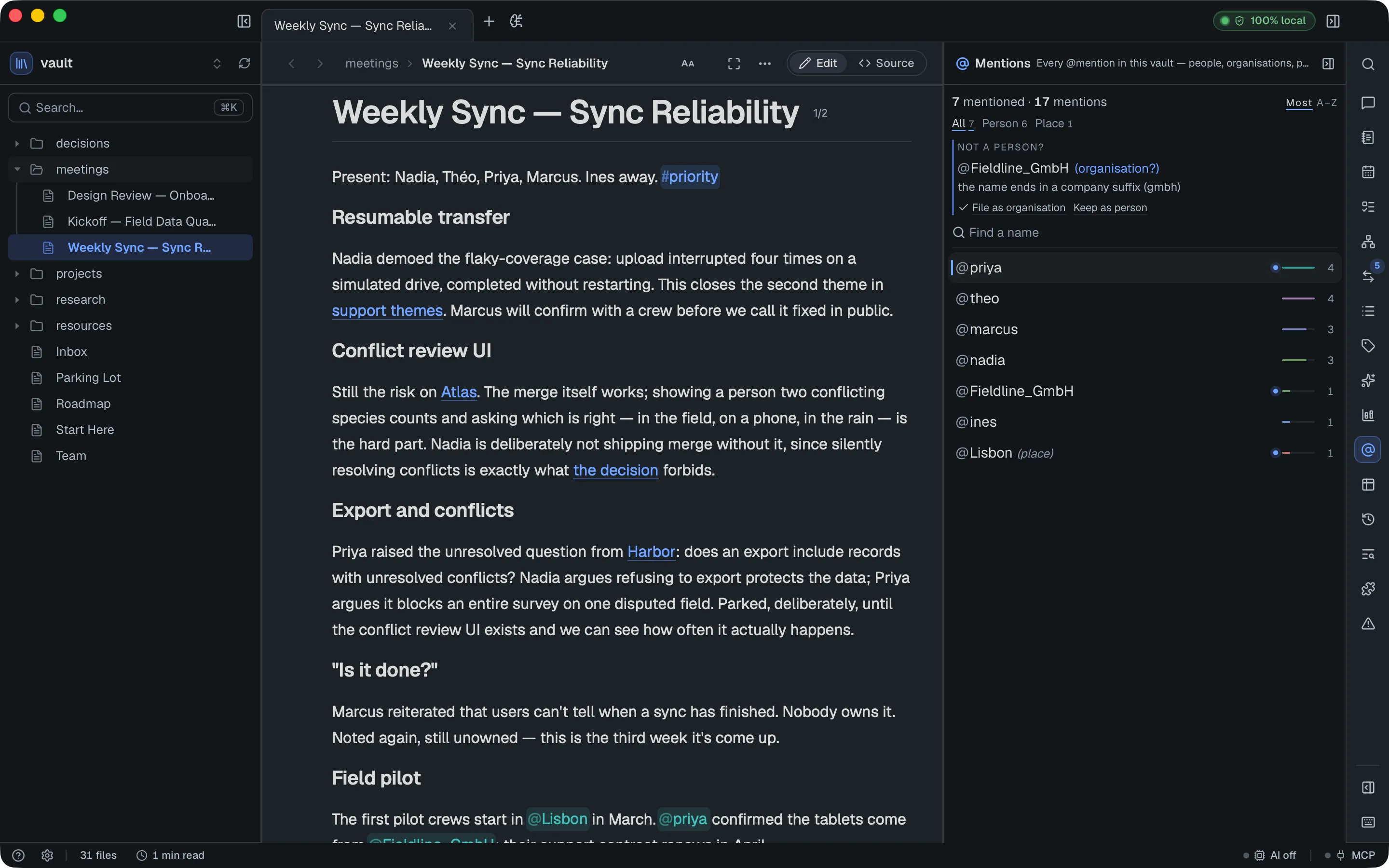
Section titled “Getting there”Open the Mentions panel from the right-hand rail (the @ icon). It lists every name in the vault with how often it’s mentioned. A name that isn’t a person shows its kind after it, like an index: @Acme (organisation). When the vault has more than one kind, a row of words above the list — All, Person, Organisation, … with counts — shows one kind at a time. Most sorts by count, A–Z by name, and the search box narrows the list. From the search box, ↑/↓ move through the names and Enter opens the highlighted one. A small dot beside a name’s count means that name appears in the note you have open.
Click a name to see every place it’s written, grouped by note, with the note you have open listed first. Click a row to open that note at the mention.
You can also type @ in the ⌘K palette to search names and jump to the same list.
Say what a name is
Section titled “Say what a name is”Open a name. Under it, indexed as lists the kinds: person, organisation, place, project, and any you added. Click one. Every spelling of the name moves together, nothing in your notes changes, and the choice is saved in .docgraph/entities.json.
The kind decides a few things:
- Only a person can be a task’s owner.
- [ ] send @acme the deck @omaris assigned to Omar.@acmestays a mention on the task, so the Todo panel, person cards and the Open items sections never treat Acme as someone with work to do. Changing the kind takes effect at once, without reindexing. - New 1:1 is offered for people only.
- Grouping by email or initials is for people only. Spellings of a company are still grouped by case, accents and aliases.
- The page a name gets is shaped for its kind (see below).
Suggestions. DocGraph proposes a kind, without AI, when a name looks like something other than a person. Not a person? at the top of the panel shows the name, the guessed kind and why:
- the name is the value of a typed key that points at that kind (
client: Globex); - it ends in a company suffix, like GmbH, Inc, Ltd, LLC or AG;
- it’s written “at @X” (organisation) or “in @X” (place) in two or more notes.
File as organisation accepts it; Keep as person stops asking about that kind for good. A name with a person page, or grouped with another by email or initials, is never suggested.
Your own kinds. Add kinds like client or vendor in Settings → Organize → Ontology → Entity kinds. They appear here at once and get pages like the others. Removing a kind that names still use asks where to move them first.
Core tasks
Section titled “Core tasks”Create a page
Section titled “Create a page”- In the Mentions panel, click a name.
- Click Create page.
DocGraph creates Mentions/<name>.html and opens it. Pages of every kind share that folder; the page’s type property tells them apart.
A person page has a heading, an empty paragraph for your own notes, and four sections:
| Section | What it shows |
|---|---|
| Open items | Unchecked tasks assigned to the person, earliest due date first |
| Feedback | Lines that mention the person and carry a #feedback/… tag |
| 1:1s | Your recent 1:1s with the person |
| Mentions | Every line in the vault that mentions the person, with the note it’s in |
A page for any other kind is type: organisation (or place, project, …) and has three sections:
| Section | What it shows |
|---|---|
| Mentions | Every line in the vault that mentions it, with the note it’s in |
| Named with it | Every other name written on the same lines, with how many lines they share |
| Notes linking here | Notes that link to this page |
Once the page exists, the button reads Page and opens it. Clicking it again never creates a second page.
A note you made yourself counts too. Give any note type: project and project: Apollo in the Properties panel, and it becomes @Apollo’s page; @Apollo becomes a project unless you already chose its kind (choosing person counts). Changing a name’s kind later never retypes a page that exists.
Let the page fill itself
Section titled “Let the page fill itself”You never copy anything onto a person page. Write where you already write, and the page picks it up:
- A meeting note that says
@omar owns the migration planshows under Mentions. - A task like
- [ ] review the offsite agenda @omarshows under Open items until you tick it. - A capture like
@omar #feedback/win shipped the migration a week earlyshows under Feedback and Mentions.
The sections update as you edit other notes. The page itself stays short, because its sections are live views, not stored text. Click a note’s name in any section to open that note.
Record feedback
Section titled “Record feedback”Feedback is any line that mentions the person and has a tag starting with feedback/. The part after the slash is yours to choose. A small, fixed set keeps the Tags panel tidy:
#feedback/win— something that went well#feedback/concern— something to raise#feedback/note— anything else worth remembering
A bare #feedback with no slash doesn’t count. Quick capture (⌘⇧N) is the fastest way to record a line without leaving the note you’re in.
Jump to someone from a note
Section titled “Jump to someone from a note”In an HTML note, ⌘-click an @name to open that person’s page. If they don’t have one yet, the Mentions panel opens on their name instead, so you can create it on purpose. A plain click still puts the caret in the name for editing.
This works on @name in prose. An @name inside a task is the task’s assignee, and ⌘-click on it does nothing extra. Markdown notes don’t support the ⌘-click yet.
Hover an @name for a summary
Section titled “Hover an @name for a summary”Rest the pointer on an @name in prose in an HTML note and a small card appears after a moment. It shows the name, how many mentions it has, how many open tasks are assigned to that person (with how many of those are overdue), and the latest note that mentions them and how long ago it changed. The last line says what ⌘-click will do: open the page, or show the name in the Mentions panel if it has none. The card is information only; it has no buttons. It doesn’t appear on an @name inside a task, which is an assignee chip.
A dashed outline means a probable typo. When an @name is rare (at most one use in the vault, counting the note you’re in) and is one or two letters away from a name you use three or more times (@omr next to @omar), its chip is drawn with a dashed outline instead of a solid fill. The card for it starts with Similar to @omar and the mention count of that name, and the hint reads ⌘-click to review in Mentions. Names under four letters are never flagged, and the edit distance allowed is one letter for names up to five letters and two for longer ones. The outline is only a hint: nothing is changed or merged for you. To fix it, use Rename in the Mentions panel and rename the typo onto the established name, which merges the two (see below).
Run a 1:1
Section titled “Run a 1:1”A 1:1 is a dated note that lives with the person. Start one in either of two ways:
- In the Mentions panel, open the person and click New 1:1.
- Press ⌘K, choose New 1:1 with…, then pick the person from the list of names (people only).
DocGraph creates Mentions/<name>/1-1/2026-09-18.html for today and opens it. If today’s 1:1 with that person already exists, it opens that one. It also creates the person page if they don’t have one yet.
The note has four parts:
| Part | What it holds |
|---|---|
| Carried over | Every unchecked task from your earlier 1:1s with this person |
| Notes | What you talk about |
| Action items | Tasks you agree on. Type [] to start one. |
| Recent 1:1s | Links to your three most recent 1:1s with this person, newest first |
Carried over is a live view, not a copy. A task stays in the meeting where you wrote it. Tick it there, or in the Todo panel, and it drops off every later 1:1. Nothing is ever counted twice.
Add @name to an action item when it’s the other person’s to do, for example [] draft the hiring plan @omar. It then also shows under Open items on their person page. An action item without a name is yours, and it only appears in the 1:1s.
The person page gets a 1:1s section listing the same recent meetings. Pages created before this section existed don’t have it; to add it, copy the one-on-one-recent block from a new person page in <>Source view.
Each 1:1 has three properties: person and one-on-one hold the name, and date holds the day, so the 1:1 appears on that day in the calendar.
Rename, merge or remove a name
Section titled “Rename, merge or remove a name”In the Mentions panel, with a name open:
- Rename rewrites every
@namein the vault, after showing how many mentions in how many notes it will touch. Renaming onto a name that already exists merges the two. - Discover finds places the vault writes the name without the
@, so you can turn chosen ones into mentions. See below. - Un-mention all asks first, then drops the
@everywhere and keeps the word, so every sentence still reads. The unlink button on a single row does the same for one place, without asking.
Each file’s change is saved and undoable on its own.
If the person has a page, the rename preview also offers to rename it. The option is ticked by default. When it’s ticked, Mentions/omar.html becomes Mentions/omar-k.html and its person property (or, for another kind, the property named after the kind, like organisation) changes to the new name, so the sections keep filling. Links to the page are updated, and if the page is open, its tab follows it.
Their 1:1s move with the page: Mentions/omar/ becomes Mentions/omar-k/, and every 1:1 in it is re-pointed at the new name, so Carried over and Recent 1:1s keep working. If a folder with the new name already exists, the preview says so and leaves both the page and the folder alone.
Two cases work differently:
- Only the capitalization changes, for example
omartoOmar: the file stays where it is and only thepersonproperty changes. - The new name already has a page: the preview says so and leaves the old page alone. Combine the two pages yourself, then delete the one you don’t need.
If you untick the option, or rename the page yourself, the sections go empty until the page’s person property matches the name again. Change it in the Properties panel.
The rename doesn’t change the person page’s heading or title. Edit them yourself if you want them to show the new name. It does update the title of each 1:1 in the person’s folder, which is what Recent 1:1s links show, as long as the title is still the one DocGraph wrote (1:1 omar 2026-09-18). A 1:1 whose title you changed keeps your title.
Discover: turn plain names into mentions
Section titled “Discover: turn plain names into mentions”Discover searches the whole vault for the bare word, with no AI involved, so the list is complete. It opens a list grouped by note, each occurrence shown in a snippet with the word highlighted. Nothing is ticked at first.
- Click an occurrence to tick or untick it. Click a note’s name to tick every occurrence in that note; click it again to untick them. The counter beside the note (
2/3) shows how many are ticked. - Optionally click Refine with AI (only shown when AI is on). The model reads each snippet and ticks the ones where the word names the person, organisation, place or project being talked about; the rest are marked unsure. You can still change any box. Afterwards the button reads Ask again. If the model reads the name as another kind your vault has, it offers that kind too (Reads as (organisation) · File as organisation); nothing is filed until you click.
- If the model noticed other spellings, an Also called row lists them. Click one to run Discover again for that spelling.
- Click Add @ to N mentions. DocGraph writes
@in front of each ticked word. The word itself doesn’t change, so every sentence still reads the same.
The button is disabled until at least one occurrence is ticked. Close leaves without writing anything.
One person, several spellings
Section titled “One person, several spellings”The same person is often written more than one way: @Nady, @nady_ahmed, @N.Ahmed. DocGraph groups spellings it’s sure about into one person, without changing any note:
- Aliases. A person page’s
aliases(property or front matter) are that person’s other names. - Spelling. Names that differ only in case, accents or separators (
@José_Ruiz,@jose-ruiz) are one person. - Email. Names written next to the same email address, in any notes (
@nady (nady@acme.com),Nady Ahmed <nady@acme.com>), are one person.
The Mentions panel lists each name once. Their other spellings appear in italics under the name, and the count covers all of them. Open the person to see Written as: every spelling, why it was grouped, and how often it’s used. Their mentions list covers every spelling.
Split a spelling that belongs to someone else. DocGraph remembers the split and never groups those two names again, even after a reindex.
When DocGraph is less sure, it asks instead. Same person? at the top of the panel shows a pair and the reason, for example @N.Ahmed ≟ @Nady_Ahmed because Ahmed is the only full name with that surname. Choose One person to group them or Not the same to stop asking. Nothing is grouped until you choose.
Your choices are stored in .docgraph/entities.json in the vault. The grouping itself lives only in the search index. Grouping a person also affects:
- a person page’s sections, which list mentions under every spelling;
- clicking an
@name, which finds notes using any spelling; - the People query source, whose Person column holds the grouped name, Kind its kind, and Named with the other names on the same line;
- the graph view, which draws one node per person;
- AI chat, when a question names someone.
To change the spelling in the notes themselves, use Rename above.
Customize the page
Section titled “Customize the page”Your own template. Save an HTML file called person.html in your templates folder (Templates by default). New person pages are built from it instead of the built-in shape. A page for another kind uses a template named after the kind — organisation.html, place.html, client.html. {{title}} becomes the person’s name and {{date}} today’s date. Keep the data-docgraph-query blocks, or copy them from a page DocGraph created, so the sections still fill themselves.
The sections themselves. Each section is an ordinary saved query in the Tables panel, named Person: open items, Person: feedback and Person: mentions. Edit one, for example to change its columns or sort order, and every person page changes at once. Pages of other kinds use Organisation: mentions, Organisation: named with it and Organisation: notes linking here (one set per kind, created the first time a page of that kind is opened). If you delete one, DocGraph recreates it the next time you open or create a page of that kind from the Mentions panel. DocGraph never overwrites a section you’ve edited.
Your own 1:1 template. Save one-on-one.html in your templates folder the same way. {{person}} becomes the person’s name. Keep the one-on-one-carried-over and one-on-one-recent blocks. The two queries appear in the Tables panel as 1:1: carried over and 1:1: recent.
The folder. Change where pages are created in Settings → General → Vault → Templates & daily notes → Mentions folder (default Mentions). Enter . for the vault root.
How the sections know who the page is about
Section titled “How the sections know who the page is about”Each section’s query filters on @page:person (or @page:organisation, and so on) rather than a fixed name, and the mention sections match the Person column, so every spelling of the person counts. When the section is shown, that value becomes the person property of the page it sits on. That’s why one set of three queries serves every person page. You can use the same idea in your own queries — see Queries that ask about the page they’re on.
DocGraph sets person (or the kind’s property) when it creates the page, and a rename from the Mentions panel updates it. To point a page at a different name, change person in the Properties panel. A page without a person property shows empty sections.
Limits
Section titled “Limits”- A page is always an HTML file, even in a vault whose notes are Markdown. Markdown can’t hold the live sections.
- Open items matches the assignee by text, so a page for
@samalso lists tasks assigned to@samantha. - Each section shows at most 50 rows. Recent 1:1s shows three.
- A 1:1 is always an HTML file, like a person page.
- Carried over finds earlier 1:1s by their folder. A 1:1 moved out of
Mentions/<name>/1-1/stops carrying its tasks forward. - There’s no global keyboard shortcut for a new 1:1. Use the Mentions panel or ⌘K.
- Mentions inside code, inside an existing link, or in a locked (encrypted) note aren’t counted.
- A “line” is the paragraph or list item the mention is in. Very long paragraphs are shortened after 240 characters.