Sync & updates
Two DocGraph features exist to reach a server: backing a vault up to a git remote, and checking for app updates. Git backup is off until you add a remote; the update check is on by default and you can turn it off.
Backing up with git
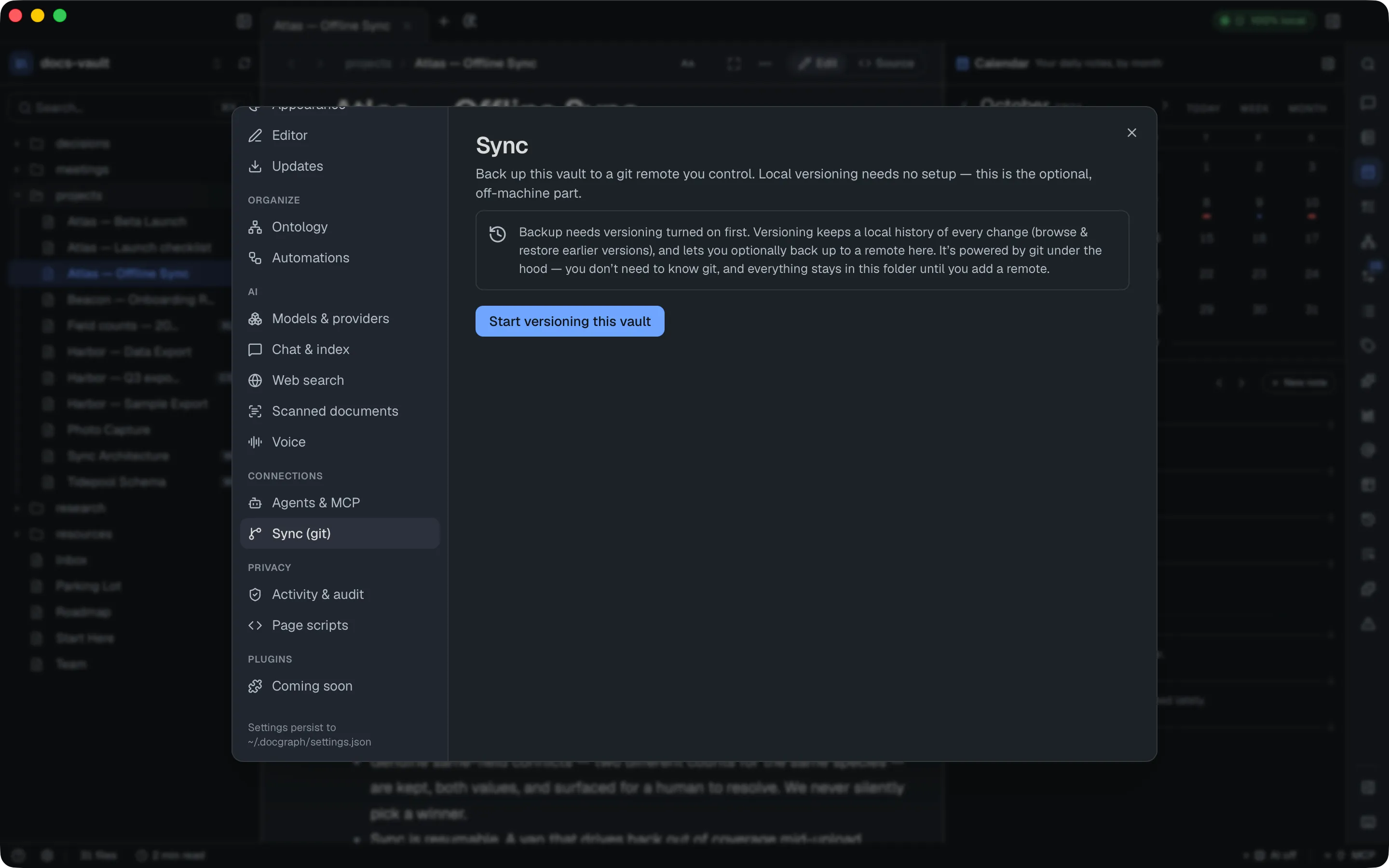
Section titled “Backing up with git”Settings → Connections → Sync (git). Versioning — a local history of every change — needs no network at all. A remote is the optional, off-machine part.
- Nothing leaves until you add a remote and press Push. Saving a remote URL tests the connection.
- The remote must be
https://, SSH (git@…) or a folder on this computer or a drive. An unencryptedhttp://orgit://address is refused when you save it, because your access token and notes would cross the network unencrypted. A remote set up that way before, or edited into.git/configby hand, won’t push, pull or test until you change it. - Git traffic doesn’t go through DocGraph’s network checkpoint. Your system’s
gitmakes the connection, to the remote you entered. It still shows on the badge and in the Activity log. - A remote is a backup, not a private or encrypted one. Your notes are stored there as they are in your vault — the pane says so. Encrypted notes are pushed still encrypted — but versions saved before you encrypted a note still hold its plain text, and they are pushed too.
- Before every push, DocGraph checks the files it’s about to upload for secrets — see Secrets & leak protection. With the default Warn setting the push goes ahead and you’re told; with Block nothing is pushed. Block also refuses a push it can’t check fully (over 64 MB of text, or a repository DocGraph can’t read), and the error says why.
- Overwrite remote with my vault replaces what is on the remote with your vault, after asking. Everything in the vault is checked for secrets first.
- Your access token is stored in
~/.docgraph/git-credentials.json, readable only by you — a file, not the system keychain. It is kept per host and sent only tohttps://remotes on that host.
Every push and pull shows on the privacy badge and in the Activity log.
Set up a remote
Section titled “Set up a remote”Versioning has to be on first (Start versioning this vault, here or in the History panel). If the vault sits inside another git repository, the button reads Create a repository for this vault. Then:
- Create an empty repository on your git host, for example GitHub.
- Paste its address into Remote URL (origin) —
https://github.com/me/my-vault.gitorgit@github.com:me/my-vault.git— and press Save. Saving checks the connection automatically. - If the check fails because you aren’t signed in, see Sign in to the remote below.
Test connection, Push and Pull use the git installed on your Mac. If it isn’t there, the pane says The system git wasn’t found; install git to enable them. Local versioning keeps working without it.
Test the connection
Section titled “Test the connection”Test connection checks that DocGraph can reach the remote and that you are signed in to it, without sending or fetching any notes. The result shows in a box under the buttons. Saving a remote runs the same test.
Sign in to the remote
Section titled “Sign in to the remote”When a test, push or pull fails because you aren’t signed in, the pane shows Authenticate to this remote, with two ways in:
- Authenticate git yourself (recommended): set up an SSH key, or your system’s git credential helper, then press Test connection again. DocGraph uses them as they are and never asks for a password in a terminal; a missing credential fails straight away.
- Paste an access token into the token field and press Save token; the connection is tested again. On GitHub, make a fine-grained personal access token with Contents: Read and write on that repository; the pane links to the page that creates one. The token field is offered for
https://remotes only.
The token is stored per host in ~/.docgraph/git-credentials.json, readable only by you, and handed to git through a helper — never written into the remote address, the repository’s config or a command line.
Replace or remove the token
Section titled “Replace or remove the token”While a token is saved, the field reads Token saved — paste a new one to replace. Paste a new token and press Save token to replace it, or press Remove to delete it. Remove remote (below) also deletes it.
Back up and get the latest
Section titled “Back up and get the latest”- Push (back up) sends your saved versions to the remote. The History panel has the same push as Push (n) / Back up.
- Pull (get latest) brings the remote’s versions into your vault.
When the push is rejected: Keep both or Overwrite
Section titled “When the push is rejected: Keep both or Overwrite”If the remote already has content your vault doesn’t — a README the host created, or pushes from another computer — the push is rejected and you choose how to reconcile:
- Keep both — pull, then push merges the remote’s files into your vault, then pushes. Nothing is lost.
- Overwrite remote with my vault replaces everything on the remote with your vault’s history, after you confirm. Whatever was on the remote is lost; use it only for a fresh backup remote.
Resolve a merge conflict
Section titled “Resolve a merge conflict”If the remote and your vault changed the same content, the pull stops and the result box lists the conflicting files. Open each one, resolve the marked sections — remove the <<<<<<<, ======= and >>>>>>> lines and keep the text you want — then commit and push again. Or press Overwrite remote with my vault to discard the remote’s version.
Remove the remote
Section titled “Remove the remote”In the Danger zone at the bottom of the pane, Remove remote disconnects the backup address and forgets its stored token, after you confirm. Your local history is kept, and you can add a remote again at any time. Clearing the Remote URL field and pressing Save also disconnects the remote, without asking.
Delete the local repository
Section titled “Delete the local repository”Use it to stop versioning a vault. To keep the history but stop backing it up, use Remove remote instead.
Updates
Section titled “Updates”Settings → General → Updates.
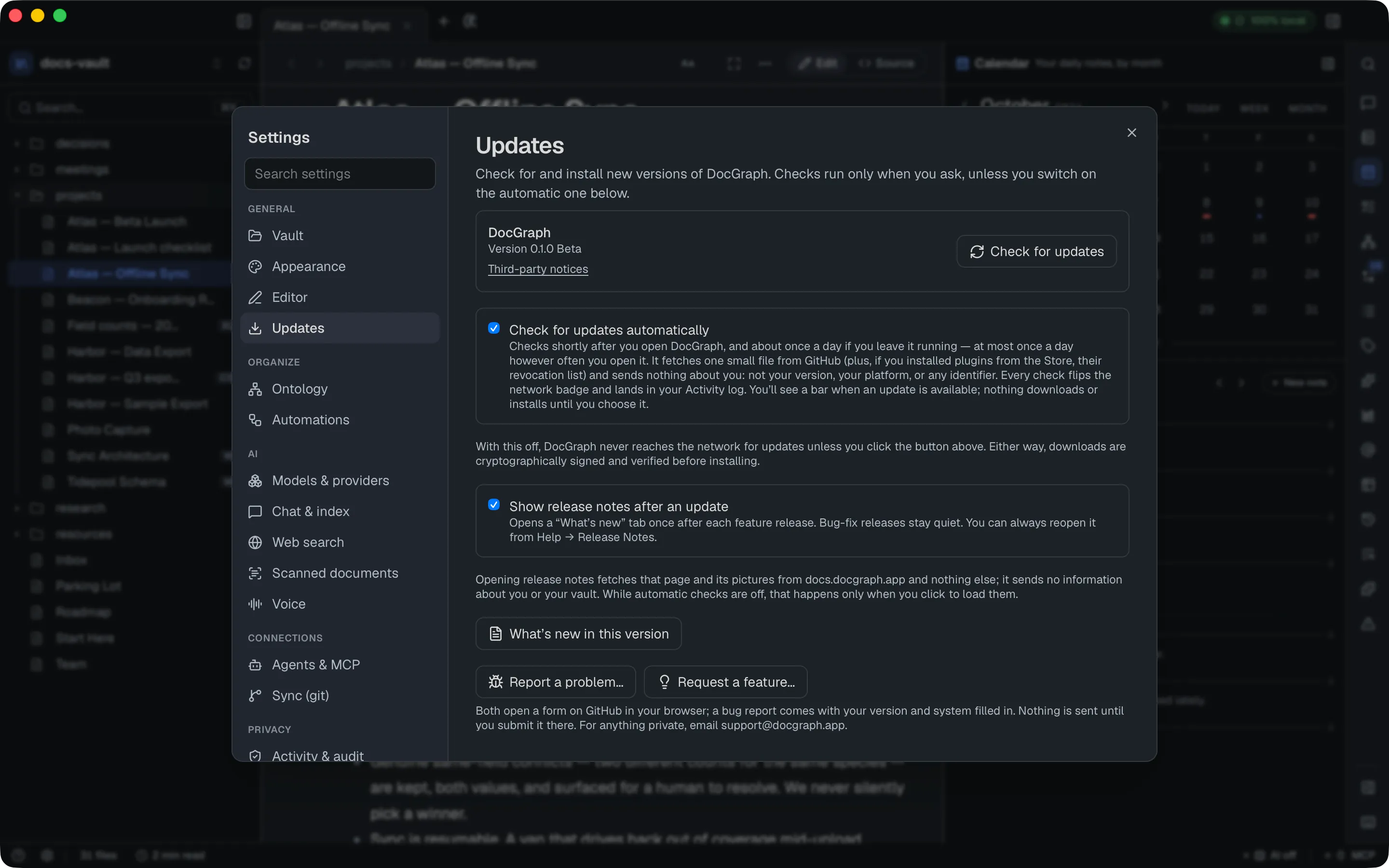
- Check for updates automatically is on for a new install. If you turn it off, DocGraph checks only when you click Check for updates, and an update never turns it back on.
- With it on, DocGraph checks a few minutes after you open it and then roughly once a day.
- A check fetches one small file from GitHub. It says nothing about you — not your version, your platform, or any identifier.
- When an update exists you get a bar offering it. Nothing downloads or installs until you choose it, and a download is cryptographically verified before it’s installed.
The update bar
Section titled “The update bar”When a check finds a newer version, a bar reads DocGraph 0.2.0 is available with the release date, and offers:
| Button | Does |
|---|---|
| What’s new | Opens that version’s release notes before you decide |
| Update | Downloads, verifies and installs it. The bar shows the download progress |
| Skip this version | Hides this version for good. A newer version is still offered |
| ✕ (Later) | Hides the bar until the next launch |
Once the update is installed the bar reads DocGraph 0.2.0 is installed. Restart to finish. with a Restart now button. DocGraph never restarts on its own.
Turning on automatic checks
Section titled “Turning on automatic checks”If automatic checks are off (for example on an install from before they were on by default), DocGraph asks once: a banner offers to check for updates automatically, with Turn on and a ✕ (No thanks). Either answer dismisses it for good, and it never appears if automatic checks are already on. To change your mind later, use the switch in Settings → General → Updates.
Every check shows on the badge and lands in the Activity log.
Release notes
Section titled “Release notes”After a feature release, the first time you open the new version, a What’s new tab opens beside your notes. Bug-fix releases don’t open it. Close it like any tab, reopen it from Help → Release Notes, ⌘K → Show Release Notes, or Settings → General → Updates, and turn the automatic tab off with Show release notes after an update in the same pane.
- The text ships inside the app, so the tab works offline and needs no network.
- The pictures live on docs.docgraph.app. Opening the tab can fetch that version’s notes and pictures from there, and nowhere else. The request names the version and sends nothing about you or your vault.
- With automatic update checks off, nothing is fetched until you click Load screenshots in the tab. With them on, the pictures load when you open the tab.
- A fetch shows on the badge and lands in the Activity log as
release-notes, like every other network request. - Pictures are kept for a day, so reopening the tab doesn’t fetch them again. The copy for older versions is cleared on launch.