Paste, drag or /image an image into a page and DocGraph copies it into your vault as an ordinary file, then embeds it. There’s no attachment database and no opaque blob store: the image is a file you can see in Finder.
Adding an image
Section titled “Adding an image”Four ways, all into the page at your cursor:
- Type
/imageand choose Image from the slash menu, then pick a file. An image that’s already in your vault is embedded where it is, with no copy; any other file is copied in. HTML pages only. - Paste (
⌘V) an image from the clipboard. - Drag an image file from Finder onto the page.
- Right-click an image already in your vault in the file tree → Insert into current page. You can also drag it from the tree onto the page.
The file lands in resources/images/ in your vault — a normal, visible folder — and the page gets a <figure><img> pointing at it (in a .md note, a  line).
What happens on the way in
Section titled “What happens on the way in”DocGraph processes an image as it ingests it:
- PNGs become WebP, losslessly, which is usually a large size saving. Transparency is preserved.
- JPEGs are re-encoded and their EXIF metadata is stripped — including GPS coordinates — when you paste or drop the image into a page, or pick it from outside the vault with
/image. A photo from a phone doesn’t carry its location in that way. One exception worth knowing: an image brought in through the file tree (dragged from Finder onto the tree) is stored byte for byte, EXIF and all, and so is any file DocGraph cannot decode as an image. - GIF and WebP pass through unchanged.
- Identical images deduplicate — pasting the same picture twice reuses one file.
If re-encoding would make a file larger, the original is kept — except where that would preserve EXIF, in which case privacy wins over size.
.png, .jpg, .jpeg, .gif and .webp are accepted. SVG is deliberately not — an SVG can carry script, so it isn’t accepted as a pasted or dropped image.
Working with an image in the page
Section titled “Working with an image in the page”Click an image to select it. An outline with a handle at each corner appears around it, and a toolbar appears above it:
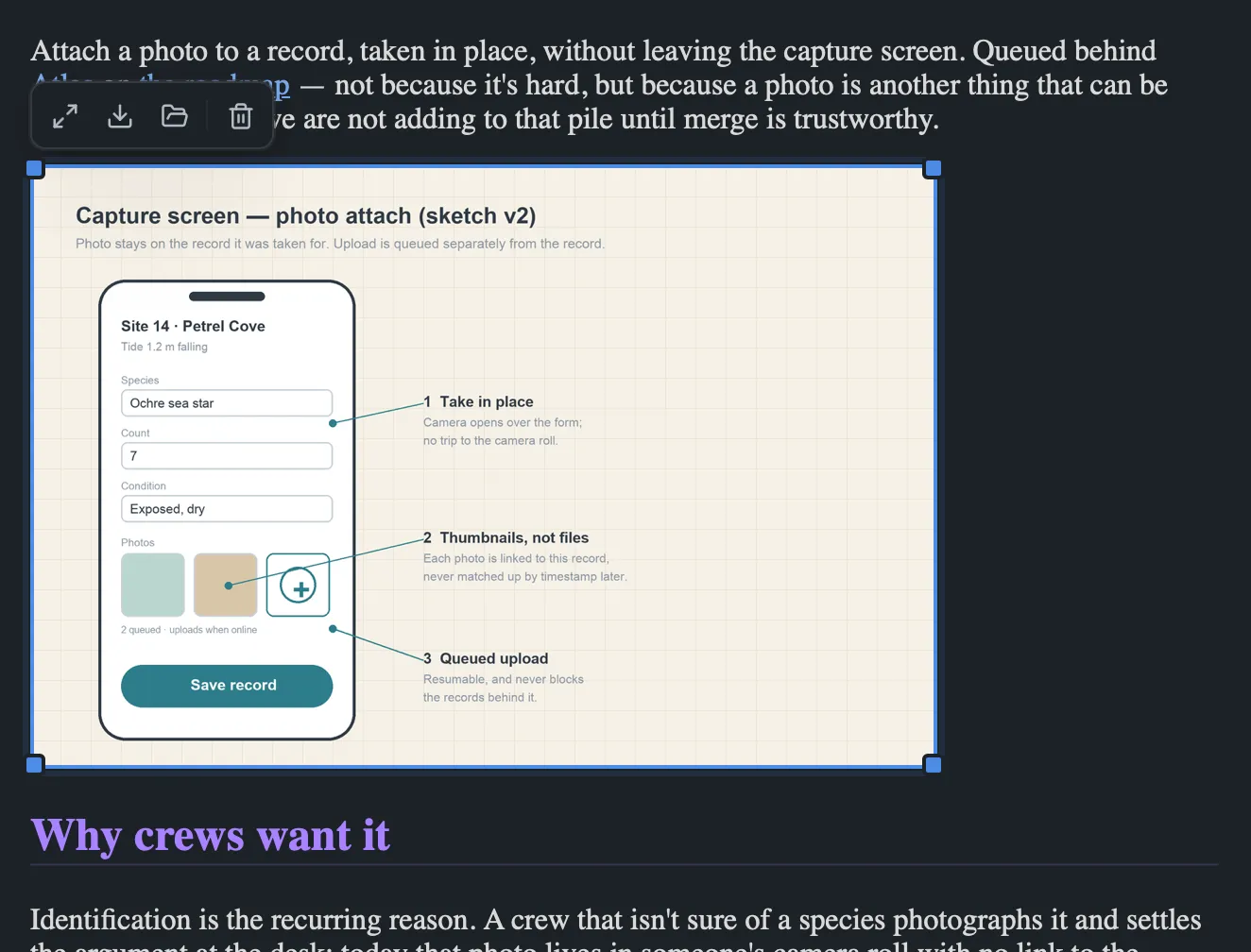
The buttons are icons. From left to right (hover one to see its name):
| Button | What it does |
|---|---|
| Zoom (diagonal arrows) | Opens it full-size over a dark backdrop; Esc or click to close |
| Save (download arrow) | Save a copy somewhere outside the vault |
| Reveal (folder) | Show the file in Finder |
| Make Text Searchable (scan icon) | Read the text in the image so search and chat can find it. Once it’s searchable, the button reads Remove from Search |
| Delete (bin) | Remove the image from the page |
Save, Reveal and Make Text Searchable only appear for an image stored in your vault. A remote image (one loaded from the web, when a vault allows remote resources) has no file to save, reveal or read.
Double-clicking an image zooms it without selecting it first.
Click anywhere else in the page to deselect.
In a .md note, clicking an image selects it and Backspace or Delete removes it; Alt-click shows its  source instead. There’s no toolbar and no resize handles — Markdown has no way to store a width — but an Obsidian-style ![[photo.jpg|300]] is shown at that width.
Resizing an image
Section titled “Resizing an image”- Click the image to select it.
- Drag any corner handle. Drag away from the image to make it bigger and towards it to make it smaller. On a right-hand handle that means right to grow; on a left-hand handle, left to grow.
- Let go. The new size is saved to the page straight away.
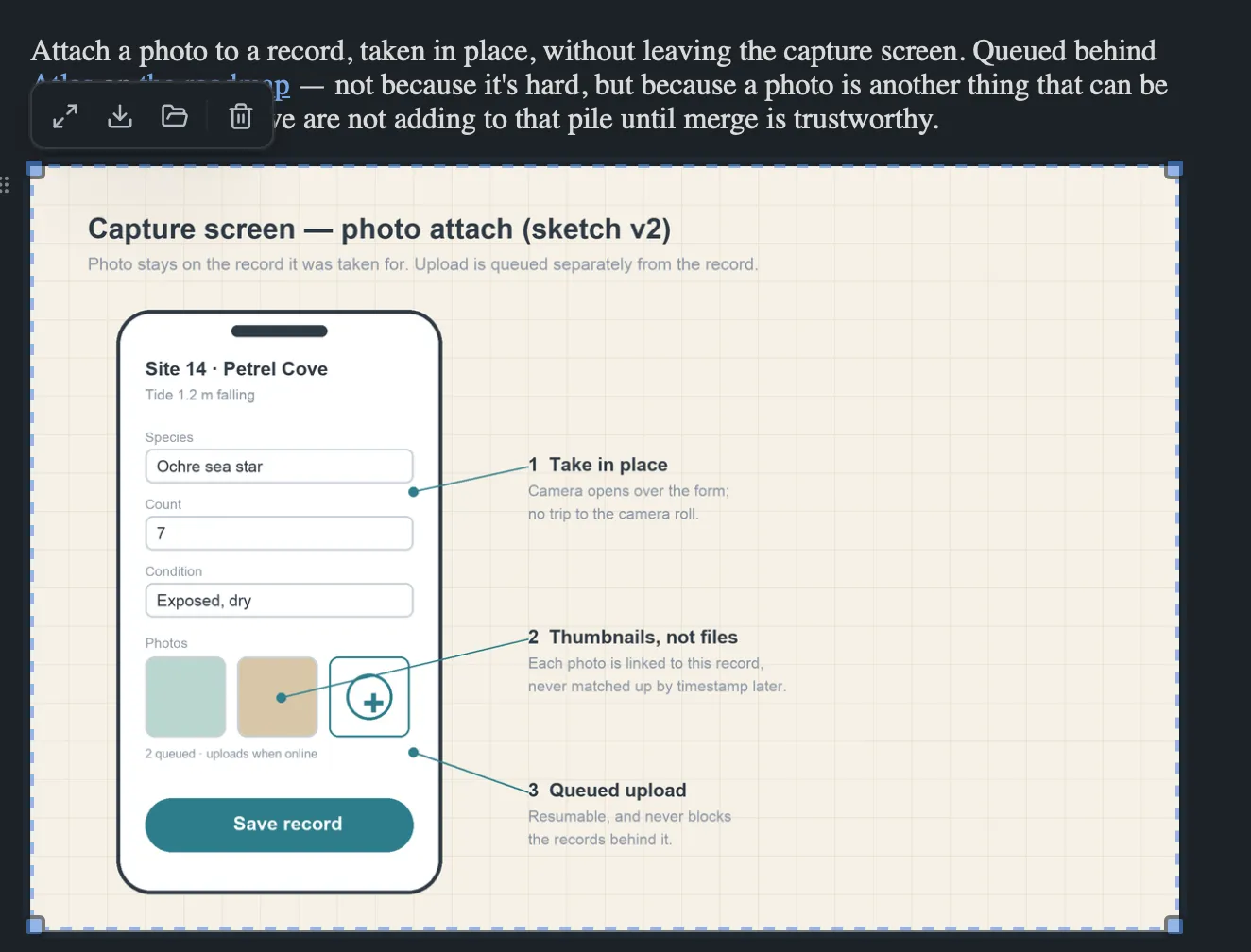
Some details:
- Only the width is set. The height follows, so the image never stretches. Only sideways movement of the handle counts.
- The live preview is the real image. The page reflows around it as you drag, so you can see where the text will land before you let go.
- The smallest width is 40 px, and the largest is the width of the page. A handle stops moving at either limit.
- An image is never wider than the page. A large picture you paste, drop or pick shows at the page width with all four handles in reach, even though no
widthhas been saved yet. Narrow the window and it shrinks with the page. - What’s saved is ordinary HTML. The
<img>gets awidthattribute, for example<img src="…" width="320">, and anyheightit had is removed so the proportions stay right. The page looks the same in a browser or any other HTML editor.
There’s no button to go back to the image’s natural size. To do that, open the page in <>Source and delete the width="…" attribute from its <img>.
Which images can be selected
Section titled “Which images can be selected”Selecting, the toolbar and resizing work on images inside a <figure> — which is what DocGraph writes whenever you paste, drop or insert an image. An <img> you wrote by hand without a <figure> around it shows no outline, toolbar or handles when clicked. Double-click still zooms it. To make it resizable, wrap it in <figure>…</figure> in <>Source.
Moving and renaming
Section titled “Moving and renaming”Images are files, so they move like files. Drag one to a different folder in the tree, or rename it — and DocGraph rewrites every page that embeds it so nothing breaks. That works in both directions: moving a note fixes up its own image references too.
Limits
Section titled “Limits”Images aren’t searched by default. They’re openable and appear in the file tree with an IMG badge. To have search and chat find the text in an image or a scanned PDF, make it searchable — the text is read on this computer. See Scanned PDFs & Images.
32 MB per image on paste or drop. Dragging a file onto the file tree to import it (rather than into a page) allows more.
Markdown pages get a plain image line. Pasting or dropping into a .md file writes  rather than a figure, and there’s no image toolbar and no resize handles. Set a display width with ![[photo.jpg|300]], or edit the line’s Markdown.
No captions or alt-text editor. DocGraph doesn’t add a caption or edit an image’s alt text from the page. Both are ordinary HTML (<figcaption>, alt="…") that you can write in <>Source.
Animated GIFs are stored as-is rather than converted.