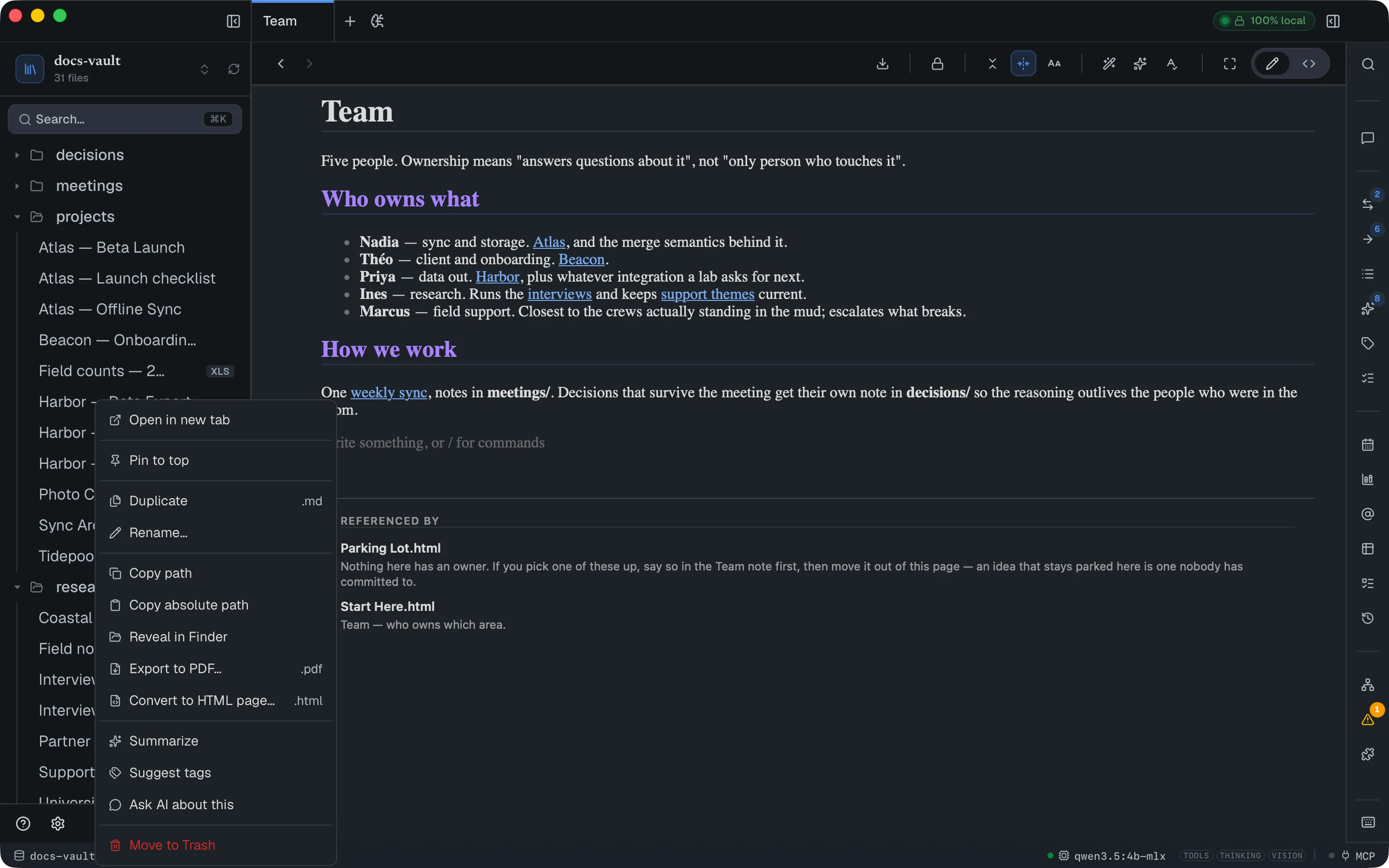
Block Properties
Pages carry properties. Folders carry properties. Block properties put the same idea one level down: on a single line — or a single todo.
The line that says “called the supplier” can carry status: blocked and the time you wrote it, and then you can ask the vault for every line you wrote this week, or every blocked line anywhere. A todo can carry a status and a priority beside its due date and assignee, all edited in one place.
Adding a property
Section titled “Adding a property”Open the properties window for a line in either of two ways:
- Hover the line to bring up its handle in the left margin, click the handle, and choose Properties….
- Put the cursor in the line and press ⌘⇧P.
The window lists what the line already carries, with a row at the bottom to add more. Start typing a name — or just click into the empty row — and it suggests properties that suit this kind of line (see Built-in properties). Pick one, fill in the value, press Enter, then Save. Clicking outside the window also saves what you changed; Esc or Cancel discards it.
The first row is the line’s type — paragraph (text), heading, quote, callout, list, todo, code and so on. DocGraph works it out from the line itself and keeps it up to date, so it’s shown but can’t be edited.
You can use any name, not just the suggested ones. Names are lowercase with hyphens, because that’s what the storage can hold — type Due Date and the window tells you it will be saved as due-date before you save it, so you never find a surprise spelling in the file later.
Values are up to 500 characters, on one line. Clearing a value and saving removes the property; to keep a property with no value on purpose, click ∅ on its row.
Built-in properties
Section titled “Built-in properties”These come with DocGraph. Each has a fixed kind of value and the editor to match, and the window suggests the ones that fit the line you’re on:
| Property | Value | Suggested on |
|---|---|---|
due | A date — with Today · Tomorrow · In 3 days · Next week · Next Monday buttons | todos, paragraphs, headings, callouts |
start | A date | todos |
assignee | Names, separated by commas | todos, paragraphs, callouts |
assigned-by | A name | todos |
status | One of todo · in-progress · blocked · done · cancelled | todos, paragraphs, headings, callouts, quotes |
priority | One of low · medium · high · urgent | todos, paragraphs, callouts |
owner | A name | paragraphs, headings, callouts |
source | Where it came from, usually a link | quotes, paragraphs, images |
review-by | A date | paragraphs, headings, callouts |
estimate | A number | todos |
blocked-by | Another note — see Linking lines to notes | todos, paragraphs, headings, callouts |
depends-on | Another note | todos, paragraphs, headings |
Name fields suggest the @names already used in your todos.
review-by brings the line back: once the date has passed, its note is listed under Decisions to revisit in the Calendar’s Coming back, in any note. The same name works on a page — a note of type decision with a past review-by page property comes back there too.
status and priority pick from a list. Type a value that isn’t on it and saving adds it to the list for the whole vault — so if your team says waiting, waiting becomes an option everywhere. A value that isn’t on the list (written by hand, say) is shown with an amber outline rather than changed.
A few names are reserved because DocGraph fills them in itself — type, created, section, level, language, tags, people, dates, links, progress, origin and task. The window won’t save them. A line that already has one written by hand keeps it, and it’s listed as a reserved_block_key row in the vault_health query source so you can find and rename it.
The name is shared with page properties
Section titled “The name is shared with page properties”A block’s status and a page’s status are the same property. The built-in properties have the same type everywhere, so a page’s due is a date too. For any other name, the window offers the editor that matches how your page properties use it — a date picker for a name whose page values are all dates, a number field for numbers — and plain text otherwise.
Seeing properties in the page
Section titled “Seeing properties in the page”Properties you set are shown right after the line’s text as small chips — blocked, high, due Oct 2, owner: sarah. status and priority show just their value; everything else shows its name too. Click a chip to open the properties window on that property.
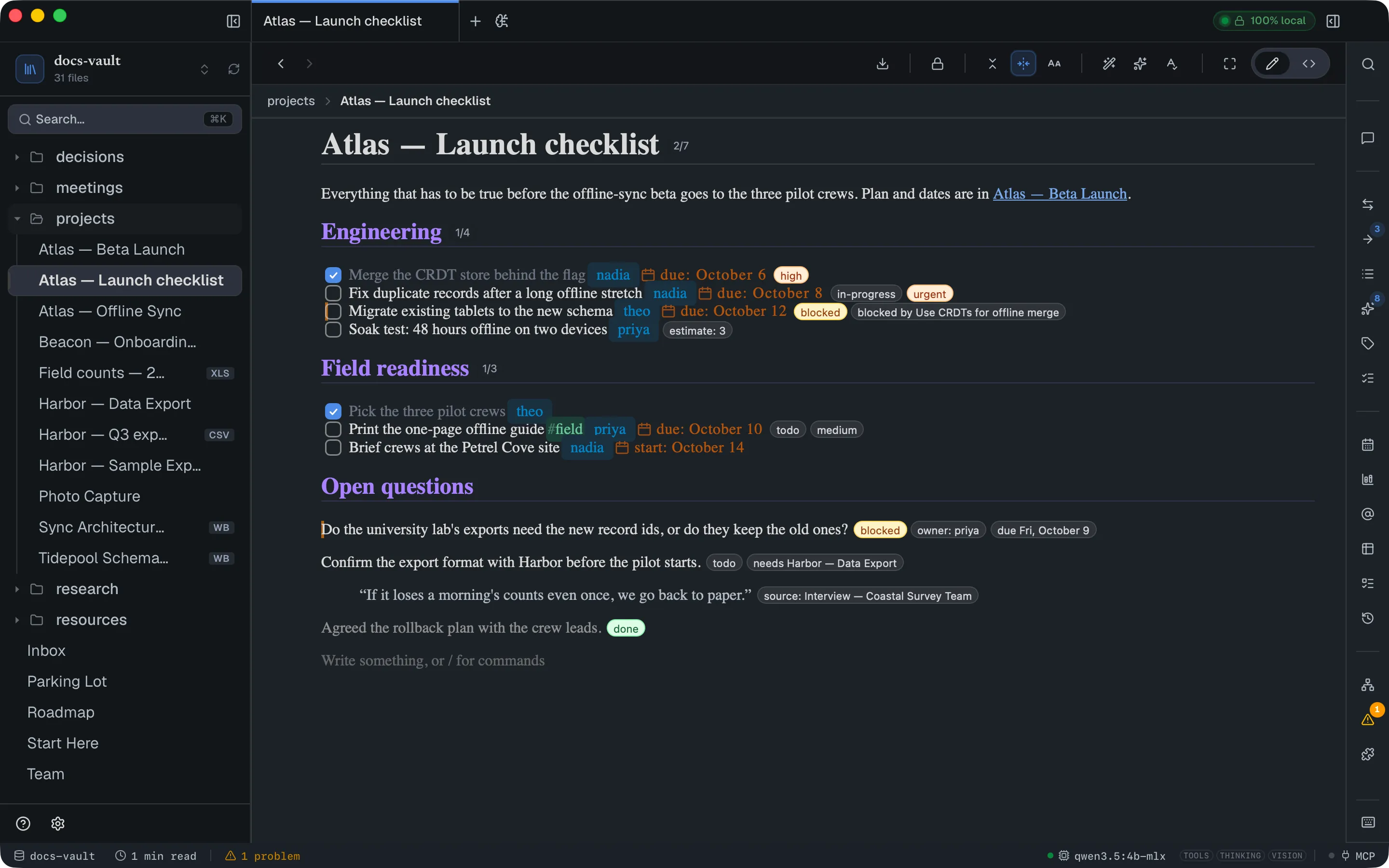
Settings → General → Editor → Block properties after a line changes how much shows:
| Setting | What you see |
|---|---|
| Show each property as a chip | The default |
| Show one “+N” chip | One chip with the count; hover it for the list |
| Hide them | No chips — the properties window still lists them, and the margin shows the count instead |
Like the date settings above it, reopen the file after changing it.
Some built-in values also change how the line looks:
| Value | Look |
|---|---|
status: done | The line fades |
status: cancelled | The line fades and is struck through |
status: blocked | An amber bar at the start of the line, and an amber chip |
priority: high or urgent | An orange chip |
A due date that has passed, on a line or todo that isn’t done | A red bar at the start of the line, and a red due chip |
These styles are deliberately weak — your own stylesheet in the page always wins over them.
Headings count their todos. A heading with todos under it shows done/total for its section — everything up to the next heading of the same or a higher level — and it updates as you tick boxes.
Properties on todos
Section titled “Properties on todos”A todo can carry properties like any other line. Because a todo has no handle of its own, open its window by:
- clicking any property chip on it,
- clicking the ⋯ that appears at the end of the todo when you hover over it or put the cursor in it, or
- pressing ⌘⇧P with the cursor in it.
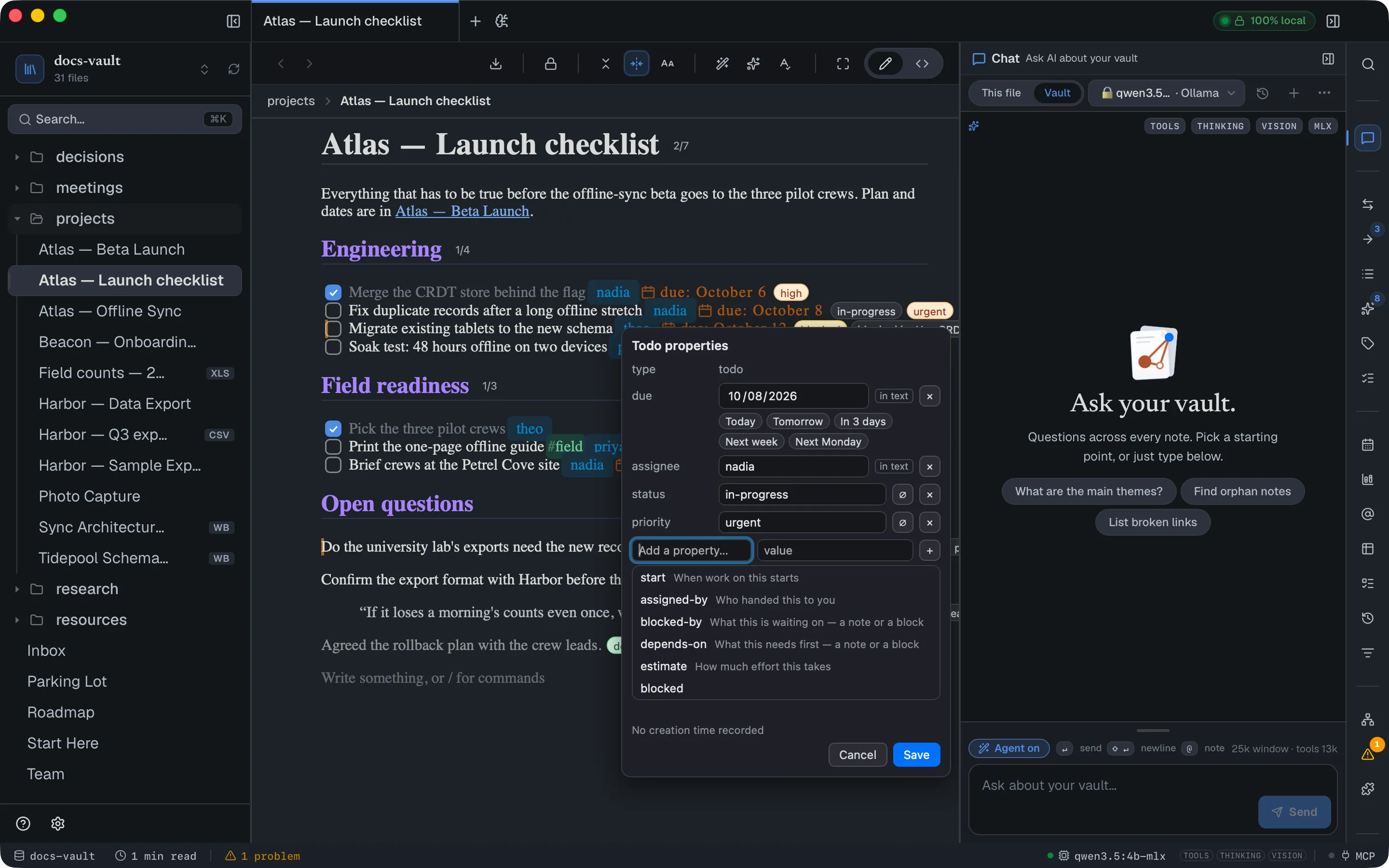
Four properties are special on a todo: due, start, assignee and assigned-by are written into the todo’s text as the tokens due:@@2026-10-02, start:@@…, @sarah and from:@omar — the same ones you can type yourself (see Todos & Task Properties). In the window those rows are marked in text. Setting one writes the token, clearing one removes it, and typing a token by hand shows up as a row. There is only ever one copy.
Everything else — status, priority, estimate, your own names — is stored on the todo itself and shown as a chip after it.
So on a todo, dates and people are written in the line, everything else is a chip after it, and all of it is edited in the same window.
Two more things happen automatically:
- A todo made with Enter records when it was made — splitting a todo, or starting a new one above or below.
- Turning a line into a todo keeps its properties. Type
[]at the start of a paragraph that has astatusand adue: the todo gets thestatus, and the due date becomesdue:@@…in its text. A due value that isn’t a real date stays on the list rather than being lost.
Recording when a line was written
Section titled “Recording when a line was written”This is the other half, and it’s a switch rather than something you do per line.
Turn on Stamp new lines with the time — in the toolbar’s display menu, or from ⌘K — and from then on every new line in that page records the moment it was added.
- It’s per page, and off by default on ordinary pages. A page you never switched on never changes.
- To have every new HTML note in a vault start with it on, turn on Stamp lines in new notes in Settings → General → Vault → Templates & daily notes (off by default). Notes that already exist are not changed.
- It’s stored in the page itself, so a template carrying the switch turns it on for every page made from it. That’s the intended way to set up a log or a journal.
- It’s undoable like any other edit.
- Existing lines are left alone. There’s no backfill and no guessing.
Your capture inbox, notes made with ⌘⏎ from quick capture, and daily, weekly and monthly notes created without a template have it on from the day they’re created, because “when did this arrive” is the whole point of them. A note made from a template does whatever the template does. Entries written by quick capture already record their own time, so they aren’t stamped twice.
Seeing the time
Section titled “Seeing the time”A stamped line shows a faint time in the margin. (With property chips hidden, the margin also shows how many properties the line has.) The date appears on the first line of each day, stacked above the time — so a log reads as days rather than as a column of repeated dates, and the margin stays narrow.
A page that shows times widens its own left margin to make room for them — by exactly what the times need and no more — so the text sits slightly further in than on an ordinary page. Pages with no stamps are untouched.
Settings → General → Editor → Dates → Creation time in the margin changes how much shows:
| Setting | What you see |
|---|---|
| Time, with the date when the day changes | The default |
| “2h ago” for today, then the time | Refreshed once a minute |
| Date and time on every line | |
| Hide it — show on the handle instead | Nothing in the margin, and no widened margin either |
How the date and time are spelled follows the date and time format settings above it — there’s only one place to set that.
Hovering a line’s handle always shows its full date and time, whatever the margin has room for.
Asking questions of them
Section titled “Asking questions of them”Every line and every todo of an HTML page is a row in a query source called blocks — not only the lines that carry properties — so anything that can run a query can use them: a saved query, a query block in a page, a chart, or the AI.
| Column | What it holds |
|---|---|
| Line | The line’s text. For a line with no properties, a long line is shortened to 80 characters ending in … |
| Type | text, heading, quote, callout, list, todo, code… |
| Section | The headings above the line, like Project › Decisions |
| Created | When it was added |
| Key / Value | One property |
| Properties | Every property on that line, as key=value text |
| Tags · People · Dates · Links | The #tags, @names, @@dates and links in the line |
| Progress | On a heading, its todos as done/total |
| Done | On a todo, whether it’s ticked |
| Note | The page it’s on |
A line with three properties is three rows, one per property; a line with none is one row with an empty Key.
Some things you can ask:
- Everything I wrote this week — source
blocks, filterCreatedis after@today-7d. - Every blocked line — filter
KeyisstatusandValueisblocked. - Blocked lines owned by Sarah — the same, plus
Propertiescontainsowner=sarah. Two properties on one line need that last column, because each property is its own row. - Every quote in the vault — filter
Typeisquote. - Everything under a “Decisions” heading — filter
SectionisDecisions.
Typing a query
Section titled “Typing a query”The query editor’s text box understands name:value for the built-in properties and the columns above:
| Type | To find |
|---|---|
status:blocked | Lines whose status is blocked |
priority:high owner:sarah | The same, for any built-in property |
type:quote | Quotes |
section:Decisions | Lines under that heading |
-status:done | Lines whose status isn’t done |
created:last7 | Lines added in the last 7 days |
+page | Include page defaults — see below |
A name DocGraph doesn’t know, like foo:bar, is searched as plain text rather than quietly narrowing the results. Use the builder or SQL for your own property names.
On the tasks source, status:open and status:done still mean the checkbox; any other status: value means the property.
Page defaults
Section titled “Page defaults”A page’s properties can count for every line in it. Tick Include page defaults in the query editor (or type +page) and a page with project: hydra gives every line on it project = hydra too — shown with inherited in the Origin column.
- It’s off unless you turn it on, per query, so existing queries don’t change.
- A line’s own value wins over the page’s.
- To keep a line out, give it the property with no value: in the properties window, click ∅ on that row. The chip then reads
no project. - A page’s
due,start,assigneeandassigned-bynever count for its todos — those are written in each todo’s text. - It works on the blocks source only.
Seeing them as a board
Section titled “Seeing them as a board”A saved query over blocks or tasks can be shown as a board. Open the query, click Pin as panel, then choose Board at the top of its panel and pick by status or by priority.
Each value is a column — the built-in options are always there, even when empty — and lines with no value sit in No value. Drag a card to another column to change that property in the page; drag it to No value to remove it. Click a card to open its page.
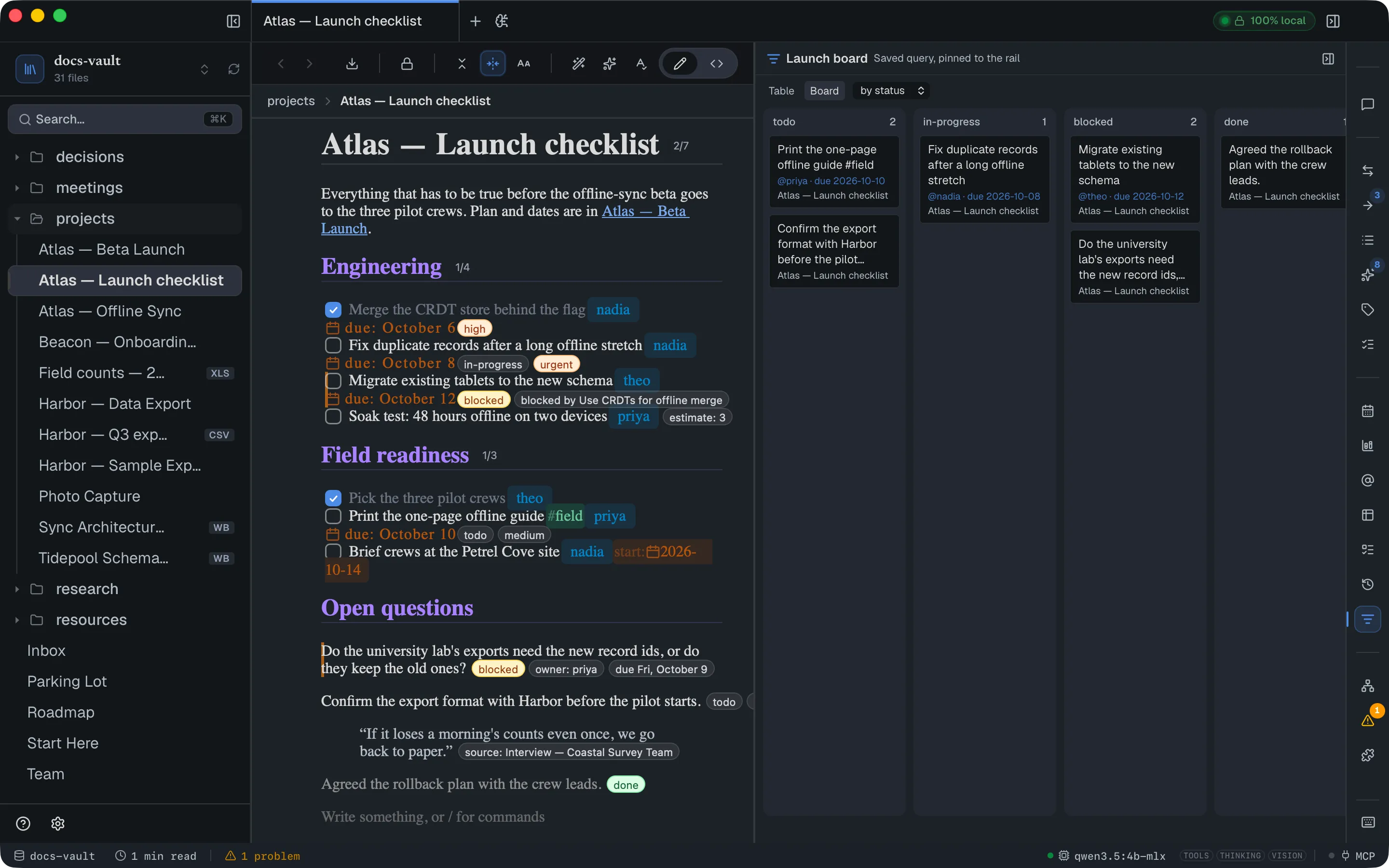
If the line has changed since the board was drawn, the drag is refused rather than landing on the wrong line; reopen the board and try again. The board remembers its layout per query. It shows up to 500 cards.
Linking lines to notes
Section titled “Linking lines to notes”blocked-by and depends-on point a line — or a todo — at another note. Their value is a note’s path from the vault root, like specs/API.html, optionally with # and an anchor in that note. The properties window suggests your notes as you type.
- The chip shows the note’s name — blocked by API, or needs API for
depends-on— and clicking it opens the properties window as usual. - The target note lists the line’s page in its backlinks, marked
blocked-by, and the graph shows it as a typed link. - Renaming or moving the target note updates the value.
Due dates on the calendar
Section titled “Due dates on the calendar”A due property on a line marks its day in the Calendar panel, the same way a todo’s due date does.
What travels, and what doesn’t
Section titled “What travels, and what doesn’t”Properties live in the line, so they go where it goes.
| What you do | What happens |
|---|---|
| Move or reorder the line | Properties come with it |
| Change it to a heading, list item, quote, code block or divider | Properties come with it |
| Press Enter in the middle | The first half keeps them; the new line is a new line |
| Backspace to merge it upwards | The surviving line keeps its own |
| Delete it | They go too — ⌘Z brings both back |
| Copy and paste it | The pasted line is a new line, with no properties |
| Move or rename the file | Properties come with it |
Type [] to make it a todo | Its properties move to the todo; due, start, assignee and assigned-by become text in the todo |
| Turn a todo back into a line | Its properties come with it, and its tokens stay as text |
| Press Enter inside a todo | The new todo starts with no properties and its own creation time |
| Indent, outdent or tick a todo | Its properties stay |
Limits worth knowing
Section titled “Limits worth knowing”- HTML pages only. See Markdown files below.
- Not on tables, charts, queries, whiteboards or embeds. Those blocks are rebuilt by the feature that owns them, and anything written on them would quietly disappear.
- A list is one block. Todos inside it carry their own properties; plain bullet points don’t.
- One value per name.
- AI can read and set them. It reads them through the
blockssource, and sets them with a tool that follows the same rules as the properties window — every change needs your confirmation, and Undo reverts it. - Beautify → full redesign rewrites the whole page, so properties — on lines and on todos — and any “Copy link to block” anchors are put back by matching each line’s text. A line the AI reworded can’t be matched, and the review bar tells you how many properties and link targets were lost, with Revert right there. Hand-written
classandstyleare still replaced; that’s what a redesign is for.
Markdown files
Section titled “Markdown files”Everything on this page applies to HTML pages only.
In a Markdown (.md) file:
- There’s no Properties… entry for a line, ⌘⇧P does nothing, and lines can’t carry properties.
- The Stamp new lines with the time switch isn’t offered, and lines record no creation time.
- Markdown lines don’t appear in the blocks query source.
The reason is the file format: an HTML page can keep a property on the line itself, out of sight, and plain Markdown has no equivalent place to put one.
What Markdown todos still have. A todo in a .md file keeps its own typed properties — @name, from:@name, due: and start: — because those are written as text in the task line. It can’t have a status, priority or any other property, and it has no properties window. They show up in the Todo panel and the tasks query source like any other todo. The Task Token Reference lists them.
Block properties are an HTML-page feature and aren’t supported in Markdown files. If you need properties on individual lines, keep that note as an HTML page. To move an existing Markdown note over, right-click it in the file tree and choose Convert to HTML page… (or run it from ⌘K): DocGraph writes an HTML page with the same content next to it, updates the links that point to it, and moves the Markdown file to the trash.